![brioHR-logo-color.svg]](https://support.briohr.com/hubfs/brioHR-logo-color.svg)
IMPORTANT:
To enable this integration, you will need to contact our support team via email or live chat so we can provide the necessary access. Please contact us via:
- Email: support@briohr.com
- Live chat: Available 9 am - 6 pm (Kuala Lumpur working days)
Note: If you are still in the implementation stage, please reach out to your implementation manager for support.
The integration flow with brioHR will consist of the steps below:
- bioHR will create the credentials for client. Consists of: User credentials and password
- Client can try to connect to upload the data using FileZilla or Terminal (SFTP Command).
Host and Port Details
| Host | time-attendance-sftp.briohr.com |
| Port | 2222 |
| User | will be provided by brioHR |
| Password | will be provided by brioHR |
Data Processing Strategy: Default (Full Action log) vs. first & last log
Before sending data, your brioHR account will be configured (by brioHR) with one of two processing strategies. Let us know which one fits your data source when you request SFTP access, so we can set it up correctly.
| Strategy | How it works | Best for |
|---|---|---|
| Default (Full Action log) | Each clock record must already be correctly labelled as clock_in or clock_out, in the correct chronological order. brioHR takes the records as-is. |
Source systems that can reliably output clean, pre-sorted, correctly-labelled clock data. |
| first & last log | You can send raw, unsorted clock records — timestamps don't need to be in order and don't need to be pre-validated. For each employee, for each calendar day, brioHR collects all clockings for that day, sorts them by timestamp, and treats the earliest timestamp as Clock-In and the latest as Clock-Out. | Source systems that send clock data out of sequence, late, or without guaranteed clean labelling — you no longer need to pre-clean data before sending it to brioHR. |
Notes on first & last log strategy:
- If only one clock exists for an employee on a given day, it is treated as Clock-In only, and the day is marked incomplete for Clock-Out (no Clock-Out is inferred).
- If new data for a day that was already processed arrives later (e.g., a late or backdated clocking), brioHR will recompute Clock-In/Clock-Out for that day using the combined old and new data, and update the attendance record accordingly.
File Format
Fields:
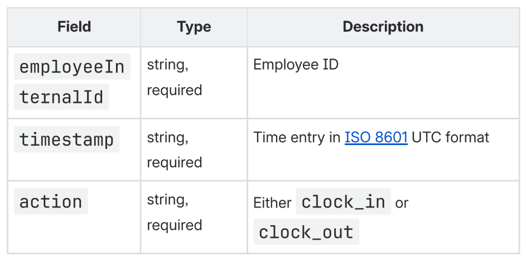
Specifications:
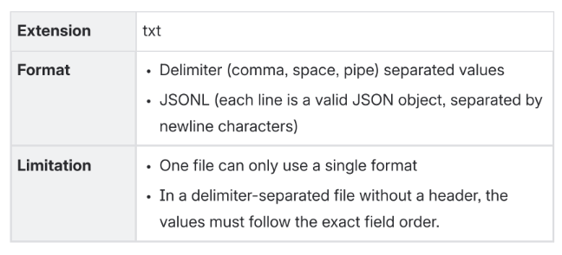
Example
1. Delimiter-Separated Values (Without Header)
Comma-separated values
"EMP 001", "2025-07-11T02:10:21Z", "clock_in"
"EMP 001", "2025-07-11T11:01:43Z", "clock_out"
Space-separated values
"EMP 001" "2025-07-11T02:10:21Z" "clock_in"
"EMP 001" "2025-07-11T11:01:43Z" "clock_out"
Pipe-separated values
"EMP 001" | "2025-07-11T02:10:21Z" | "clock_in"
"EMP 001" | "2025-07-11T11:01:43Z" | "clock_out"
Important:
When no header is present, the values must strictly follow the order: employeeInternalId, timestamp, action.
2. Delimiter-Separated Values (With Header)
If a header is present, the order of the values can be different from the required field order, as long as the header accurately defines the fields.
Example (Valid with Header): In this example, the order is internalId, action, timestamp, which is valid because the header is present.
"internalId", "action", "timestamp"
"EMP 001", "clock_in", "2025-07-11T02:10:21Z"
"EMP 001", "clock_out", "2025-07-11T11:01:43Z"
Example (Invalid without Header): This is invalid because there is no header, and the order of the values (employeeInternalId, action, timestamp) is incorrect.
3. JSONL Format
JSONL (JSON Lines) means each line in the file is a valid JSON object.
{"employeeInternalId":"EMP 001", "timestamp":"2025-07- 11T02:10:212", "action": "clock_in"}
{"employee InternalId":"EMP 001", "timestamp":"2025-07- 11T11:01:43Z", "action": "clock_out"}
IMPORTANT:
- Timestamp must be in ISO 8601 UTC format (with 'Z' suffix).
- Action field accepts only "clock_in" or "clock_out" values.
- If your integration is set to
first & last logstrategy, you can send multipleclock_in/clock_outrecords per employee per day in any order — brioHR will determine the actual first Clock-In and last Clock-Out for you. You are not required to pre-sort the file or guarantee that each record'sactionlabel is accurate relative to its position in the day.
Upload
You can upload your file using either FileZilla or a Terminal SFTP command.
FileZilla
- Download FileZilla.
- Enter your credentials and click Quickconnect.
- Right-click the file you wish to upload and select Upload.
Note on Server Limitation: Due to a limitation of the SFTP server, the server may still appear empty even after a successful file upload.
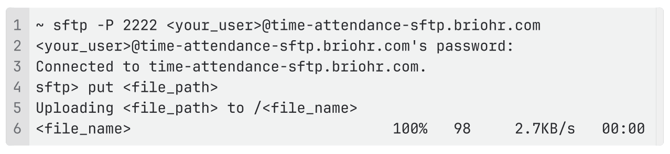
Terminal (SFTP Command)
- Login using your credentials:
sftp -P 2222 <your_user>@time-attendance-sftp.briohr.com - Enter your password when prompted:
<your_user>@time-attendance-sftp.briohr.com's password: - Once connected, use the
putcommand to upload your file:sftp> put <file_path>
LIMITATION:
brioHR is only able to process up to 45 days of backdated clock-in/out data. Any data sent for attendance records more than 45 days old will not be processed.
Frequently Asked Questions (FAQs)
Q1: What's the difference between "Default" and "first_last" strategy?
A: With Default, your file must already contain correctly-labelled and correctly-ordered clock_in/clock_out records — brioHR uses them as-is. With first_last, you can send raw, unsorted clock data; brioHR sorts all clock for each employee per day and automatically treats the earliest as Clock-In and the latest as Clock-Out.
Q2: Which strategy should I use?
A: If your source system can reliably output clean, pre-sorted, correctly-labelled data, Default (Full Action Log) works well. If your source system sends data out of order, late, or without guaranteed accurate labelling, ask us to set your integration to first & last log, so you don't need to pre-clean your data before sending it.
Q3: What happens if I only send one clocking record for an employee on a given day?
A: Under first_last strategy, that single clocking is treated as Clock-In only, and the day is marked incomplete for Clock-Out.
Q4: What if I send late or backdated data for a day that was already processed?
A: Under first_last strategy, brioHR will recompute that day's Clock-In/Clock-Out using the combined old and new data, and update the attendance record. Note that this may change a previously calculated timesheet value (including OT and shift premiums/deductions) if late data shifts the actual first/last clock.
Need Assistance?
If you have any questions regarding the API above or require assistance, please reach out to our support team via live chat or email us at support@briohr.com.