![brioHR-logo-color.svg]](https://support.briohr.com/hubfs/brioHR-logo-color.svg)
Audience & Scope
Audience: HR Admin
Module: Payroll
Country: Malaysia
Pre-requisite: Payroll module access, Payroll module settings access
Introduction
We’ve introduced an enhancement to improve flexibility and accuracy in payroll calculations. The Income Basis configuration has now been split into two separate settings, allowing organisations to manage Overtime and Unpaid Leave calculations independently.
Previously, a single Income Basis configuration was used for both calculations. With this update, you now have greater control over which income components are applied to each calculation type.
What’s New in This Update?
The Income Basis setting is now divided into:
-
Income Basis for Overtime Calculation
-
Income Basis for Unpaid Leave Calculation
Each configuration can be managed separately, making it easier to align payroll calculations with your company’s policies.
Default System Behaviour
To ensure a smooth transition:
-
The system will automatically apply your existing Income Basis settings to both Overtime and Unpaid Leave configurations.
-
This means there is no immediate change to how payroll is calculated unless you choose to make updates.
Income Basis for Overtime Calculation
-
Overtime will be calculated based on the Basic Salary and any additional income items selected in this configuration.
-
This allows you to control which earnings components are included when computing overtime pay.
Income Basis for Unpaid Leave Calculation
-
Unpaid Leave deductions will be calculated based on the Basic Salary and the income items selected under this configuration.
-
This ensures unpaid leave deductions are aligned with your organisation’s payroll policies.
Making Changes to the Configuration
If different income components are required for Overtime and Unpaid Leave calculations:
-
The selections must be manually updated in each respective configuration.
-
Any changes made will apply to future/ongoing payroll cycles.
Step-by-Step Instructions to Configure this Setting
-
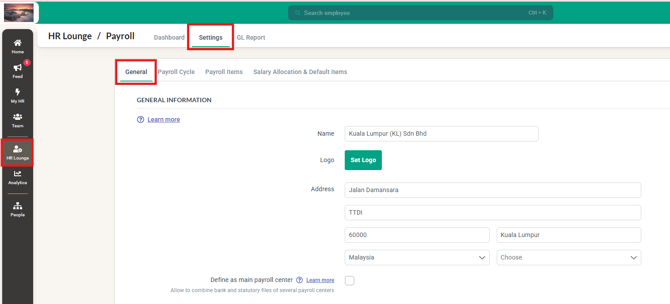
Click into HR Lounge and into the Payroll module
-
Then click into Settings and into the General tab
-
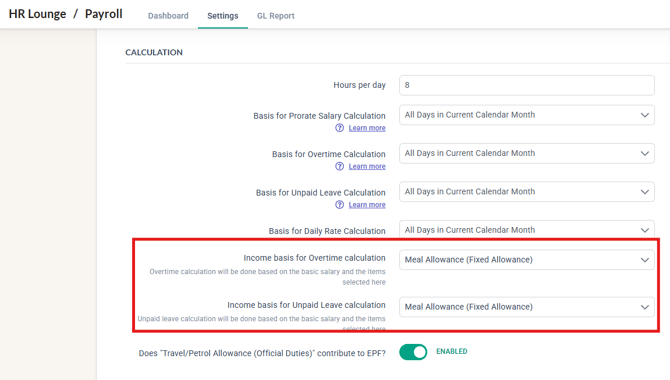
Scroll down to the Calculation and you will be able to see the existing payitems chosen as the default for both settings.
-
You can then select individual payitems for each of this setting and once completed, Save the changes made
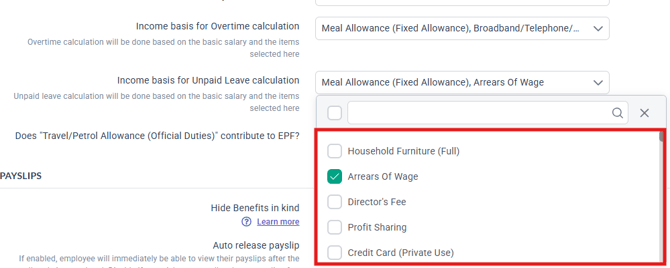
- The payitems chosen will then be added to the basic salary for calculation when the payroll is being processed.
Common Issues/FAQ
Q: What has changed in the Income Basis configuration?
A: The Income Basis configuration has been split into two separate settings: one for Overtime calculation and another for Unpaid Leave calculation. Previously, both calculations shared a single configuration.
Q: Will this change affect my existing payroll calculations?
A: No. By default, the system carries forward your existing Income Basis settings and applies them to both Overtime and Unpaid Leave. There will be no impact unless you manually update the configurations.
Q: Do I need to update both configurations manually?
A: Only if you want different income components to be used for Overtime and Unpaid Leave calculations. Otherwise, no action is required.
Q: Can I select different income items for Overtime and Unpaid Leave?
A: Yes. Each configuration can be managed independently, allowing you to select different income components for Overtime and Unpaid Leave calculations.
Q: When do configuration changes take effect?
A: Any changes made to the Income Basis configurations will apply to ongoing/future payroll calculations after the updates are saved. If there is a payroll cycle ongoing, you may refresh the payroll to have the changes reflected for the ongoing cycle.
Related Articles
1. How Overtime & Leave Pay is Calculated: 9 Decimal Place Precision Explained
2. How to Bulk Import Pay Items in Payroll
3. How to Add Pay Items for an Individual (Additions, Deductions & Tax Reliefs)
Ownership
By: Arveena