![brioHR-logo-color.svg]](https://support.briohr.com/hubfs/brioHR-logo-color.svg)
Audience & Scope
Audience: HR Admin, Manager, Employee
Module: Employee Profile
Country: Global
Pre-requisites: Access to Job tab in Employee profile with permission to view/modify details
Job History provides a complete timeline of an employee's career journey within the company. It records meaningful changes to their job details over time, such as changes to their job title, department, manager, employment type, and more.
With the refreshed Job History, you can easily review an employee's past and current job information, identify what changed between records, and maintain a more accurate history of the employee's career within the company.
Job History Permissions
Access to Job History is managed through the assigned permissions which can be configured within Settings > User Groups.
Depending on the permission level:
- Employees can view their own Job History but cannot make changes by default.
- Managers can view the Job History of employees within their team but cannot make changes by default.
- Admins with the relevant modification permissions can add, edit, and delete Job History records.
What Information Is Recorded in Job History?
Each Job History record captures a snapshot of the employee's job details at a specific point in time.
The following details are recorded:
- Job Title
- Department
- Office
- Manager
- Employment Type
- Job Grade
- Cost Center
Each record also includes an Effective Date, which indicates when the job details or change took effect. You can also add an optional comment when creating or updating a record.
Viewing an Employee's Job History
To access an employee's Job History: click into an Click into employee profile > Job
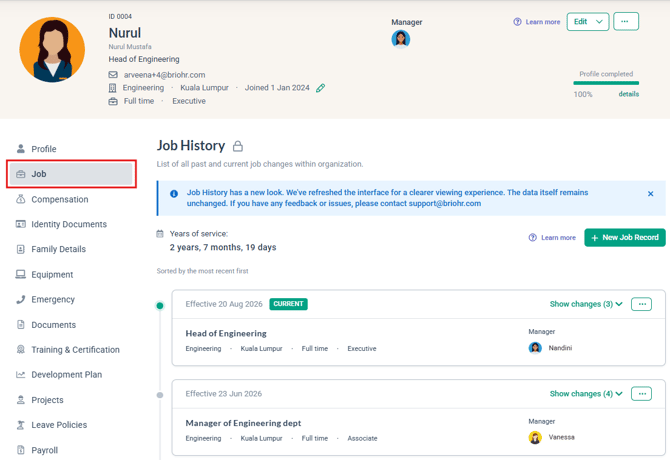
Job History records are displayed from newest to oldest. Each record displays the employee's job details for that period.
The following indicators may appear in Job History:
- HIRED — Identifies the employee's first Job History record, created based on their Joined Date.
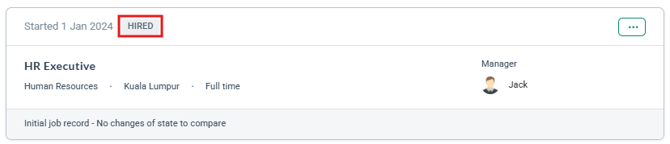
- CURRENT — Identifies the employee's most recent job record.

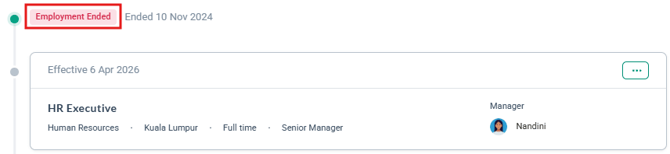
- EMPLOYMENT ENDED — Appears when the employee's End Date has passed. When this indicator appears, the CURRENT label is no longer displayed.
- Bulk import — Identifies records created through a bulk upload.
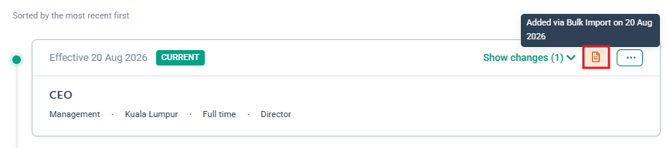
For records other than the first record, click Show changes to see what has changed compared with the previous record.
How Job History Records Are Created
1. When a New Employee Is Added
The first Job History record is automatically created when a new employee is added. The record uses the employee's Joined Date as its effective date and is marked with the HIRED indicator. This record is permanent and cannot be deleted.
2. Updating Current Job Details
When an employee's current job details change, such as when they receive a promotion or move to another department, a new Job History record can be created by updating their current job information.
You can access Edit Current Job Details from:
- Employee Profile → Edit → Job details

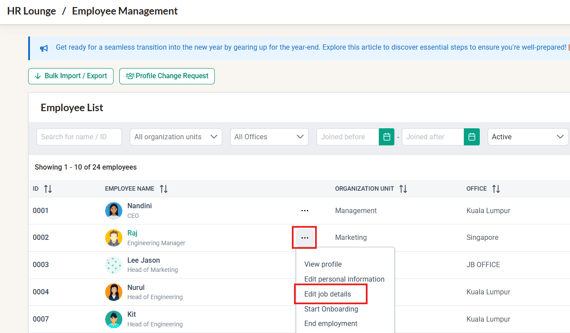
- HR Lounge → Employee List → ... → Edit job details
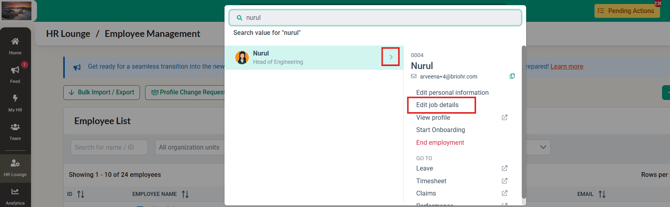
- Global Search → Select the employee → Edit job details
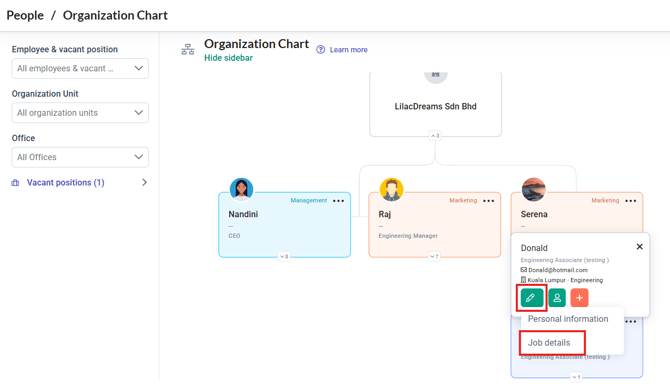
- Org Chart → Select the employee card → ... → Edit job details
When you update and save the employee's current job details, the new Job History record is automatically created using today's date as the effective date.
Changing the Effective Date
Example: An employee was promoted on 1 August, but the HR admin only updated their job details on 19 August. The system initially creates the new record with 19 August as the effective date.
The HR admin can edit the record and change the effective date to 1 August following the steps below:
- Update the employee's current job details and save the changes.
- Go to the employee's Job History page.
- Edit the newly created record.

- Update the Effective Date to the correct date and Save.
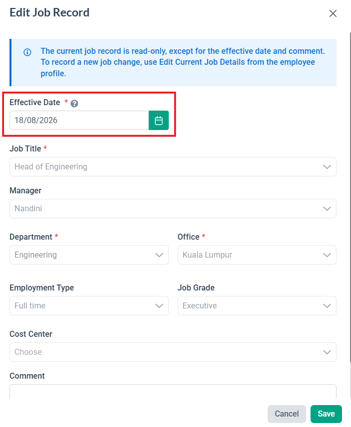
This ensures that the employee's current job details remain updated while the Job History timeline reflects when the change actually took effect.
NOTE:
Updating current job details always creates the new record using today's date. You cannot select the effective date while making the current job update.
3. Adding a Past Job Record
If a job change happened in the past and was not recorded at the time, you can manually add it to the employee's Job History.
- Go to the employee's Job History page.
- Click + New Job Record.
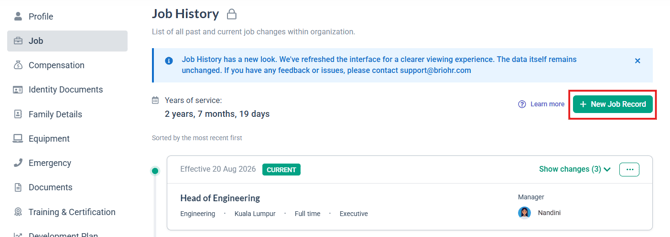
- Enter the relevant job details.
- Select the appropriate Effective Date.
- Add a comment if required.
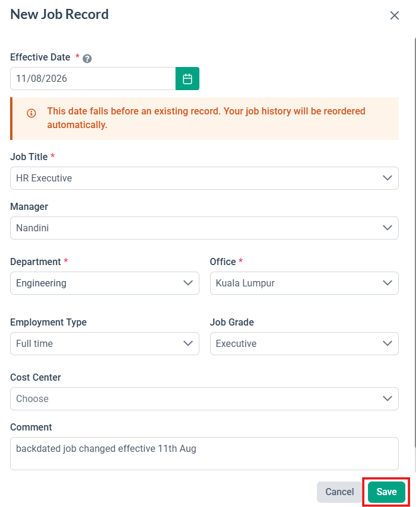
- Save the record.
The record will be inserted into the Job History timeline based on its effective date.
Effective Date Rules
When managing Job History, the following effective date rules apply:
- Every Job History record must have an effective date.
- The effective date must be after the employee's Joined Date.
- A past Job History record must be dated before the current record.
- Future-dated changes are not supported.
- The employee's Joined Date is reserved for the first Job History record and cannot be used for another record.
TIP: If Two Records Have the Same Effective Date
A red alert appears when two Job History records share the same effective date.
To resolve this:
- Open one of the affected records.
- Update its effective date so that each record has a unique date.
- Save the changes.
The alert will automatically disappear once the issue is resolved.
While duplicate dates remain, reports and other features that rely on Job History may display an error for the affected employee.
4. Editing a Job History Record
You can edit an existing Job History record from the '...' ellipsis menu. Editing a record updates the existing record and does not create a new Job History entry.
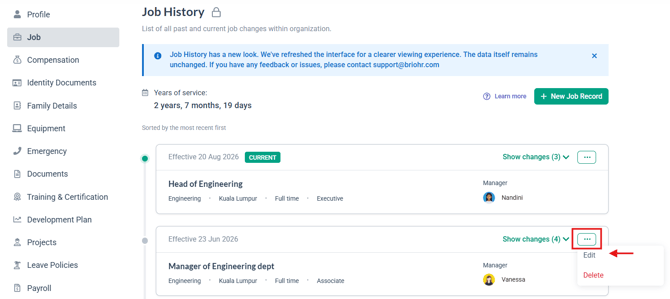
The available editing options depend on the type of record:
First Record — HIRED
The details in the first record can be edited, but its effective date is tied to the employee's Joined Date. To change the date of the first record, update the employee's Joined Date from their profile.
Middle Records
For records between the first and most recent record, all job details and the effective date can be edited.
Most Recent Record — CURRENT
For the most recent record, the job details are locked. Only the effective date can be changed.
To update the employee's current job details, use Edit Current Job Details instead.
NOTE:
Some fields, such as Cost Center, Employment Type, and Job Grade, may require additional permissions. If you have access to edit Job History but a specific field is unavailable, check your assigned permissions.
5. Deleting a Job History Record
You can delete eligible Job History records from the '...' ellipsis menu. A confirmation is required before the record is permanently deleted.
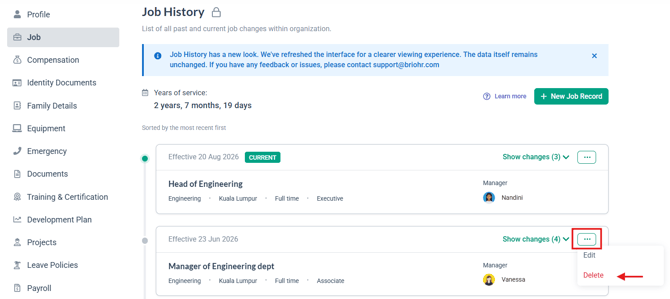
The following records cannot be deleted:
- The first HIRED record
- The most recent CURRENT record
Only records between the first and most recent records can be deleted.
IMPORTANT:
Joined Date
If the employee's Joined Date is updated, the effective date of the first Job History record will also follow the new Joined Date.
This can be useful in situations such as managing employee rehires.
End Employment Date
When setting an employee's End Date, the system checks the existing Job History records.
If the selected End Date falls before an existing Job History record, the system will prevent the update and identify the records that need to be addressed first. You will need to adjust the End Date or remove the relevant Job History records to maintain a valid timeline.
Common Troubleshooting Scenarios
1. Resolving Job History Alerts
You may see an alert banner at the top of an employee's Job History page when there is an issue that requires attention. These alerts cannot be dismissed and will automatically disappear once the issue has been resolved.
2. Latest Job History Record Does Not Match the Employee Profile
An alert appears when the employee's current profile details do not match the details in the most recent Job History record.
To resolve this:
- Click Edit Profile.
- Click Save without making any changes.
A new Job History record will be created using today's date and will reflect the employee's current profile details.
Watch this quick guide to resolve these alerts mentioned above:
Frequently Asked Questions
Q: Can I schedule a future job change?
A: No. Future-dated changes are not currently supported. Record the change when it takes effect.
Q: Why does my new Job History record show today's date?
A: When you update an employee's current job details, the system automatically uses today's date. You can update the effective date afterwards from the Job History page if the change took effect earlier.
Q: Why can't I edit the job details on the CURRENT record?
A: The most recent record represents the employee's current job details and is locked to ensure the Job History remains aligned with the employee profile. To make changes, use Edit Current Job Details.
Q: Why can't I delete a Job History record?
A: The first HIRED record and the most recent CURRENT record cannot be deleted. Only records between them can be removed.
Q: Why is a field unavailable for editing?
A: Some fields, including Cost Center, Employment Type, and Job Grade, require separate permissions. Contact your account administrator if you need access to edit these fields.
Ownership
By: Arveena