![brioHR-logo-color.svg]](https://support.briohr.com/hubfs/brioHR-logo-color.svg)
Introduction
BrioHR supports the integration of Time and Attendance with the third-party device, Timetec Model TC10.
Once the device integration feature has been enabled by the BrioHR team in your company’s account, you can proceed to configure and link your device directly within the Time Attendance Policy in BrioHR.
Step-by-Step Guide: Access the Time Attendance Policy
Step 1 - Log In to BrioHR Account
Log in to BrioHR account with your registered credentials.
Step 2 - Access the Time Attendance Policy
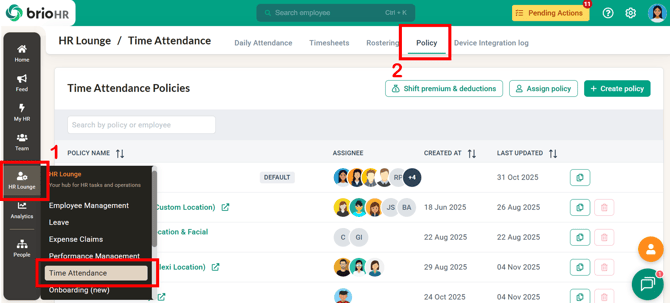
1. Go to HR Lounge > Time Attendance.
2. Navigate to Policy.
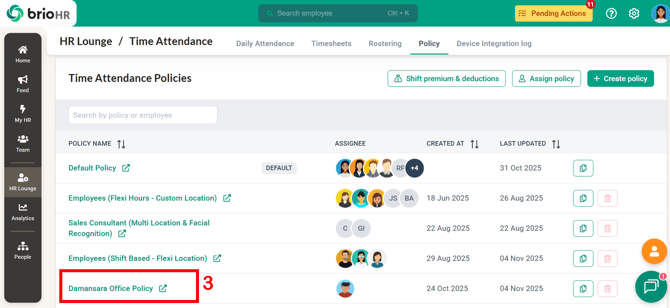
3. Open any policy that you would like to set up the device integration.
Step-by-Step Guide: Set Up Device Integration
Step 1 - Enable Integration in Time Attendance Policy
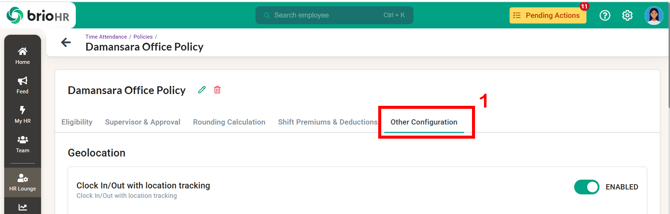
1. On the policy page, go to Other Configuration.
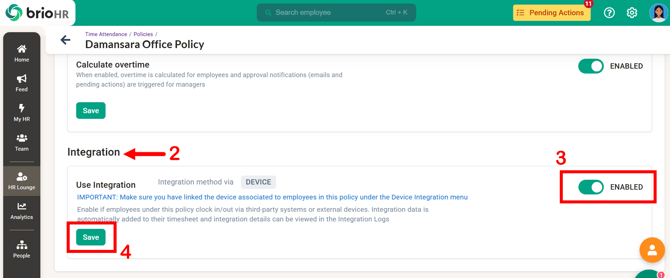
2. Scroll down to Integration.
3. Toggle ON the 'Use Integration' to enable it.
4. Click Save.
5. A confirmation message will appear - click Proceed to confirm.
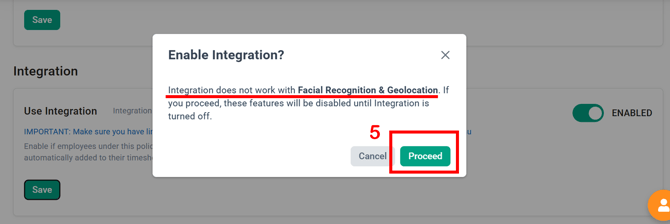
CAUTION:
- When device integration is enabled, the Facial Recognition and Geolocation features in the policy will be automatically disabled.
NOTE:
For Device Integration using the TimeTec TC10 device, there are two available configuration options that organizations may choose from based on their operational preferences:
Solution 1: Default Mode
Employees are required to select an action type on the device before performing their attendance transaction.
How it works:
Employees must first select either Clock In or Clock Out on the device interface before verifying their attendance using fingerprint or facial recognition.
Example:
An employee selects Clock In then provides their fingerprint or facial recognition scan before starting work and selects Clock Out then provides the same verification at the end of the workday.
Solution 2: First_Last Mode
Employees can perform attendance verifications directly without selecting an action type on the device.
How it works:
Employees simply verify their attendance using fingerprint or facial recognition, and the system will automatically determine and record the first transaction as Clock In and the last transaction as Clock Out.
Example:
An employee taps the device upon arrival and again before leaving, while the system automatically captures the corresponding Clock In and Clock Out records.
Optional Add-on for Solution 2: Track Break Time
For clients on Solution 2 (First & Last Log), BrioHR can additionally enable break-time tracking. When active, the system also identifies each employee's break-out and break-in clocking within their configured break period — no extra action needed from employees at the device.
Requirements and limitations:
-
- Only available for employees on Shift mode with a break period configured in their schedule. Employees on Flexi mode, or Shift mode without a break period, will continue to have only first-in/last-out captured.
- Requires Hybrid Attendance to be switched off for the company. This is a temporary restriction — while break tracking is enabled, Hybrid Attendance cannot also be turned on for that company.
- If an employee has an odd number of clockings within their break window on a given day, the extra clocking is flagged "Incomplete" rather than guessed — this will need HR Admin review on the timesheet.
How to enable it: Let your brioHR team know you'd like break tracking in addition to your Solution 2 setup when confirming your integration preference (see next section).
Caution: if break tracking is enabled, Hybrid Attendance is disabled/blocked for the company.
Please ensure that the preferred solution is shared with our BrioHR team when the Integration is performed.
Step 2 - Link the Device Serial Number in the Device Integration Log
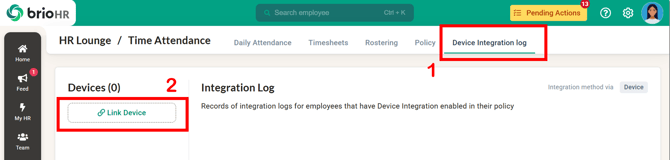
1. Navigate to Device Integration Log.
2. Click Link Device.
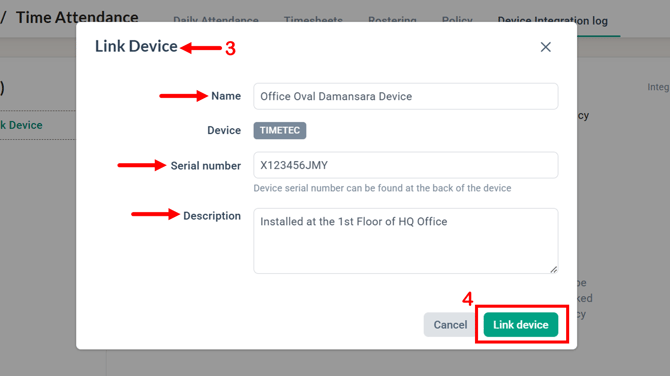
3. Fill in the required details:
- Name: Assign a name for your device.
- Device: Timetec (default)
- Serial Number: Enter the device serial number(found at the back of the device, or on the box)
- Description (Optional): Add details such as the device's location.
4. Click Link Device to save.
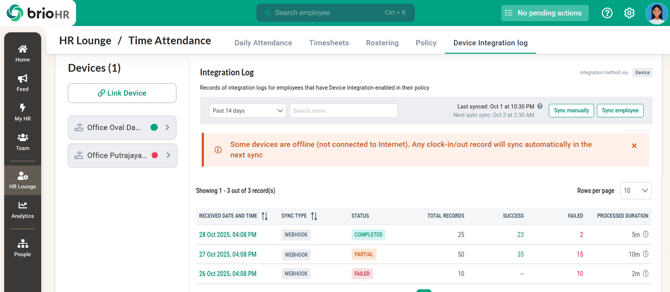
If the serial number is valid and already registered in the Timetec Cloud, the device will be successfully linked in the Device Integration Log.
NOTE:
If you have subsidiary companies that use the same devices, all devices set up/added for the main company will also be available for subsidiary companies.
However, please ensure that the employee ID remains unique for the main and the subsidiary. Two different employees cannot share the same ID (E.g., if both the main and subsidiary use a sequential running number as the employee ID).
Employee IDs must also contain letters and numbers only.
NOTE:
- If you have multiple Timetec devices, you must link each one individually.
- Each TC10 device supports a maximum of 800 registered IDs, so companies with more than 800 employees may need more than one device.
Step-by-Step Guide: Synchronize Employee Information
Once your Timetec device is linked, BrioHR will automatically synchronize employee information with the connected devices.
The following employee details will be synchronized automatically:
- Employee ID Number
- Employee First Name
- Employee Last Name
NOTE:
The system will synchronize both active and resigned employees. However, resigned employees will not appear in the BrioHR Time and Attendance timesheet.
IMPORTANT:
Timetec only supports alphanumeric Employee IDs. Employees whose IDs contain special characters (e.g. ID-001) cannot be synced to the device. Remove these characters from the Employee IDs in BrioHR (e.g. ID001) before using the integration.
For detailed instructions on enrolling and recording employees' biometric validation (fingerprint or facial recognition), please refer to our comprehensive guide:
BrioHR Timetec Device Integration - First Time User Guide
Frequently Asked Questions (FAQs)
1. Which Timetec device models are supported by BrioHR?
Currently, BrioHR supports the Timetec TC10 model for device integration.
2. Can I enable both device integration and facial recognition (BrioHR mobile app) at the same time?
No. Once device integration is enabled, facial recognition and geolocation options (for mobile app time attendance) will be disabled as they are not compatible.
3. What should I do if my device serial number cannot be linked?
Ensure that the serial number of the TC10 Model is correctly entered. If the issue persists, contact BrioHR Support.
4. Can I link multiple devices to the same BrioHR account?
Yes, you can link multiple TC10 devices. Each device must be added individually in the Device Integration Log.
5. Can I track employees' break time with Timetec device integration?
Yes, for clients on Solution 2 (First & Last Log), and only if employees are on shift schedules with a break period defined in their shifts.
6. Can I use Hybrid Attendance together with break tracking?
Not currently.
7. Why isn't an employee showing up on my device?
Check that their Employee ID contains only letters and numbers. IDs with special characters such as hyphens or spaces cannot be synced to Timetec. Update the ID in BrioHR, and the employee will sync to the device.
8. How many employees can one TC10 device hold?
Each TC10 device supports up to 800 registered IDs. If you have more than 800 employees, you may need additional devices.
Need Assistance?
If you have any questions or require assistance, please reach out to our support team via live chat or email us at support@briohr.com.