![brioHR-logo-color.svg]](https://support.briohr.com/hubfs/brioHR-logo-color.svg)
Audience & Scope
Audience: HR Admin
Module: Mobile App Login settings
Country: Global
Pre-requisites: Biometric authentication enabled in system settings
Logging into brioHR on your mobile device is now faster and more convenient. With the latest update, users can enable biometric authentication to securely sign in using their device's Face ID, facial recognition, or fingerprint authentication, depending on the capabilities of their device.
This feature is available on the brioHR mobile app for iOS, Android, and Huawei devices, allowing employees to access their accounts quickly without repeatedly entering their login credentials.
NOTE:
This update is already visible for iOS and Android users, as for Huawei users, it may require a little more time for the app to be updated. Be sure to check that the mobile app has been updated to version 2.7.0.
What is Biometric Authentication?
Biometric authentication uses your device's built-in security features, such as facial recognition or fingerprint scanning, to verify your identity before granting access to the brioHR mobile app.
Since authentication is handled by your device's native operating system, brioHR does not store or process your biometric data.
Steps to Enable Biometric Login
1. After successfully signing in to the brioHR mobile app using your email/password or Single Sign-On (SSO), you'll be prompted to enable biometric authentication.
2. Simply select Enable Biometric and complete the verification using your device's native biometric prompt.
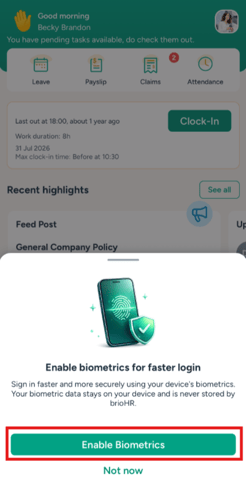
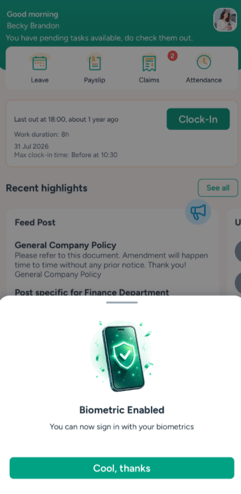
TIP: If you choose Not Now, biometric login will be skipped for your current session. You can enable it later at any time.
3. You can also manage this setting by navigating to: Account > Biometric login. Toggle this Off, if you would like to disable this function.
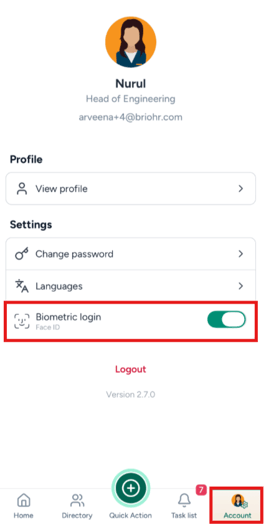
NOTE:
Please ensure the mobile app version is updated to Version 2.7.0.
If your device does not have biometric authentication enabled in its system settings, the enrollment prompt will not be displayed.
When Will Biometric Login Be Used?
Once enabled, biometric authentication can be used in the following situations:
- After manually logging out of the app.
- After your login session expires (30-day session expiry).
On the login screen, simply tap the biometric icon and complete the authentication using your device's fingerprint or facial recognition.
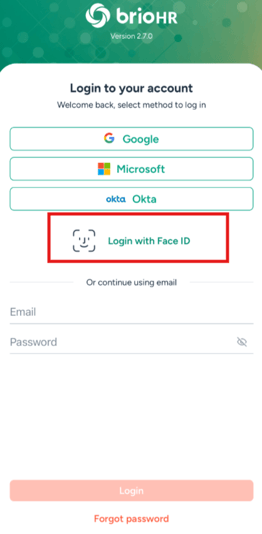
If biometric authentication is unavailable, fails, or your stored login session is no longer valid, brioHR will automatically return you to the standard login screen where you can sign in using your password or SSO.
IMPORTANT:
Biometric authentication is not required when:
- Returning to the app after switching to another application (app resumes from the background).
- Reopening the app after it was previously closed.
This allows users to continue where they left off without unnecessary authentication prompts.
How Biometric Login Works with Multi-Factor Authentication (MFA)
If your organization has enabled Multi-Factor Authentication (MFA), biometric login works seamlessly while maintaining the required security checks.
1. First Login
When signing in for the first time:
- Log in using your password or SSO.
- Enter your 6-digit OTP verification code.
- After successful verification, you'll be prompted to Enable Biometric.
2. Future Logins After Logout or Session Expiry
If biometric authentication has already been enabled:
- Remember this device for 30 days is enabled
- Authenticate using your biometric.
- You'll be logged in immediately without needing another OTP verification.
- Remember this device for 30 days is not enabled
- Authenticate using your biometric.
- You'll then be prompted to enter your 6-digit OTP before accessing brioHR.
This ensures your account remains protected while making future logins significantly faster.
Watch this video guide for a quick overview!
Ownership
By : Arveena