![brioHR-logo-color.svg]](https://support.briohr.com/hubfs/brioHR-logo-color.svg)
Audience & Scope
Audience: HR Admin, Payroll Manager
Module: Payroll
Country: Singapore
Prerequisites: Access to Employee Payroll details and Payroll Module in HR Lounge
Managing Self-Help Group (SHG) contributions is now more flexible for Singapore payroll centers. HR Admins can now configure each employee's SHG contribution individually and, where required, override the system-calculated contribution with a custom flat amount.
This enhancement is useful for organisations that need to accommodate special contribution arrangements while ensuring payroll calculations reflect the configured values.
Quick Recap : What are Self-Help Groups (SHGs)?
In Singapore, employees may contribute to one or more Self-Help Groups (SHGs) based on their racial or religious background. The supported SHG types are:
- CDAC (Chinese Development Assistance Council)
- MBMF (Mosque Building and Mendaki Fund)
- SINDA (Singapore Indian Development Association)
- ECF (Eurasian Community Fund)
With this enhancement, each SHG can now be configured independently for every employee.
What's New?
The Statutory Contributions section within the Employee Profile now allows HR users to:
- Configure each SHG type individually for each employee.
- Enable multiple SHG types for a single employee where applicable.
- Choose whether to use the system-calculated contribution or a custom flat contribution amount for each enabled SHG.
How to Configure SHG Contributions for Individual Employees
- Navigate to Employee Profile
- Scroll down to the Payroll tab, then click into the Statutory Contributions section
- Click on the Edit button
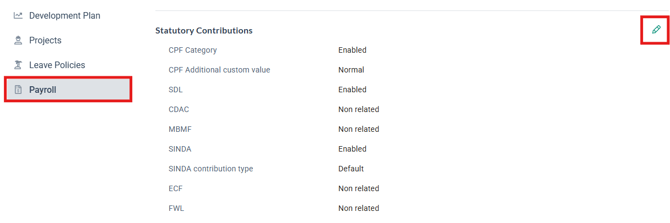
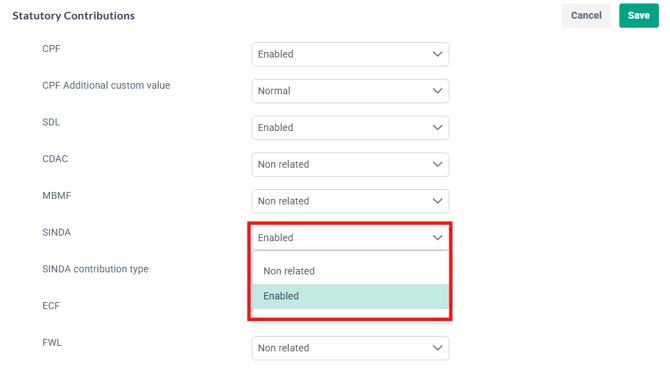
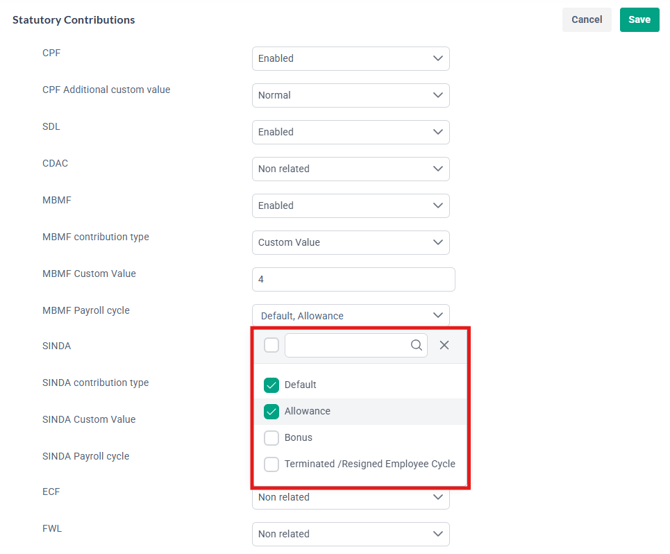
- Select the relevant SHG type then click on the dropdown for the following options:
- Not related (Default) – No SHG contribution will be calculated.
- Enabled – The employee is affiliated with the selected SHG.
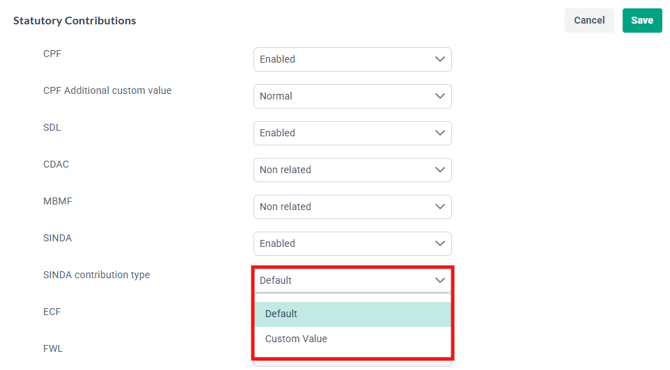
- If Enabled is selected, choose the contribution type:
- Default (Default) – Uses the standard system-calculated contribution.
- Custom value – Allows you to specify a flat contribution amount.
- If Custom value is selected, enter the required contribution amount
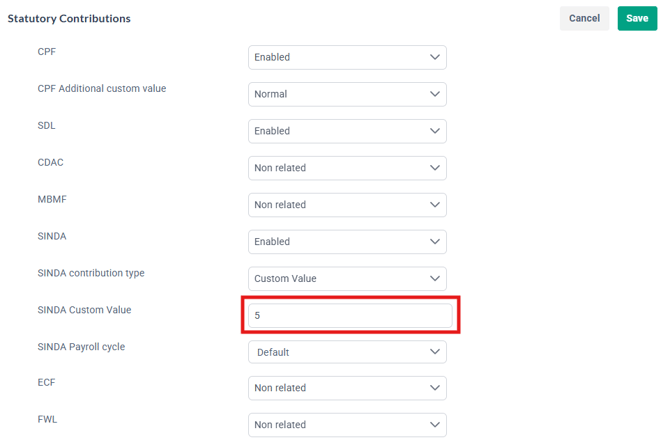
- Select the payroll cycle to have this contribution captured in
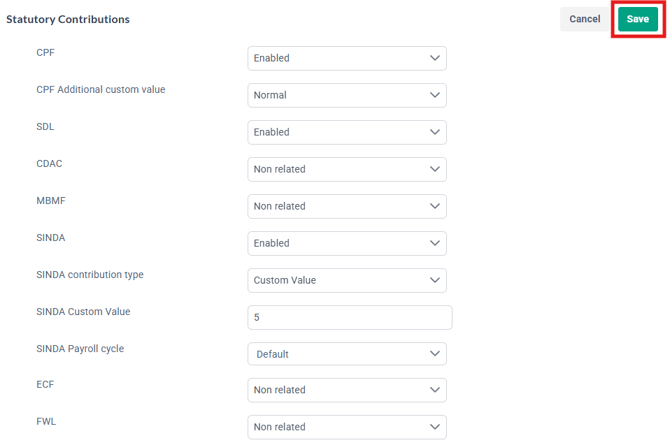
- Click Save to apply the changes
NOTE:
When Custom value is selected:
- Enter a flat contribution amount for the selected SHG.
- The amount must:
- Be 0.01 or greater.
- Support up to 2 decimal places.
- The entered value will completely replace the system-calculated SHG contribution during payroll processing.
Steps to configure SHG Custom Values in Bulk for employees
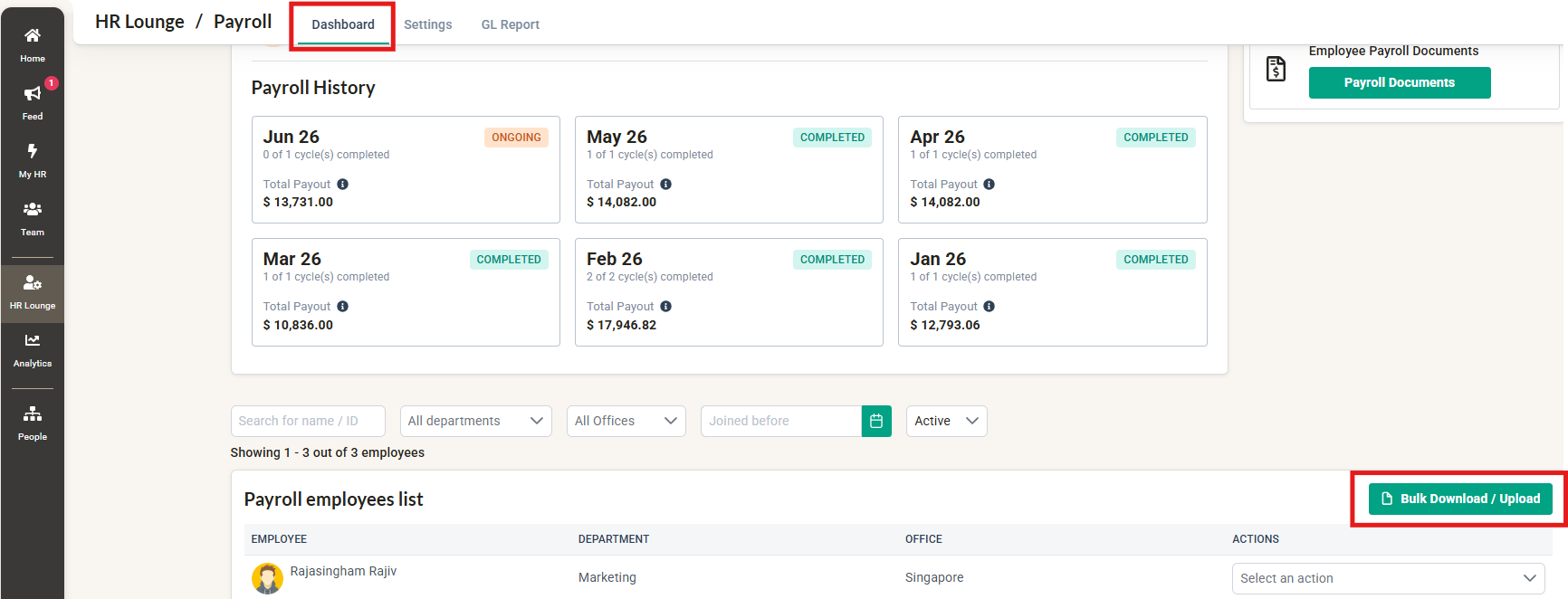
- Go to HR Lounge > Payroll.
- From the Dashboard, scroll down to the Payroll Employee List section.
- Click Bulk Download/Upload.
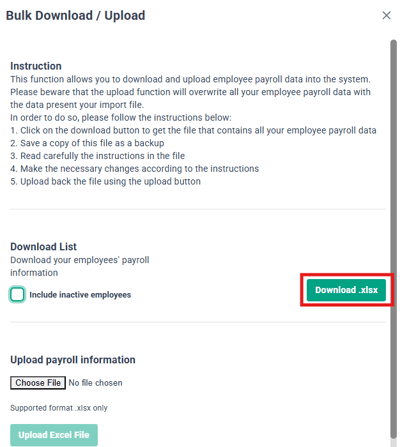
- Download the payroll employee template.
- Update the SHG Contribution Type and Custom SHG Value (if applicable) for the required employees.

- Save the completed template.
- Upload the updated template back into the system.
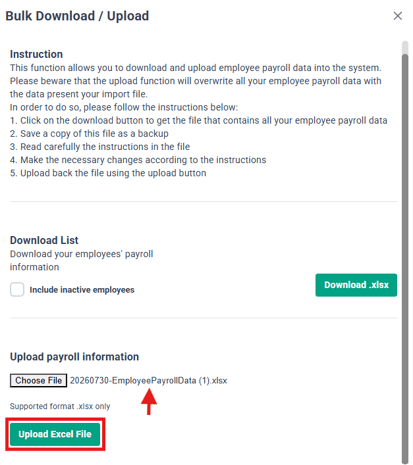
- Once the upload is successful, the employees' SHG settings will be updated and automatically applied in payroll calculations.
How This Affects Payroll
During payroll processing, the system will calculate SHG contributions based on each employee's configuration applied:
- Default uses the standard SHG calculation rules.
- Custom value overrides the calculated amount and deducts the specified flat contribution instead.
- Example:
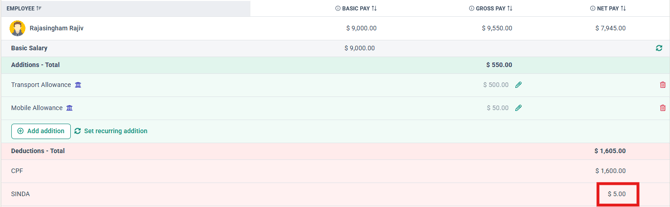
This gives HR administrators greater control when managing exceptional contribution scenarios while maintaining accurate payroll calculations.
Ownership
By : Arveena