![brioHR-logo-color.svg]](https://support.briohr.com/hubfs/brioHR-logo-color.svg)
Audience & Scope
Audience: Manager
Module: Time Attendance
Country: Global
Pre-requisites: Team dashboard access for Time Attendance module enabled
Step-by-Step Instructions for Managers to Manage Requests for Pre-Approved Overtime
-
Check within the email inbox for the email notification on the Overtime Pre-Approval submission by the employee
-
Click on Go to BrioHR
-
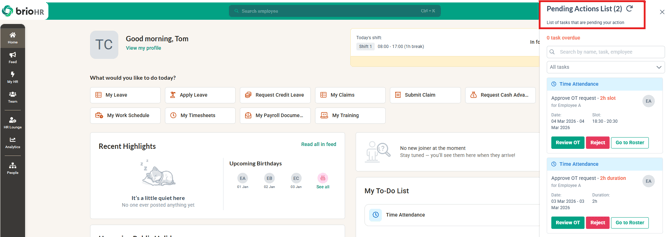
Once logged in, click into the Pending Actions list
-
Search for the Approve OT Request task for the employee
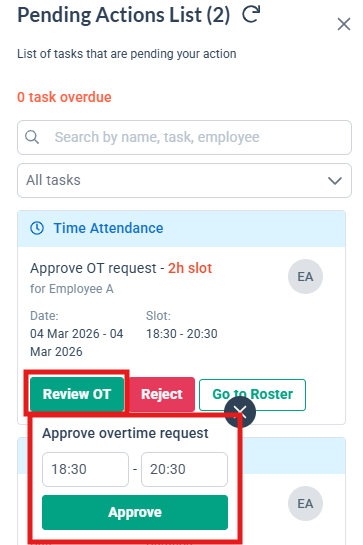
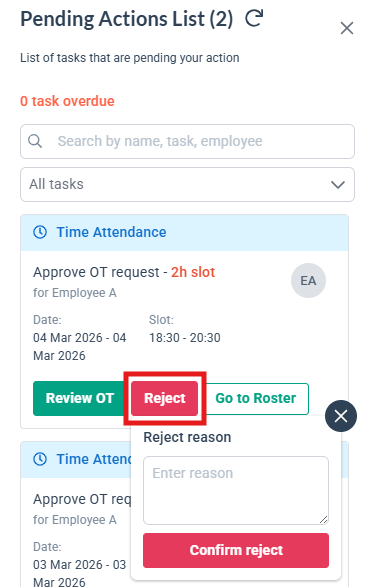
- Choose to Review OT, Reject or check the Roster directly
- If you choose to Review OT, you will be able to review the Overtime hours before approving the submission.
- If you choose to Reject, you will need to provide a reason for rejecting the request.
- If you choose to Go to Roster, you will be brought to the roster of the employee to check the schedule assigned to the employee.
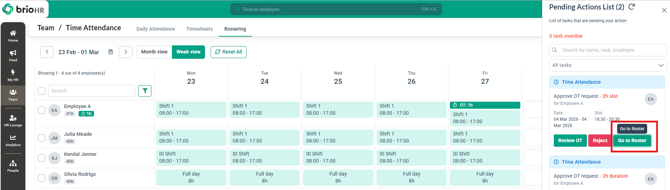
- If the request is approved, it will be seen in the Roster
Related Articles
1. Enable Employee Pre-Approve Overtime Setting as HR Admin
2. Requesting Pre-Approved Overtime as an Employee
Ownership
By: Arveena