![brioHR-logo-color.svg]](https://support.briohr.com/hubfs/brioHR-logo-color.svg)
Introduction
With BrioHR, managers can perform manual attendance entry to edit clock-in (First In), clock-out (Last Out), and break durations. This includes support for overnight (cross-day) shifts, where a Clock-Out falls on the calendar day after Clock-In. This ensures that employee timesheets remain accurate for payroll and compliance purposes.
What Is Manual Daily Attendance Entry?
Manual daily attendance entry allows managers to add or modify attendance data for their direct reports. You can update:
- Clock-in (First In)
- Clock-out (Last Out)
- Break durations
NOTE:
The account Admin must enable the "Team's Time Attendance" permission for Managers in the user group under "Manager Modules Permission." For details, refer to to User Group Permissions in BrioHR.
Why Managers Need Manual Entry Access
Granting managers access to manual daily attendance entry helps to:
- Ensure accurate work duration records for employees, including those on overnight/cross-day shifts.
- Prevent payroll errors by maintaining correct attendance timesheets (for overtime, shift premiums, shift deductions and for employee for hourly salary rate).
- Support compliance with company policies.
Step-by-Step Guide: Manual Attendance Entry in BrioHR
Step 1 - Login
Login to your BrioHR account using a web browser.
Step 2 - Navigate to Time Attendance
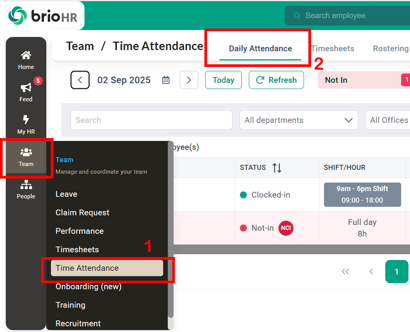
1. Go to the Team page > Click Time Attendance.
2. Open the Daily Attendance section.
Step 3 - Edit Attendance
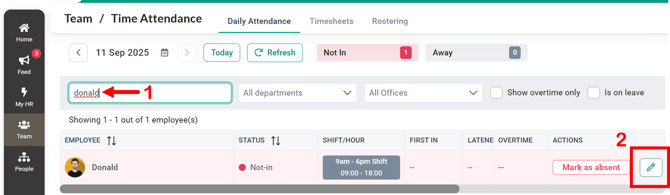
1. Search for the employee's name in the list.
2. Click on the pencil (edit) icon next to the employee's name.
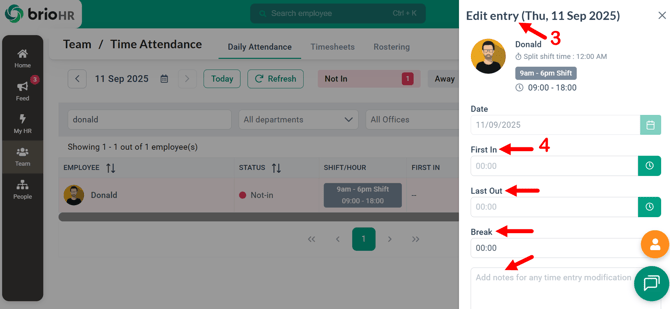
3. An Edit Entry sidebar will appear.
4. You can update the following fields:
- First In (Clock-in time)
- Last Out (Clock-out time)
- Break duration
- Add your own notes in the text field
Step 5 - Save or Clear Data
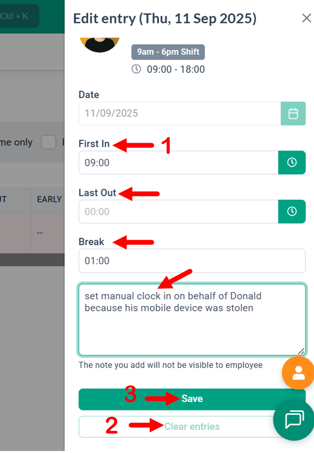
1. To edit, click on the desired field and enter the correct hours and minutes.
2. To clear all data, click the Clear button.
3. To finalize changes, click the Save button.
Step 6 - Confirmation
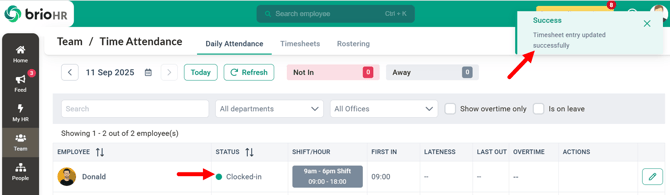
After saving the manual attendance entry, a success message will appear. The employee’s attendance status for the day will update from Not Clocked-In (NCI) to Clocked-In (CI).
Editing Clock-Out for Overnight (Cross-Day) Shifts
Employees on overnight shifts (for example, Clock-In at 11:00 PM on Day 1, Clock-Out at 6:00 AM on Day 2) sometimes forget to clock out. When a manager corrects this via manual entry, brioHR lets you know the clock-out on Day 2 is for the previous day shift. So, if you set a Clock-Out time earlier than Clock-In, the system automatically infers the Clock-Out falls on the next calendar day.
How it works for Shift-based employees:
- You can enter any Clock-Out time on a day after the shift start, regardless of the company's configured Split Shift Time.
- Clock-Out must still be later than Clock-In; setting Clock-Out equal to or earlier than Clock-In will trigger a validation error and the entry won't save.
Workday attribution banner
When the Last Out time you enter is past midnight and/or past the configured Split Shift Time, a banner appears on the Last Out field to clarify how the entry will be attributed:
| Condition | Banner message |
|---|---|
| Past midnight only | "Last Out is after midnight, but this entry still counts as the previous workday." |
| Past midnight and past Split Shift Time | "Last Out is after the configured Split Shift Time, but this entry still counts as the previous workday." |
This banner is available wherever you edit entries: Timesheet Detail, Daily Attendance, and the brioHR mobile app.
Example
| Field | Value |
|---|---|
| Clock-In | 11:00 PM, Day 1 |
| Clock-Out | 6:00 AM, Day 2 (D+1) |
| Shift duration | 7 hours |
Once saved, the shift duration calculates correctly (7 hours, not negative or same-day), and OT/shift premiums or deductions recalculate based on the corrected duration.
Learn More
- How to Approve Overtime Requests in BrioHR web browser and BrioHR mobile app
- How to Mark Direct Report as Absent
- How to Manage Team Rostering in BrioHR
- Employee Attendance Timesheet Overview for Managers in BrioHR
Frequently Asked Questions (FAQs)
Q1: Who can perform manual attendance entry in BrioHR?
A: The managers with the Team's Time Attendance permission enabled by the Admin can perform manual entries. The HR Admin can do manual entry on behalf of managers and employees if required.
Q2: Can I edit both clock-in and clock-out times?
A: Yes, you can edit First In, Last Out and Break Durations.
Q3: Will changes to attendance immediately reflect in timesheets?
A: Yes. Once saved, updates will automatically appear in the employee's timesheet.
Q4: Can I undo or reset attendance entries?
A: You can use the Clear button to reset the fields before saving. After saving, changes can be re-edited if necessary.
Need Assistance?
If you have any questions or require assistance, please reach out to our support team via live chat or email us at support@briohr.com.