![brioHR-logo-color.svg]](https://support.briohr.com/hubfs/brioHR-logo-color.svg)
Audience & Scope
Audience: Manager
Module: Time Attendance
Country: Global
Pre-requisites: Team dashboard access for Time Attendance module enabled
Step-by-Step Instructions for Managers to Monitor Break Duration
Note:
This feature will only apply to employees on a shift-based work schedule. Employees under a flexible work schedule are not included.
An employee is considered 'Exceeding Break' if:
1. The employee has clocked out for a break.
2. The employee has not clocked back in from break.
3. The current time is later than the expected clock-in time from break.
-
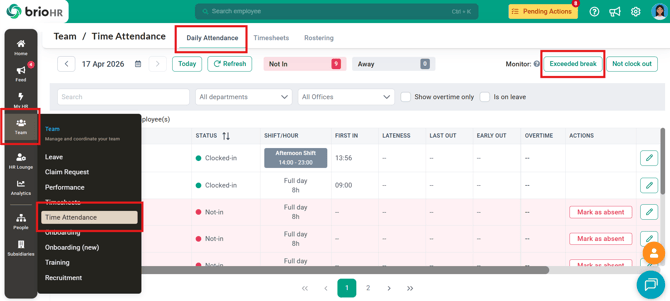
Go to Team > Time Attendance
-
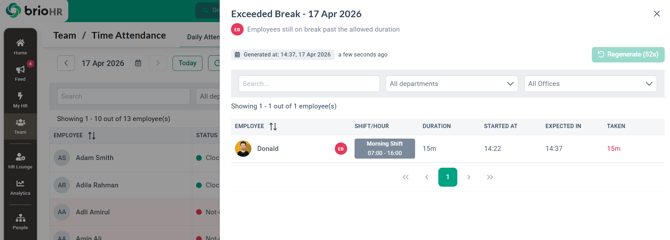
Under the Daily Attendance tab, find the 'Exceeded Break' button. You should see a list of employees who have exceeded their break duration for the day.
-
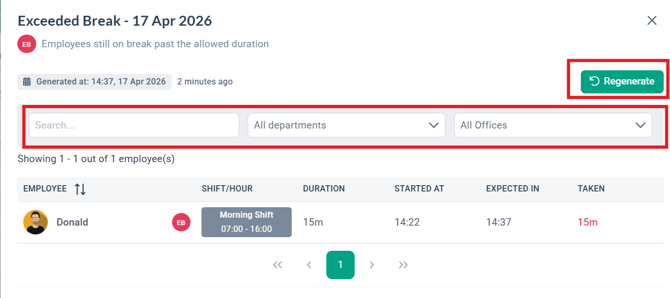
If you need the list to be updated, click the 'Regenerate' button.
- Use the filters at the top if needed.
Step-by-Step Instructions for Managers to Monitor Missing Clock Out
Note:
An employee qualifies as Not Clock-Out (NCO) if:
1. The employee has a valid clock-in record for the selected date.
2. The employee has not made a final clock-out.
3. The current time is later than the employee’s expected clock-out time.
-
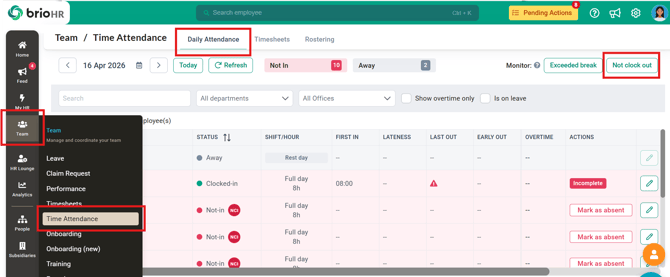
Go to Team > Time Attendance
-
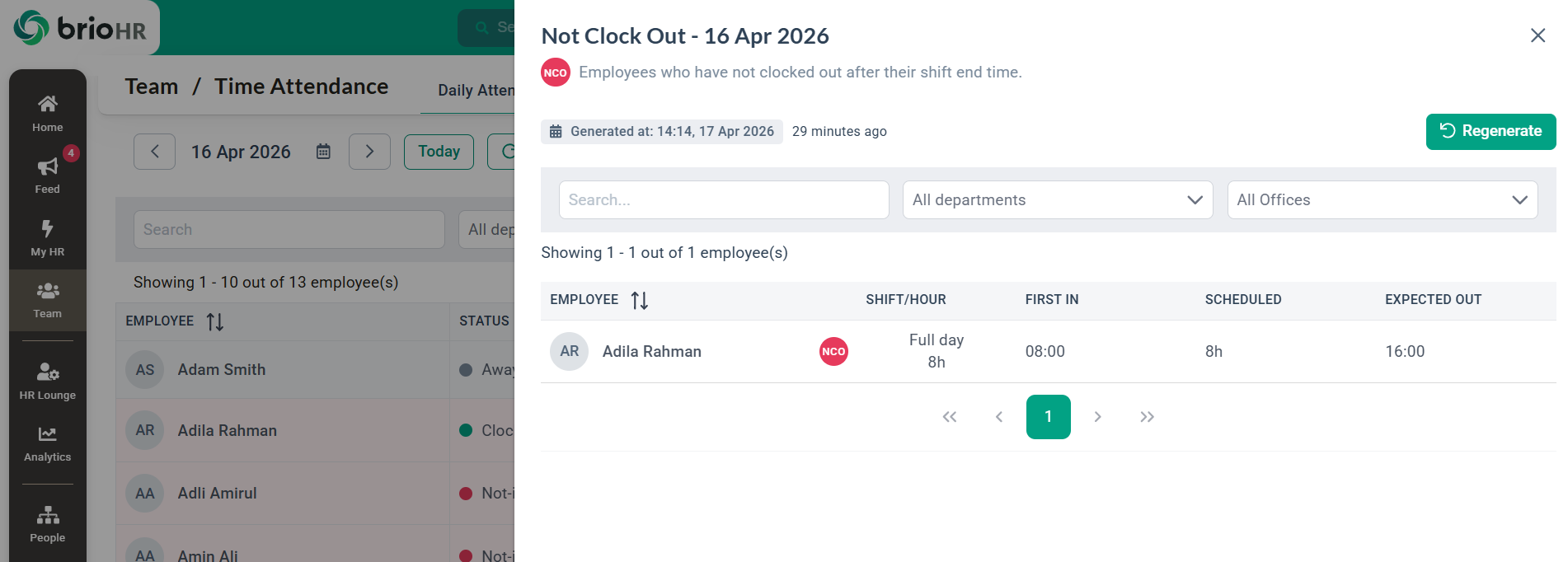
Under the Daily Attendance tab, find the 'Not clock out' button. You should see a list of employees who are missing clock-out records for the day.
-
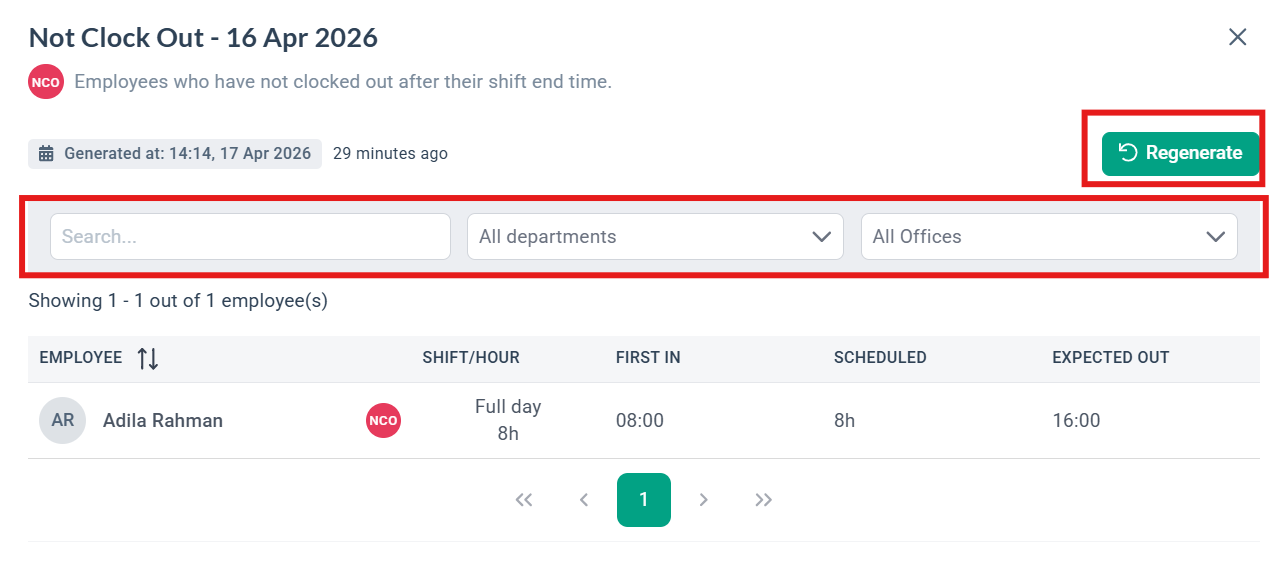
If you need the list to be updated, click the 'Regenerate' button.
- Use the filters at the top if needed.
Ownership
By: Aqilah