![brioHR-logo-color.svg]](https://support.briohr.com/hubfs/brioHR-logo-color.svg)
Audience & Scope
Audience: HR Admin & Payroll Manager
Module: Payroll
Country: Malaysia
Pre-requisites: HR Module Permission for the Payroll module and Module Settings
Step-by-Step Instructions
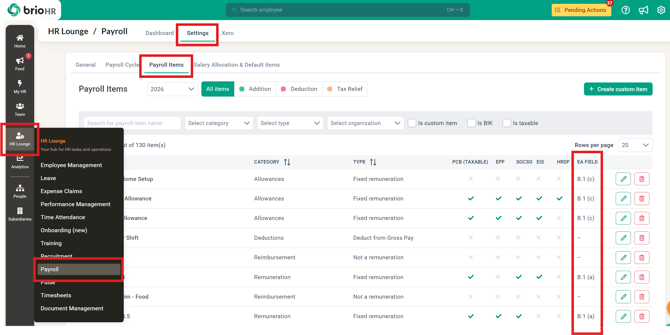
1. Navigate to HR Lounge > Payroll > Settings > Payroll Items — the 'EA Field' column shows which EA form section each pay item maps to.
2. To map the custom payroll items, click the Edit (pencil icon) of the specific payroll item, and choose the correct option from the EA form field dropdown:
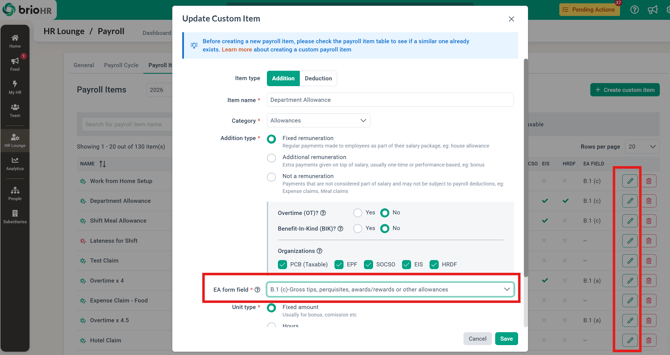
- Select the appropriate section of the EA Form where this item should appear, or choose 'Not applicable to EA form' if it should not be included in the EA Form.
- Determine the correct section based on your specific needs.
- The amount for this pay item will be reflected in the chosen section of the EA Form.
NOTE:
-
The default payroll items cannot be edited. The EA form mapping for default payroll items is fixed.
IMPORTANT:
For payroll items with unclear statutory treatment, please confirm with LHDN — BrioHR cannot provide statutory advice.
Common Issues/FAQ
Q: Who can make the changes to the payroll item EA form mapping?
A: Any user with access to your payroll module and module settings.
Q: I'm not sure how to map a custom item. What do I do?
A: Please contact LHDN directly for further confirmation. BrioHR cannot provide statutory advice.
Related Articles
How to Access & Manage EA Forms in Payroll Malaysia
How to Send EA Form to Resigned Employee via Email in BrioHR
How to Generate Employee Payroll Report in BrioHR
Ownership
By: Aqilah