![brioHR-logo-color.svg]](https://support.briohr.com/hubfs/brioHR-logo-color.svg)
We've added Overtime (Day Off) as another default overtime payroll item. Now, Singapore payroll centers can configure different rates for four distinct OT types:
-
Normal workdays
-
Rest days
-
Days off
-
Holidays
You can easily assign a specific multiplier to each category to match your company's policy.
Audience & Scope
Audience: HR Admin & Payroll Manager
Module: Payroll
Country: Singapore
Pre-requisites: HR Modules Permission in User group settings
Step-by-Step Instructions
PART 1: Setting Up the multiplier for the Day Off
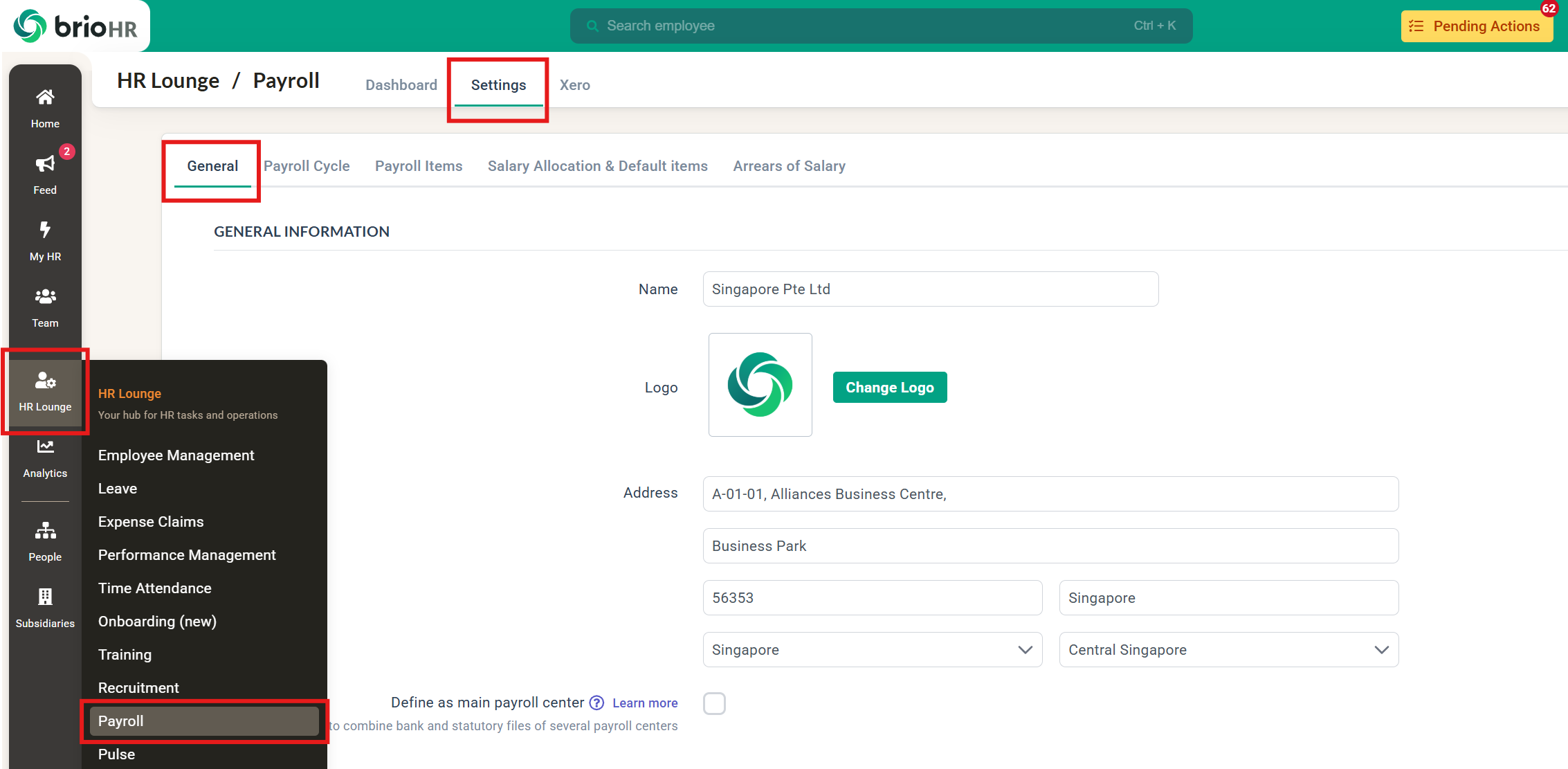
1. Go to HR Lounge > Payroll > Settings > General
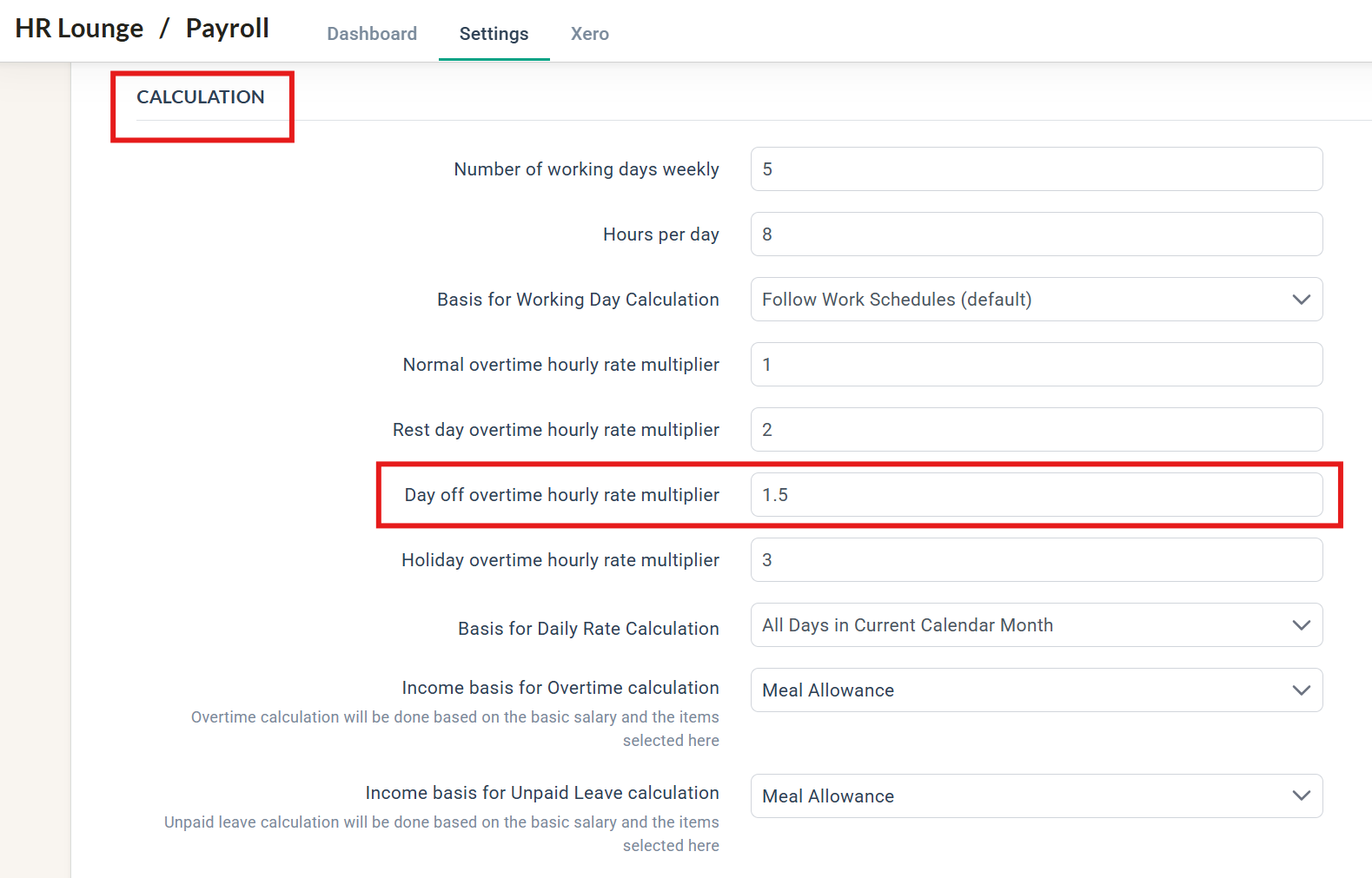
2. Under the Calculation section, type in your multiplier for Day Off
3. Scroll to the bottom of the page and click Save
PART 2: Adding Day Off Overtime during Payroll Run
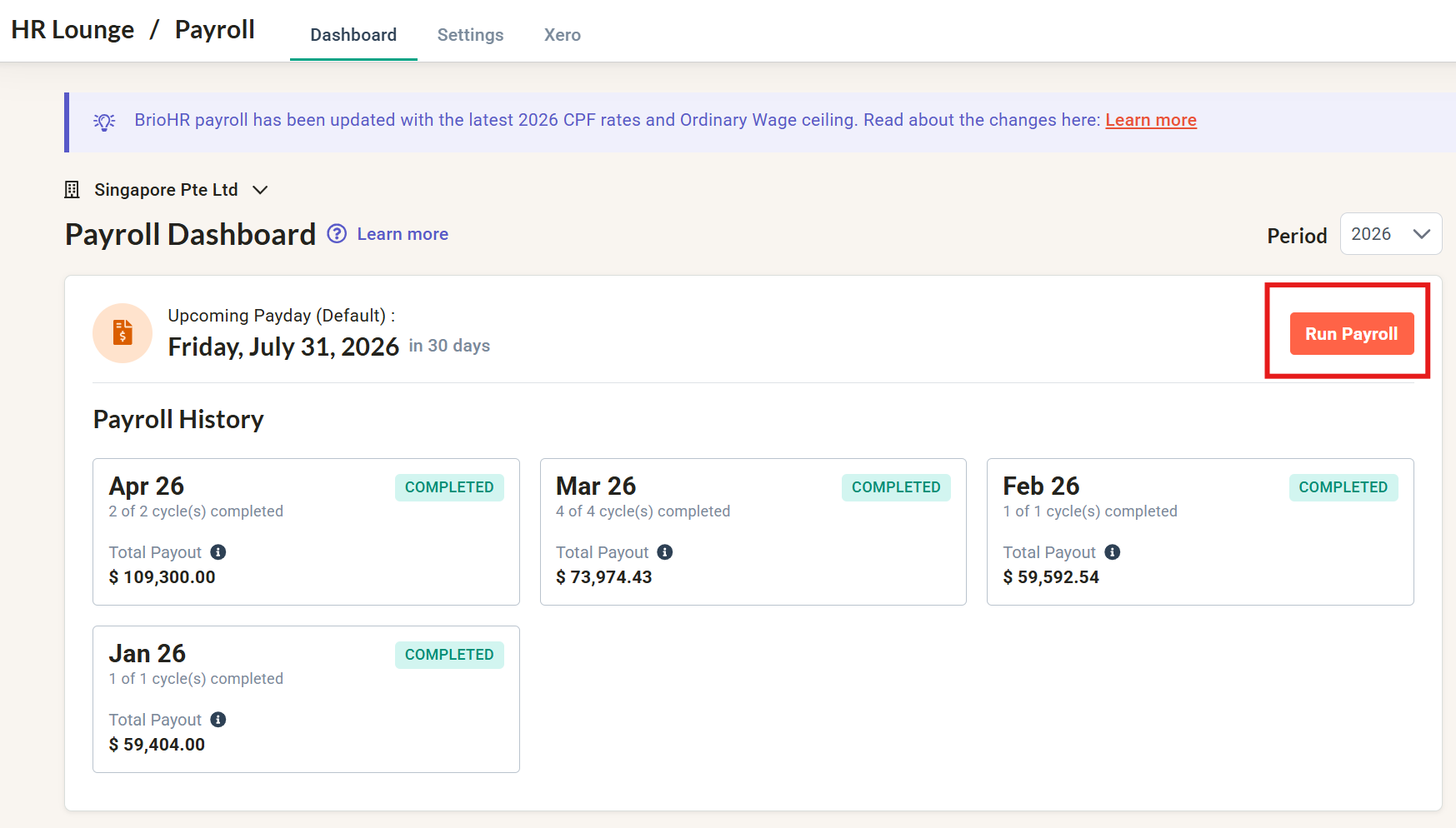
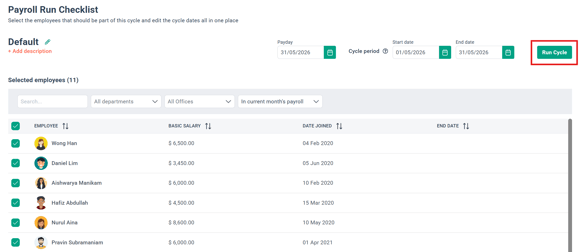
1. In the payroll dashboard, run the payroll cycle that you want to process the Day Off OT in
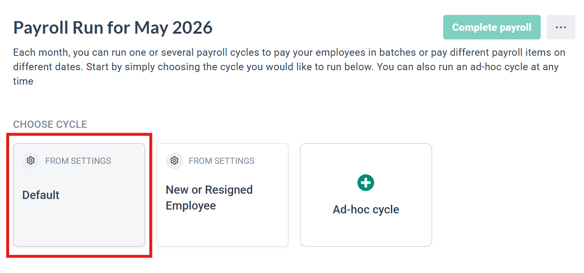
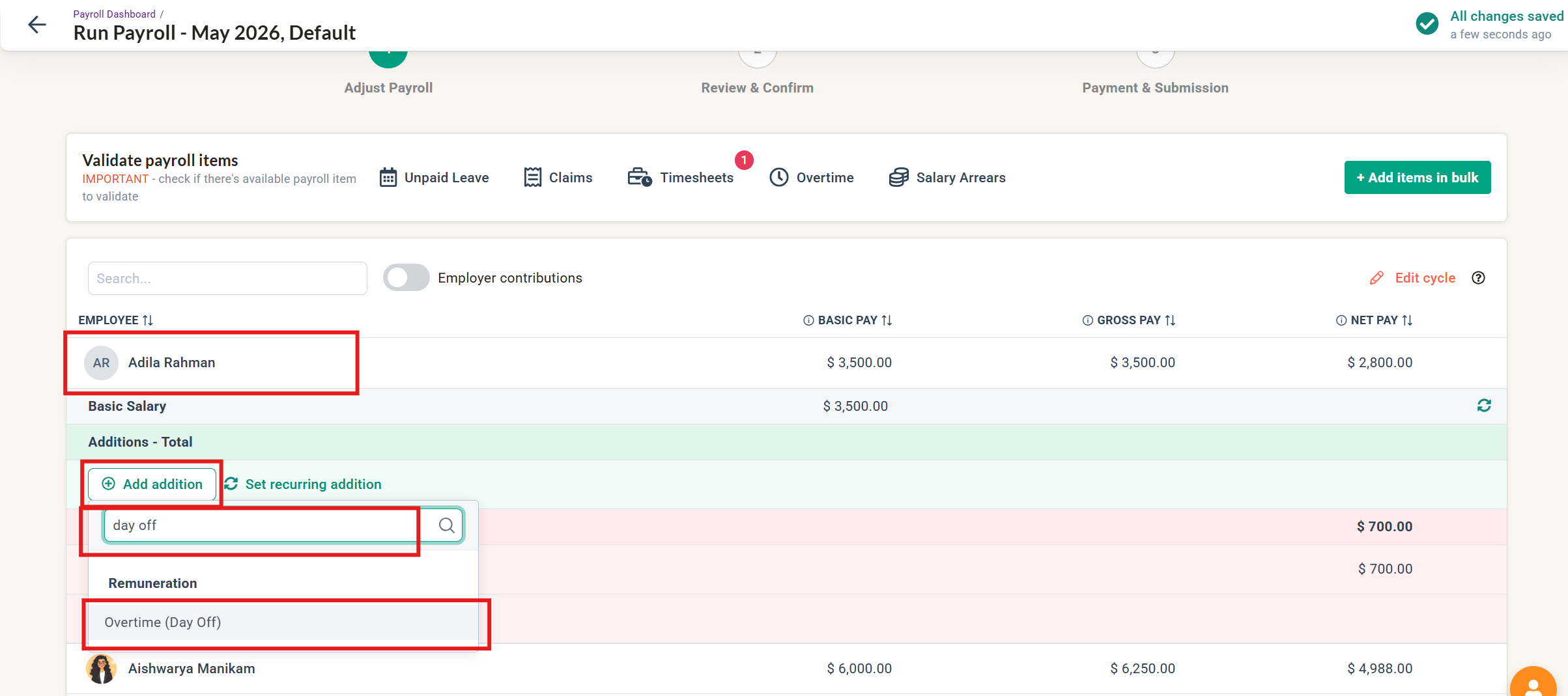
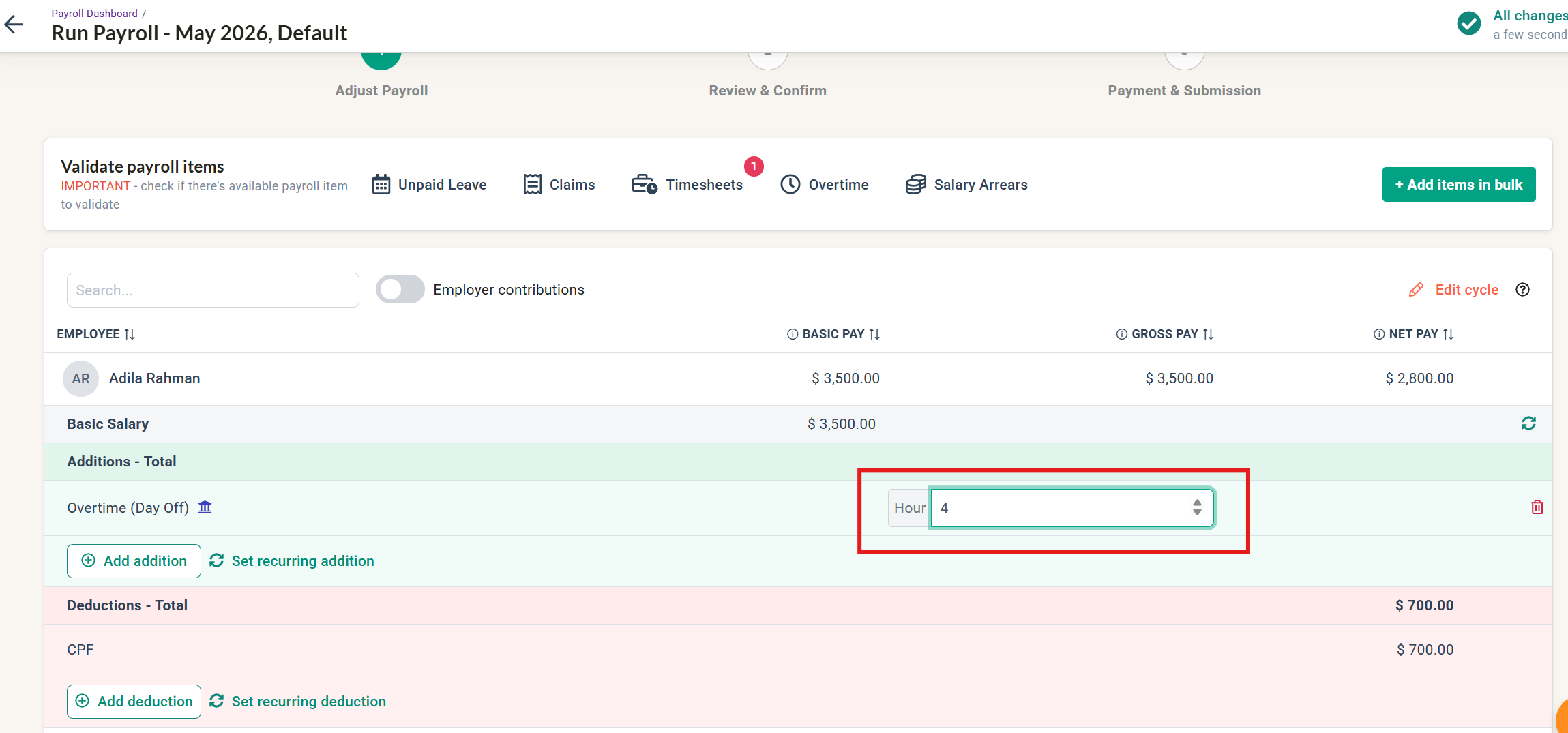
2. Choose Overtime (Day Off) as an addition and enter the Day Off OT hours
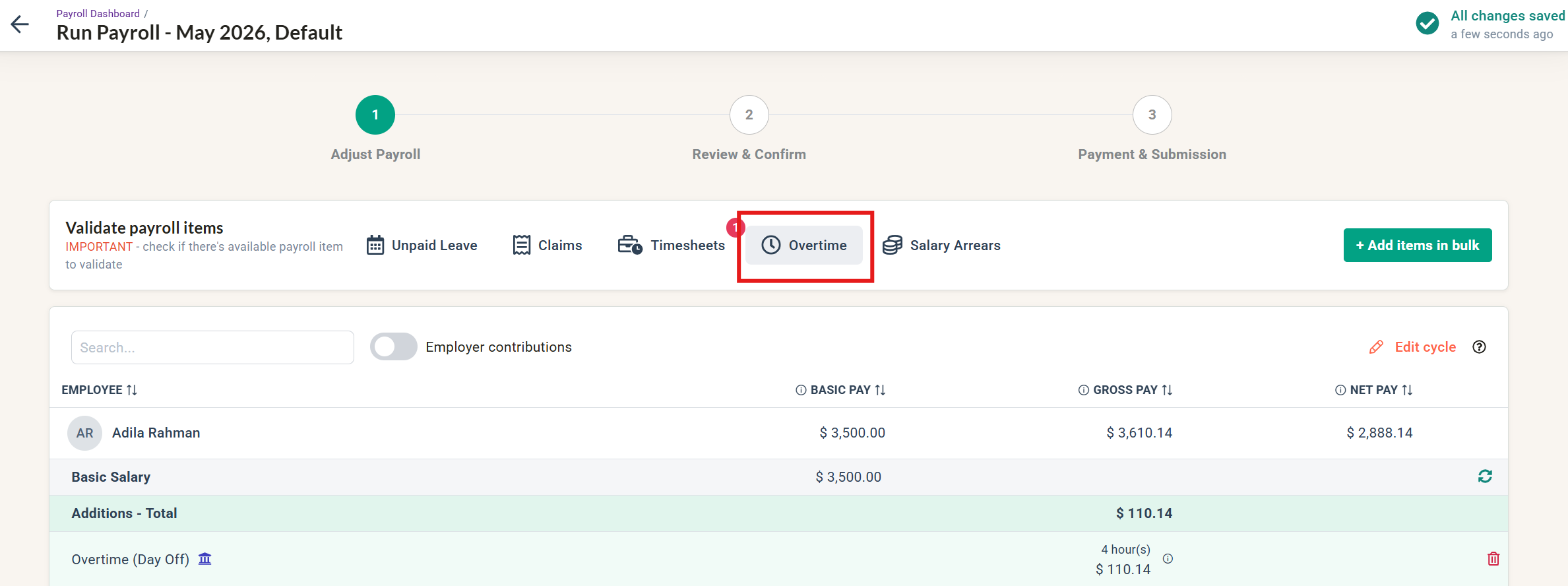
3. You can also add in the OT hours via the Overtime multi rates table
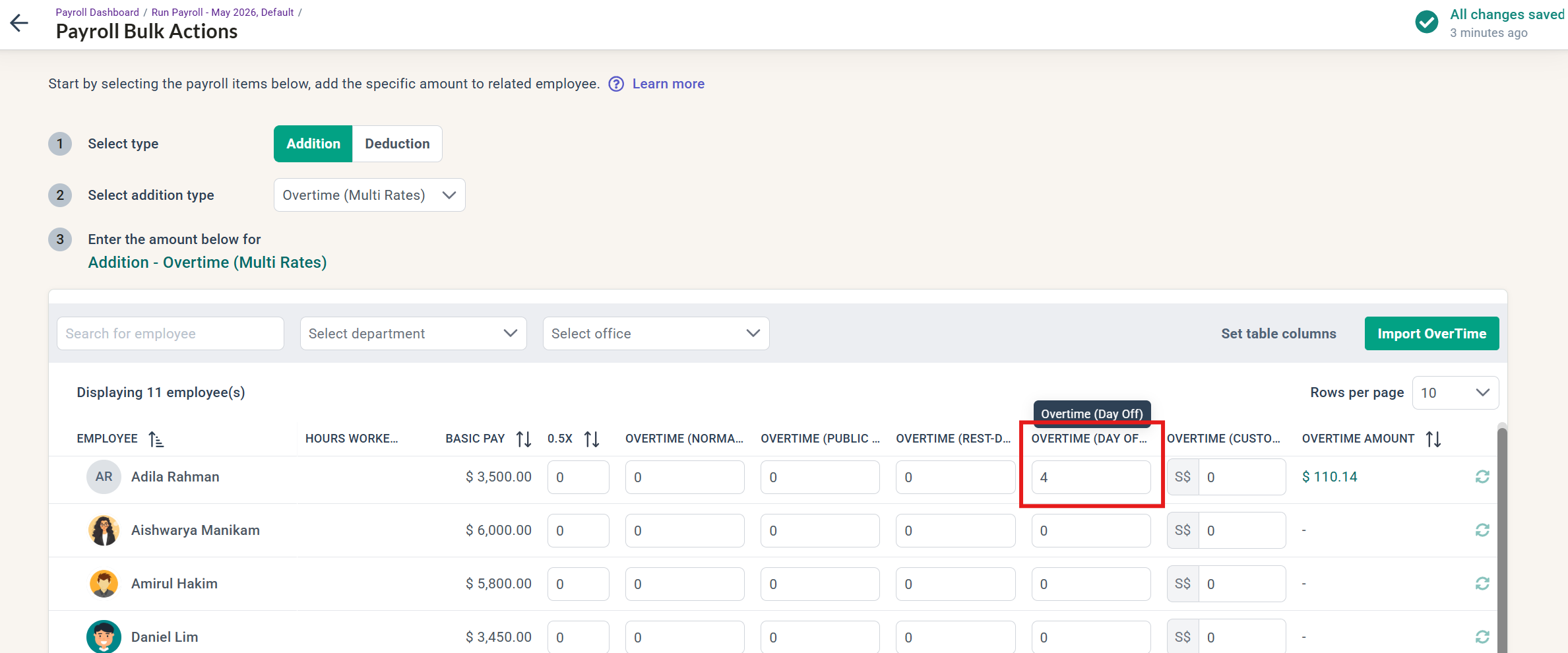
Learn more: Read PART 2 of this article to configure your overtime multi rates table
4. The amount to be paid should reflect correctly based on the multiplier you set
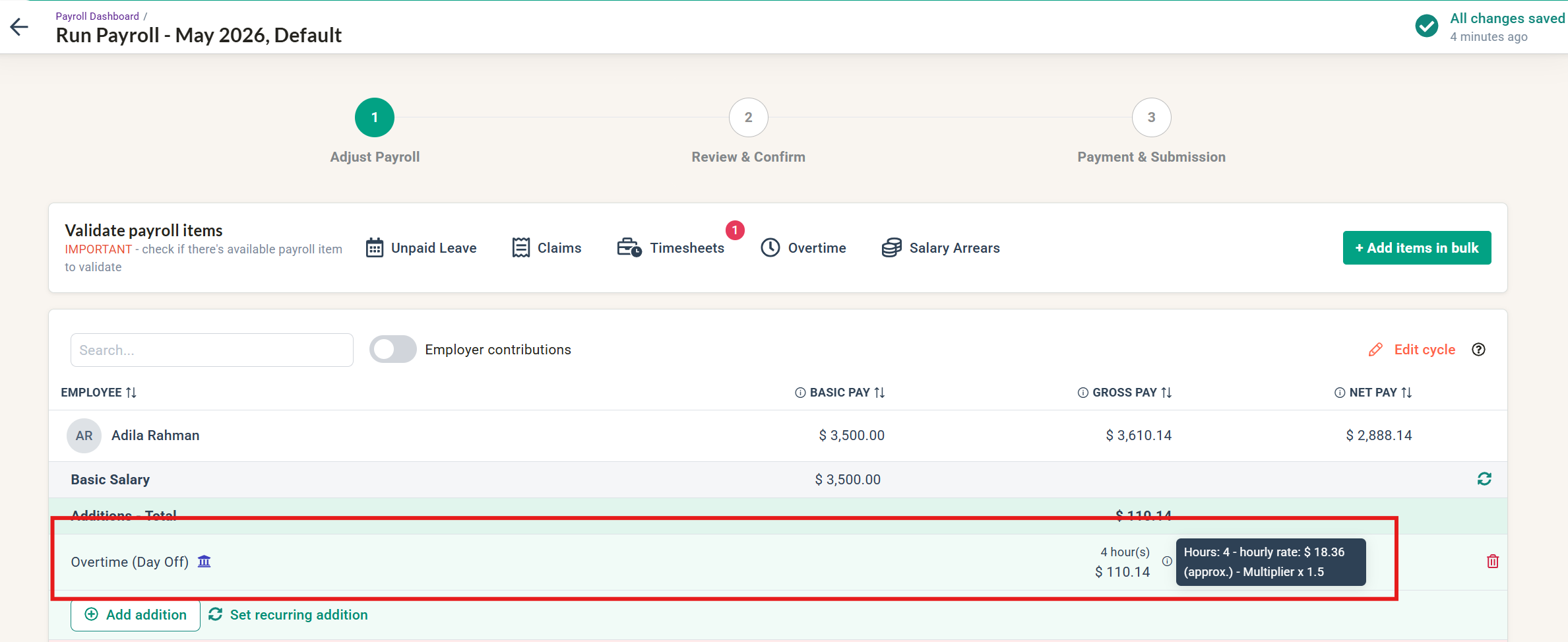
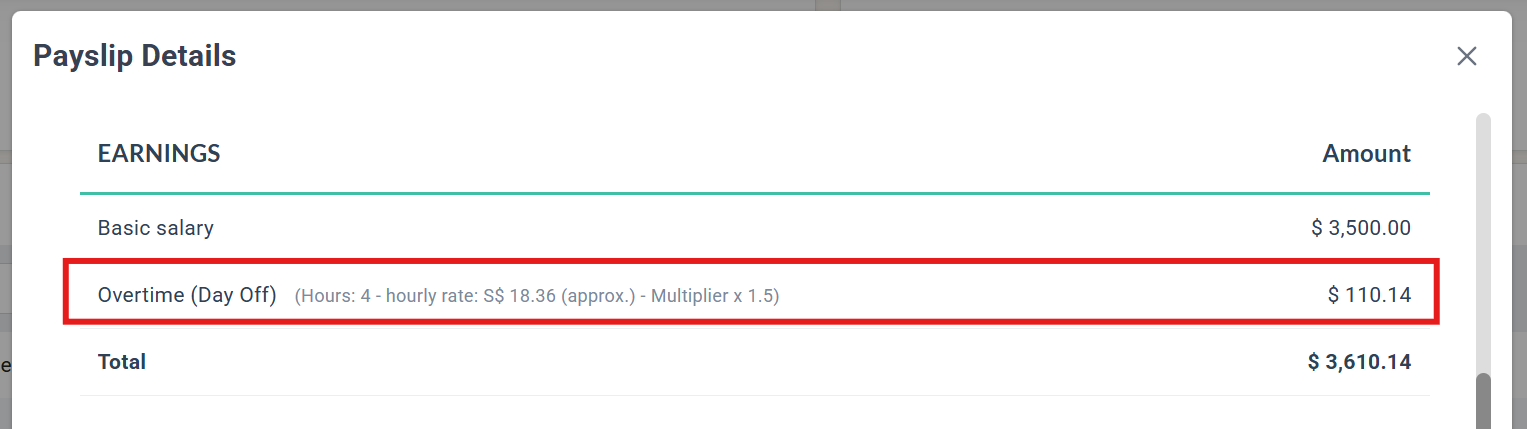
5. Complete the payroll cycle as usual and check that payslips reflect accordingly
Common Issues/FAQ
Q1: My company doesn't have 'Day Off' in our work schedule. Do we have to set up the Overtime multiplier?
A1: If you do not use 'Day Off' in your company practice, you do not have to make any changes. We have created this option for clients who want the flexibility to choose another type of 'Rest Day' with a different OT rate (multiplier) calculation.
Related Articles
Payroll Singapore: How to Set Up Company Payroll General Settings
Find Default Overtime Payroll Items and Add to OT Multi-rates Table
Ownership
By: Aqilah