![brioHR-logo-color.svg]](https://support.briohr.com/hubfs/brioHR-logo-color.svg)
Audience & Scope
Audience: HR Admin
Module: Recruitment
Country: Global
Pre-requisites: Admin User group settings enabled
Introduction
Once a candidate has successfully completed the Interview stage and your company is ready to proceed, the next step is to move them into the Offer stage. This is where you can formally generate and send an employment offer while ensuring proper approval workflows are followed.
This guide walks you through the entire process of moving a candidate to the Offer stage, generating the offer, and managing approvals efficiently.
Moving a Candidate to the Offer Stage
To begin the offer generation process, you will first need to update the candidate’s status:
- Go to HR Lounge and click into the Recruitment module
- At the Dashboard, scroll down and click on the All Candidates tab
- Search for the candidate
- Click on the Status dropdown
- Select Offer and click Continue
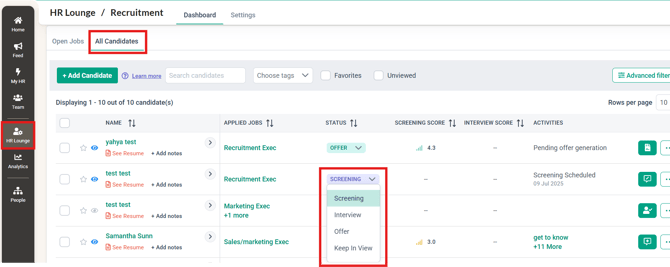
The candidate will now be successfully moved into the Offer stage of the recruitment process.
Generating the Offer
Once the candidate is in the Offer stage, you can proceed with creating the offer:
- Click on the Generate Offer button
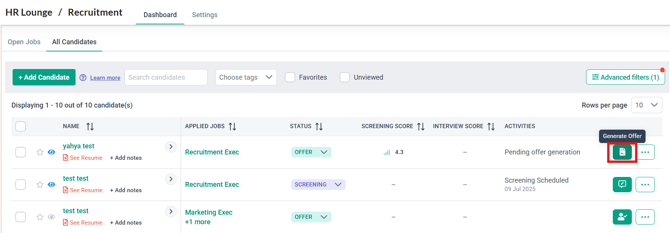
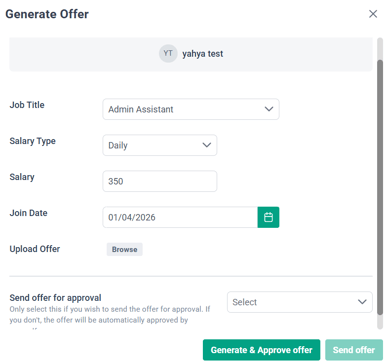
- Fill in the required details, including:
- Job Title
- Salary Type
- Salary
- Join Date
- Upload Offer Document
- Choose whether to send the offer for approval
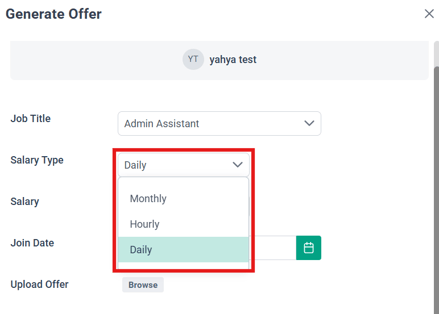
Salary Type Options
You can select from multiple salary structures depending on your hiring needs:
- Monthly
- Daily
- Hourly
Offer Approval Process
The system allows flexibility in managing approvals:
- You may select multiple approvers for the offer
- If approvers are selected, click Send Offer
- Notifications will be sent to all selected approvers
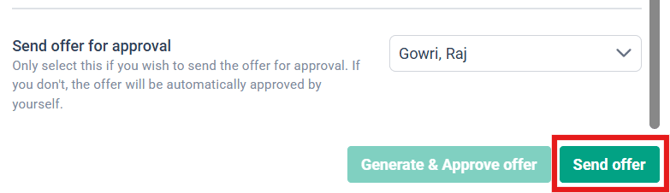
- Notifications will be sent to all selected approvers
- If no approvers are selected, click Generate & Approve Offer
- The offer will be automatically approved

- The offer will be automatically approved
Tracking Offer Status
After submission:
- The offer will be marked as Pending for Approval (if approvers are assigned)
- The Activities column will display the current approval status
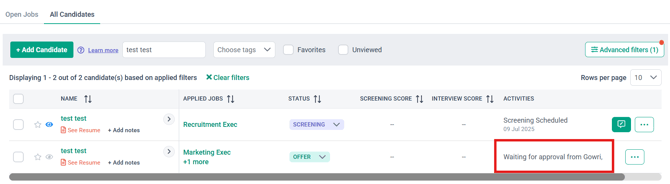
- Selected approvers will receive tasks to review and approve the offer
- Once all approvals are completed, the Offer stage is finalized
You can also monitor the full timeline in the Candidate Profile under Application Progress, giving you complete visibility of the hiring workflow.
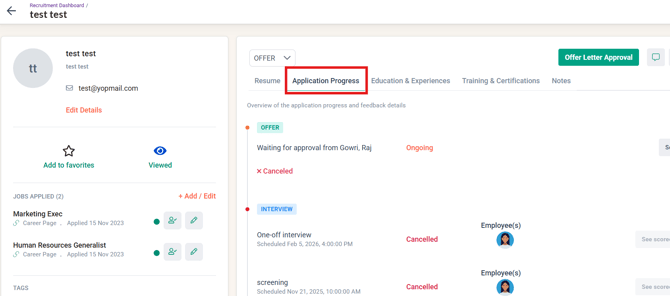
The Approver will receive a Pending actions notification as per screenshot below:
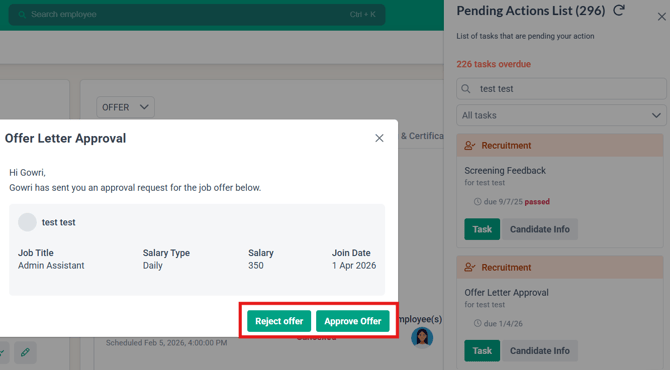
The approver will be able to choose if they wish to Reject or Approve the offer.
NOTE:
If any of the approver rejects the Offer, the entire Offer will be rejected, and the system will automatically reset to the Generate Offer stage. You will need to re-enter the required information.
Common Issues/FAQ
Q: When should a candidate be moved to the Offer stage?
A: A candidate should be moved to the Offer stage after successfully completing the interview process and once the company has decided to proceed with hiring.
Q: What salary types are available when generating an offer?
A: You can choose from three salary types: Monthly, Daily, and Hourly, depending on the role and employment structure.
Q: Can I assign more than one approver for an offer?
A: Yes, the system allows you to select multiple approvers to ensure the offer goes through the necessary approval hierarchy.
Q: What happens if no approver is selected?
A: If no approver is assigned, the offer will be automatically approved once you click Generate & Approve Offer.
Q: How can I track the approval progress of an offer?
A: You can track the status in the Activities column and view the full timeline in the Candidate Profile under Application Progress.
Ownership
By: Arveena