![brioHR-logo-color.svg]](https://support.briohr.com/hubfs/brioHR-logo-color.svg)
Audience & Scope
Audience: Employee
Module: Time Attendance
Country: Global
Pre-requisites: Access to Time Attendance module in MyHR
Tip: Need to submit your overtime request on the go? Scroll down to the end of the page for a step-by-step guide on requesting overtime via the mobile app!
Step-by-Step Instructions for Employees to request Overtime Approval (Post OT) via Web Browser
-
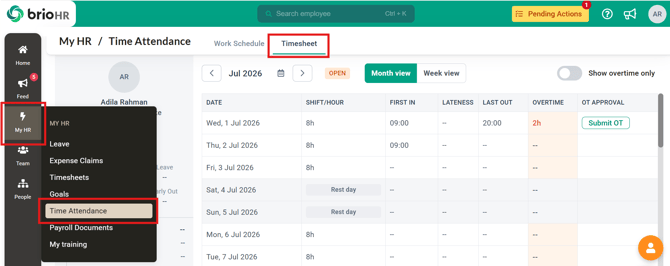
Go to MyHR > Time Attendance > Timesheet
-
If you have worked overtime, it will be recorded in your timesheet under the Overtime column.
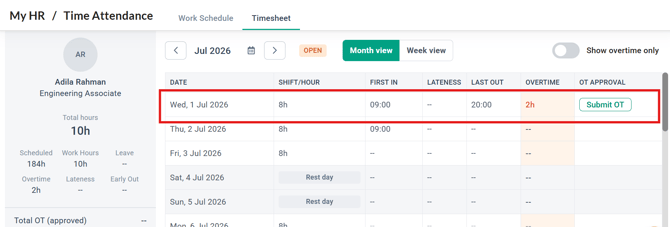
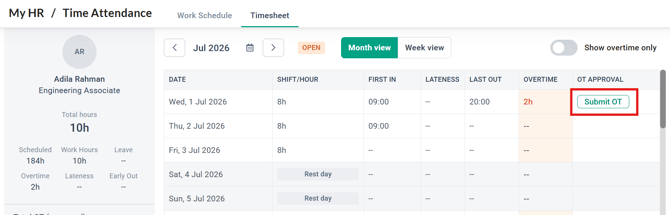
- Click on the Submit OT button to create a request for your OT hours.
- Review the Overtime duration, if you have any Reasons/remarks and Attachments, be sure to have this information filled in as well
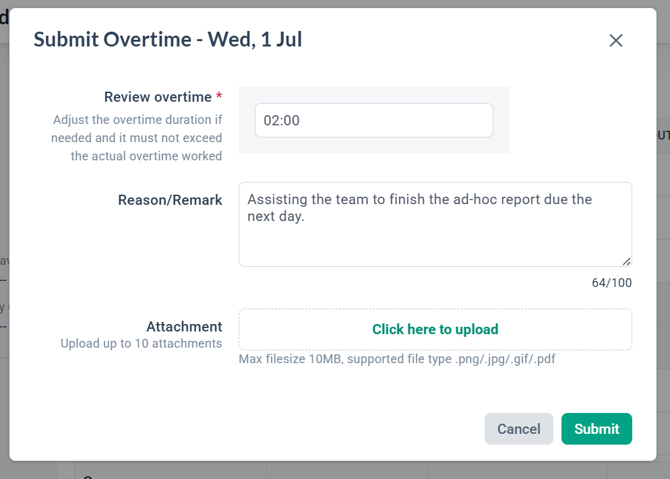
- Now that all information has been filled in, click on Submit, and the Overtime is now pending for approval
- The status will now show 'Pending'. If your manager/supervisor approves the OT, the approved hours will be seen in green under the OT Approval column. If rejected, a 'Rejected' status will show.
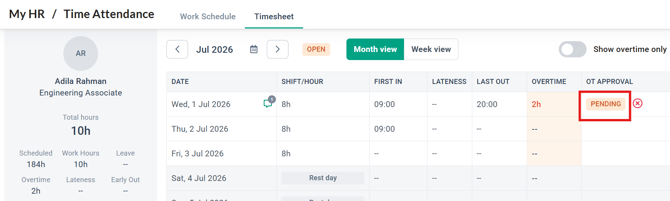
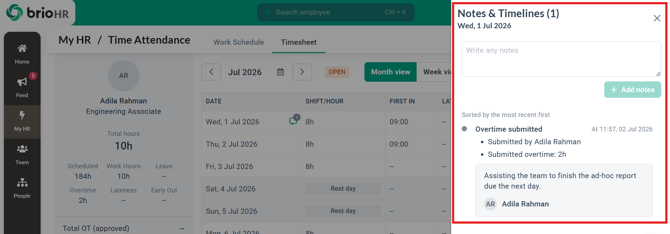
- Click on the status to see details of the request by clicking on the status.
- Once the Overtime submission has been approved/rejected, there will be an email notification received in your inbox.
NOTE:
-
Your admin must enable Post OT submission for your policy in order for this feature to work. If you do not see the 'Submit OT' button, check with your admin that the feature has been enabled for your policy.
- This feature only works for employees with daily overtime calculation. If your company calculates OT on a monthly accumulated basis, this feature will not be available to you.
- Work First, Request Later: You can only request OT for hours you have already worked. No future dates are allowed. If there is no actual OT recorded on a past date, a request cannot be submitted.
- Know Your Limit: You can request your exact actual OT hours or less—but never more than what you actually worked.
- Check Your Timesheet Status: You can only submit requests when your timesheet is OPEN. If it has already been approved, sent to payroll, or paid, it must be reopened by admin/HR before you can submit a request.
IMPORTANT:
If your admin has allowed the 'pre-approve' overtime request, you will not be able to submit post overtime for approval. If you need post OT hours to be approved, your manager/admin will need to make changes to your timesheet manually.
Step-by-Step Instructions for Employees to request Overtime Approval (Post OT) via Mobile App
Related Articles
Requesting Pre-Approved Overtime as an Employee
Enable Employee to Submit Overtime for Approval as HR Admin
Ownership
By: Aqilah