![brioHR-logo-color.svg]](https://support.briohr.com/hubfs/brioHR-logo-color.svg)
Audience & Scope
Audience: All users
Country: Global
Prerequisites: Active account with brioHR
Resetting your brioHR password is now more convenient. We've enhanced the password reset experience, allowing users to reset their password directly in the brioHR mobile app when it's installed, while still providing a seamless browser experience if it isn't.
This update ensures you can securely reset your password from any device with minimal interruption.
How to Reset Your brioHR Password Through Mobile App
-
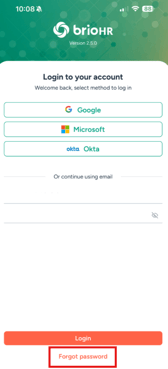
Open the brioHR mobile app and click on the "Forgot Password"
-
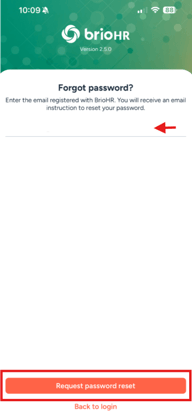
Enter your registered email address and click "Request Password Reset"
-
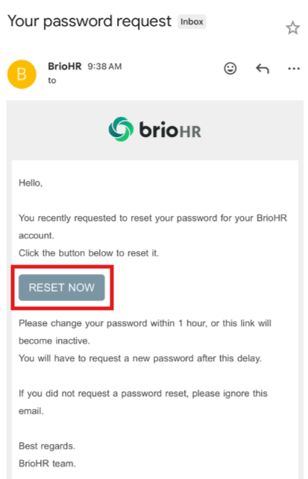
Look for an email titled "Your Password Request"
-
Click the "RESET NOW" button inside the email
-
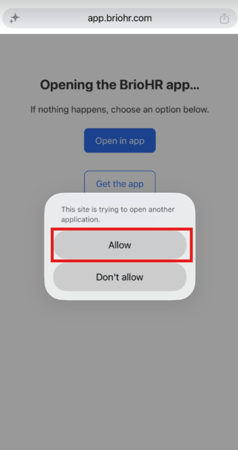
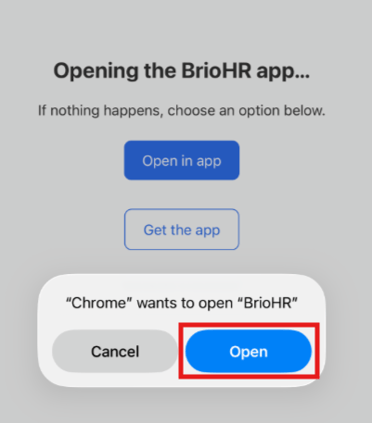
The Reset Now button in the password reset email will intelligently detect whether the BrioHR mobile app is installed on your device, click Allow, then Open the brioHR app
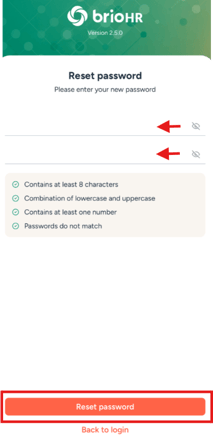
- Enter your new password
-
Click the "Reset Password" button to save your new password
-
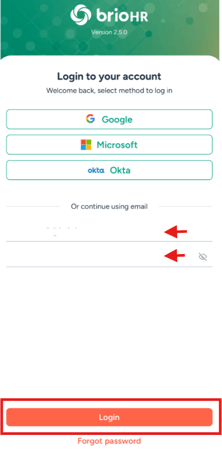
You can now log in to your BrioHR account with your new credentials
How It Works?
If you have the brioHR App Installed
Selecting Reset Now from your password reset email will:
- Open the brioHR mobile app automatically.
- Take you directly to the Reset Password screen.
- Allow you to enter and confirm your new password with built-in password validation.
Once your password has been successfully updated, you'll be redirected to the Login screen, where a confirmation message lets you know your password has been reset successfully.
If you do not have the brioHR App Installed
If the brioHR app isn't available on your device, you'll first see an intermediate screen with the following options:
- Open in App – Launch the password reset in the brioHR app (if available).
- Get the App – Download the brioHR mobile app.
- Continue in Browser – Complete the password reset using your mobile web browser.
This ensures you can always complete the password reset, regardless of whether you have the app installed.
Sign In After Resetting Your Password
After successfully resetting your password, you'll be taken to the Login screen, where you can sign in using:
- Your newly updated password.
- Google Single Sign-On (SSO).
- Microsoft Single Sign-On (SSO).
- Okta Single Sign-On (SSO).
Relevant Articles
Ownership
By : Arveena