![brioHR-logo-color.svg]](https://support.briohr.com/hubfs/brioHR-logo-color.svg)
Audience & Scope
Audience: HR Admin & Payroll Managers
Module: Payroll
Country: Malaysia
Pre-requisite: Payroll module access, Payroll module settings access
There are two options to set the default Overtime payroll items in payroll module as either fixed rumuneration or additional remuneration, allowing organisations to manage Overtime calculations better.
The Default Overtime Payroll Items can be selected as:
-
Fixed Remuneration
-
Additional Remuneration
Note:
-
This setting will apply to default overtime payroll items only. For custom pay items you create, you can choose which type of remuneration applies to the items.
- This setting is specific for each payroll center. You will have to configure it for ALL Malaysian payroll centers as each center has its own independent set of payroll items.
Default System Behaviour
To ensure a smooth transition:
-
The system will maintain your existing remuneration settings (set as additional remuneration) to all default Overtime payroll items for existing accounts and payroll centers.
-
This means there is no immediate change to how Overtime PCB is calculated unless you choose to make updates.
Note:
For new BrioHR accounts and payroll centers created on or after 6th March 2026, the default setting will be set to 'Fixed Remuneration'. If you created your payroll center before this date, your default will remain as 'Additional Remuneration'. Please refer to the steps below to make the necessary changes.
Overtime PCB Calculation
-
Overtime earnings will be calculated based on the fixed or additional remuneration for PCB calculations.
-
This allows you to accurately pay PCB for employees on the Overtime they worked.
Note:
The remuneration type will affect PCB calculations. Fixed and Additional remuneration contribute differently to the employee PCB. Please refer to LHDN for more info. Refer to [this article] for guidance on cross-checking PCB calculations using the LHDN calculator.
Making Changes to the Configuration
If you would like to use the default Overtime payroll items and require the changes from additional remuneration to fixed remuneration:
-
The selections must be manually updated in each payroll center's settings.
-
Any changes made will apply to future/ongoing payroll cycles you run. If you are currently running a cycle and want the changes to be reflected, refresh your payroll cycle for the changes to show.
Note:
The changes will affect the remuneration setting for your default OT items across all months and years. If you reopen any cycle and use the default OT payroll item after changing the remuneration type, your payroll pcb calculation will have changes due to the change. However, completed payroll months that you have processed will not be affected.
Step-by-Step Instructions to Configure this Setting
-
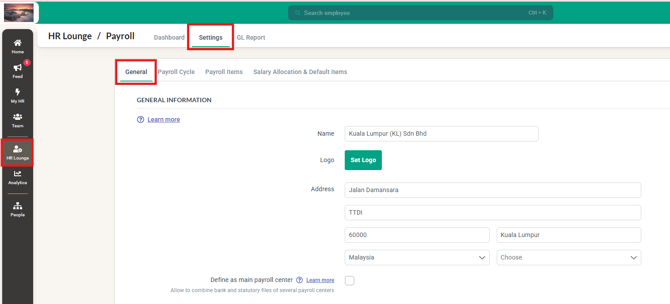
Click into HR Lounge and into the Payroll module
-
Then click into Settings and into the General tab
-
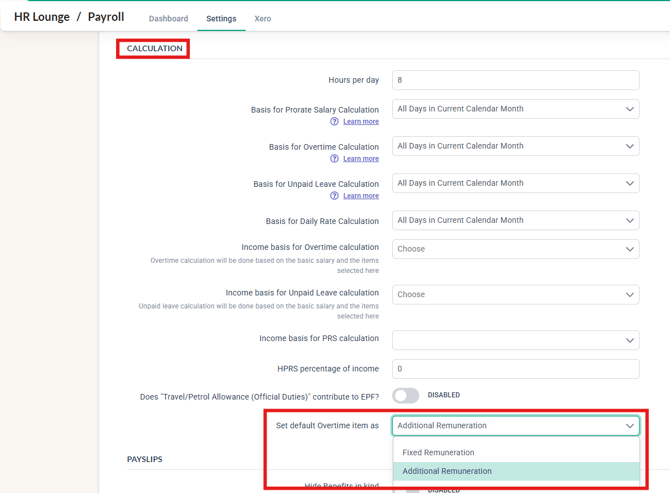
Scroll down to the Calculation, and you will be able to see the 'Set default Overtime item as' section.
-
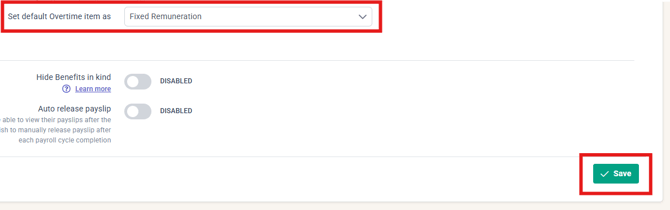
You can then select Fixed Remuneration or Additional Remuneration. Click Save to apply the changes.
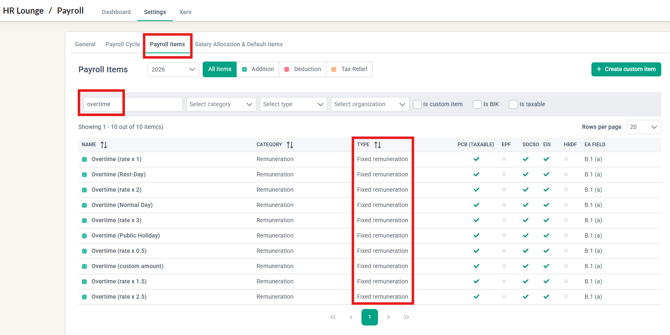
- Under the Payroll Items tab, the default overtime payroll items should now reflect your choice under the Type column.
Common Issues/FAQ
Q: If I make the change to my main payroll center, will it reflect in my other payroll centers?
A: No. You have to make the change for ALL your Malaysian payroll centers as each center has its own independent set of payroll items.
Q: How do I know the current remuneration setting of my Overtime pay items?
A: You can go to your Payroll > Settings > Payroll Items. Type in 'Overtime' in the search bar and look at the 'Type' column. It will show Fixed Remuneration or Additional Remuneration. If the item is not editable, those items are default items.
Q: I do not use any default Overtime Payroll items in my payroll. Do I need to make changes?
A: No. If you currently use Custom Payroll Items for all your Overtime pay items, you will not need to make any changes. But if you would like to start using the default OT payroll item, please follow the steps in this article to make any needed changes. If you are creating a new custom payroll item, choose the correct remuneration type for accurate pcb calculation.
Q: Will this change affect my existing payroll calculations?
A: No. By default, the system carries forward your existing remuneration settings for all default Overtime payroll items. There will be no impact unless you manually update the configurations.
Q: When do configuration changes take effect?
A: Any changes made to your configurations will apply to ongoing/future payroll calculations after the updates are saved. If there is a payroll cycle ongoing, you may refresh the payroll to have the changes reflected for the ongoing cycle.
Related Articles
1. Guide to PCB Calculation in Malaysia: Monthly Tax Deduction Explained
2. How to Use the LHDN Calculator to Accurately Calculate PCB
3. How to Add Pay Items for an Individual (Additions, Deductions & Tax Reliefs)
Ownership
By: Aqilah Ridzuan