![brioHR-logo-color.svg]](https://support.briohr.com/hubfs/brioHR-logo-color.svg)
Audience & Scope
Audience: HR Admin / Payroll Processor
Module: Payroll
Country: Malaysia
Pre-requisites: HR Module Permission for Payroll module (User group settings)
Step 1: Setting Up The Bank Account
- In HR Lounge, navigate to the Payroll module.
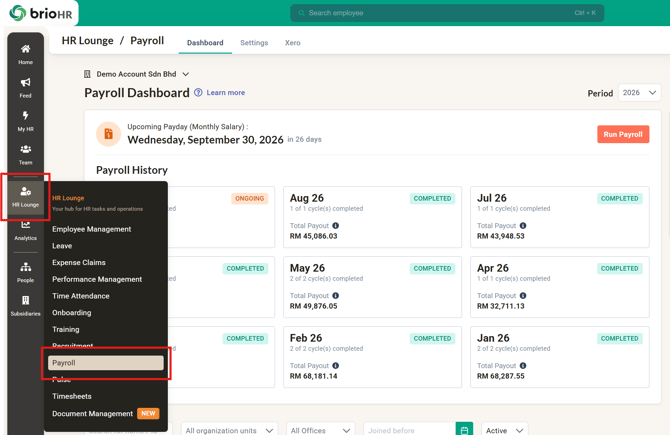
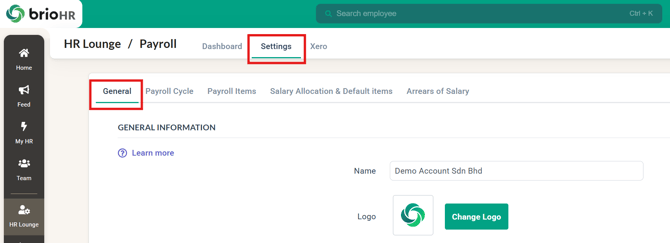
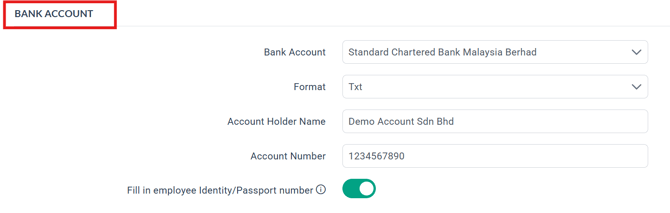
- Click on Settings. Under the General tab, scroll down to the Bank Account section.
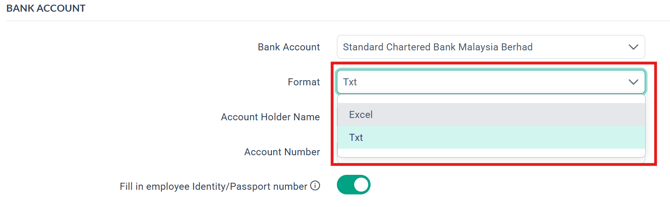
- In the "Bank Account" field, select Standard Chartered Bank Malaysia Berhad.
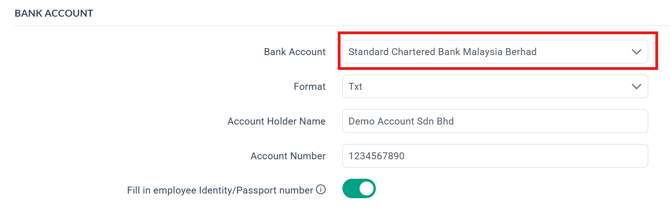
- A "Format" dropdown will appear with two options:
- Excel
- Txt
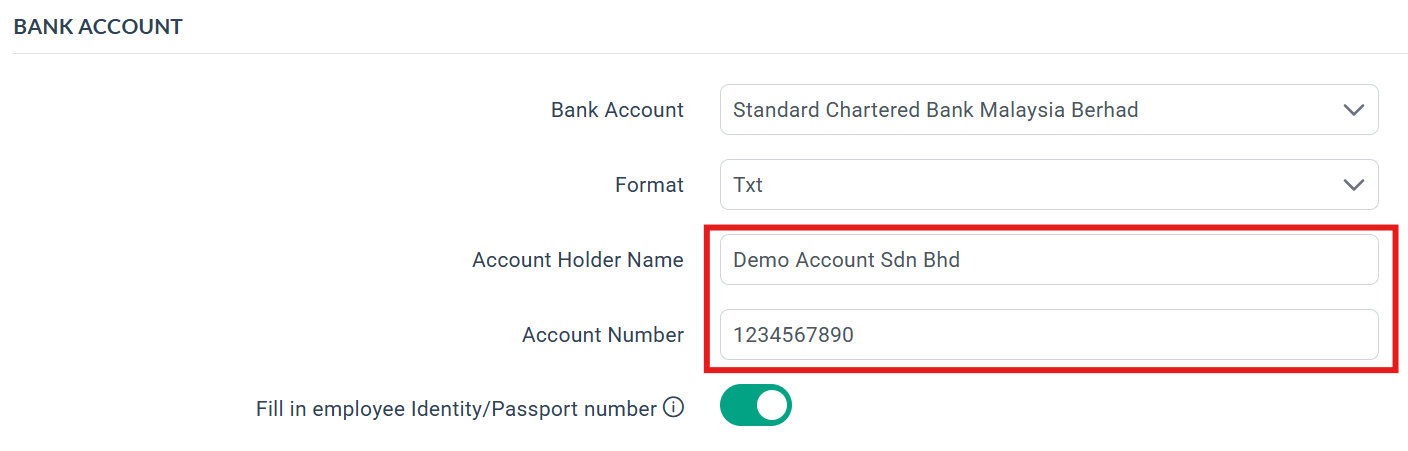
- Enter the required information in the fields provided (Account Holder Name, Account Number, and so on).
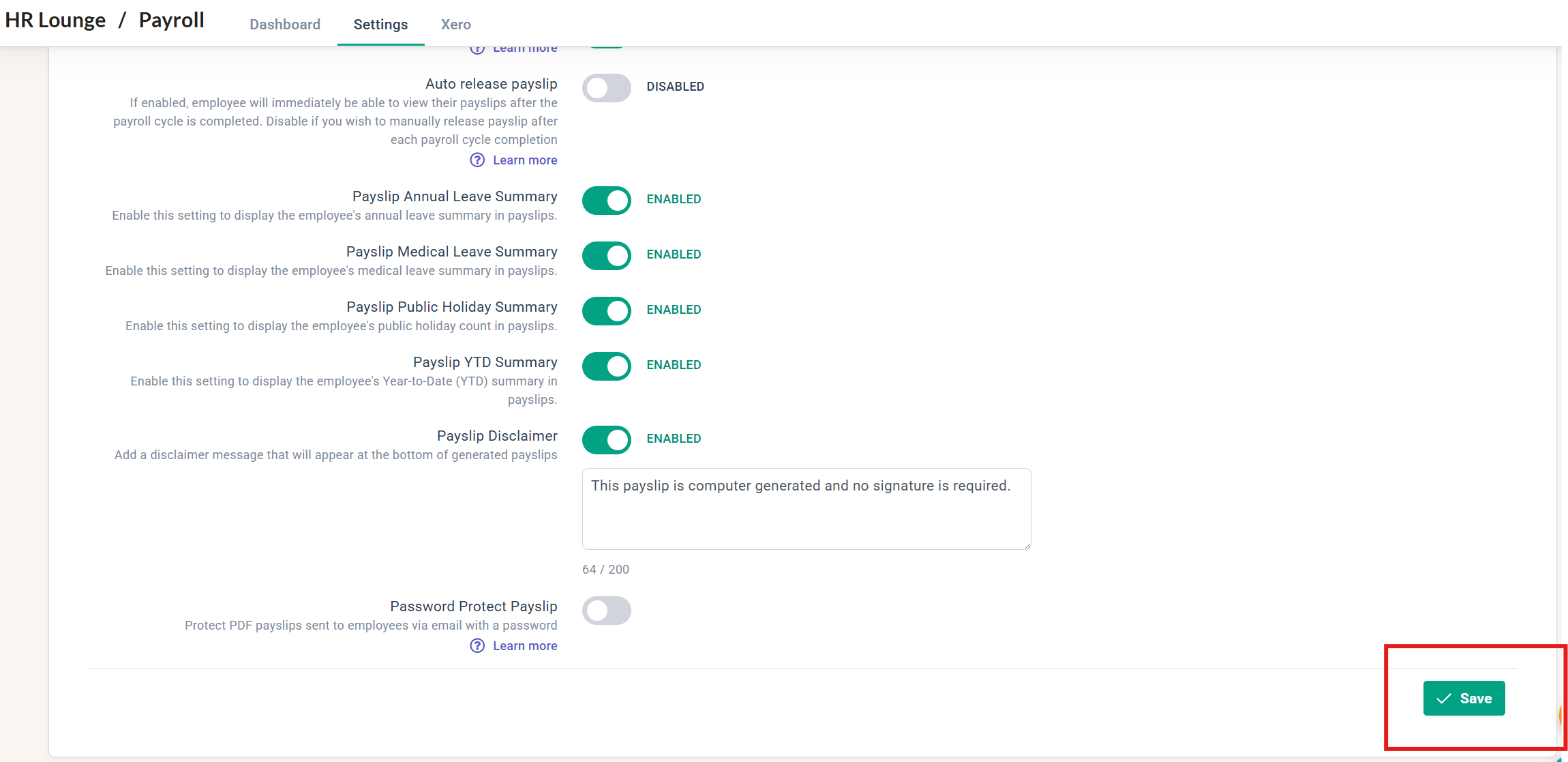
- Click Save at the bottom of the Settings page to complete the setup.
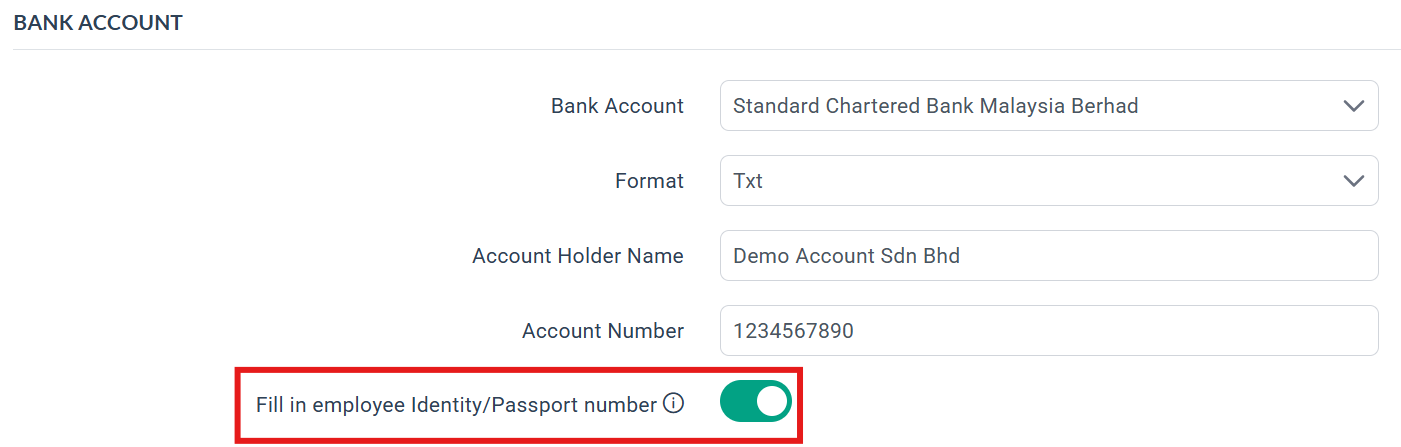
NOTE:
The function to 'Fill in employee Identity/Passport number' is optional, as some bank specifications require this information to be filled in when the bank file is generated. Therefore, you may proceed to enable this function before the bank file is generated.
You can change the Format at any time. Your selection is saved against the bank account and will be used the next time you generate a bank file — it does not change any bank files you've already downloaded.
Step 2: Downloading The Bank File
- In HR Lounge, navigate to the Payroll module.
- In the Payroll Dashboard, click on the payroll month for which you want to process payments.
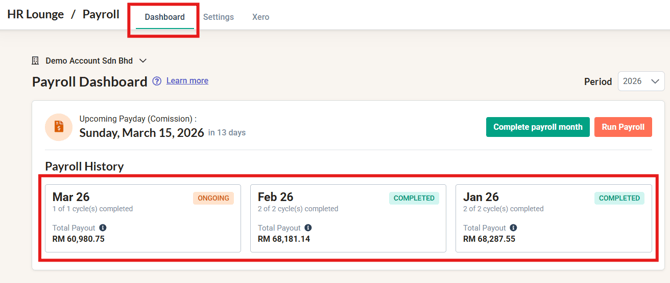
- If your payroll month is still 'Ongoing', click the 'See details' button for the payroll cycle you wish to pay out.
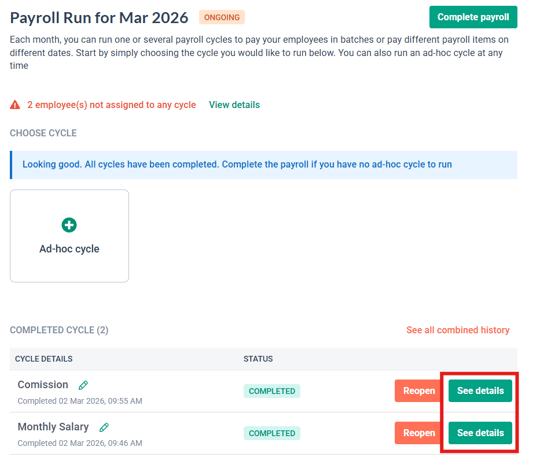
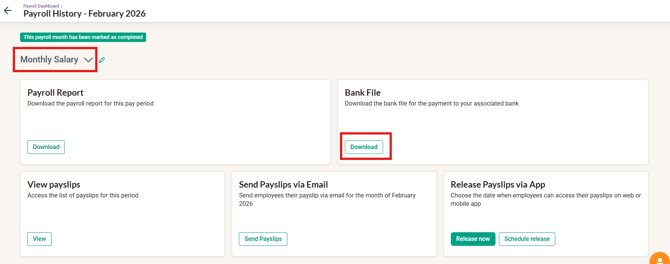
- If your payroll month is 'Completed' and has multiple cycles, select which payroll cycle you wish to pay out.
- Find the Bank File column and click the Download button (as shown in the sample screenshots below) to download the bank file.
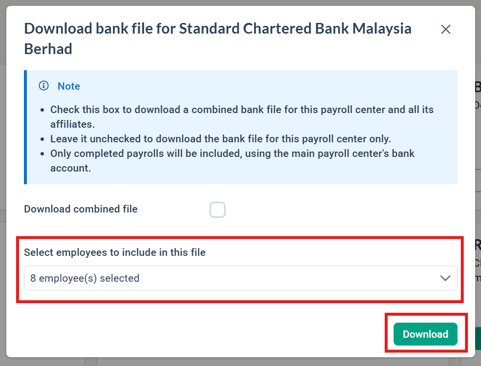
- In the "Generate bank file for Standard Chartered Bank Malaysia Berhad" pop-up window:
- Select the employee(s).
- Click Download to download the file.
- If you selected Excel in Step 1, the system will generate the Excel bank file.
- If you selected Txt in Step 1, the system will generate a TXT bank file.
9. Once you have downloaded the bank file, proceed to upload the file to Standard Chartered's Business Banking Portal for payment.
NOTE:
If any information is missing (for example, an employee's bank account number), you will be unable to generate the bank file, and a warning prompt naming the affected employee(s) will appear.
To resolve this, input the missing information and then attempt to generate the bank file again.

Common Issues/ FAQ
1. My beneficiary's name is longer than 35 characters — will the bank file fail to generate?
Ans: No. If an employee's bank account beneficiary name is longer than 35 characters, brioHR automatically truncates it to 35 characters (breaking between whole words, never in the middle of a word) so the file can still be generated. You do not need to manually shorten the name before generating the file.
2. The bank file that is uploaded shows an error message of invalid format.
Ans: Ensure that the correct file is being used to upload to the correct portal. For example, uploading a Statutory file to the Bank Portal, or uploading a bank file generated in the wrong Format (Excel vs. Txt) for what your banking portal accepts, will trigger this error. Confirm the Format selected in Bank Account settings matches what your Standard Chartered portal expects.
3. The bank file uploaded states that there is incomplete information — missing Identity/Passport Number.
Ans: Ensure the toggle to Fill in the Identity/Passport Number has been enabled before the bank file is generated.
4. An employee is missing bank account details, and the file won't generate.
Ans: brioHR will flag the affected employee(s) by name in the error message instead of generating an incomplete file. Update the employee's bank account details under their profile, then generate the bank file again.
Related Articles
- How to Process Payroll in the Correct Order with BrioHR
- Payroll Malaysia: Step-by-Step Guide to Download Statutory Contribution Text Files (EPF, SOCSO, EIS, PCB)
- How to Manage BrioHR Multicycle Payroll: Guide + Video
Ownership
By: Aqilah