![brioHR-logo-color.svg]](https://support.briohr.com/hubfs/brioHR-logo-color.svg)
Audience & Scope
Audience: HR Admin
Module: Payroll
Country: Singapore
Pre-requisites: Access to HR Lounge Payroll module
Great news! brioHR now supports generating bank files for employers using Sumitomo Mitsui Banking Corporation (SMBC) Singapore. Here's a simple guide to get started.
Setting Up Your Bank Account
1. In the HR Lounge, navigate to the Payroll module.
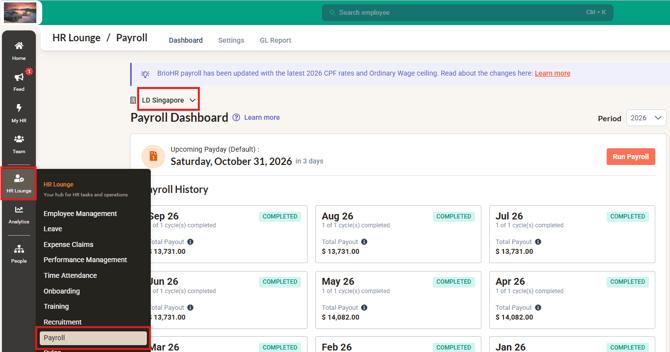
2. Select the relevant payroll center.
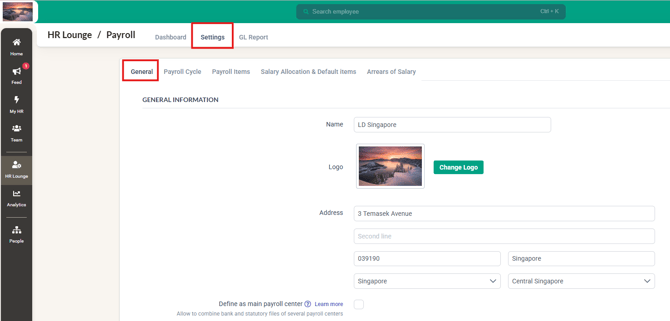
3. Click on Settings, then into General
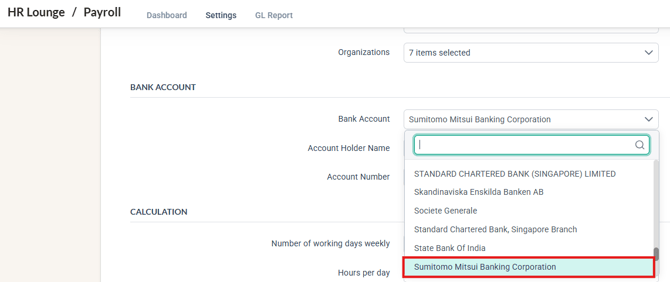
4. Scroll down to Bank Account, and select Sumitomo Mitsui Banking Corporation in the "Bank Account" field.
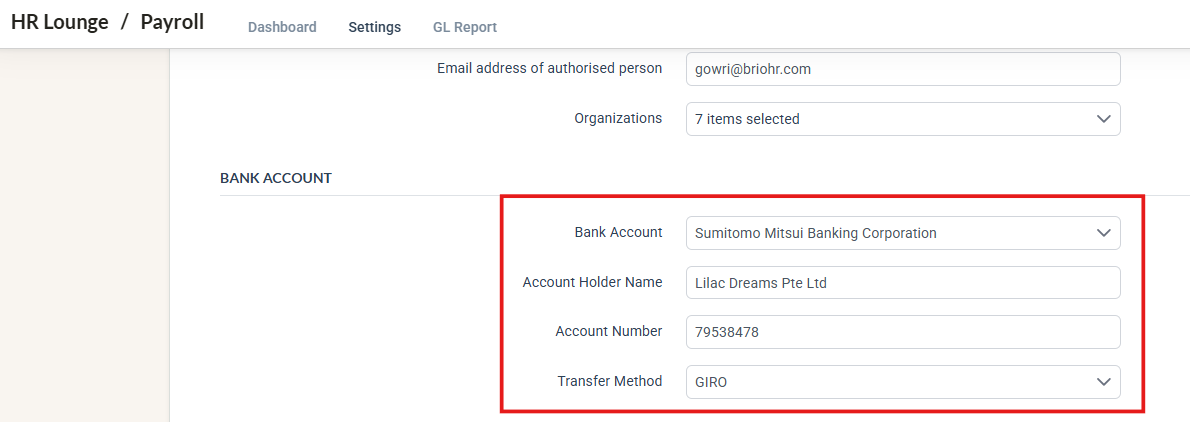
5. Enter the required details, including the Account Holder Name, Account Number and Transfer Method
NOTE:
When Sumitomo Mitsui Banking Corporation (SMBC) Singapore is selected, you can choose your preferred transfer method:
- GIRO (Default): Uses the Payroll specification.
- FAST: Uses the FAST/PayNow Payroll specification.
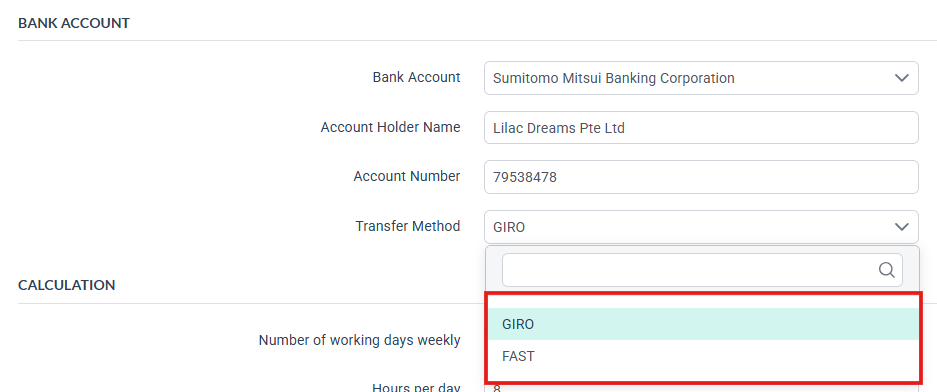
The bank file downloaded will be a CSV file according to the specification chosen.
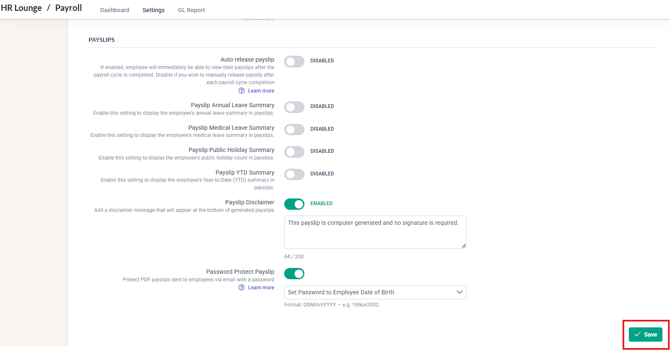
6. Scroll down to the botton of the page, then click Save to complete the setup.
Downloading the Bank File
1. In the HR Lounge, navigate to the Payroll section.
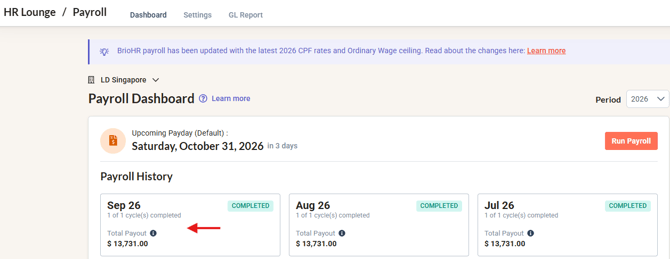
2. On the Payroll History dashboard, select the completed payroll month for which you wish to process payments.
3. Click the Download button for the bank file.
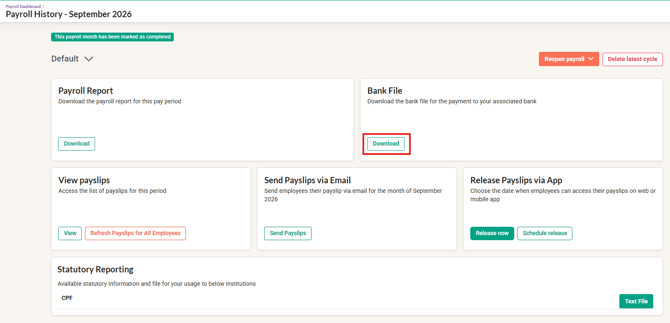
4. Choose the employees to be included in the file, and click Download.
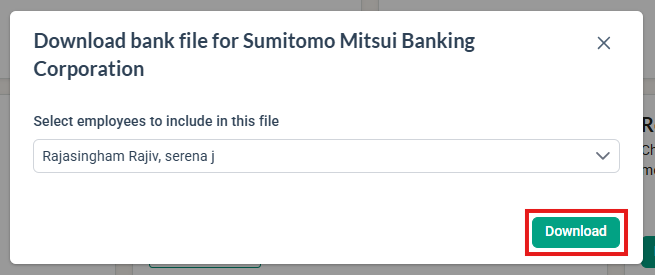
With these steps, your Sumitomo Mitsui Banking Corporation bank file will be ready for payroll processing!
NOTE:
If any required information is missing, the bank file cannot be generated, and a warning prompt will appear (as shown in the screenshot below).
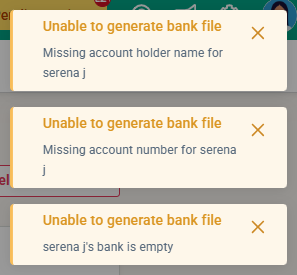
To resolve this, kindly update the missing information and then regenerate the bank file.
Related Articles
Singapore Payroll Centre: Supported Banks for Payroll Bank Files in BrioHR
Ownership
By: Arveena