![brioHR-logo-color.svg]](https://support.briohr.com/hubfs/brioHR-logo-color.svg)
Audience & Scope
Audience: HR Admin & Payroll Manager
Module: Payroll
Country: Malaysia
Pre-requisites: HR Module Permission for Payroll module and Profile Sensitive data access for Employee Payroll
Overview of EIS options in brioHR Payroll
The Employment Insurance System (EIS) is a statutory contribution under the Employment Insurance System Act 2017, administered by PERKESO. In brioHR, an employee's EIS setting can be one of the following:
| Option | Behaviour |
|---|---|
| Non related | No EIS contribution is made. |
| Enabled | EIS is contributed at 0.2% (employee) and 0.2% (employer). |
| Automatic | brioHR determines whether EIS applies based on the employee's nationality and date of birth, and resolves to either Enabled or Non-related when payroll is run. |
NOTE:
EIS covers Malaysian citizens only. Foreign workers are not covered under the Employment Insurance System Act 2017.
For further information, kindly refer to the PERKESO official website here.
If an employee's EIS setting is chosen manually (Non related or Enabled), the admin will need to remember to change it when the employee's situation changes — most commonly when they turn 60 and stop being covered.
This is easy to miss and can lead to incorrect statutory contributions and incorrect PERKESO submissions.
Choosing the "Automatic" option lets the system decide whether EIS applies, based on the employee's nationality and date of birth, using the same approach already used for EPF and SOCSO.
| Nationality | Age at payroll period | Resolves to |
|---|---|---|
| Malaysian | 18 to below 60 | Enabled |
| Malaysian | Below 18 | Non related |
| Malaysian | 60 and above | Non related |
| Non-Malaysian | Any age | Non related |
IMPORTANT:
- Unlike SOCSO, EIS has an upper age cutoff — contribution stops once the employee reaches 60.
- Age transitions follow the following-month convention, consistent with EPF and SOCSO. For example, if an employee turns 60 in May, EIS still resolves to Enabled for the May payroll cycle, and switches to Non related starting the June cycle.
- If the employee's EIS setting is Automatic, Nationality and Date of Birth must both be completed in the employee profile. EIS cannot be computed when running payroll if either is missing — the affected employee(s) will be flagged, and payroll cannot proceed until this is resolved (see below).
- The "age 57 and never contributed before" exemption under PERKESO rules is not available under Automatic, since prior contribution history is not held in the employee profile and cannot be derived. Employees under this exemption should remain on Non related, set manually.
How missing information is handled during payroll run
If an Automatic employee is missing nationality and/or date of birth when payroll is run, a warning banner appears under "Unable to compute payslip" and Continue is disabled until it's resolved:
| Missing field(s) | Banner message |
|---|---|
| Nationality only | "{Name} — Missing nationality" |
| Date of birth only | "{Name} — Missing date of birth" |
| Both | "{Name} — Missing nationality and date of birth" |
NOTE:
If an employee is set to Automatic for a statutory setting, and is missing nationality or date of birth, only one warning row is shown for that employee — the warning is not duplicated per statutory type.
To resolve a flagged employee:
- Complete the missing nationality or date of birth on the employee's profile.
- Click Refresh All (or refresh the individual employee) on the payroll run screen — the warning clears, the warning count decrements, and the payslip computes.
Alternatively, the payroll officer can exclude the flagged employee from the current cycle — this also clears the warning, and no EIS is computed for that employee in that cycle.
Once all warnings are resolved or excluded, Continue becomes enabled on the Adjust Payroll step.
TIP:
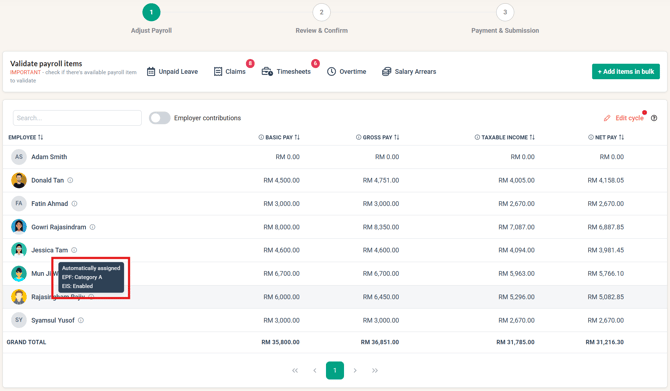
If "Automatic" was chosen for the employee's EIS setting, you can see the resolved value (Enabled or Non related) when processing payroll. Hover over the tooltip next to the employee's name on the run payroll screen.
How to change employee's EIS contribution option
Change for individual employee
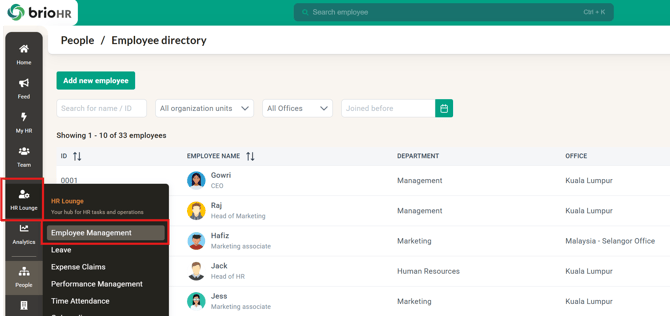
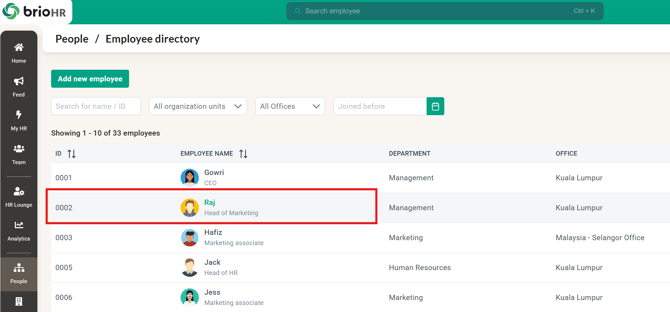
1. Go to HR Lounge > Employee Management or People > Employee Directory
2. Choose the employee
3. Click the Payroll tab
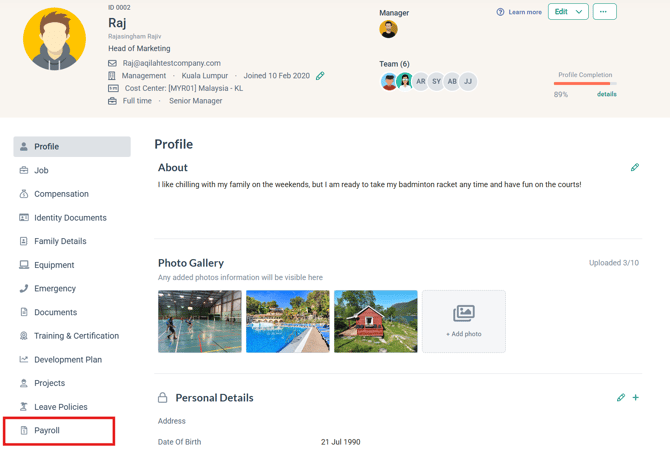
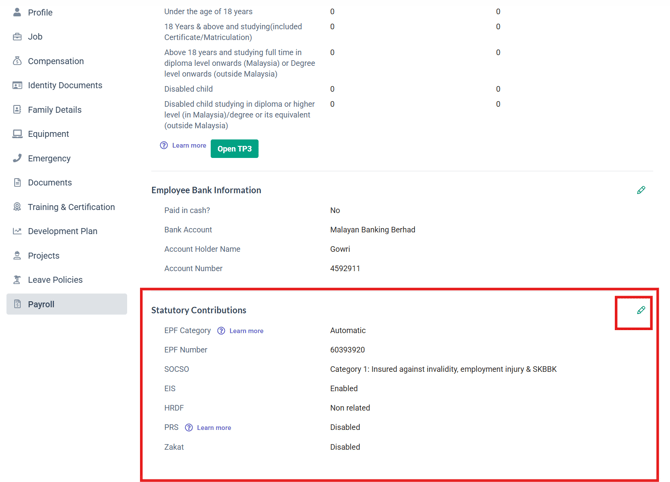
4. Scroll down to the Statutory Contributions section and click Edit
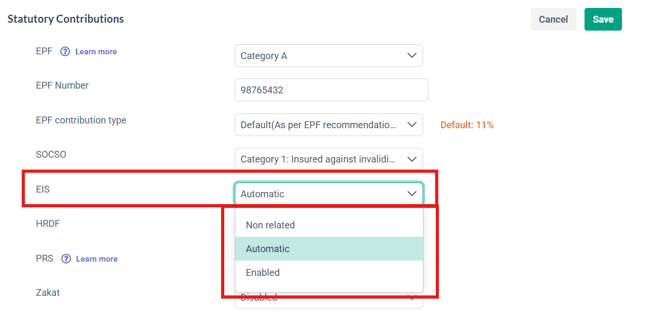
5. Choose Non related, Automatic, or Enabled from the EIS dropdown
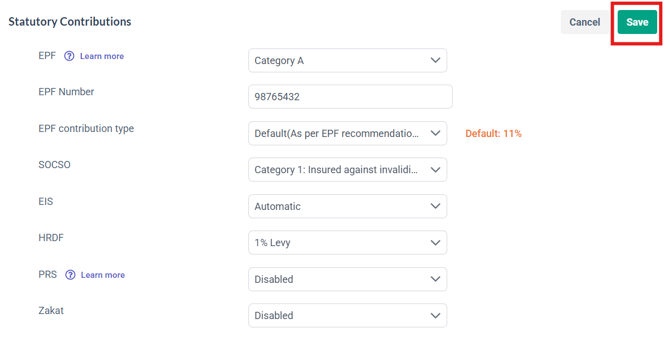
7. Click Save
Change in bulk for multiple employees
1. Go to HR Lounge > Payroll
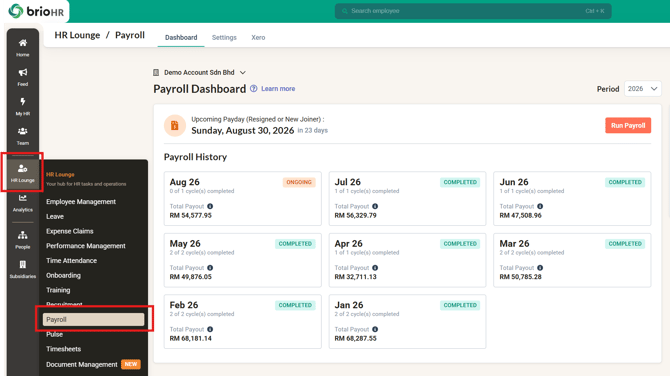
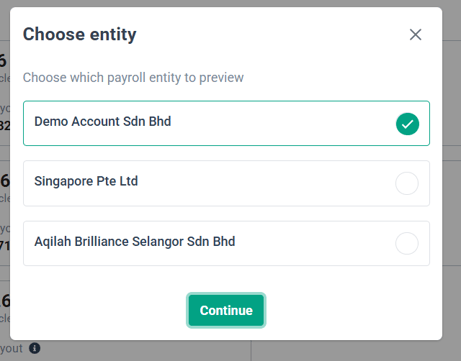
2. Choose the Payroll Center (if more than one)
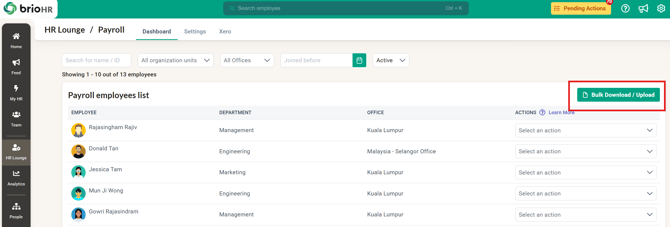
3. Under Dashboard tab, scroll down to find the Payroll employees list
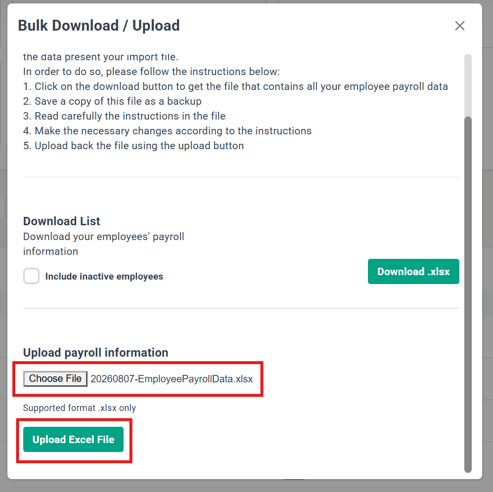
4. Click Bulk Download/Upload
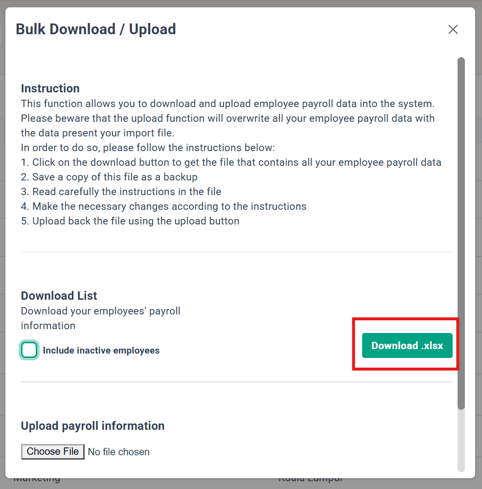
5. Click Download .xlsx
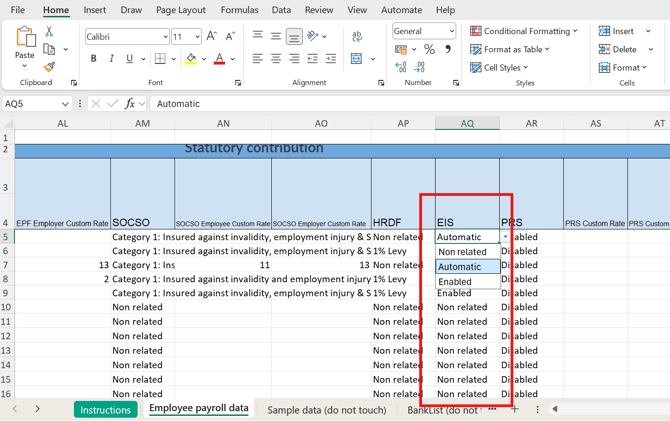
6. Edit the EIS column of the downloaded Excel as needed — the accepted values are Non related, Automatic, or Enabled, matching the in-app dropdown exactly
7. Save the Excel file and Upload it from the same Download/Upload screen
Common Issues/FAQ
Q1: What happens if payroll is run for an Automatic employee with missing nationality or date of birth?
A: A warning banner is shown (e.g. "{Name} — Missing nationality") under "Unable to compute payslip," and Continue is disabled until it's resolved. You can either complete the missing profile information and click Refresh All, or exclude the employee from that payroll cycle.
Q2: When exactly does the EIS setting change after an employee's birthday?
A: Age transitions follow the following-month convention. For example, if an employee turns 60 in May, EIS still resolves to Enabled for the May payroll cycle and switches to Non related starting the June cycle.
Q3: I have an employee who qualifies for the "age 57, never contributed before" EIS exemption. Can I use Automatic for them?
A: No. This exemption can't be handled automatically, since prior contribution history isn't stored in the employee profile. These employees should stay on Non related, option for EIS contribution setting.
Q4: How can I check what an Automatic employee's EIS is resolving to before finalizing payroll?
A: On the run payroll screen, hover over the tooltip next to the employee's name — it shows the resolved value (Enabled or Non related) for that cycle.
Related Articles
How to Update Employee Payroll Details
Ownership
By: Aqilah