![brioHR-logo-color.svg]](https://support.briohr.com/hubfs/brioHR-logo-color.svg)
Overview of Different EPF Category options in brioHR Payroll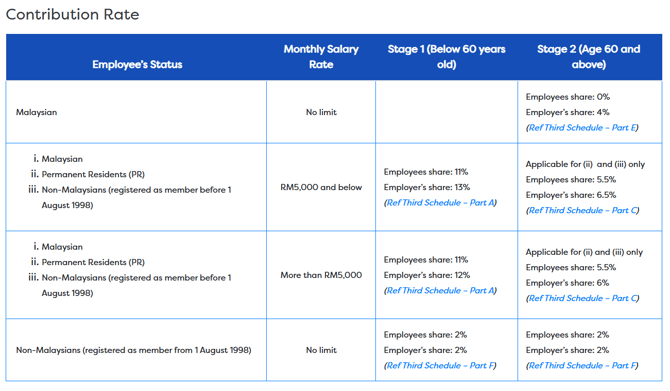
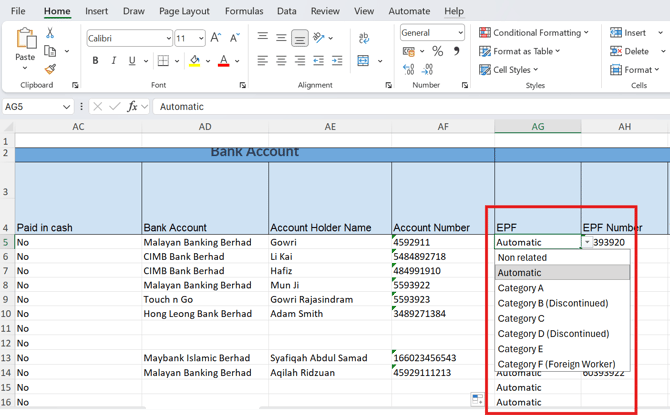
- Category A = refers to Part A
- Category B = refers to Part B (Discontinued)
- Category C = refers to Part C
- Category D = refers to Part D (Discontinued)
- Category E = refers to Part E
- Category F = refers to Part F
NOTE:
PART B and PART D of the THIRD SCHEDULE RATE OF MONTHLY CONTRIBUTIONS were deleted by Act A1760/2025. Thus, labelled as discontinued in the brioHR system.
For further information, kindly refer to the KWSP official website here.
Automatic option for Payroll EPF setting in employee profile
If an employee's EPF category was selected manually (category A-F), the admin will need to remember to change it when an employee's contribution category changes (most commonly when they turn 60).
This is easy to miss and can lead to incorrect statutory contributions.
Choosing the "Automatic" option lets the system pick the correct EPF category based on the employee's nationality and date of birth.
| Nationality | Age at payroll period | Category chosen |
| Malaysian | Under 60 | Category A |
| Malaysian | 60 to 74 | Category E |
| Non-Malaysian | Under 75 | Category F (2% / 2%) |
| Any | 75 and above | Non-related, zero both sides |
IMPORTANT:
-
If the employee's EPF setting is Automatic, Nationality and/or Age must be completed in the employee profile. EPF cannot be computed when running payroll if one or both are missing. Please complete the missing information in the employee's profile to continue.
-
For Permanent Residents, please choose Category A or Category C (depend on employee age) instead of Automatic since the system is unable to determine the PR status of the employee.
How to change employee's EPF contribution option
Change for individual employee
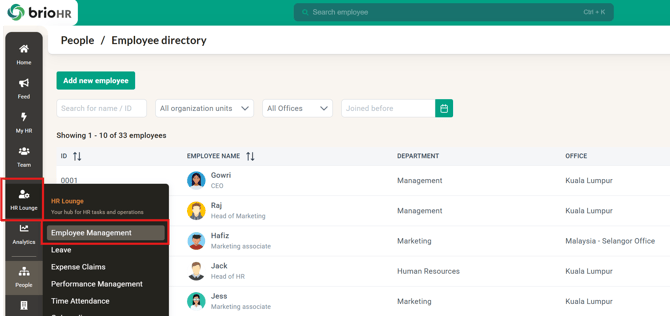
1. Go to HR Lounge > Employee Management or People > Employee Directory
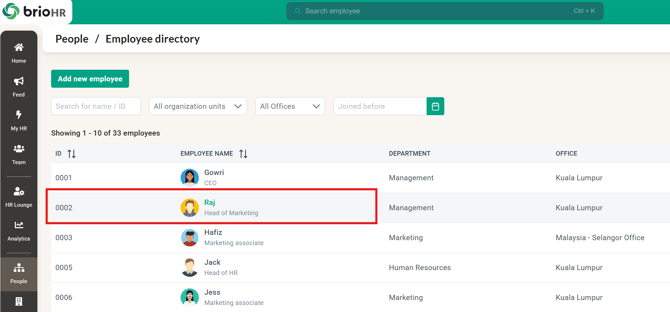
2. Choose the employee
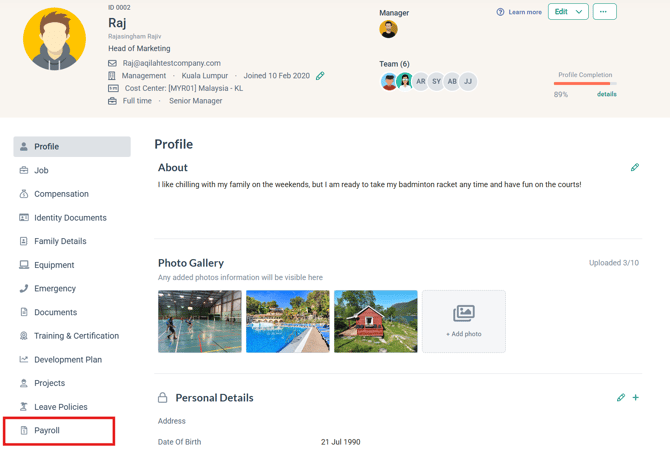
3. Click the Payroll tab
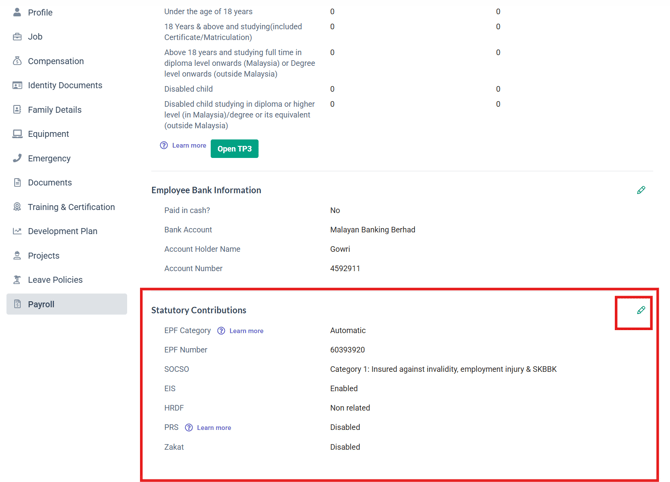
4. Scroll down to the Statutory Contributions section and click Edit
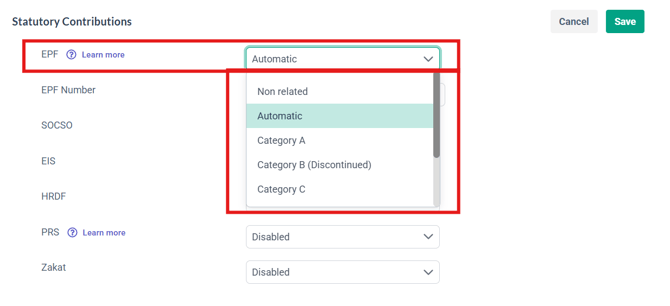
5. Choose the option from the dropdown
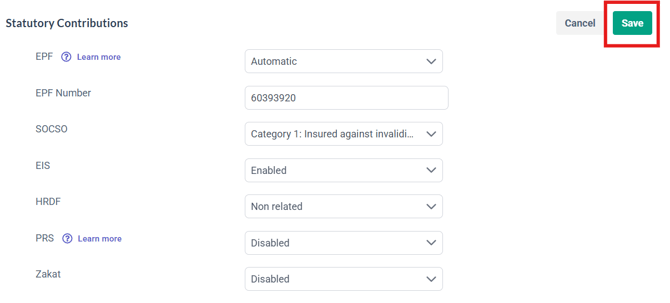
7. Click Save
Change in bulk for multiple employees
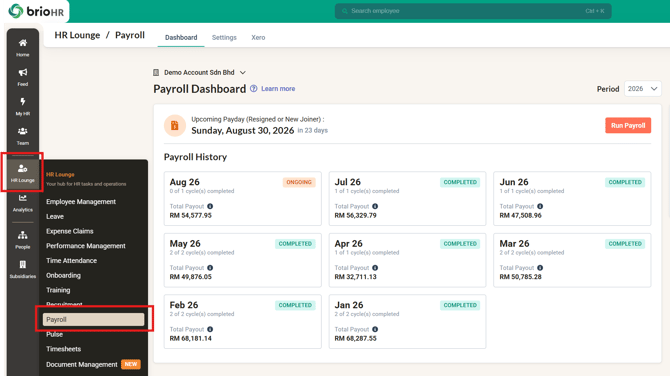
1. Go to HR Lounge > Payroll
2. Choose the Payroll Center (if more than one)
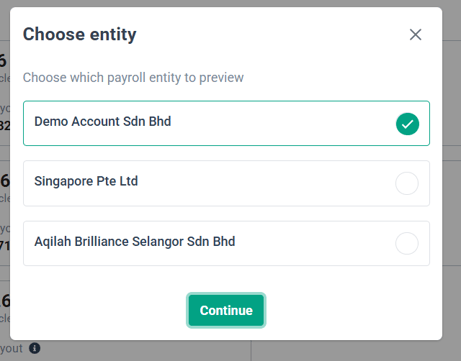
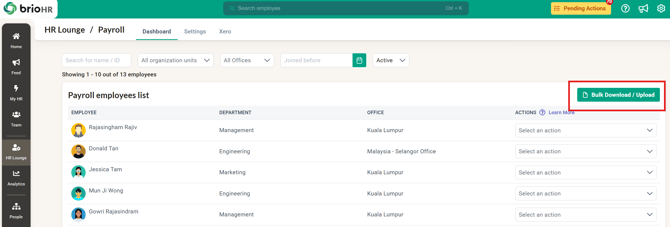
3. Under Dashboard tab, scroll down to find the Payroll employees list
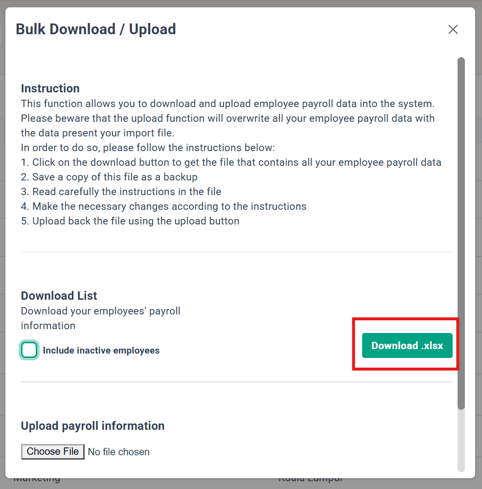
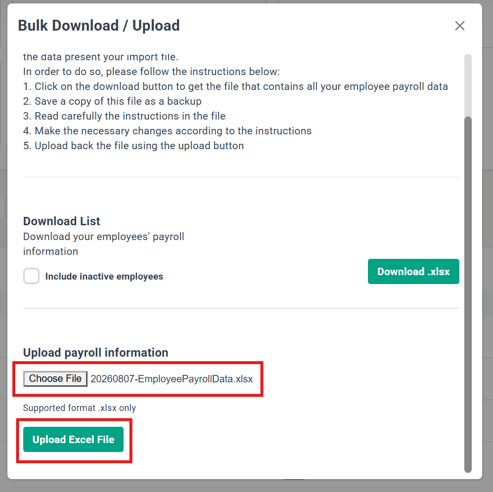
4. Click Bulk Download/Upload
5. Click Download .xlsx
6. Edit EPF column of the downloaded Excel as needed
7. Save the Excel file and Upload it from the same Download/Upload screen
TIP:
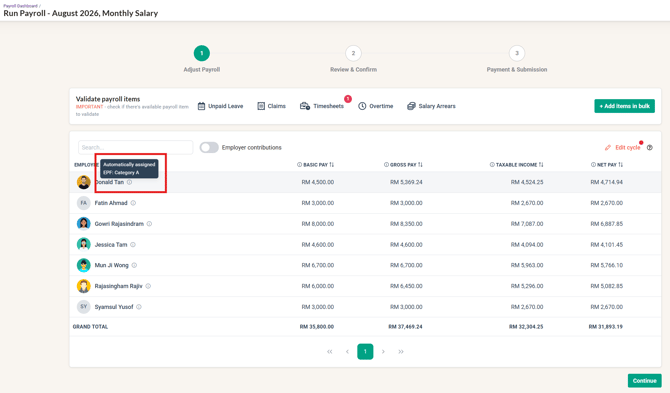
If 'Automatic' was chosen for the employee's EPF category, you can see which category the employee is under when processing payroll. Hover over the 'i' icon next to the employee name.
Learn more:
How to Update Employee Payroll Details
How to Customize EPF Contribution Rates: Add to Default & Overwrite Explained
Need Assistance?
If you have any questions or require assistance, please reach out to our support team via live chat or email us at support@briohr.com.