![brioHR-logo-color.svg]](https://support.briohr.com/hubfs/brioHR-logo-color.svg)
Audience & Scope
Audience: HR Admin & Payroll Manager
Module: Payroll
Country: Malaysia
Pre-requisites: HR Module Permission for Payroll module and Profile Sensitive data access for Employee Payroll
Overview of SOCSO options in brioHR Payroll
SOCSO, also known as the Social Security Organisation (PERKESO), is a statutory social security scheme in Malaysia that provides employees with protection and benefits for situations such as employment injuries and invalidity. Employers and eligible employees are required to make SOCSO contributions based on the applicable contribution category and statutory requirements.
SOCSO contribution categories are now easier to manage with the new Automatic option. With the Automatic option, the system automatically determines the appropriate SOCSO category based on the employee's nationality and date of birth when payroll is processed. For example, when a Malaysian employee reaches the age of 60 and needs to move from Category 1 to Category 2.
This enhancement follows a similar approach to the existing EPF and EIS options.
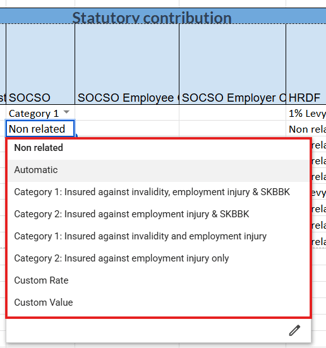
| Option | Behaviour |
| Non related | No SOCSO contribution made |
| Automatic | brioHR automatically determines the appropriate SOCSO category based on the employee's nationality and date of birth when payroll is processed |
| Category 1: Insured against invalidity, employment injury & SKBBK | 1.75% of employer’s share and 0.5% of employees’ monthly wages according to the contribution schedule + 0.75% SKBBK contribution (employee contribution) |
| Category 2: Insured against employment injury & SKBBK | 1.25% of employees’ monthly wages, payable by the employer, based on the contribution schedule + 0.75% SKBBK contribution (employer contribution) |
| Category 1: Insured against invalidity and employment injury | 1.75% of employer’s share and 0.5% of employees’ monthly wages according to the contribution schedule |
| Category 2: Insured against employment injury only | 1.25% of employees’ monthly wages, payable by the employer, based on the contribution schedule |
| Custom Rate | Customize the % contributed by employee and employer |
| Custom Value |
Customize the amount contributed by employee and employer |
Official website links:
Coverage of the Workers Social Security Act 1969
Non-Employment Injury Scheme (LINDUNG 24 JAM)
New Contribution Rate Including SKBBK
PERKESO Contribution Calculator
IMPORTANT:
-
Existing employees will not be automatically switched to the Automatic option. The Automatic option must be selected manually for each employee who should use this setting.
-
The "age 57 and never contributed before" exemption under PERKESO rules is not available under Automatic, since prior contribution history is not held in the employee profile and cannot be derived. Employees under this exemption should remain on Non related, set manually.
How the Automatic SOCSO Category Works
When Automatic is selected, the system determines the employee's SOCSO category based on their nationality and age during the relevant payroll period.
| Employee | Age at Payroll Period | SOCSO Category |
| Malaysian | Under 60 | Category 1 – Insured against Invalidity, Employment Injury & SKBBK |
| Malaysian | 60 and above | Category 2 – Insured against Employment Injury & SKBBK |
| Non-Malaysian | Under 60 | Category 1 – Insured against Invalidity, Employment Injury & SKBBK |
| Non-Malaysian | 60 and above | Category 2 – Insured against Employment Injury & SKBBK |
| Missing nationality and/or date of birth | - | Blocked; warning shown when running payroll |
IMPORTANT:
When using the Automatic option, the system will always assign the employee to a SOCSO category with SKBBK.
The No SKBBK options will remain available for manual selection only. This is because SKBBK eligibility or opt-out status depends on the employer's designation with PERKESO and cannot be determined using the employee's profile information alone.
TIP:
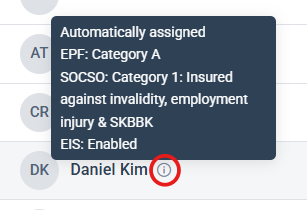
If "Automatic" was chosen for the employee's SOCSO setting, you can see this icon when processing payroll. Hover over the icon next to the employee's name and you will be able to see the categories the employee is assigned to.
Employees with Missing Information
The employee's nationality and date of birth are required for the system to determine the SOCSO category automatically.
If either information is missing:
- The system will be unable to determine the appropriate SOCSO category.
- A warning message will be displayed.
- Payroll processing will be blocked, and no payslip will be generated until the required information is completed.
IMPORTANT:
Unlike EPF, there is no upper age limit where an employee becomes Non-related for SOCSO contributions.
SOCSO Employment Injury coverage continues for as long as the employee remains employed. Therefore, when the Automatic option is selected, the system will continue to determine the appropriate SOCSO category and will not automatically resolve the employee as Non-related based on age.
How to change employee's EIS contribution option
A: Change for individual employee
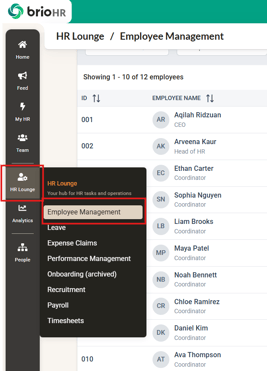
1. Go to HR Lounge > Employee Management
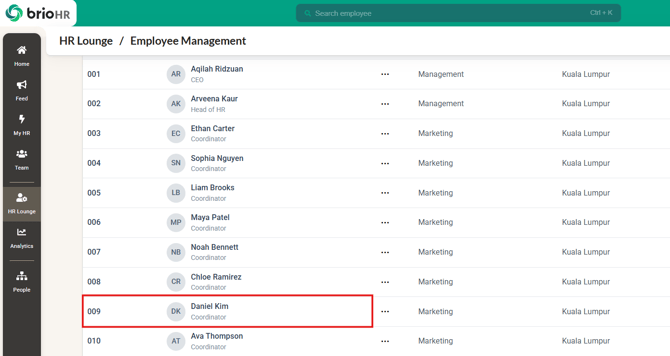
2. Choose the employee
3. Click the Payroll tab
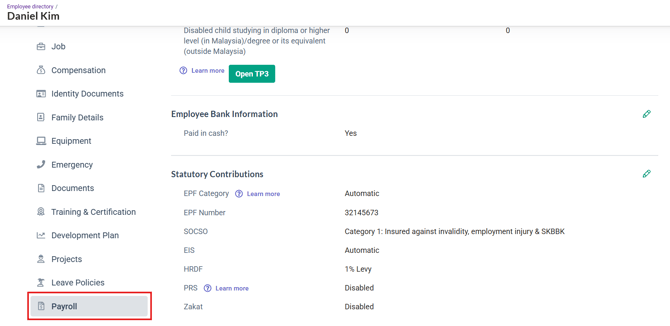
4. Scroll down to the Statutory Contributions section and click Edit
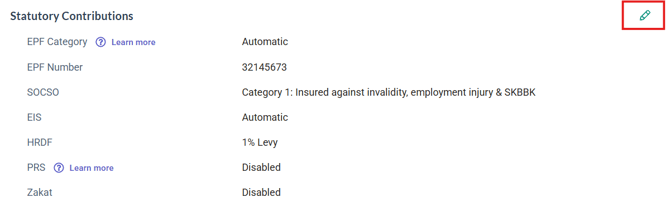
5. Choose the relevant option at the dropdown
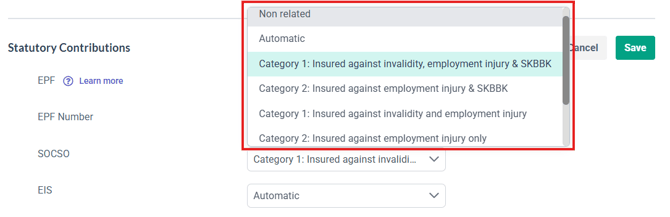
6. Click Save
B: Change in bulk for multiple employees
1. Go to HR Lounge > Payroll, select the payroll center
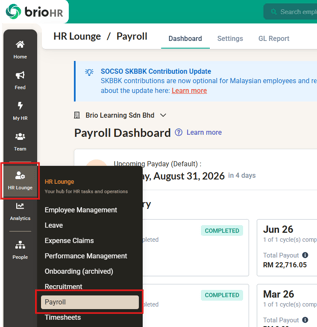
2. Under Dashboard tab, scroll down to find the Payroll employees list
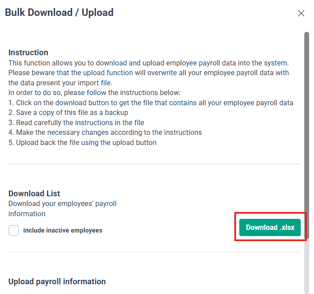
3. Click Bulk Download/Upload
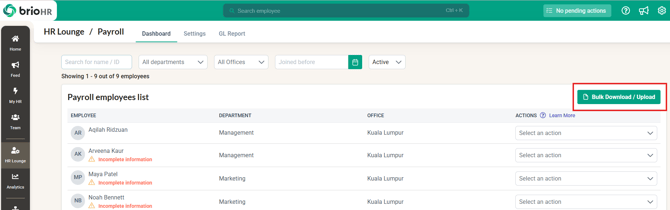
4. Click Download .xlsx
5. Edit the SOCSO column of the downloaded Excel as needed
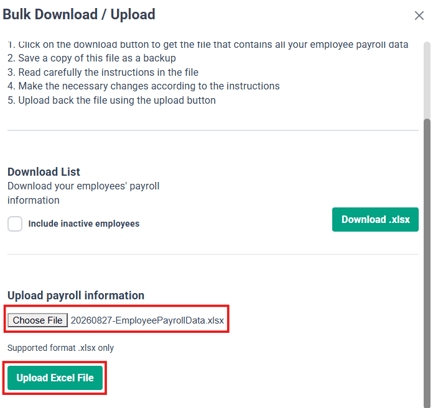
6. Save the Excel file and Upload it from the same Download/Upload screen
Common Issues/FAQ
Q1: What happens if payroll is run for an Automatic employee with missing nationality or date of birth?
A: A warning banner is shown (e.g. "{Name} — Missing nationality") under "Unable to compute payslip," and Continue is disabled until it's resolved. You can either complete the missing profile information or exclude the employee from that payroll cycle.
Q2: Can the Automatic option select a SOCSO category without SKBBK?
A: No. SOCSO categories without SKBBK remain available for manual selection only. This is because SKBBK opt-out eligibility depends on the employer's designation with PERKESO and cannot be determined automatically from an employee's profile information.
Q3: Will the Automatic option assign an employee as Non-related?
A: No. Unlike EPF, there is no upper age cut-off for SOCSO Employment Injury coverage as long as the employee remains employed.
Therefore, the Automatic option will not resolve an employee as Non-related based on their age.
Q4: How can I check what an Automatic employee's SOCSO is resolving to before finalizing payroll?
A: On the run payroll screen, hover over the tooltip next to the employee's name — it shows the chosen Category for that cycle.
Q5: I have an employee who qualifies for the "age 57, never contributed before" SOCSO exemption. Can I use Automatic for them?
A: No. This exemption can't be handled automatically, since prior contribution history isn't stored in the employee profile. These employees should stay on Non related, option for SOCSO contribution setting.
Related Articles
How to Update Employee Payroll Details
Ownership
By: Arveena