![brioHR-logo-color.svg]](https://support.briohr.com/hubfs/brioHR-logo-color.svg)
Audience & Scope
Audience: HR Admin
Module: Profiles
Country: Global
Pre-requisites: Admin access to System Settings
brioHR now supports a multi-level Organization Structure, allowing your company to organise teams and sub-teams according to your actual company structure. Previously, brioHR supported a single, flat list of departments. With this enhancement, you can now create additional layers below your existing departments, such as Sections, Divisions, Teams or Squads.
This article explains what has changed and where the updated Organization Structure will be reflected in brioHR.
Where to Set Up Your Organization Structure?
As the Admin, you can access and configure the Organization Structure from:
Settings > Organization Structure
The Organization Structure page contains two areas:
- Manage Structure – Manage the teams and sub-teams within each level of your organisation.
- Set Up Level – Define the different levels that make up your organisation structure.
Step 1: Manage Your Structure
Within the Manage Structure page, your existing Departments will already be displayed.
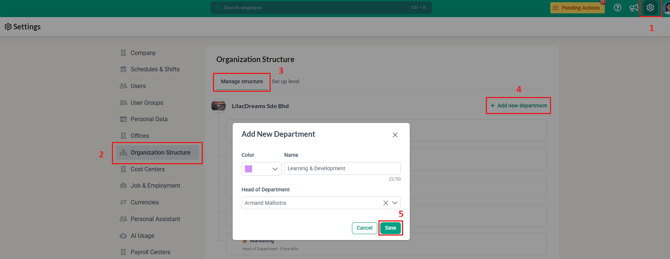
If you need to add a new department:
- Go to Settings > Organization Structure.
- At Manage Structure, click Add New Department.
- Select a colour code for the department.
- Enter the Department Name.
- Select the Head of Department, if applicable.
- Click Save.
The new department will then be added to your Organization Structure.
Managing Existing Departments
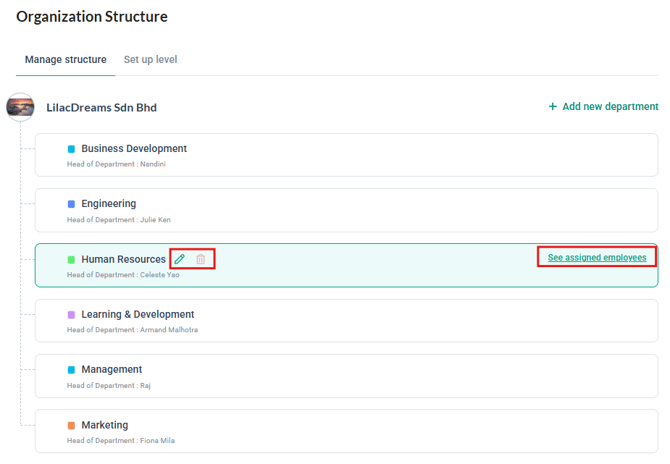
For existing departments, you can:
- View the employees currently assigned to the department.
- Edit the department details when required.
- Delete a department when it is no longer needed.
IMPORTANT:
A department can only be deleted when there are no employees assigned to it.
If employees are still assigned to the department, you will first need to reassign them to another department. Once all employees have been reassigned and the department has no employees linked to it, you can delete the department from the system.
This helps prevent employees from being left without a department assignment.
Step 2: Set Up Your Organisation Levels
Before creating teams and sub-teams, start with Set Up Level to define the different levels you want to use.
- Go to Settings > Organization Structure.
- Select Set Up Level.
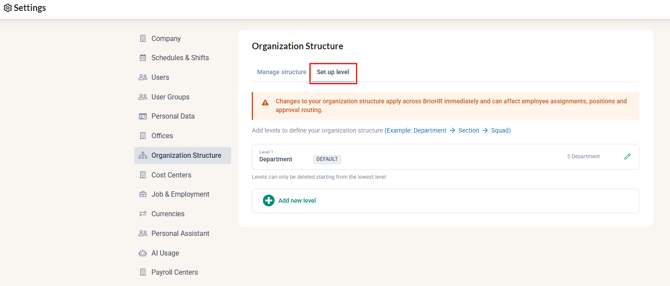
- Your existing Departments will already be displayed as the default first level.
- Click Add New Level.
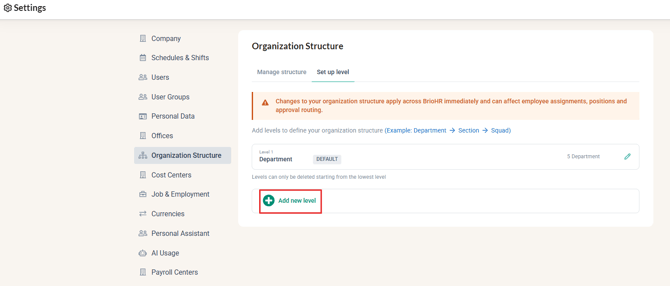
- Enter the name of the new level, such as Section, Division, Team or Squad.
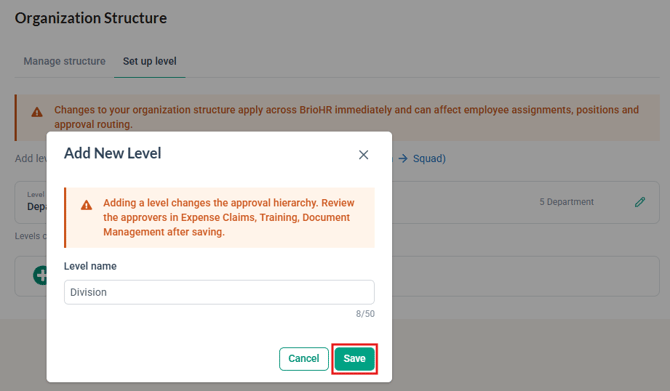
- Click Save.
Your existing departments will remain as they are and will become the first layer of your Organization Structure.
You can then add additional layers below them where needed. For example:
Department → Section → Squad
You can create up to 10 layers and customise the name of each layer to match your company's terminology.
Each team or sub-team will be linked to the team directly above it, creating a hierarchical structure. If your company only uses one level of departments, no additional setup is required. You can continue using your existing department structure as before.
IMPORTANT:
Levels added can only be deleted starting from the lowest level. If there are 5 levels added, you cannot delete level 3 without deleting the levels below it first.
Where Will the Organization Structure Be Reflected?
The updated structure will be used across several areas of BrioHR.
1. Employee Profile
Employees can be assigned to the appropriate team within the Organization Structure.
For companies with multiple layers, their assigned team and sub-team will reflect where they sit within the organisation.
For example:
Department: Technology
Section: Engineering
Squad: Product Development

This allows employee information to reflect the employee's actual position within the organisation.
2. Organization Chart
The Organization Chart will reflect the hierarchy created in the Organization Structure.
The top-level team will be clearly identified, while the lower-level teams will be displayed under the relevant parent team.
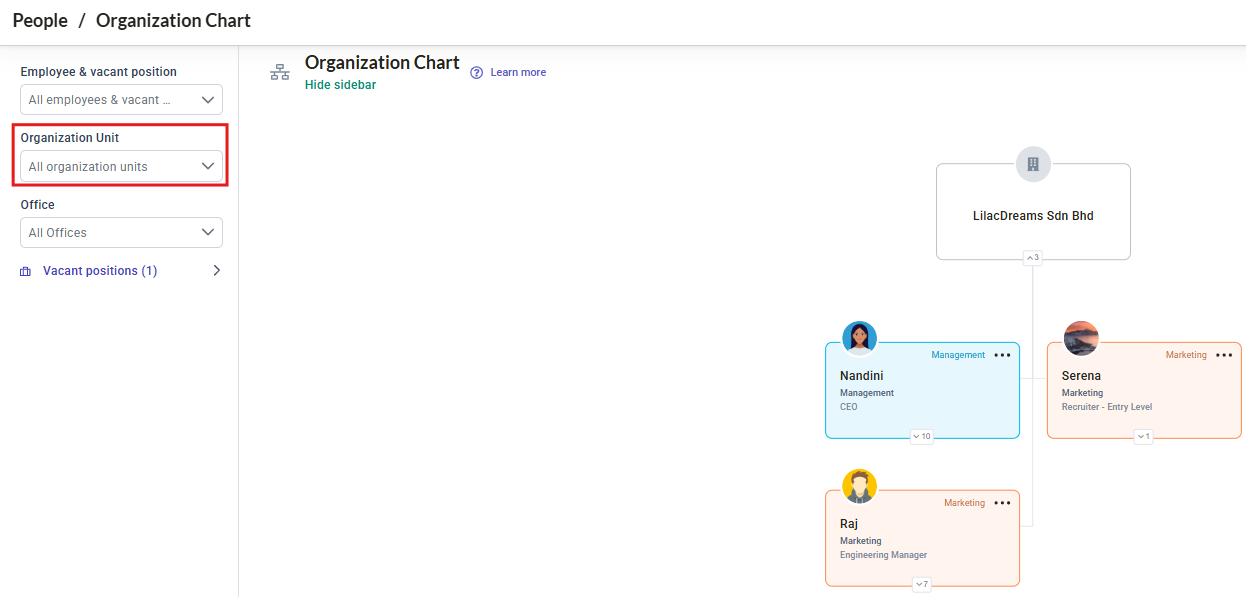
This provides a more accurate view of how teams and sub-teams are organised.
3. Reports
The Organization Structure will also be reflected in relevant employee reports.
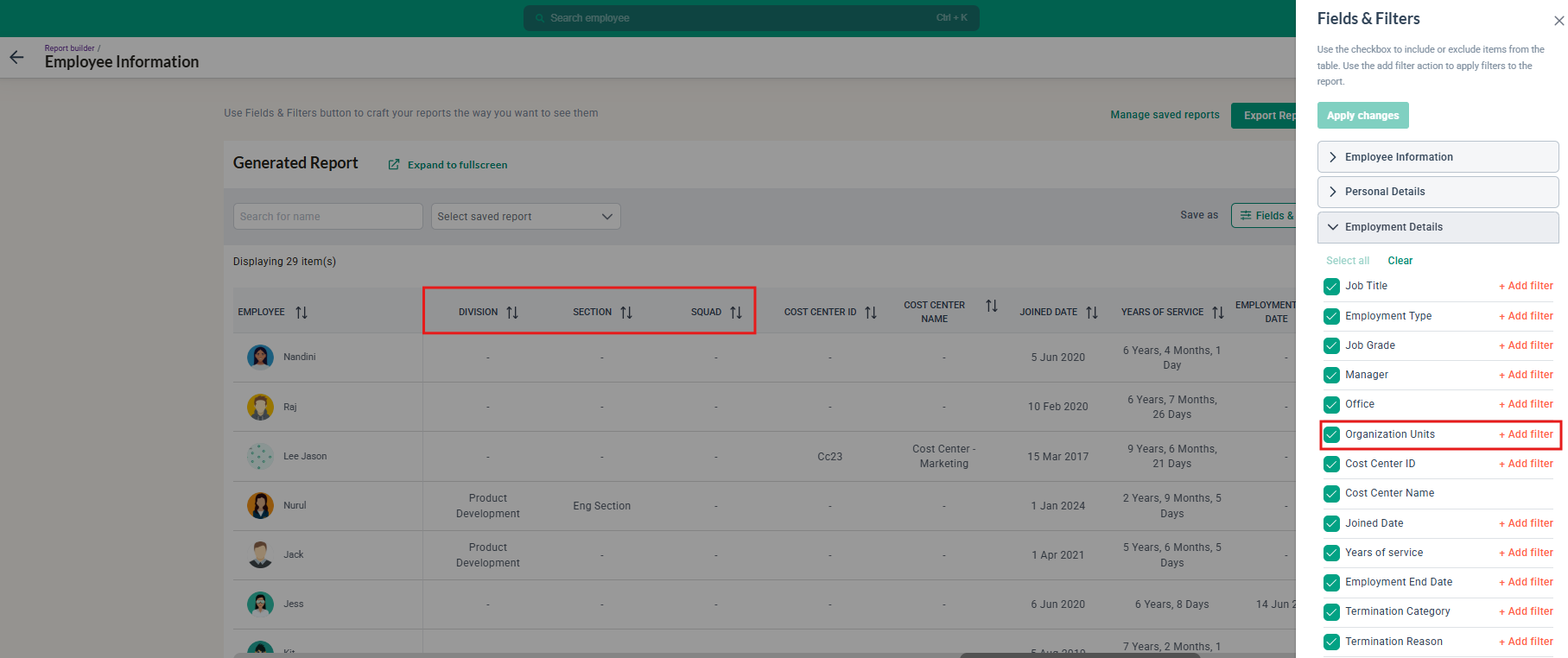
When viewing or filtering employee information, you can select the relevant team within the hierarchy. You can also filter by a parent team without having to manually select every sub-team under it.
For example, selecting Technology can allow you to view employees under Technology without having to separately select Engineering, Product Development and other teams beneath it.
4. Payroll
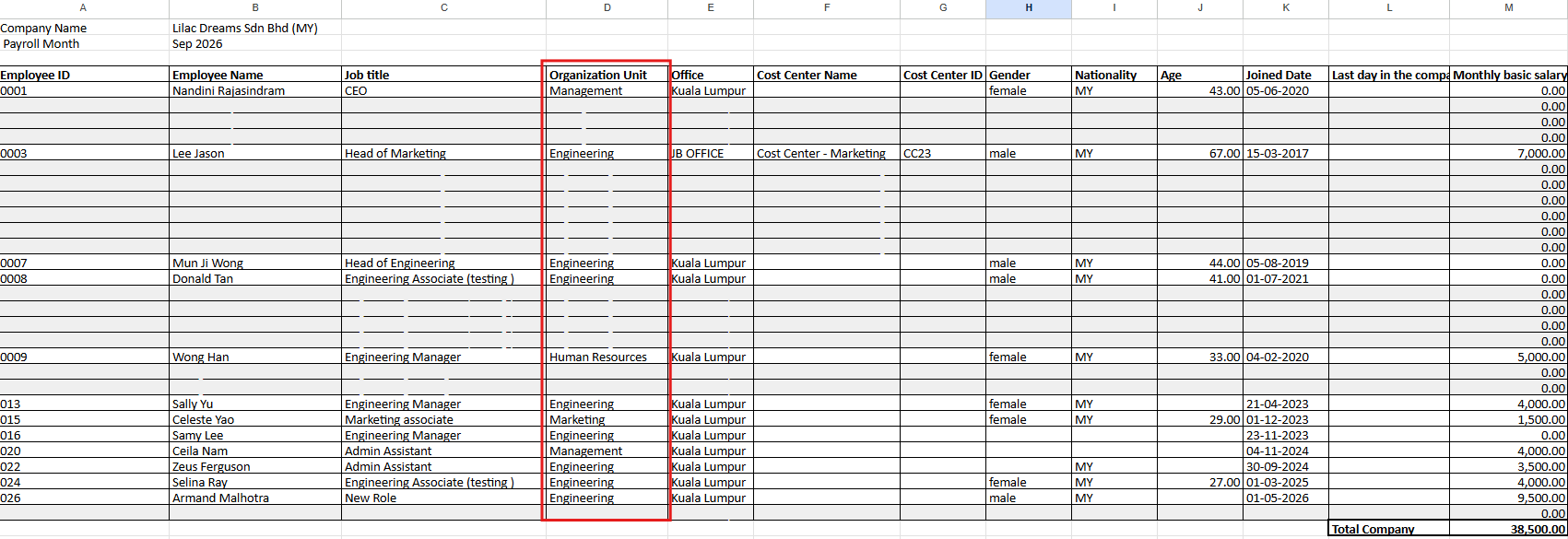
The Organization Structure is also connected to payroll-related employee information.
For companies using multiple organisation layers, employee team assignments will continue to be reflected in the relevant payroll processes and information.
Companies using only one department layer can continue their existing payroll setup without making changes.
Sample of Monthly Payroll Report:
5. Analytics
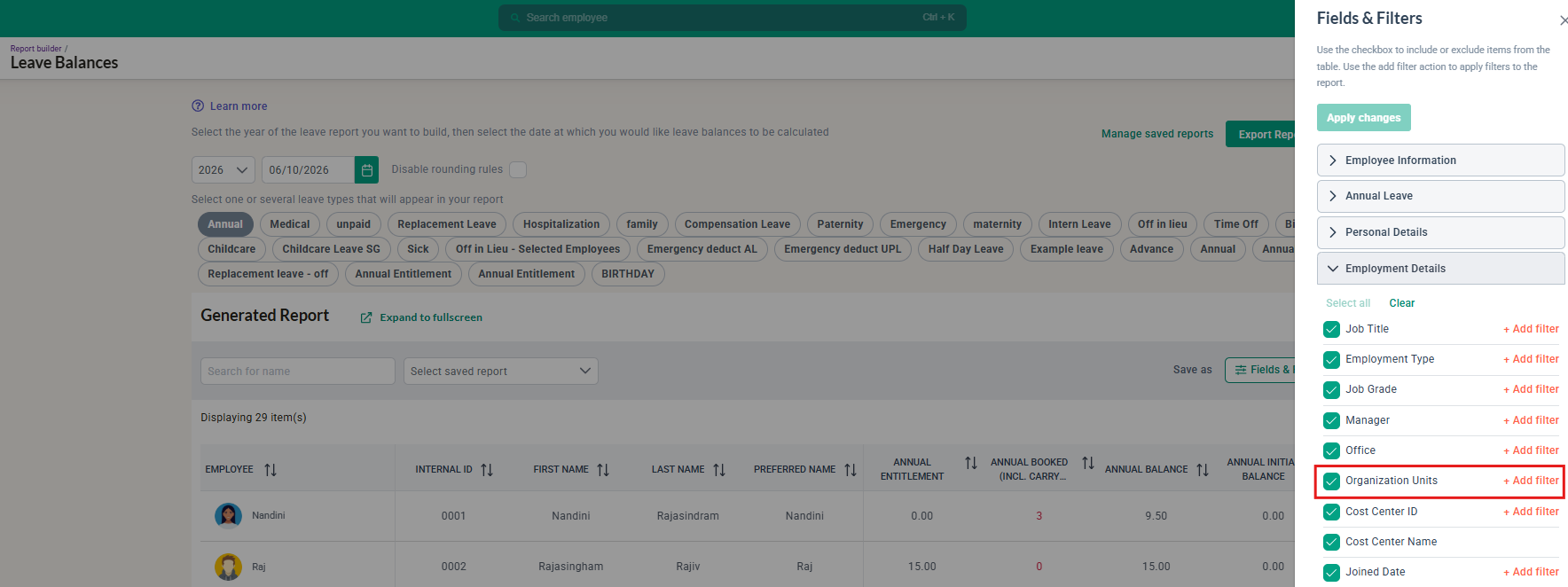
Organisation-related employee data in Analytics will follow the updated structure.
This allows information to be viewed according to the relevant team or parent team, making it easier to analyse employee data across different parts of the organisation.
Sample of Leave Balances report:
6. Approvals
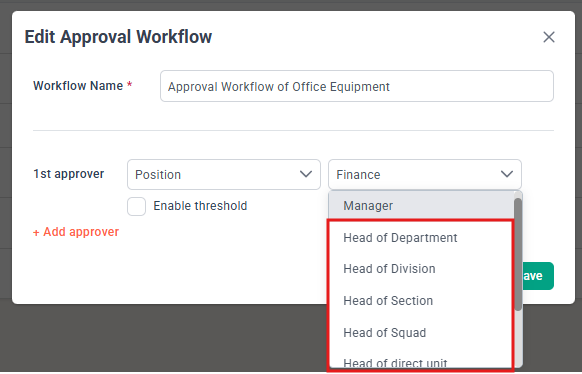
Where employee or workflow approvals use organisational information, the updated structure will be reflected accordingly.
This is particularly useful for companies where approval responsibilities are organised by different teams or levels within the organisation.
Sample of Expense Claim approval workflow:
7. Imports and Exports
The Organization Structure will also be reflected when managing relevant employee information through imports and exports.
This helps maintain consistent team and sub-team information when employee data is uploaded or downloaded from BrioHR.
Sample from the Bulk import Employee Profile:

8. Document Signing Roles
The updated structure also affects how signing roles can be assigned in document templates.
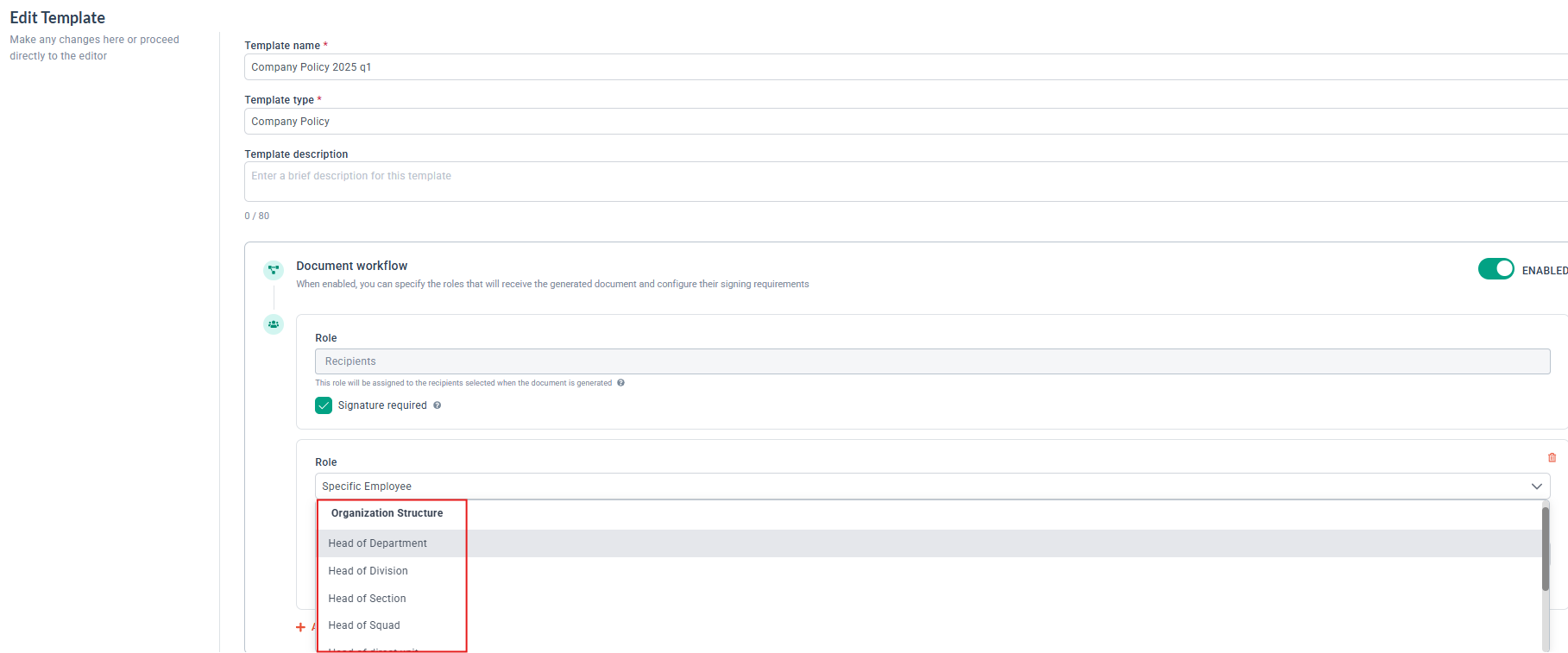
You can select the head of a specific organisation layer, such as:
- Head of Department
- Head of Division
- Head of Section
- Head of the employee's direct team
The selected signing role must correspond to a specific person.
For example, if a document requires the Head of Section, BrioHR will use the person assigned to that role. It will not automatically move to the Head of Department if there is no suitable person assigned at the Section level.
Sample of the Document Management Approval Workflow options:
What Happens to Your Existing Departments?
Your existing departments will not be removed or replaced.
They will become the first layer of your Organization Structure. This means companies that currently use a simple department setup can continue using BrioHR without introducing additional layers.
Additional layers can be added when needed.
For example:
Existing setup
Technology
Finance
Human Resources
Possible new structure
Technology
└── Engineering
└── Product Squad
Finance
└── Accounts
Human Resources
└── Talent Management
This allows your organisation structure to be expanded without having to rebuild your existing departments.
Frequently Asked Questions
Q1: Will our existing departments change or disappear?
A: No. Existing departments will become the first layer of your Organization Structure. If you do not require additional layers, you can continue using your existing setup.
Q2: How many organisation layers can we create?
A: You can create up to 10 layers. Each layer can be given a name that matches your company's structure, such as Department, Division, Section, Team or Squad.
Q3: Do we need to create additional layers?
A: No. Additional layers are optional. If your company only requires departments, you can continue using a single-layer structure.
Q4: Will this affect existing employee information?
A: Existing employee department information will remain part of the Organization Structure. If additional layers are introduced, employees can then be assigned to the relevant teams and sub-teams.
Q5: Will this affect reports and approvals?
A: The updated Organization Structure is connected to relevant employee profiles, reports, payroll, analytics and approvals. This means team and sub-team information can be used consistently across these areas.
Q6: Can I filter a parent team without selecting every sub-team?
A: Yes. You can filter by a parent team without manually selecting each sub-team underneath it.
Q7: Will this affect document signing?
A: Yes. Document templates can use the head of a specific organisation layer or the employee's direct team as a signing role. The signing role must be assigned to a specific person and will not automatically move to another higher-level team.
Ownership
By: Arveena