![brioHR-logo-color.svg]](https://support.briohr.com/hubfs/brioHR-logo-color.svg)
Audience & Scope
Audience: Admin, Manager
Module: Employee Profile
Country: Global
Pre-requisites: User Group permission to view Job History enabled.
BrioHR now displays an employee's Years of Service directly within the system, giving HR teams and employees better visibility into an employee's length of service.
This dynamically calculated value helps support HR processes that rely on employee tenure, including:
- Leave entitlement tiers
- Expense claim policies based on years of service
- Probation completion tracking
- General employee record management and reporting
The Years of Service value is automatically calculated based on the employee's Joined Date, ensuring it remains accurate without requiring any manual updates.
Where to View Years of Service
The Years of Service information is available in the following locations:
- Employee Profile → Job History tab (displayed at the top of the page)
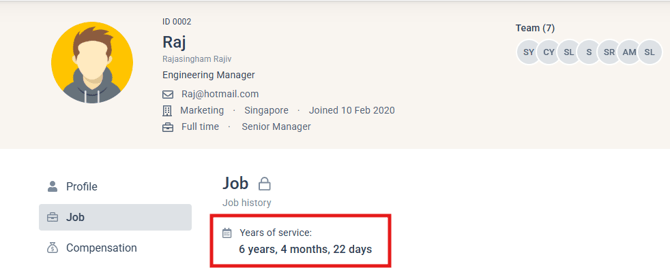
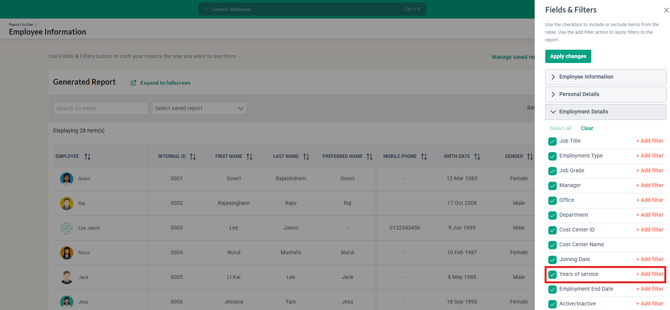
- Employee Information Report as a report field for easier reporting and analysis
NOTE:
-
Access the Employee Information Report above by clicking into Analytics > Report Builder.
-
When using the Employee Information Report, the Years of Service filter currently supports filtering by years, months and days.
- The Years of Service field is also available in other reports such as Identity Documents report, Expense Claim report and others. This field is located within the 'Employment Details' in the Fields & Filters.
How Years of Service is Calculated
The system calculates an employee's Years of Service using the following rules:
Calculation Source
- Joined Date is the only date used for the calculation.
- No other employment-related date fields are considered.
Active Employees
For active employees, the Years of Service is calculated from the Joined Date up to the current date and updates automatically each day.
Inactive Employees
For inactive employees, the Years of Service is calculated from the Joined Date to the Employment End Date.
- If the Employment End Date has already passed, the value remains fixed from that date onward.
- If the Employment End Date is set in advance, the Years of Service will continue updating daily until the end date is reached, after which it will no longer change.
Display Format
Years of Service is displayed in a clear, easy-to-read format using only the applicable time units.
Examples include:
- 3 years, 2 months, 14 days
- 2 years, 14 days
- 8 months, 3 days
- 12 days
The display follows these rules:
- If the employee has less than 1 year of service, only months and days are shown.
- If the employee has less than 1 month of service, only days are shown.
Permissions
There are no changes to existing access permissions.
Users who already have permission to view:
- the Job History tab in the Employee Profile, or
- the Employee Information Report
will automatically be able to view the Years of Service value.
Frequently Asked Questions
Q: Why can't I see the Years of Service field?
A: If you are not able to view this information it is because the permission to view the Job History tab has not been enabled within your user permissions. Reach out to the Admin of the account to enable this accordingly.
Q: What happens when an employee leaves the company?
A: For inactive employees, Years of Service is calculated from the Joined Date to the Employment End Date. Once the Employment End Date is reached, the value is fixed and will no longer increase.
Q: How is Years of Service calculated?
A: Years of Service is calculated automatically using the employee's Joined Date. No other date fields are used in the calculation.
Ownership
By: Arveena