![brioHR-logo-color.svg]](https://support.briohr.com/hubfs/brioHR-logo-color.svg)
Audience & Scope
Audience: HR Admin
Module: Core HR (Employee Management)
Country: Global
Prerequisites: User group settings: -
- Access to Admin Settings
- Under Profile Sensitive Data — View and Modify permission for Job Details
- Under HR Modules Permission — Global: Create, import employee
Part 1: Configuring Job Change Reasons
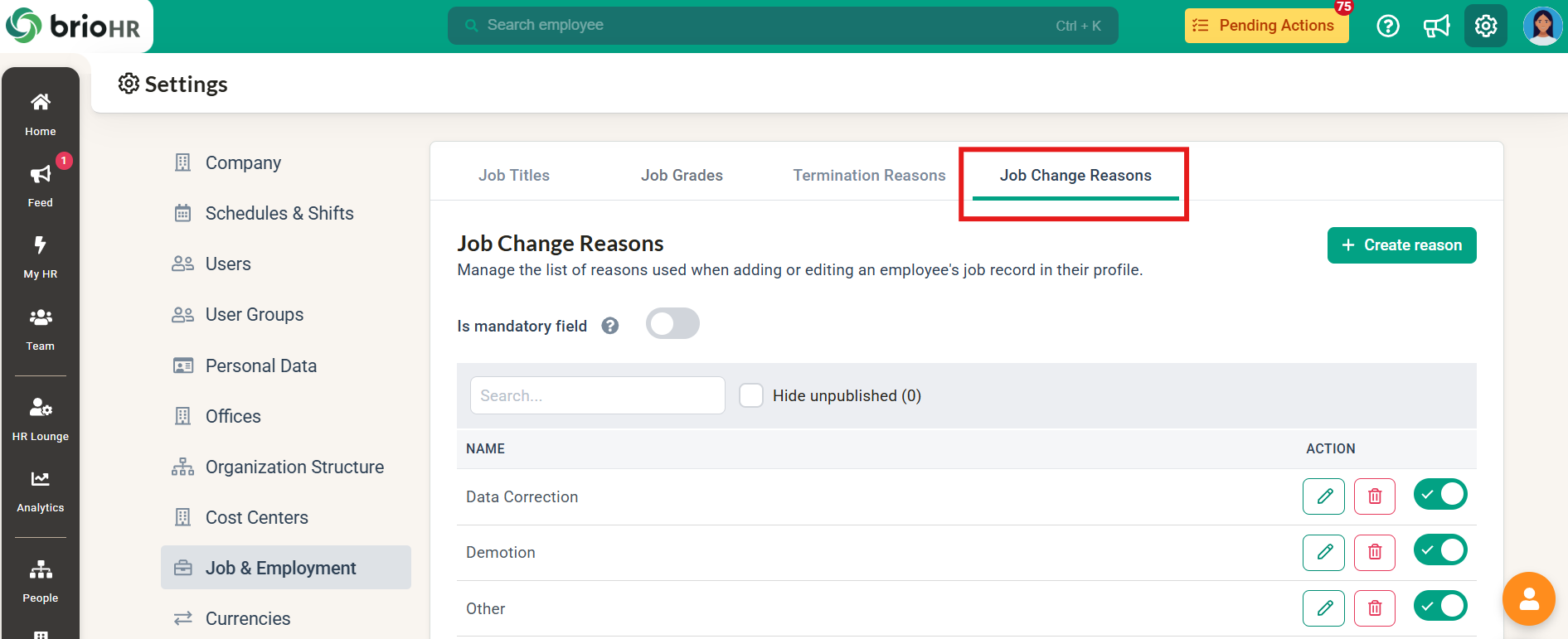
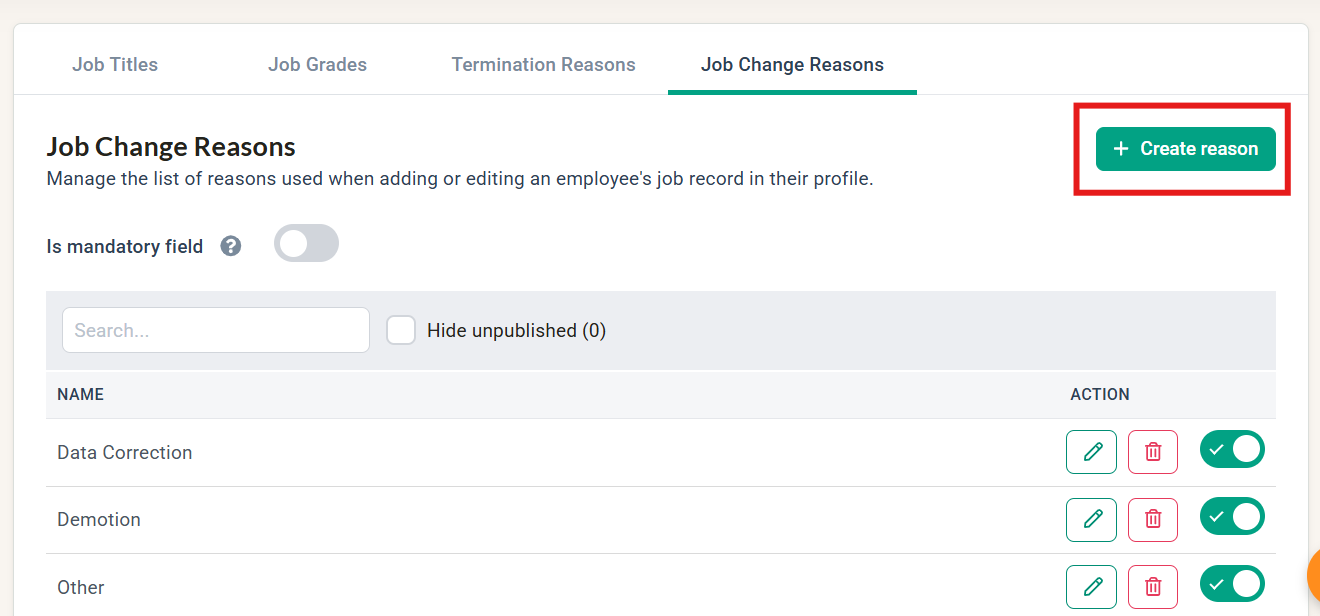
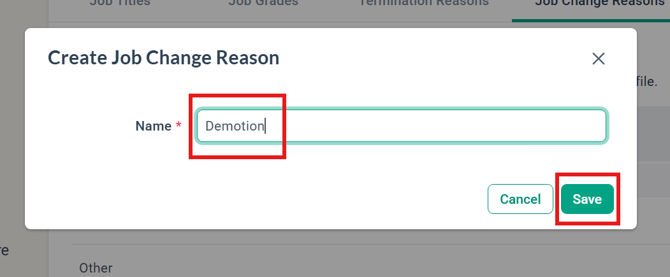
1. Click into Settings then click into Job & Employment.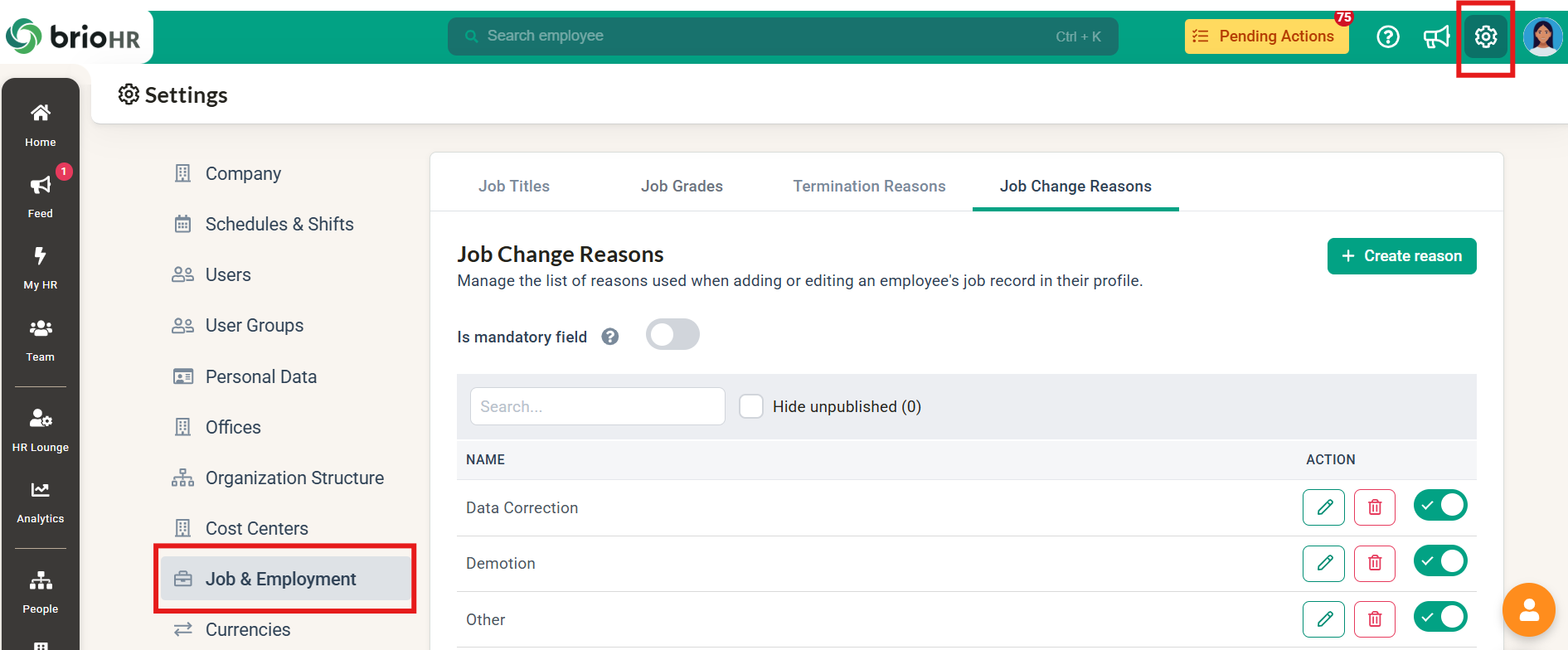
NOTE:
-
There are 5 default reasons: Data Correction, Other, Promotion, Restructuring, and Transfer. These can be renamed or deactivated like any other reason.
-
Reason names must be unique within your company (this is not case-sensitive — e.g. "Promotion" and "promotion" are treated as the same name).
-
A reason can only be deleted if it has never been used on a job record. If it has been used, deactivate it instead — this removes it from the dropdown for future use but keeps it visible on existing records.
5. Toggle on Is mandatory field if you want HR to be required to select a Job Change Reason before saving a job record in Add Job Record, Edit Job Record, or Edit Current Job Details. This is OFF by default for all companies. 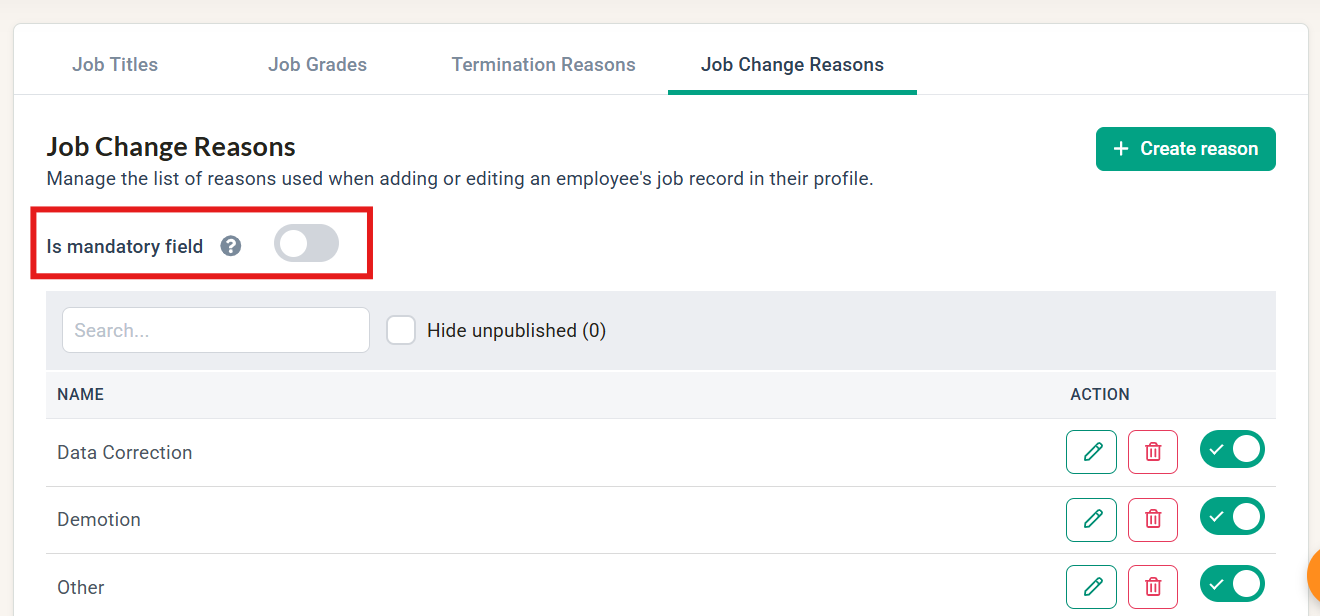
NOTE:
- Turning Is mandatory field ON only applies to job records saved from that point forward. It does not retroactively require a reason on records saved before the toggle was turned on.
- If every reason in the list is deactivated while Is mandatory field is ON, HR won't be able to save a job record until a reason is reactivated or the toggle is switched off.
Part 2: Selecting a Job Change Reason
You can select a Job Change Reason whenever you create or edit a job record:
- Adding a New Job Record
- Editing an existing entry in Job History
- Editing the employee's Current Job Details
1. Go to HR Lounge > Employee Management.
2. Search for the employee's Name or ID in the search column.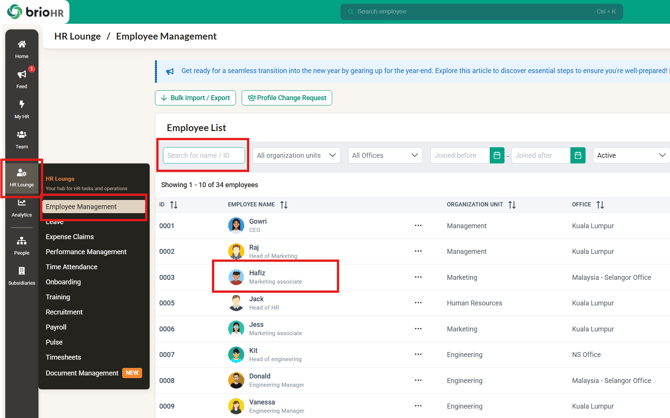
3. Click on the employee's name to navigate to their profile, then click into the Job tab.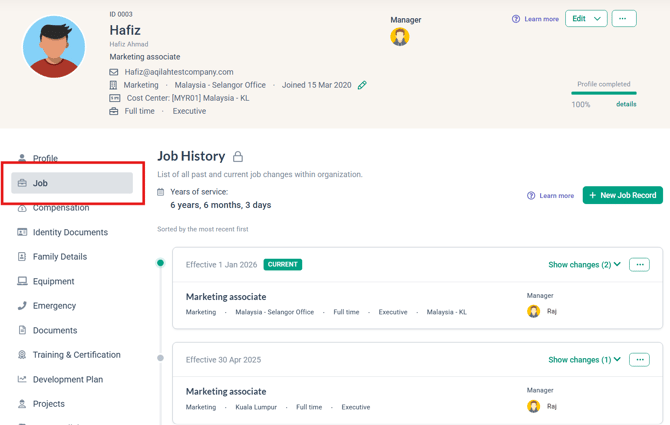
4. Click + New Job Record (or the Edit option on an existing record / on Current Job Details).
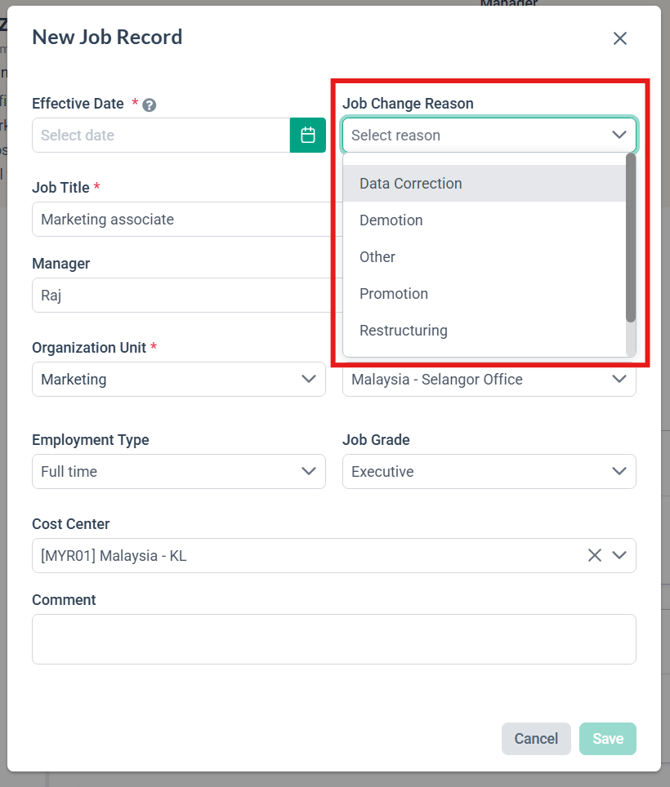
View 1: +New Job Record or Edit existing record
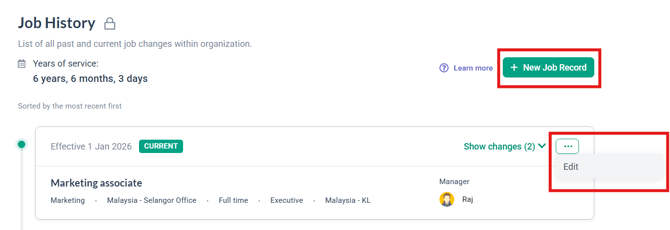
View 2: Edit current job details

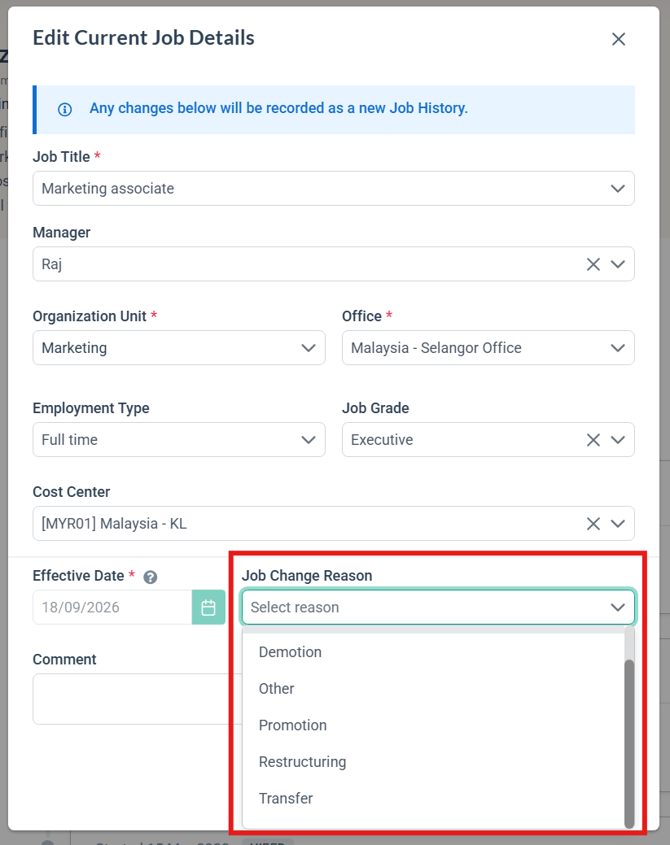
5. Choose your Job Change Reason from the dropdown.
NOTE:
-
The Job Change Reason field is optional by default. Your Company Admin can make it mandatory under Settings > Job & Employment > Job Change Reasons (see Part 1). When mandatory, the field label shows a red asterisk (*) and the Save button stays disabled until a reason is selected.
- Only active reasons appear in the dropdown. If a reason you need is missing, check whether it has been deactivated in Settings (see Part 1).
6. Enter any Comment (optional) to add more context to the reason.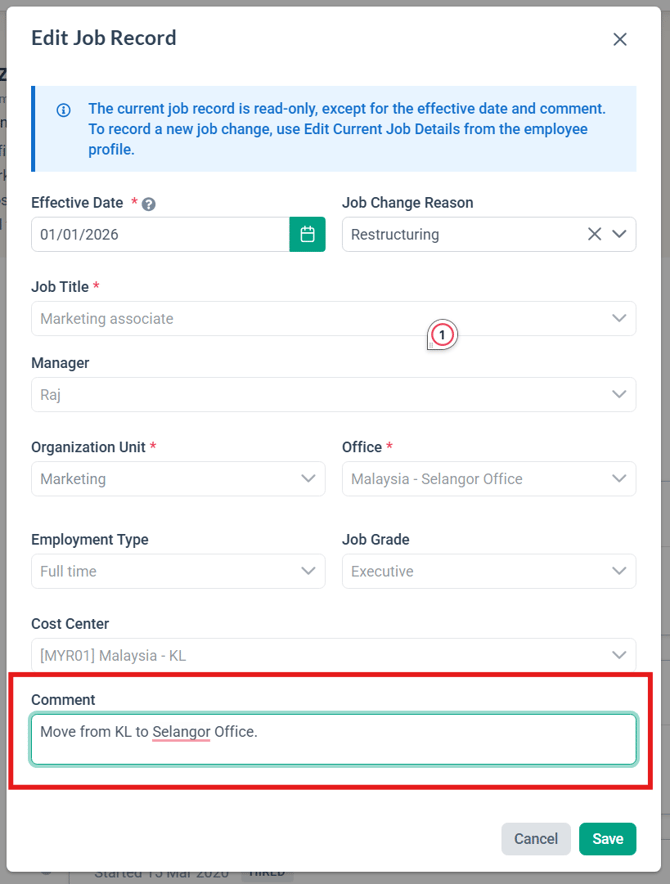
Part 3: Viewing the Job Change Reason on Job History
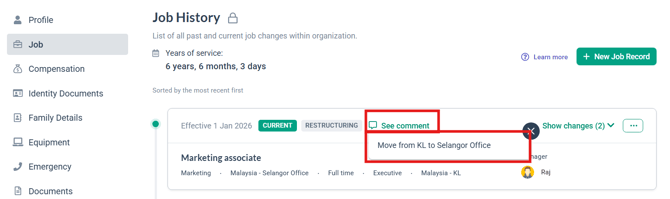
Once saved, the reason appears as a grey label on the job record card in the employee's Job History, alongside existing status labels like CURRENT or HIRED.
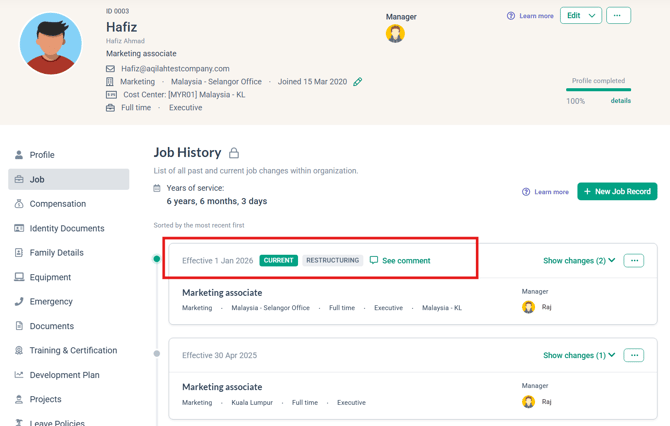
If a comment was added, a "See comment" link appears next to the label — click it to view the comment.
NOTE:
-
Renaming a reason in Settings updates the label on every record that uses it, including past records.
-
Deactivating a reason does not remove it from records that already reference it — it only removes it from the selection dropdown going forward.
-
The Job Change Reason (and its comment) does not appear in the record's "Show changes" diff, and editing only the reason does not create a new diff entry.
Common Issues/FAQ
Q1: Why don't I see the reason I'm looking for in the dropdown?
A1: The reason may have been deactivated in Settings. Deactivated reasons stay visible on historical records but no longer appear as selectable options. Ask your Company Admin to reactivate it if it's still needed, under Settings > Job & Employment > Job Change Reasons.
Q2: Can I make the Job Change Reason mandatory?
A2: Yes. Your Company Admin can turn on the Is mandatory field under Settings > Job & Employment > Job Change Reasons (see Part 1 above). Once ON, HR must select a Job Change Reason before saving in Add Job Record, Edit Job Record, or Edit Current Job Details — the field will show a red asterisk (*) and Save will stay disabled until a reason is chosen.
Q3: I added a job record automatically through the org chart / bulk import / new employee creation — why is there no reason label?
A3: Job Change Reason can currently only be added through the New Job Record, Edit Job Record, and Edit Current Job Details flows. Records created through automated paths (employee creation, org chart, bulk import) don't yet capture a reason, so no label will show on those records — this is true even if Is mandatory field is turned ON.
Q4: Why can't I delete a reason from Settings?
A4: A reason can only be deleted if it has never been used on a job record. If it's already in use, deactivate it instead — this hides it from the dropdown while keeping it visible on the records that reference it.
Q5: Why is the Save button greyed out on the job record form? I only left Job Change Reason empty.
A5: If your Company Admin has made Job Change Reason mandatory (Settings > Job & Employment > Job Change Reasons), the Save button stays disabled until you select a reason from the dropdown. Select a reason, and Save will become clickable immediately.
Related Articles
Managing Job History on the Employee Profile in brioHR
Add Termination Reason When Entering End Employment Date
Ownership
By: Aqilah