![brioHR-logo-color.svg]](https://support.briohr.com/hubfs/brioHR-logo-color.svg)
Introduction
BrioHR allows employees to keep their education history updated in their personal profile. This helps employers maintain accurate employee records for compliance, career development, and reporting purposes.
-
Employees can add or edit their education details if they have the required permissions.
-
HR Admins can add, update, or delete employees’ education details on their behalf.
NOTE:
If you cannot find the add/edit/delete options, it means your account does not have the necessary permissions. In such cases, contact your HR Admin.
Step-by-Step Guide: Add, Modify and Edit Your Education Details in Profile
Step 1 - Access My Profile
Login to your BrioHR account.
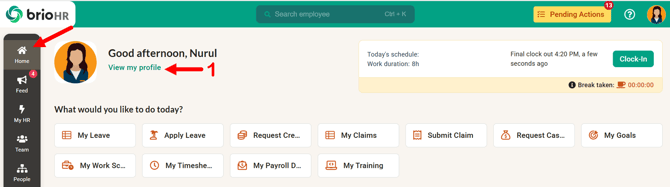
1. Go to Home page > Click View my profile.
Step 2 - Add a New Education Details
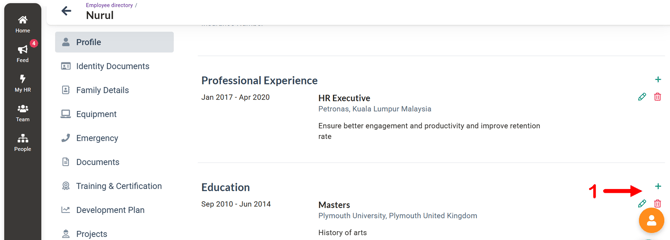
Scroll to the Education Details section.
1. Click + (plus) icon to add a new entry.
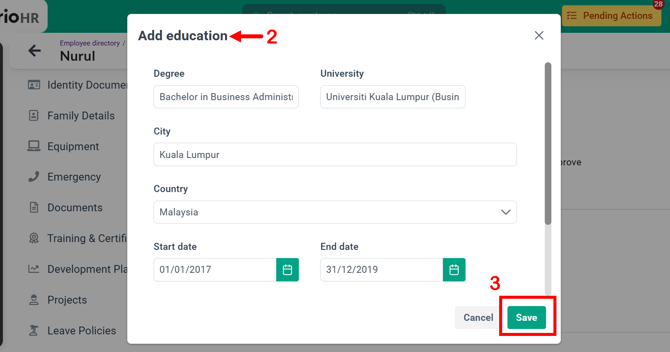
2. Fill in the required details in the Education details form, including:
- Degree
- University
- City & Country
- Start Date & End Date
- Description (optional)
3. Click Save to confirm.
Step 3 - Edit or Delete Existing Education Details
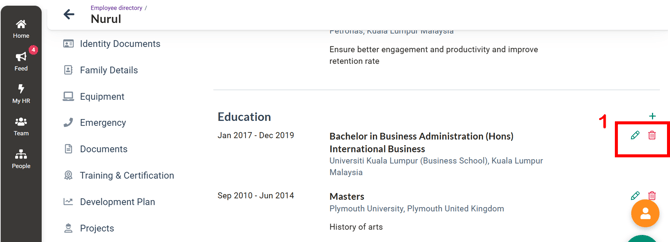
1. Edit Education:
- Click the pencil icon next to the entry you want to update.
- Make the necessary changes and save.
2. Delete Education:
- Click the bin (trash) icon to remove an entry.
- Confirm deletion when prompted.
Add, Edit or Delete Education Details on the Mobile App
You can also add, edit and delete your education details on the brioHR mobile app (version 2.18.0 or later).
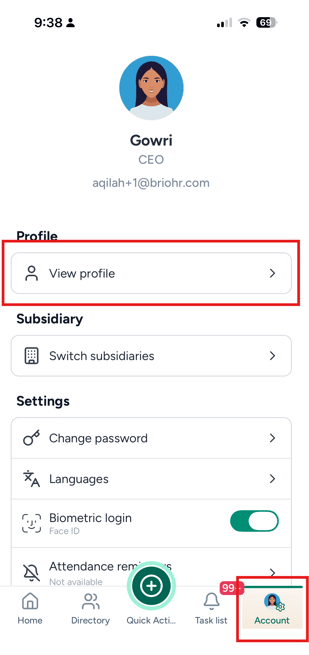
- Go to Account > View profile and open the Profile tab.
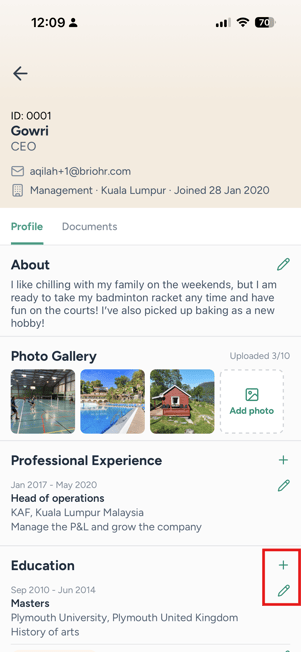
- In the Education section:
- Tap + to add a new entry.
- Tap the pencil icon on an entry to edit it.
- To delete an entry, open it and tap Delete at the bottom of the form, then confirm.
- Tap Save.
The fields and rules are the same as on the web browser. Entries are listed with the most recent start date first.
If your company requires approval
If your company requires approval for Education changes:
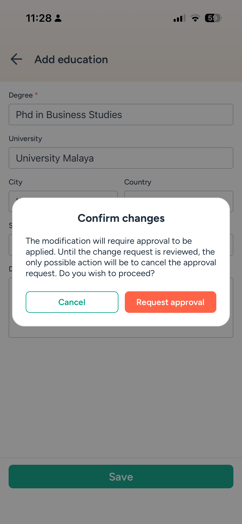
- When you tap Save, a Confirm changes message appears. Tap Request approval to send your change.
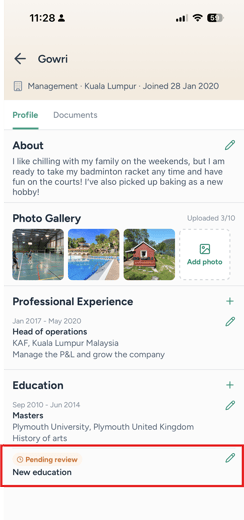
- Your profile keeps the current details until the change is approved. The entry shows Pending review.
- If a supporting document is required, attach it (PDF, JPG, JPEG or PNG, up to 10 MB) before saving. Deleting an entry doesn’t need a document.
- To withdraw a pending change, tap the entry and choose Dismiss request.
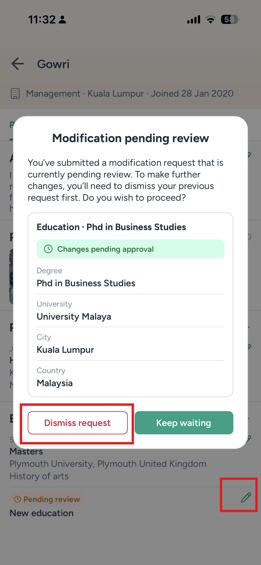
- If your change is rejected, you’ll get a Education change rejected task with the reason. You can edit the request and tap Resubmit, or dismiss it.
Changes that managers or HR make on a colleague’s profile apply directly, without approval.
Important Notes
- If the add/edit/delete buttons are not visible in your profile, it means you do not have permission to make changes.
- In this case, reach out to your Admin or HR Personnel for assistance.
Learn More: How to Edit Your Profile
Frequently Asked Questions (FAQs)
Q1. Why can't I add or edit my education details?
A: This usually happens if your HR Admin has not granted permission for you to edit your profile. Please reach out to them for access.
Q2: Can HR Admins update my education details for me?
A: Yes, if you do not have access, your HR or Admin can update your education details in your behalf.
Q3: Can I add multiple education records?
A: Yes, you can add multiple entries.
Q4. Are education details visible to my manager?
A: Yes, managers and HR can view this information depending on access permission settings.
Q5: Can HR export all employees' education details in bulk?
A: Yes. As an HR Admin, go to HR Lounge > Employee Management > Bulk Import/Export and select Professional Experiences & Education to export the data. Education details are not available in Report Builder.
Q6: Can I update my education details on the mobile app?
A: Yes. On app version 2.18.0 or later, go to Account > View profile > Profile. If your company requires approval, your change shows Pending review until it’s approved.
Need Assistance?
If you have any questions or require assistance, please reach out to our support team via live chat or email us at support@briohr.com.