![brioHR-logo-color.svg]](https://support.briohr.com/hubfs/brioHR-logo-color.svg)
Audience & Scope
Audience: Managers and onboarding stakeholders (for example Director, Head of Department, Buddy, Mentor or a custom role such as Office Manager)
Module: Onboarding, Mobile App
Country: Global
Pre-requisites: brioHR mobile app version 2.16.0 or later, and an onboarding task assigned to your role
Where to find your onboarding tasks
You can open your onboarding tasks in two ways:
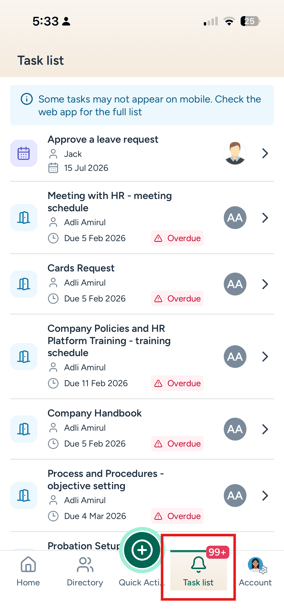
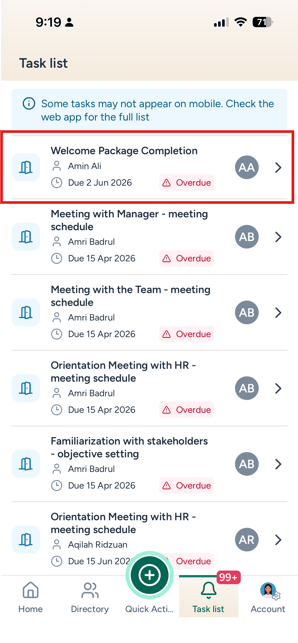
- Task list: tap the Task list tab. Onboarding tasks appear with your other tasks and name the new joiner they’re for.
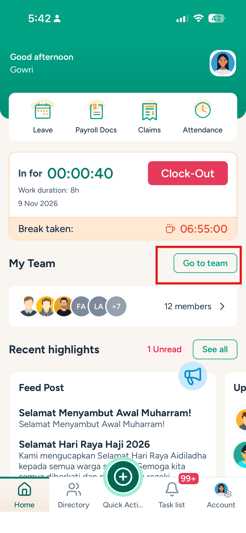
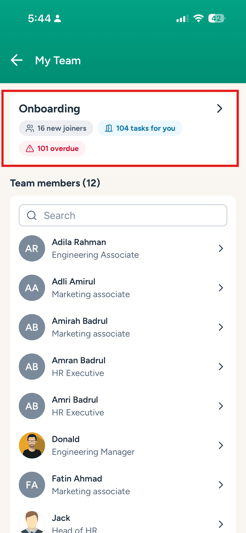
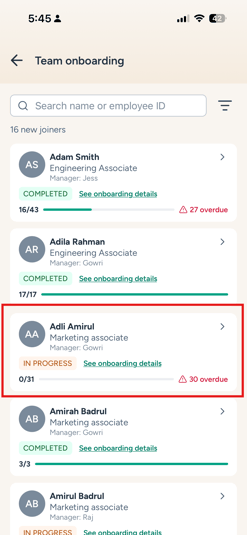
- My Team: go to Home > My team > Onboarding, tap the new joiner, then open the My task tab. See Use the My Team Page on the brioHR Mobile App.
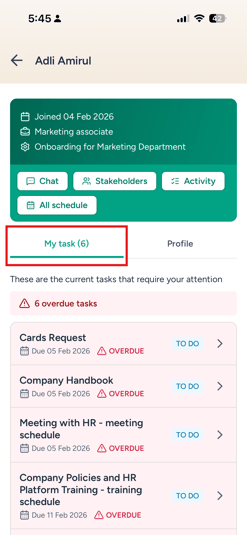
Once you submit a task, a success message appears and the task is removed from your list.
Tasks you can complete on the mobile app
|
Task |
What you do |
|---|---|
|
Review a new joiner’s information |
Approve, or send back sections of the personal information, payroll information, bank details or qualifications they submitted |
|
Contract validation |
Download the contract, then approve it or reject it with a reason |
|
Contract countersign |
Download the contract the new joiner signed and upload the company-signed copy |
|
Schedule a meeting or training |
Set the date, start time, duration and agenda |
|
Objectives setup |
Add the new joiner’s objectives |
|
Objectives feedback |
Give feedback on the objectives that were set |
|
Day-one preparation |
Request items such as equipment, accounts, cards, a welcome package or seating, and confirm when they’re prepared |
|
Custom tasks |
Read HR’s instructions and mark the task as done |
Review a new joiner’s submitted information
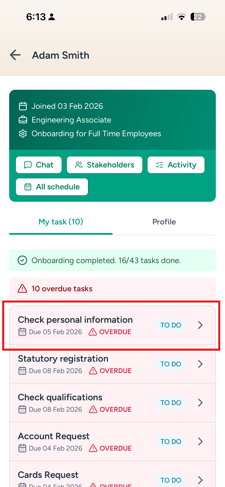
Review tasks cover the personal information, payroll information, bank details and qualifications the new joiner submitted. The reviewer for each section is set in the onboarding process (HR by default).
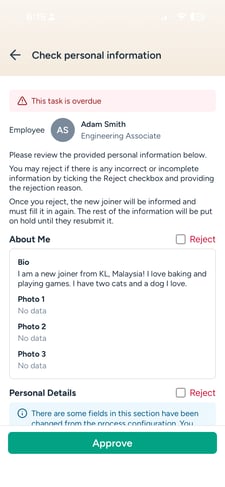
- Open the review task. The new joiner’s details are shown read-only, split into sections.
- Check each section.
- To approve everything, tap Approve.
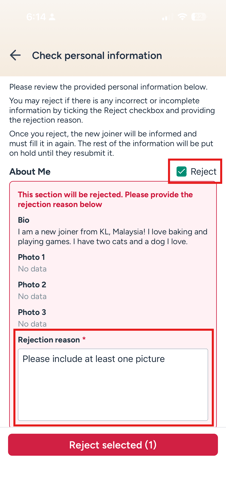
- To send a section back, tick Reject on that section and enter a reason. Each rejected section needs its own reason. Then tap Reject.
NOTE:
- Only the sections you reject are sent back. The rest are kept until the new joiner resubmits.
- The new joiner sees your reason and gets an email asking for amendments. When they resubmit, the section is marked RESUBMITTED in a new review task.
- You can’t edit the new joiner’s data or reject a single field. Resetting a section is done by HR on the web browser.
Validate or countersign the contract
These tasks go to the superior/role named in the onboarding process. The contract is usually submitted by HR and needs to be validated before it is sent to the employee for review and signature (employee contract validation).
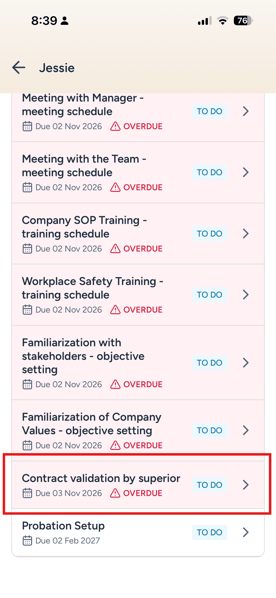
Contract validation
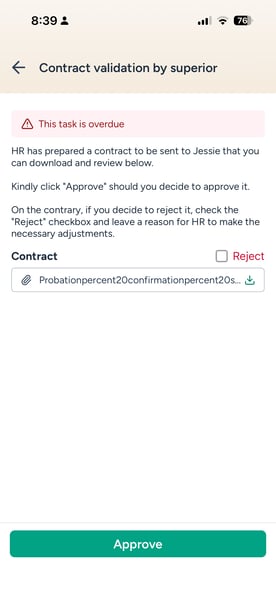
- Open the contract validation task.
- Tap the Contract row to download and review the contract.
- To approve, tap Approve.
- To reject, tick Reject, enter the rejection reason, then tap Reject. The contract goes back to HR for drafting, with your reason.
Contract countersign
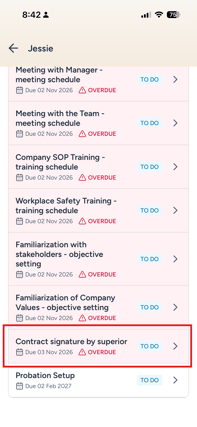
This task appears only when both superior/role validation and superior/role signature are turned on in the onboarding process. Once the contract is validated by the employee, the superior assigned will be required to sign the contract.
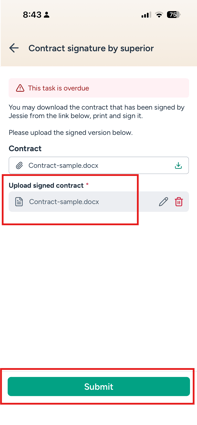
- Open the countersign task.
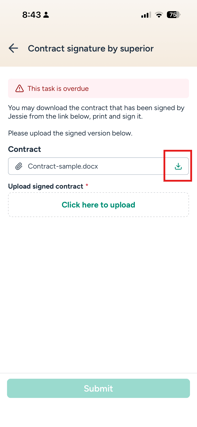
- Download the contract the new joiner signed from the Contract row.
- Sign it, then upload the company-signed copy under Upload signed contract. This upload is required.
- Tap Submit.
NOTE:
- Contracts open in your phone’s file viewer. You can’t sign or edit a contract inside the app.
- The countersign task has no reject option.
- "No data" is shown where no file is attached.
Schedule orientation, set objectives and give feedback
Each orientation task starts with its title and HR’s instructions. The instructions are hidden once the task is completed.
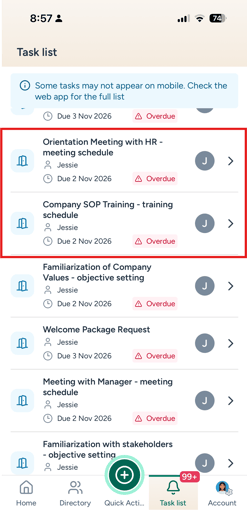
Schedule a meeting or training
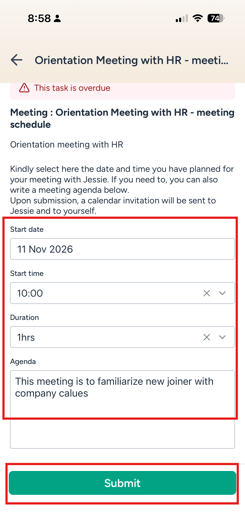
- Open the meeting or training schedule task.
- Pick a start date. The Start time and Duration fields then appear.
- Set the start time and duration. The end time is worked out for you.
- Add an Agenda if needed.
- Tap Submit.
None of these fields are required. The new joiner then gets a feedback task for the meeting or training.
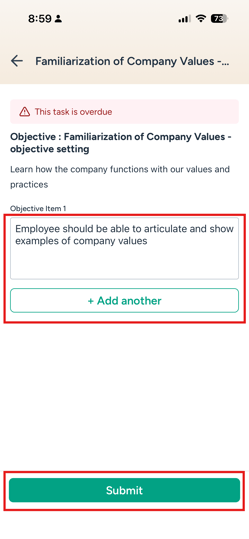
Set objectives
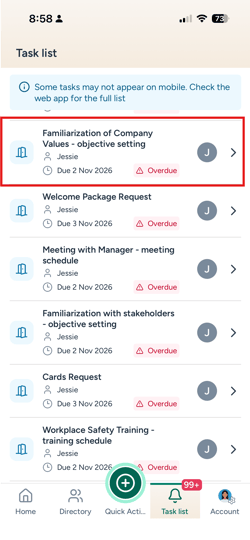
- Open the objectives setup task.
- Type the first objective in Objective Item 1.
- Tap the add control to add more objectives. You can remove any objective except the first.
- Tap Submit.
At least one objective is required, and no objective can be left empty. Once the objectives setting task is completed, the objectives feedback task becomes available.
NOTE:
New joiners do not have access to the objectives set for them, and they are not able to view the feedback given for the objectives set.
Give objectives feedback
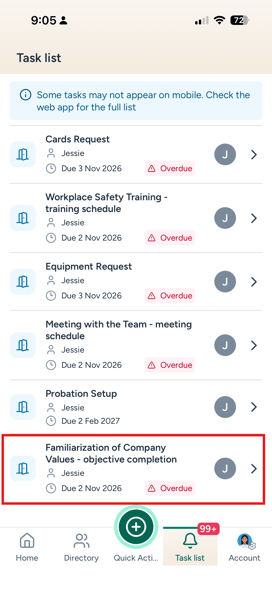
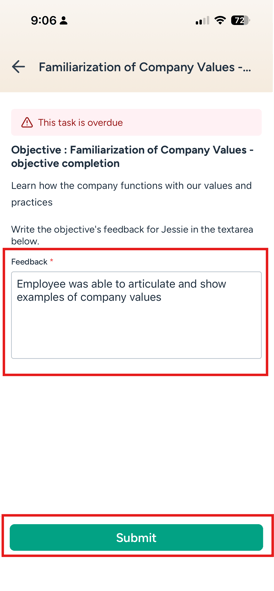
- Open the objectives feedback task. The objectives that were set are listed read-only.
- Enter your Feedback. This field is required.
- Tap Submit.
NOTE:
Orientation tasks can’t be saved as a draft or skipped. Calendar invites aren’t created from the app.
Prepare for the new joiner’s first day
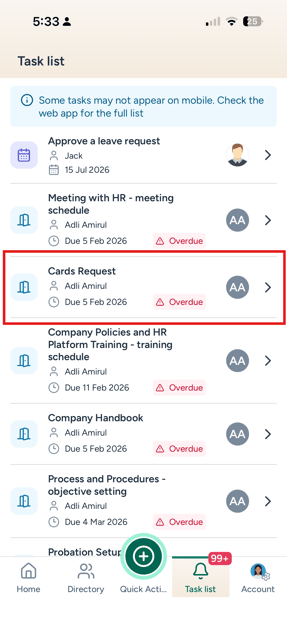
Day-one preparation covers equipment, accounts, cards, welcome package, seating arrangements and other items. Each item type has two tasks, which are often assigned to different people:
- Request: prepare what the new joiner needs.
- Completion: confirm what has been prepared.
Requested items
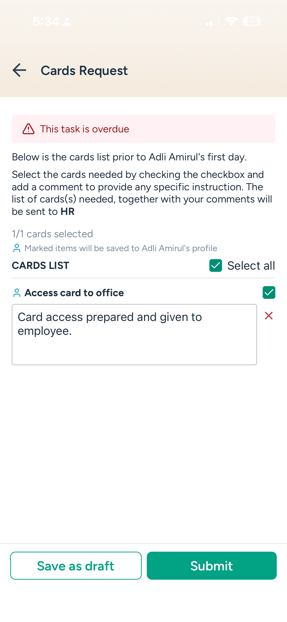
- Open the request task. It shows which role your list will be sent to.
- Tick the items needed, or use the header checkbox to select or clear all. The counter shows how many items are selected.
- To add a note for an item, tap Add comment / instruction under it.
- Tap Submit, or Save as draft to finish later.
A marker shows items that will be saved to the employee’s profile.
Confirm items are prepared
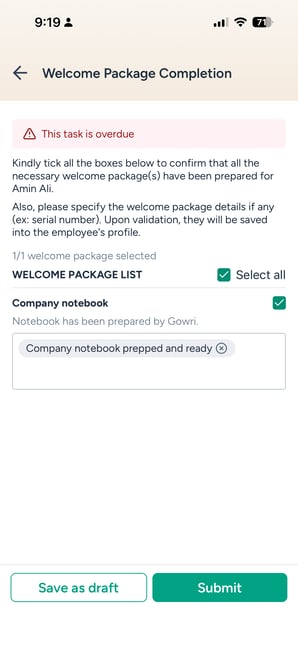
- Open the completion task. Each item shows the requester’s comment underneath.
- Tick each item that’s been prepared.
- For a ticked item, add details such as a serial number. Type a detail and confirm it to add it as a chip. You can add several details to one item and remove any of them.
- Tap Submit, or Save as draft to finish later.
NOTE:
- Details you add are saved to the employee’s profile (for example, under Equipment) once the task is validated.
- Details on items you didn’t tick are cleared when you submit.
- When you reopen a draft, it’s updated with the items currently set up in the onboarding process.
- Day-one tasks can’t be skipped, and no field is required.
Complete a custom task
HR can add custom tasks to an onboarding process and assign them to any role.
- Open the custom task.
- Read HR’s instructions and view any attached files or media.
- Do what’s asked, then tap Submit to mark the task as done.
Custom tasks have no input fields, draft or skip option.
LIMITATIONS:
- Only day-one tasks can be saved as a draft. No onboarding task can be skipped.
- You can’t add day-one items that aren’t set up in the onboarding process.
- Configuring onboarding processes and other HR actions are only available on the web browser.
Common Issues/FAQs
Q: I expected an onboarding task but can’t find it. Why?
A: Tasks only appear when they’re assigned to your role and the previous steps are done. Contract tasks also depend on settings in the onboarding process. Check with HR if a task seems to be missing.
Q: Why is there no Reject option on the contract countersign task?
A: Countersigning only uploads the company-signed copy. To send a contract back, reject it at the contract validation step.
Q: Can I save my progress and come back later?
A: Only on day-one preparation tasks, using Save as draft. Other onboarding tasks must be submitted in one go.
Q: Where do the day-one details I enter go?
A: Details such as serial numbers for equipments are saved to the employee’s profile once the task is validated.
Related articles
- Use the My Team Page on the brioHR Mobile App
- Complete HR Onboarding Tasks on the brioHR Mobile App
- How Managers Can Complete Onboarding Tasks in BrioHR
- Onboarding Module Operations: Who Sees Which Tasks, and How to Fix a Wrong Manager or Stakeholder
Ownership
By: Aqilah