![brioHR-logo-color.svg]](https://support.briohr.com/hubfs/brioHR-logo-color.svg)
Audience & Scope
Audience: HR Admin / Supervisor & Manager
Module: Time Attendance
Country: Global
Pre-requisites: Permission for Admin Settings & HR Modules Permission for Time Attendance
How Work Hours Per Day Work
The system compares the employee's total worked hours against the scheduled work hours for that day of the week. If worked hours exceed the scheduled work hours, the difference is recorded as overtime.
For example:
- employee scheduled work hours: 8h
- employee assigned to 8am - 8 pm shift with a 1 h break.
- 8 am - 8 pm = 12 hours, minus 1 hour break, total worked hours = 11 h.
- OT is calculated based on total worked hours - scheduled hours: 11 h - 8 h = 3 h
- In this scenario, the employee is eligible for 3 h of OT (if they worked 8 am - 8 pm and their policy allows OT calculation).
Step-by-Step Instructions
Create a schedule with varying work hours per day
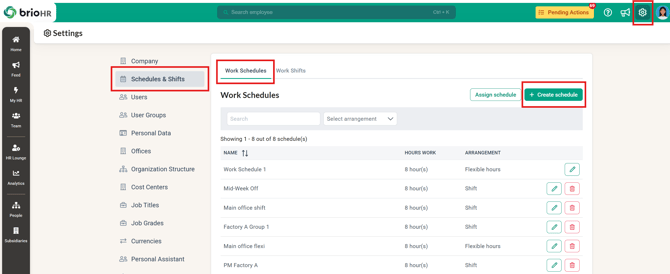
1. Go to Admin Settings > Schedules & Shift
2. Under Work Schedules, click + Create schedule
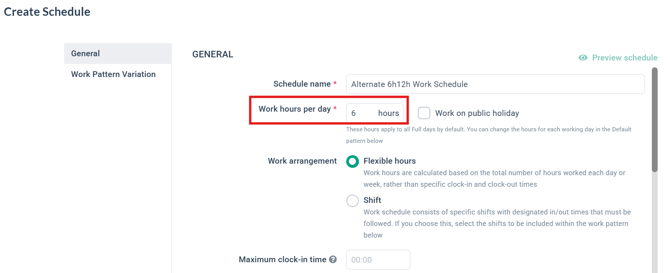
3. Enter Default Work hours per day
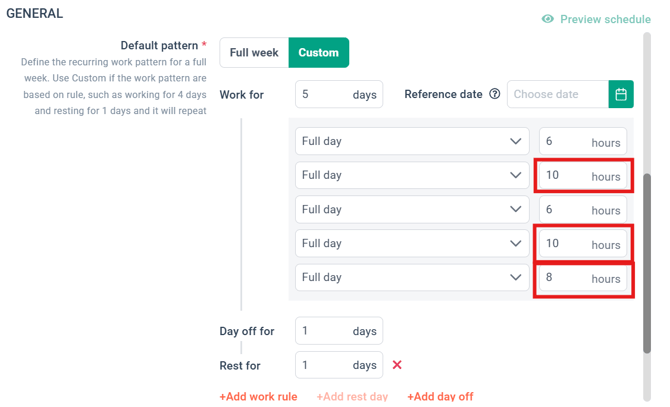
4. Under Default Pattern, change the work hours for each work day if needed
NOTE:
Work hours cannot be:
-
blank
-
0
-
greater than 24 hours (for Full day)
- greater than 12 hours (for Half day)
5. Click Save to create the new schedule.
NOTE:
-
You can edit existing schedules to have varying daily work hours. Remember, schedule changes may affect rosters without clock in/out data. Locked rosters will not be affected.
- You can also customize daily work hours in work pattern variation.
Learn More:
How to Create a Work Schedule with Flexible Hours
How to Create a Work Schedule with Shifts
How to Create Work Schedules with Work Pattern Variations (Flexible Hours)
How to Create Work Schedules with Work Pattern Variations (Shifts)
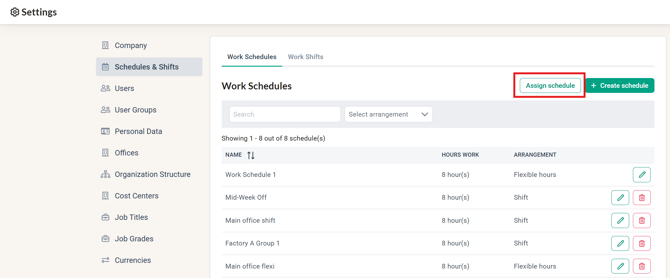
6. Assign the schedule to employees who will follow the new schedule you created.
Learn More:
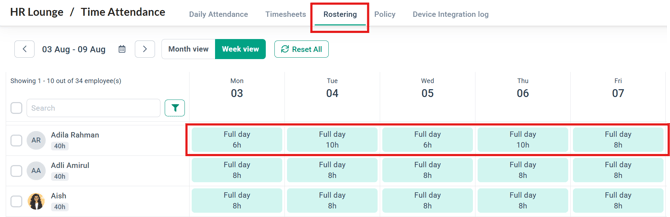
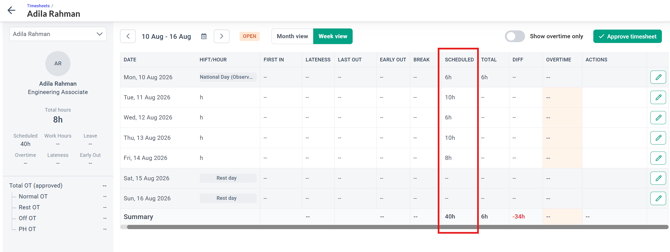
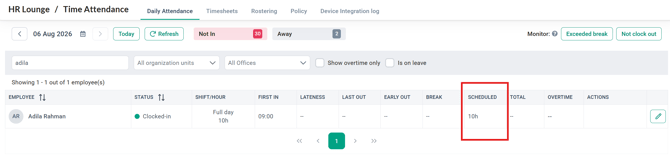
7. Go to HR Lounge > Time Attendance to check that the assigned schedule reflects correctly:
-
Roster: for flexible schedule employees - will show scheduled hours; for shift employees - it will show shift hours
-
Timesheets: Scheduled column
-
Daily Attendance: Scheduled column
Common Issues/FAQ
Q1: I cannot see Admin Settings in my profile. So, I cannot access the Schedules & Shifts. What do I do?
A1: Your user group permission does not allow you to access admin settings. You will need to reach out to your admin who has access. They can either change your user group permission to include the access (under Admin Settings > User Groups > Edit > Pages Access > Admin Settings) or change your user group to a different one with access.
Q2: What happens to my day-level customizations if I update the top-level default scheduled hours?
A2: Changing the top-level default work hours after day-level customizations have been made will reset all customized days to follow the new default value.
Q3: How are overtime, public holidays, and approved leave calculated with custom daily hours?
A3: Overtime is calculated automatically by comparing an employee's total worked hours against the specific scheduled work hours configured for that day of the week. Approved leave and public holidays will continue to override scheduled daily hours in accordance with your standard company policy logic.
Q4: Why does the system allow scheduling shifts that are shorter than standard daily work hours?
A4: The system allows shorter shifts to accommodate employees working multiple or split shifts in a single day that collectively add up to their total required work hours.
Q5: How does working more or fewer hours than scheduled affect the employee timesheet?
A5: Working more than scheduled creates a positive difference (+ hours) that may qualify as Overtime depending on the employee's policy. Working fewer hours creates a negative difference (- hours).
Related Articles
Ownership
By: Aqilah