![brioHR-logo-color.svg]](https://support.briohr.com/hubfs/brioHR-logo-color.svg)
Audience & Scope
Audience: HR Admin / Manager / Employee
Module: Document Management
Country: Global
Pre-requisites: Admin access to User group settings
Step-by-Step Instructions on User Group Configurations
1. As the Admin of the account, login to BrioHR
2. Click into Settings and then Usergroups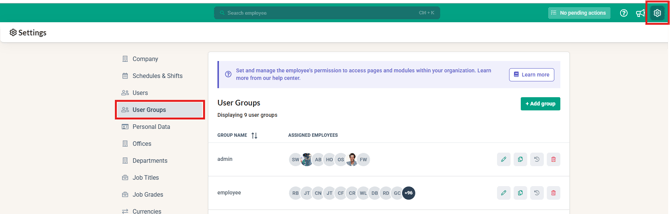
*Refer to each category below for each one of the usergroup configurations
HR Admin
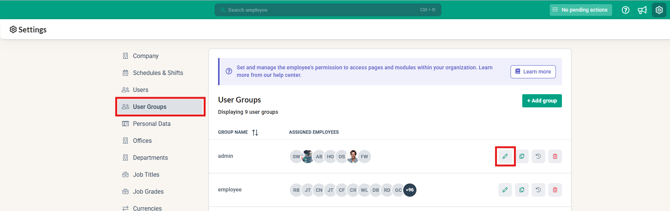
1. Click on the Edit button of the Admin user
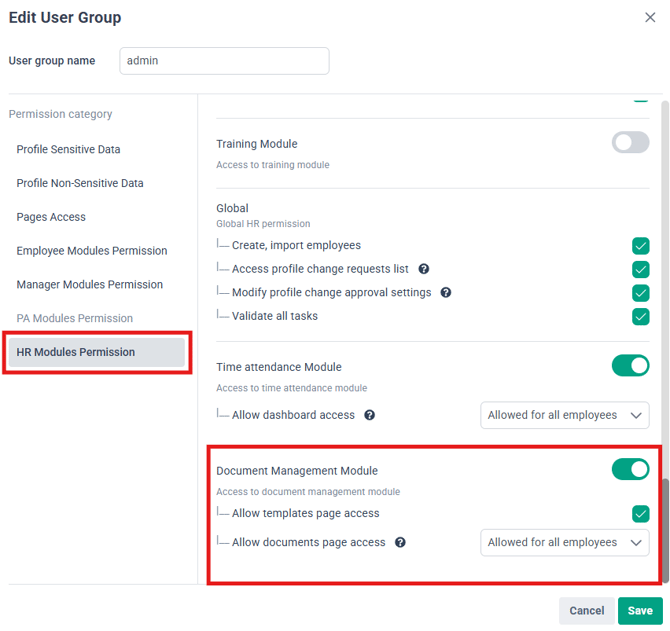
2. Within HR Modules Permission, scroll down to find the Document Management module and enable the permissions accordingly
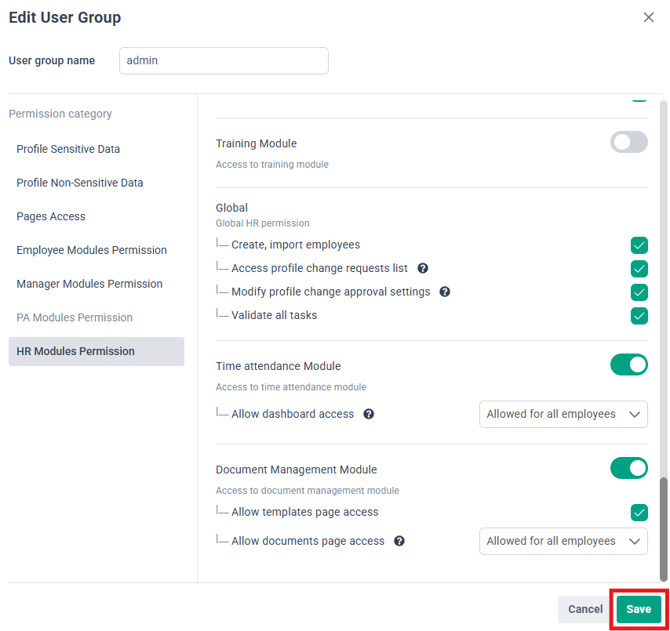
 3. Click Save to capture the changes
Manager
1. Click on the Edit button of the Manager usergroup
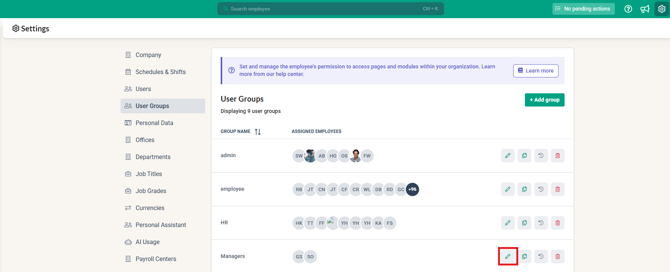
2. Click into the Profile Sensitive Data column, then into the Documents tab
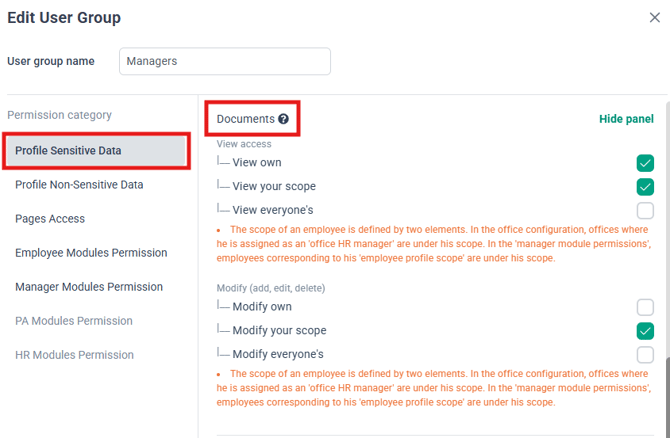
3. Ensure the necessary permission has been granted accordingly
Note:
The Permission to 'View your scope' allows Managers to view the information if their direct reports in the system. This permission is also applicable to Office HR Managers assigned, which allows them to view the information of employees assigned to their offices.
4. Next, within Manager Modules Permission, ensure the Document Management module has been enabled
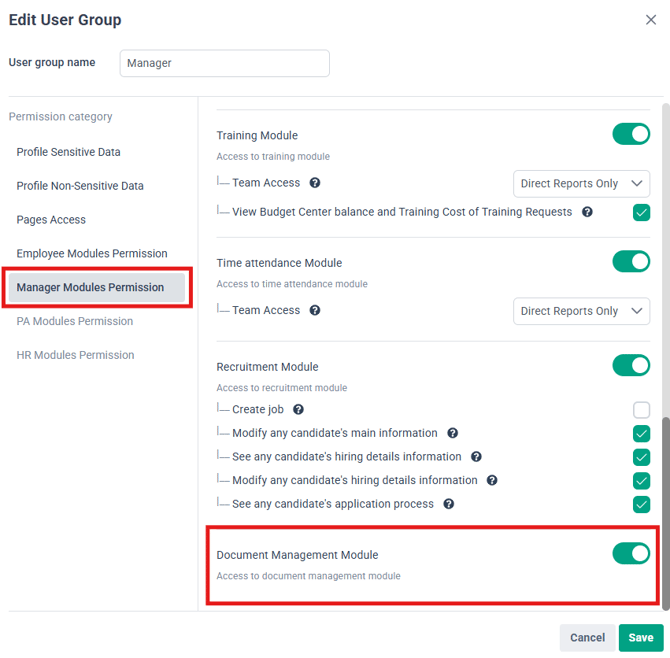
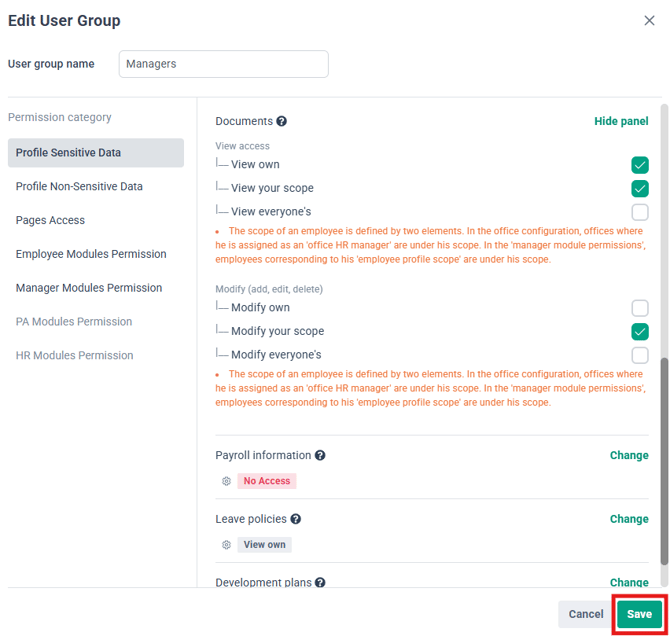
5. Click Save
Employee
1. Click on the Edit button of the Employee usergroup
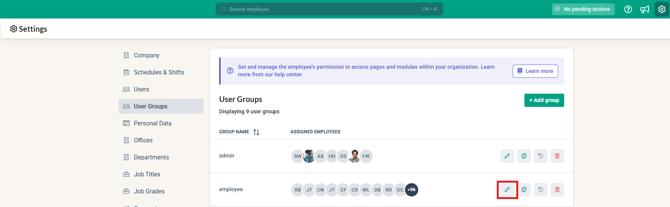
2. Click into the Profile Sensitive Data column, click into the Documents tab
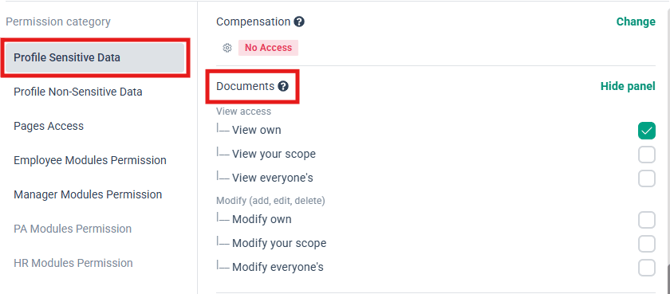
3. Ensure the necessary permission has been granted accordingly
4. Next, within Employee Modules Permission, ensure the Document Management module has been enabled
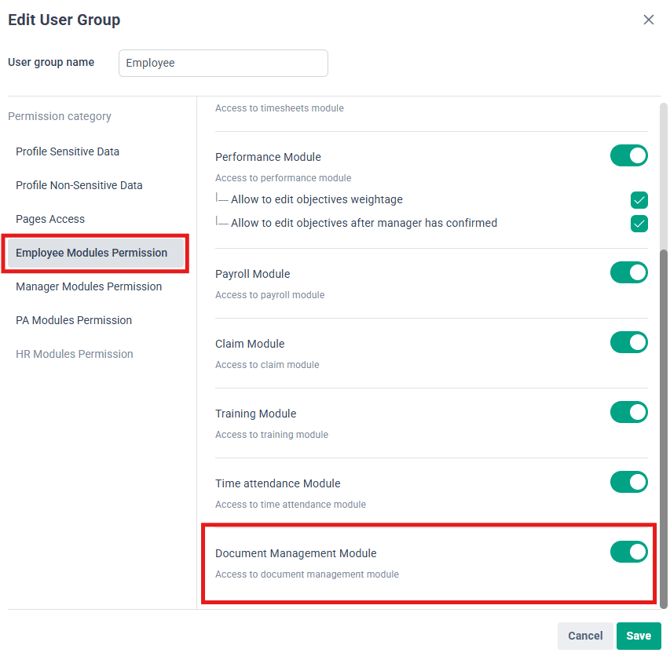
5. Click Save
Related Articles
1. Setting up the Document Management module as the HR Admin
2. Frequently Asked Questions for Document Management
3. How to Create Custom Document Folders for BrioHR Employee Profiles
4. Employee Personal Files in BrioHR: How to Upload, Manage and Access Documents
5. How to Use the Document Approval Workflow in Document Management
Ownership
By: Arveena