![brioHR-logo-color.svg]](https://support.briohr.com/hubfs/brioHR-logo-color.svg)
Audience & Scope
Audience: HR Admin
Module: Leave
Country: Global
Prerequisites: User group settings: Admin access to User Group Settings
As a HR Admin, you need to enable permission for employees to apply next year's leave in their respective User Groups before employees can start applying next year's leave date.
NOTE:
If you're an employee and looking for how to apply next year's leave from the web browser and mobile application, please see this article.
Step-by-Step: Enable Next Year's Leave Access
To enable employees to submit their next year's leave applications, the HR/Admin must follow these steps:
1. Log in to your brioHR account using your registered credentials.
2. Navigate to Settings then click into User Groups.
3. Find the user group that you want to edit (e.g, Employee & Manager)
4. Click pencil icon to edit.
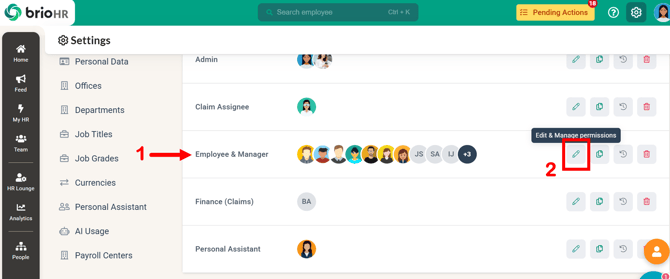
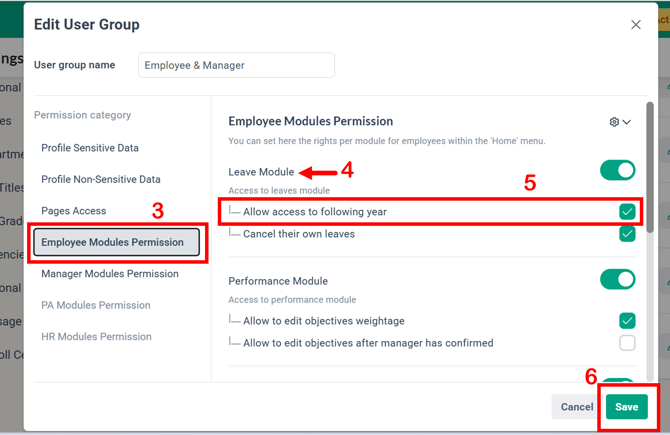
5. Open the category 'Employee Modules Permissions'
6. Search for the Leave Module.
7. Select the checkbox 'Allow access to following year'
8. Click Save
Verification and Submission:
Once this setting is enabled, employees will be able to submit their leave requests for next year using the system.
IMPORTANT:
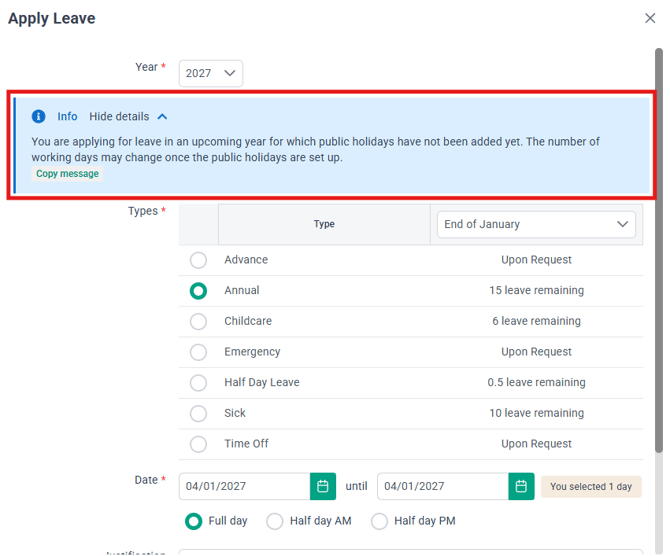
When the employee applies the leave for next year, there is a banner to indicate that the Public Holidays has not been set up at the moment.
Public Holidays for the following year is usually added in Quarter 4 of the current year.
Leave Application Process:
Web Browser:
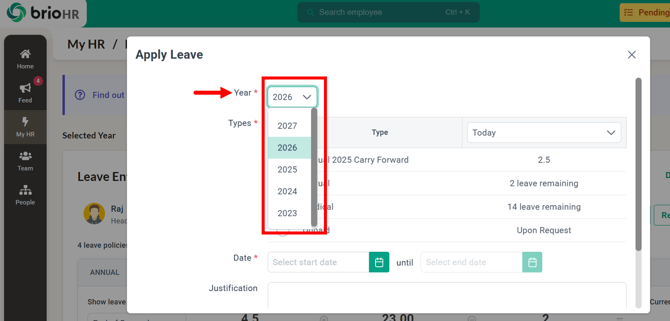
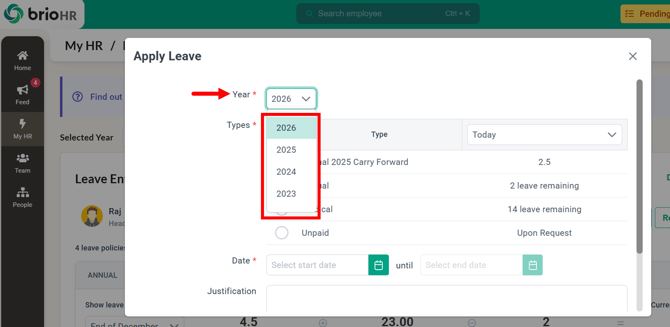
After enabling access, employees can select the next year rom the dropdown menu on the leave application page.
Mobile App:
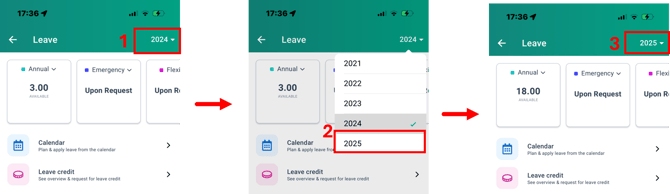
Once access is enabled, employees will be able to select the next year from the dropdown menu within the app.
NOTE:
This process does not apply to Childcare Leave in Singapore due to Ministry of Manpower (MOM) restrictions.
For more information on Childcare Leave utilization, refer to this article.
What Happens if Access to Following Year Leave is Not Enabled?
If the Allow access to the following year option is not enabled, employees will not be able to submit leave requests for next year. Ensure that this setting is activated as shown in the steps above.
Related Articles
How to Apply for Next Year's Leave in BrioHR (Web & Mobile Guide)
Ownership
By: Arveena