![brioHR-logo-color.svg]](https://support.briohr.com/hubfs/brioHR-logo-color.svg)
Audience & Scope
Audience: All users
Module: Leave
Country: Global
Prerequisites: User group settings: Permission to access leave in the following year enabled.
Applying for next year’s leave in advance is possible once the permission has been enabled for users within their user permissions.
NOTE:
If you are an Admin looking to enable this permission within the system, click here to read more.
Step-by-Step Guide: Apply for Leave via Web Browser
1. Log in to your brioHR account using your registered credentials.
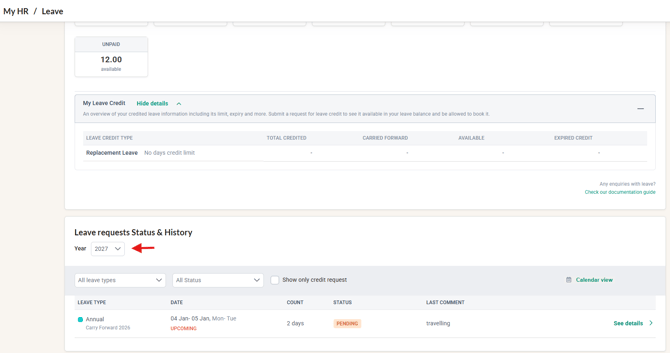
2. Click into MyHR > Leave module
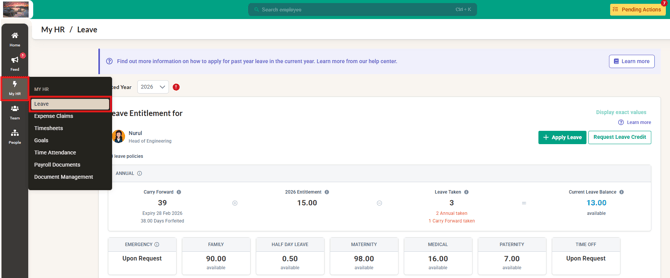
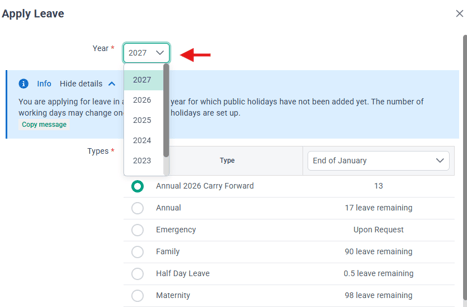
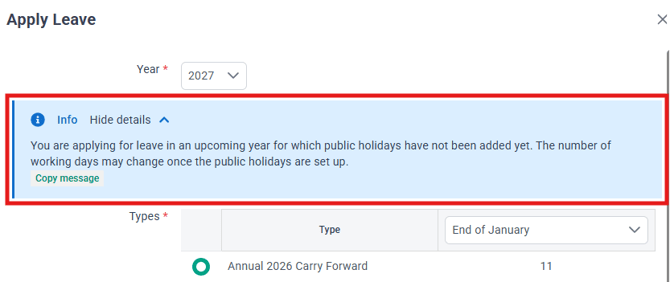
3. Click Apply Leave and a pop-up window to apply leave will appear for you to fill in the leave details:
- Year: Select the next year from the drop-down menu (e.g., 2027).
- Types: Choose the appropriate leave type.
- Date: Select the date range for your leave
- Justification: Enter the reason for your leave (optional unless made mandatory by your HR Admin).
- Attachment: Upload any supporting documents if required.
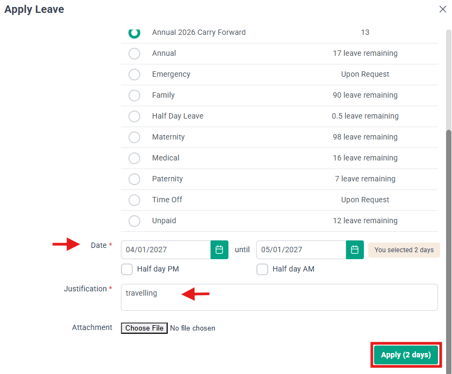
4. Click Apply once all fields are completed.
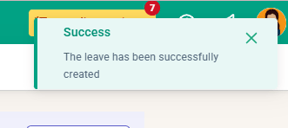
5. A notification will appear in the top right corner, confirming your leave application was successful.
6. The applied leave will be recorded at 'Leave Requests Status & History' of the following year's dashboard.
IMPORTANT: ANNUAL CARRY FORWARD LEAVE
If you select ‘Annual Carry Forward’ leave to apply it for next year, the days will be deducted from your current year’s leave entitlement.
This means your available leave for the current year will decrease and may affect your ability to take additional leave before year-end.
IMPORTANT:
When you apply leave for next year, there is a banner to indicate that the Public Holidays has not been set up at the moment.
Public Holidays for the following year is usually added in Quarter 4 of the current year.
Step-by-Step Guide: Apply for Leave via Mobile App
Step 1 - Log In to BrioHR Account
1. Log in to your BrioHR account using your registered credentials.
TIP:
If you haven’t downloaded the mobile app yet, search for “BrioHR” in the Apple App Store, Google Play Store, or Huawei AppGallery.
Step 2 - Access the Apply Leave Section
1. On the Home page > Tap Leave.
2. Tap the current year at the top right corner of the screen.
3. Select the next year from the drop-down menu.
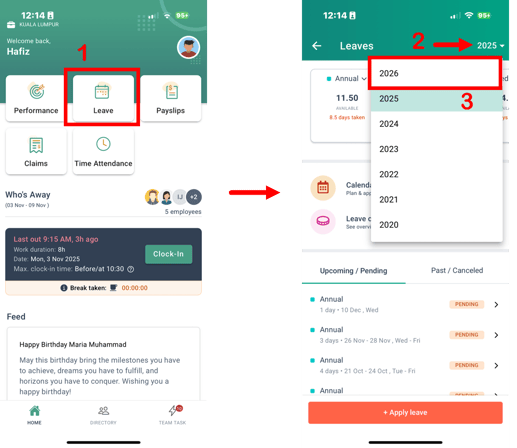
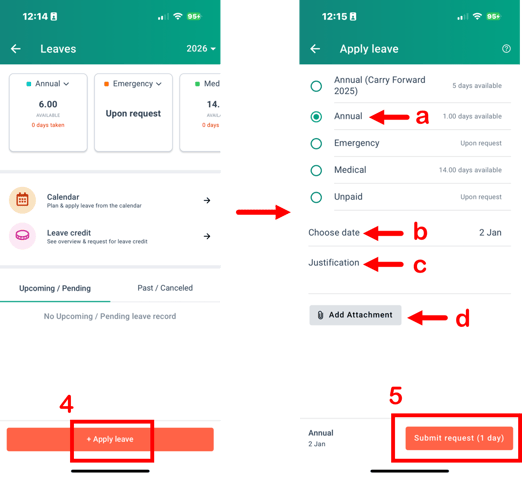
4. You’ll now see the leave dashboard for the next year. Click +Apply Leave.
- Types: Choose the appropriate leave type.
- Date: Select the date range for your leave
- Justification: Enter the reason for your leave (optional unless made mandatory by your HR Admin).
- Attachment: Upload any supporting documents if required.
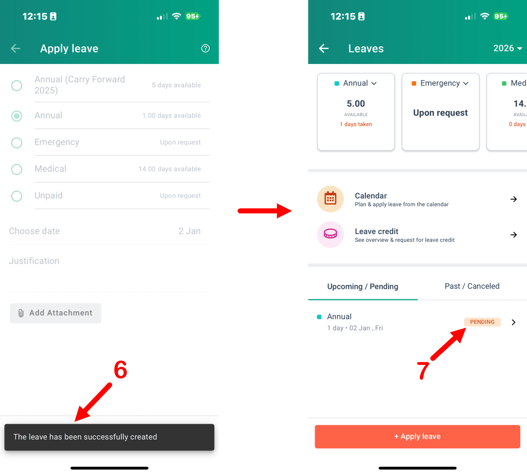
5. Click Submit Request to proceed.
6. A confirmation message will appear.
7. Newly applied leave will appear on next year's leave dashboard.
Related Articles
How to Enable Next Year's Employee Leave Applications (Web & Mobile App)
How to Request Credit leave in BrioHR (Browser Guide)
How to Check Leave Application Status in BrioHR
Frequently Asked Questions (FAQs)
1. When will next year’s leave be opened in BrioHR?
BrioHR will inform all clients once the leave calendar for the following year is activated. Your HR Admin also need to allow permission to view next year's leave in your User Group access.
2. Can I edit my next year’s leave after submission?
Yes, you can edit or cancel your submitted leave request if it has not been approved yet.
3. Will applying next year’s leave affect my current year’s balance?
Only if you use the ‘Annual Carry Forward’ leave type—it will deduct from your current year’s entitlement.
4. Can I apply for next year’s leave using the mobile app?
Yes, BrioHR’s mobile app allows you to apply for both current and next year’s leave with ease.
Ownership
By: Arveena