![brioHR-logo-color.svg]](https://support.briohr.com/hubfs/brioHR-logo-color.svg)
Audience & Scope
Audience: HR Admin
Module: Time Attendance
Country: Global
Pre-requisites: HR Lounge access to Time Attendance module
As organizations evolve toward more flexible work arrangements, traditional attendance tracking methods often fall short. Many companies today operate under hybrid working models, where employees alternate between Work-from-Office (WFO) and Work-from-Anywhere (WFA). To support this shift, BrioHR introduces Hybrid Attendance—a feature designed to provide greater flexibility in how employees record their attendance.
What is Hybrid Attendance?
Hybrid Attendance allows employees to clock in and clock out using multiple methods, including:
- Web browser
- Mobile application
- Integrated attendance devices (e.g., TimeTec or third-party systems)
When this feature is enabled, employees are no longer limited to a single CICO method. Instead, they can switch between different channels based on their working arrangement for the day or shift.
How It Works
With Hybrid Attendance enabled:
- Employees can clock in using one method and clock out using another
- Attendance tracking adapts to the employee’s work mode (WFO or WFA)
- Organizations can maintain device integrations while still offering mobile/web flexibility
Examples:
- An employee clocks in via mobile while working remotely, then clocks out using an office device upon returning onsite
- An employee clocks in using a biometric device in the office and clocks out later via the web when working from home
Steps to Enable Hybrid Attendance
-
Login to BrioHR and click into the HR Lounge > Time Attendance module
-
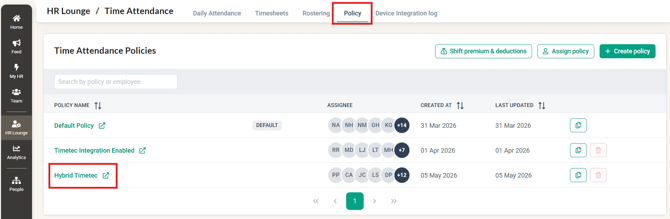
Within the Time Attendance module, click into Policy
-
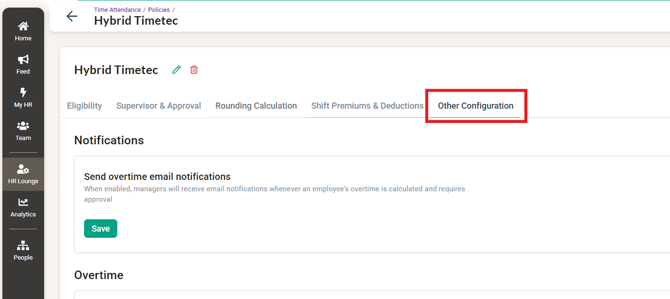
Click into the selected policy then into Other Configurations
-
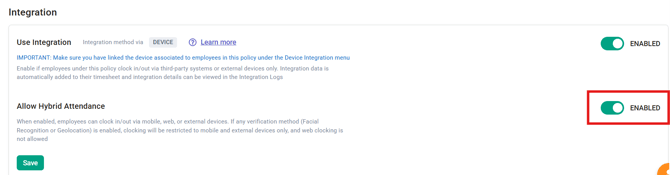
Scroll down to the Integration , enable the Allow Hybrid Attendance
-
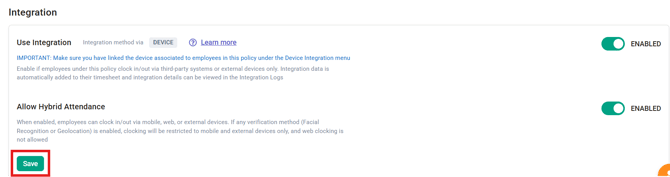
Click Save
IMPORTANT:
The option to 'Allow Hybrid Attendance' is available for all Integration methods such as API integration, SFTP integration, and Device Integration.
As for the Device Integration (TimeTec device - TC10), please note that there are 2 solutions that can be chosen from as below:
Solution 1: Default = Employees will be required to select an action type on the device before Clocking In or Clocking Out.
Solution 2: First_Last = Employees will just need to tap in on the device to Clock In or Clock Out without selecting an action type from the device.
Exception: If a company's Device Integration is set to Solution 2 (First & Last Log) with Track break time enabled, Hybrid Attendance cannot be turned on for that company. To enable Hybrid Attendance, break tracking must first be turned off (or the company must not have it enabled).
See: How to Link Timetec Device in BrioHR Time and Attendance Module for details on break tracking.
Key Benefits
1. Flexibility for Hybrid Work
Supports seamless transitions between remote and office-based work without attendance restrictions.
2. Improved Employee Experience
Employees can use the most convenient method available to them, reducing friction in daily attendance logging.
3. Business Continuity
Ensures accurate attendance tracking regardless of location or device availability.
4. Compatibility with Existing Systems
Organizations can continue using their integrated attendance devices alongside BrioHR’s web and mobile platforms.
Conclusion
Hybrid Attendance empowers organizations to align their attendance tracking with modern work practices. By enabling multiple clock-in and clock-out methods, businesses can support a more flexible, efficient, and employee-friendly approach to workforce management.
Frequently Asked Questions
Q: Can employees switch between clock-in and clock-out methods?
A: Yes. Employees can clock in using one method and clock out using another, depending on their work arrangement or location.
Q: Can companies continue using their existing attendance devices?
A: Yes. Organizations can continue using their integrated attendance devices while also allowing employees to use the web or mobile app for attendance tracking.
Q: Is Hybrid Attendance available for all attendance policies?
A: The feature can be enabled within selected attendance policies under the Time Attendance module.
Related Articles
- How to Link Timetec Device in BrioHR Time and Attendance Module
- BrioHR Time And Attendance Device Integration Guide (TC10 Model)
Ownership
By: Arveena