![brioHR-logo-color.svg]](https://support.briohr.com/hubfs/brioHR-logo-color.svg)
Audience & Scope
Audience: HR Admin
Module: Time Attendance
Country: Global
Pre-requisite: HR Lounge access to Time Attendance module
Step-by-Step Instructions to enable the Manager Pre-Approval function
-
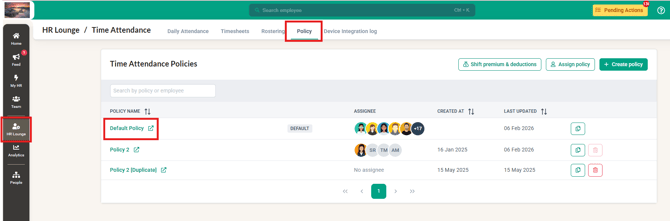
Click into HR Lounge and into the Time Attendance module
-
Proceed to click Policy tab and into the selected Policy which requires this setting
-
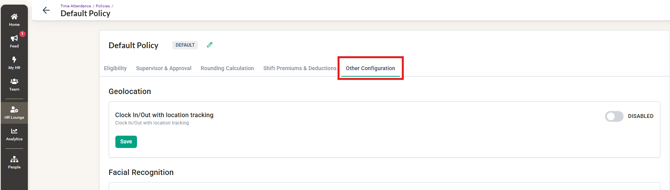
Within the Policy, click into the Other Configuration
-
Scroll down to Overtime and enable the 'Manager Pre-Approve Overtime' then click Save
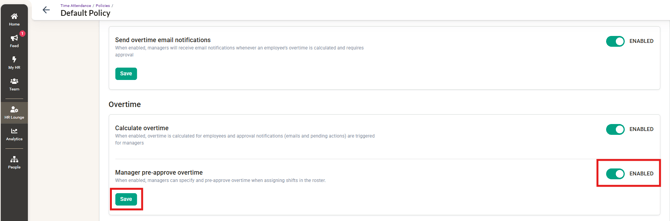
- Now that the function is enabled, both HR and Managers will be able to add Pre-Approved Overtime for employees within the Rostering page.
Impact of enabling this setting: once Manager Pre-Approve Overtime is enabled, overtime must be requested and approved, or assigned by HR/the manager, before the date the employee works it. Overtime worked without pre-approved overtime in place is automatically rejected in the timesheet. Calculate Overtime keeps running — only the approval requirement changes. If you do not want non-pre-approved overtime to be auto-rejected, keep this setting off (Calculate Overtime can stay on).
Step-by-Step Instructions to add Pre-Approval Overtime for employees
A. Flexible Schedule employees
-
Click into HR Lounge and into the Time Attendance module
-
Proceed to click into the Rostering page and search for the Employee required
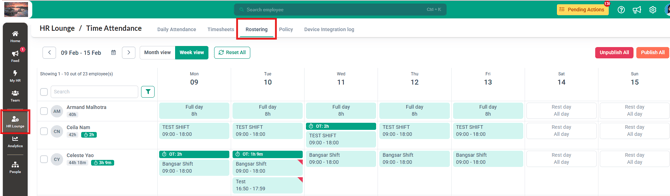
- Click on the 'Add' button and click into the Add Pre-Approved overtime (OT)
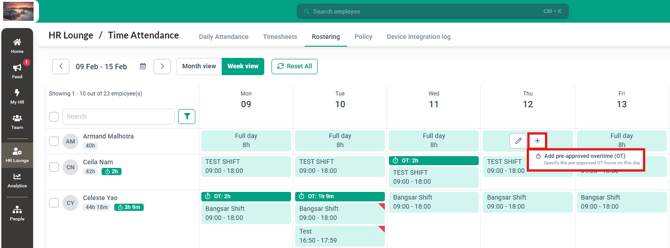
- Fill in the number of hours/minutes for the Pre-Approved overtime and click Add OT
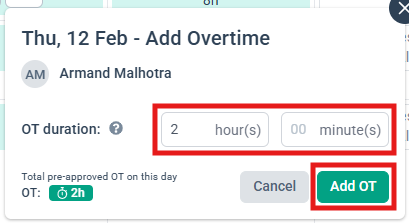
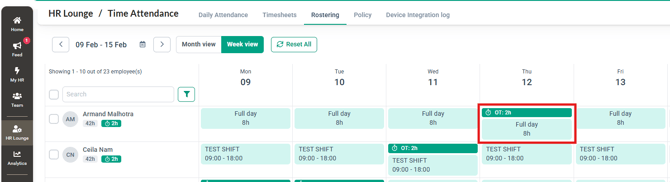
- You will then be able to see the Pre Approved OT showing for the employee's roster
B. Shift Schedule employees
-
Click into HR Lounge and into the Time Attendance module
-
Proceed to click into the Rostering page and search for the Employee required
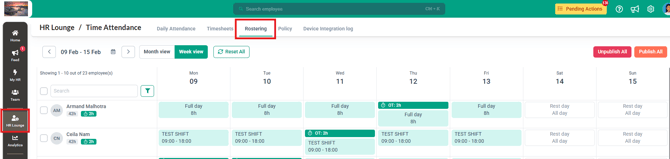
- Click on the 'Add' button and click into the Add Pre-Approved overtime (OT)
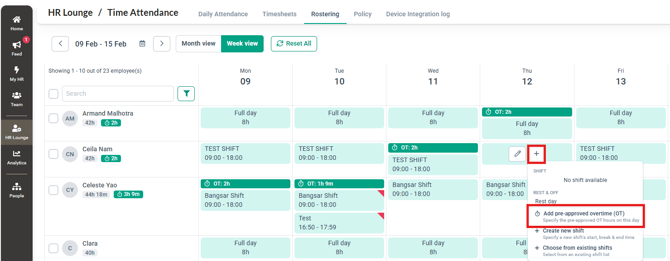
- Fill in the number of hours/minutes for the Pre-Approved overtime and click Add OT
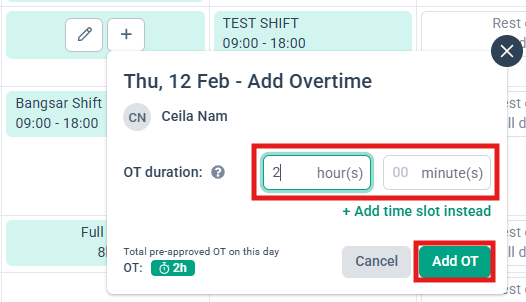
- You will then be able to see the Pre Approved OT showing for the employee's roster
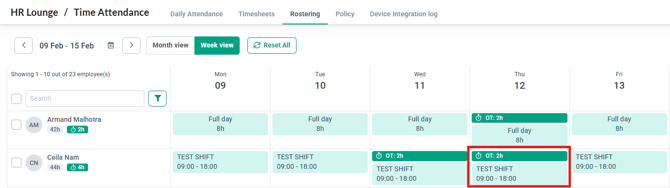
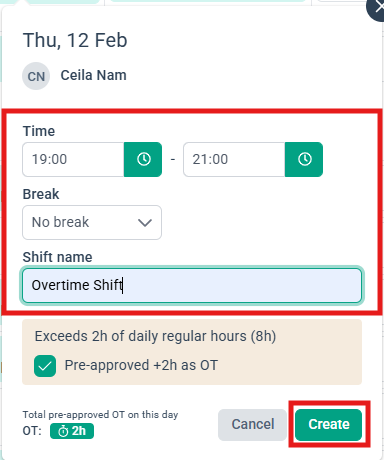
- If you wish to add this Overtime as another shift, click on the 'Add time slot instead' button
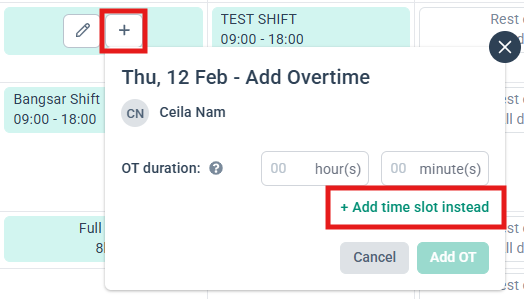
- Fill in the necessary information and click 'Create'
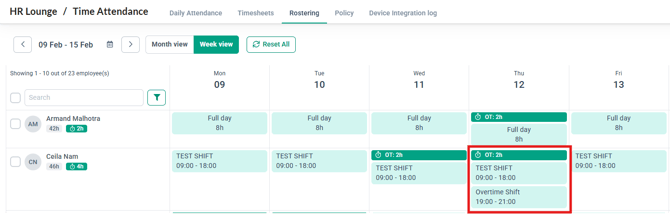
- You will then be able to see the Overtime added as an additional shift for this employee
Common Issues/FAQ
Q: What is the Manager Pre-Approve Overtime function?
A: The Manager Pre-Approve Overtime function allows managers to add and approve overtime hours for employees in advance, directly from the Rostering page, once the setting is enabled in the policy.
Q: Who can enable the Manager Pre-Approve Overtime setting?
A: Only HR or system administrators with access to policy settings in the Time Attendance module can enable this function.
Q: Where can I find the Manager Pre-Approve Overtime setting?
A: The setting is located under the selected Time Attendance policy, within the Other Configuration section. Scroll down to the Overtime settings to enable it.
Q: Do managers gain automatic access after the setting is enabled?
A: Yes. Once enabled and saved, both HR and managers will be able to add pre-approved overtime for employees via the Rostering page.
Q: Can this feature be enabled for specific policies only?
A: Yes. The Manager Pre-Approve Overtime setting is policy-based, allowing HR to enable or disable it for specific employee groups as needed.
Related Articles
1. Assigning Pre-Approved Overtime as a Manager
2. How HR/Admin Manage Rostering of All Employees
3. How to Assign Employees to a Time Attendance Policy in BrioHR
Ownership
By: Arveena