![brioHR-logo-color.svg]](https://support.briohr.com/hubfs/brioHR-logo-color.svg)
Audience & Scope
Audience: HR Admin & Payroll Manager
Module: Payroll
Country: Malaysia
Pre-requisites: User group permission for Payroll module and reports, access as Payroll Manager for payroll center
When to use this method
With many employees, checking one profile at a time is slow. Instead, export your payroll data from brioHR and from your old system, compare the two files in one spreadsheet, and look only at the employees that don't match.
Use it to check your migrated payroll history and your parallel run month.
Before you start
- You have an export from your old payroll system for the same months and payroll centers.
- Both files need a way to match each employee: the Employee ID. If your company doesn't use employee IDs, brioHR generated one for each employee.
Practice with sample files
You can practise this method on sample files before you check your own data. Each step below ends with a Practice box (what to do with the sample files) and a Check your answer box (what you should find).
Download the three files:
- Previous system report: Practice_Previous_System_YTD_Payroll_Detail_Jan-Jun_2026.xlsx
- brioHR Payroll Report: Practice_brioHR_Payroll_Report_Jan-Jun_2026.xlsx
- Answer key: Practice_Answer_Key_Large_Headcount_Jan-Jun_2026.xlsx
The files belong to Bayu Tech Sdn Bhd, a fictional company with 30 employees. It moved to brioHR in July 2026, and its payroll history from January to June 2026 was migrated from its previous payroll system. Some of that history wasn't migrated correctly: your job is to find out what.
All names and amounts are made up. Statutory amounts are simplified, so don't check them against the official EPF, SOCSO, EIS or PCB tables.
Step 1: Export your brioHR payroll data
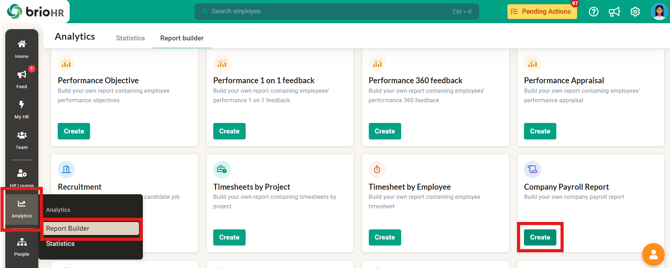
- Go to Analytics > Report Builder > Company Payroll Report.
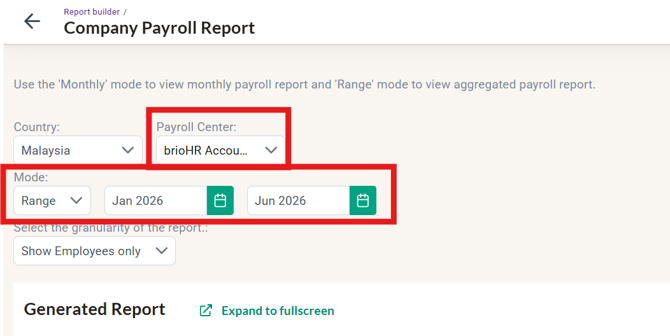
- Choose your payroll center(s) and the months you are checking, from January to your last migrated month.
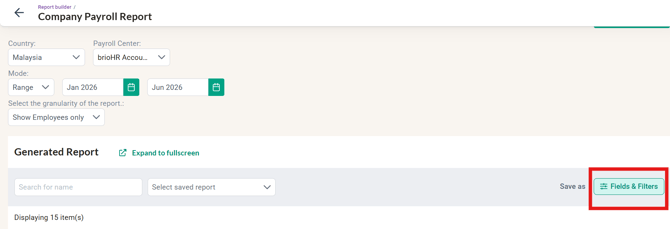
- Choose the fields (click fields and filters) to include. Keep it to what you will compare: Internal ID (the Employee ID), First Name, Last Name, and the pay fields such as Basic Salary, Bonus, Gross Earnings, Employee EPF, Employee SOCSO Total, Employee EIS, Employee PCB, Net Pay, Employer EPF, Employer SOCSO, Employer EIS, and Employer HRDF.
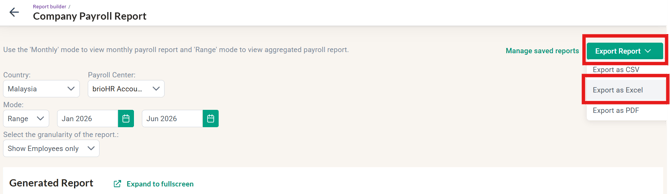
- Export the report. It has one row per employee with their totals for the whole period, and a Total row at the bottom. A blank cell means 0.
Practice: Open the brioHR Payroll Report practice file. It is Bayu Tech's export for January to June 2026, with only the pay fields included. Find the Internal Id column and the Total row.
Step 2: Prepare your old system's export
Your old system's report probably looks different from brioHR's. Before you can compare, get it into the same shape: one row per employee, one value per cell.
- Export the same period and payroll centers from your old system.
- Copy the employee rows into a new sheet, one row per employee. Leave out group headings, subtotal and total rows, and any breakdown lines.
- If a column holds two values, one above the other (for example E'EPF above E'VOL), split it into two columns.
- Keep the Employee ID exactly as it is, including leading zeros: format the column as text so 001 doesn't become 1.
- Match each column to its brioHR column, so you know which to compare. If your company has no employee IDs, copy the ID brioHR generated into this file, matching on full name first.
Practice: Open the Previous system report practice file and clean it up as above. In this report, each employee takes two rows. Use the table below to match its columns to brioHR's.
|
Previous system column |
brioHR column |
|---|---|
|
EMP NO. |
Internal Id |
|
BASIC |
Basic Salary |
|
BONUS |
Bonus |
|
OTHERS (first one) |
Total Allowances + Commission |
|
GROSS PAY |
Gross Earnings |
|
E'EPF |
Employee EPF |
|
E'SOC |
Employee SOCSO Total |
|
E'EIS (second row, under E'SOC) |
Employee EIS |
|
E'TAX |
Employee PCB |
|
OTHERS (second one) |
Net Deductions |
|
NETTPAY |
Net Pay |
|
R'EPF |
Employer EPF |
|
R'SOC |
Employer SOCSO |
|
R'EIS (second row, under R'SOC) |
Employer EIS |
|
R'LEVY |
Employer HRDF |
Check your answer: You should have 30 rows, employees 001 to 030, one per row. Compare your sheet with the Old system (cleaned) tab of the answer key.
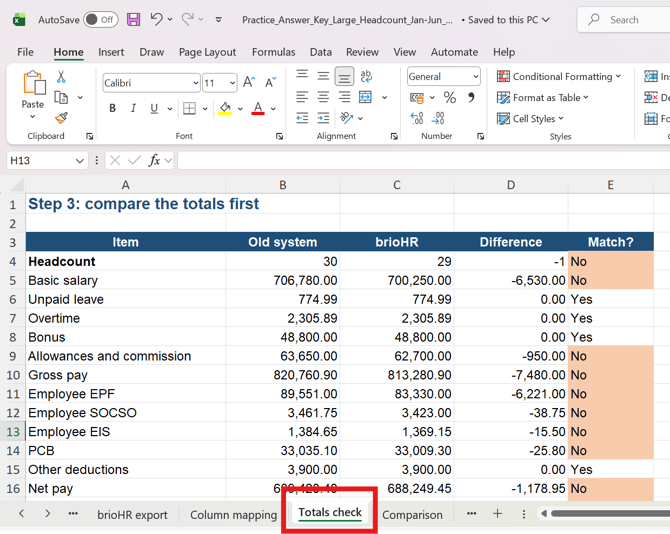
Step 3: Compare the totals first
Check the headcount and the column totals in both files.
- If every total matches, you can usually stop here.
- If a total doesn't match, go to Step 4 to find which employees cause it.
Practice: Count the employees in each file, and compare the totals for Basic, Gross pay, Employee EPF, Net pay and Employer EPF.
Check your answer: The totals don't match, so go on to Step 4.
|
Item |
Previous system |
brioHR |
Difference |
|---|---|---|---|
|
Headcount |
30 |
29 |
-1 |
|
Basic |
706,780.00 |
700,250.00 |
-6,530.00 |
|
Gross pay |
820,760.90 |
813,280.90 |
-7,480.00 |
|
Employee EPF |
89,551.00 |
83,330.00 |
-6,221.00 |
|
Net pay |
689,428.40 |
688,249.45 |
-1,178.95 |
|
Employer EPF |
102,012.00 |
95,148.00 |
-6,864.00 |
The full list is in the Totals check tab of the answer key.
TIP:
Refer to the Totals check tab in the answer key sheet:
Step 4: Match employees and find the differences
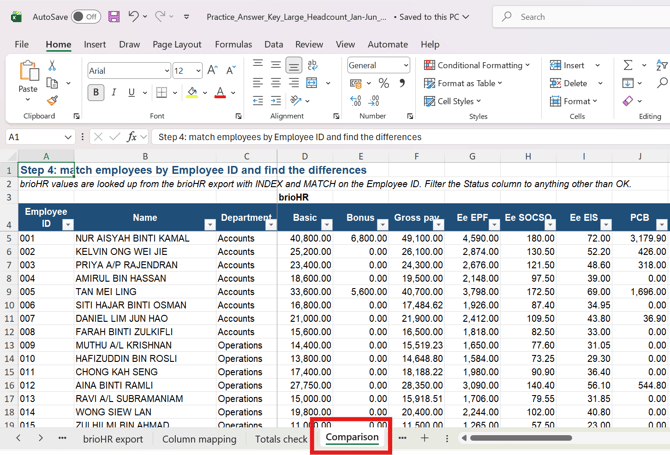
Start from your old system list, because it holds everyone you paid. An employee missing from brioHR then shows up as Missing. If you started from the brioHR export instead, a missing employee simply wouldn't appear.
- Put both files in one spreadsheet: your cleaned old system sheet (for example, named Previous system) and the brioHR export (named brioHR).
- On the Previous system sheet, add a column for each brioHR value you want to compare, and look it up by Employee ID (see the formulas below).
- Add a difference column: the brioHR value minus the old system value.
- Filter the difference columns to show only rows that are not 0.
- Check employees showing Missing first: they are not in brioHR.
TIP:
Refer to the Comparison tab in the answer key sheet:
Formulas
To bring back the brioHR Employee EPF for the Employee ID in cell A2 (in the practice brioHR file, Internal Id is column A and Employee EPF is column W):
=IFERROR(INDEX(brioHR!W:W, MATCH(A2, brioHR!A:A, 0)), "Missing")If you prefer VLOOKUP, this does the same, where 23 is column W's position:
=IFERROR(VLOOKUP(A2, brioHR!A:W, 23, FALSE), "Missing")Then the difference, where B2 is the old system value and C2 is the brioHR value:
=IF(ISNUMBER(C2), C2-B2, "Missing")Practice: Look up Basic, Gross pay, Employee EPF, Net pay and Employer EPF for all 30 employees, and work out the differences. In the brioHR file, those are columns F, V, W, AD and AE.
Check your answer: 9 employees have a difference: 001, 005, 012, 016, 020, 024, 026, 029 and 030. Employee 029 shows Missing. Compare with the Comparison tab of the answer key, and filter its Status column to anything other than OK.
Step 5: Look for patterns before fixing individuals
Group the differences by field, department, or payroll center. If many employees share the same kind of difference, one cause is usually behind it, so you can report it once.
IMPORTANT:
Don't change migrated payroll history yourself: send what you found to your IM, who will correct it.
Practice: Look at the 9 employees from Step 4. Which ones share the same kind of difference, and what else do they have in common? Hint: check the Bonus column.
Check your answer: You should find three issues.
- A pattern (7 employees: 001, 005, 016, 020, 024, 026, 030). Employee EPF and Employer EPF are lower in brioHR, and Net pay is higher by the same amount as the Employee EPF gap. All 7 were paid a bonus in March, and the Employee EPF gap equals the EPF on that bonus (for 001: 11% of the 6,800.00 bonus is 748.00). The EPF on the March bonus was left out of the migrated figures.
- A missing employee (029, Haziq Bin Nordin). He resigned in February, and his January and February history wasn't migrated.
- A single wrong figure (012, Aina Binti Ramli). Basic, Gross pay and Net pay are each 270.00 higher in brioHR. In real data, check that employee month by month to find it; in the practice files, the answer key explains it.
Step 6: Sample what you can't compare in bulk
Some items can't be checked from an export, such as PCB against the LHDN PCB Calculator, or bank details. Check these for a sample of employees with different setups, such as salary proration, different SOCSO categories or a custom EPF rate.
Practice: Nothing to do here: the practice files don't include employee setup details.
Step 7: Send a discrepancy list to your IM
For every difference, however small, note the Employee ID, the field, the brioHR value, the old system value, the difference, and what you think caused it. Send the list to your IM.
Practice: Write your discrepancy list for Bayu Tech.
Check your answer: Compare it with the Discrepancy list tab of the answer key: 1 missing employee, the EPF and Net pay differences for the 7 bonus employees, and the Basic, Gross pay and Net pay differences for employee 012.
Common Issues/FAQ
Q: How many employees counts as a large headcount?
A: There is no fixed number. If checking each employee's profile one by one would take too long, use this method.
Q: Our company doesn't use employee IDs. How do I match employees?
A: brioHR generated an Employee ID for each employee. Copy it from the brioHR export into your old system file, matching on full name first.
Q: The totals match. Do I still need to check each employee?
A: Usually not. If the headcount and every column total match, you can stop. Still sample a few employees with different setups for the items you can't compare in bulk, such as PCB and bank details.
Q: What does #N/A mean in my lookup?
A: The Employee ID wasn't found in the other file, so the employee is missing on one side. Check these employees first.
Q: The difference is only a few sen. Do I need to report it?
A: Yes. Note every difference, however small, and include it in your discrepancy list for your IM.
Related Articles
- How to Download and Customize the Company Payroll Report in BrioHR
- How to Download & Customize Payroll Reports for a Specific Date Range
- How to Generate Employee Payroll Report in BrioHR
- Guide to PCB Calculation in Malaysia: Monthly Tax Deduction Explained
- Types of EPF Category
- Types of SOCSO Options
- How to Process a Payroll Parallel Run in brioHR (Malaysia Payroll Guide)
- How to Test Your Payroll Calculation Settings Before Go-Live (Malaysia Payroll Guide)
Ownership
By: Aqilah