![brioHR-logo-color.svg]](https://support.briohr.com/hubfs/brioHR-logo-color.svg)
Audience & Scope
Audience: HR and admin teams setting up brioHR for the first time
Module: Payroll Malaysia
Country: Malaysia
Pre-requisites: Implementation kick-off meeting with your Implementation Manager (IM) completed; the Company Payroll Info (MY) and Employee Payroll Data (MY) templates from your IM; Employee List loaded and verified (Profile & Dashboards)
This article is part of the Payroll Malaysia data migration series. It follows the Payroll Malaysia Data Migration Guide (PDF).
Company Payroll Info (MY)
💡 How to read the field tables
In the "Required" column, Compulsory means the template marks the field as compulsory, Fill in means the template asks for it, and If applicable means you only fill it in when it applies. If a field doesn't apply, leave it blank.
🔗 Related article
Open the tab for your payroll center. The first tab in the template is an example, and the tab name is the payroll center name. If you have more than one payroll center, use a separate tab for each: duplicate the main tab, then edit the differences (your IM can help if you're unsure). Company details, bank and officer information, pay day and calculation, and pay cycles sit on the left side of the page; the pay item listings sit on the right. Example of a payroll center tab. Company details, bank and officer information, pay day and calculation, and pay cycles are on the left side of the page:
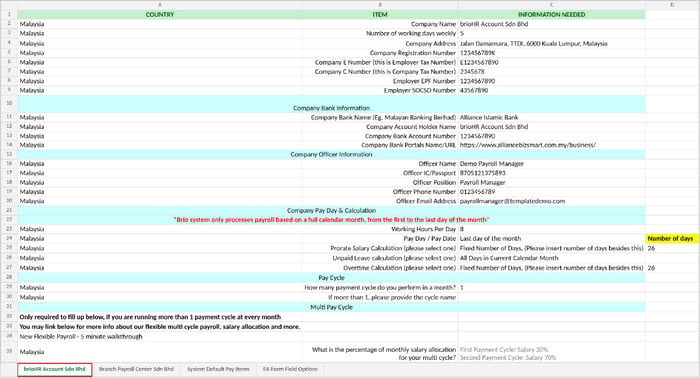
Company details
| Field | Required | Notes |
|---|---|---|
| Company name | Fill in | Full legal registered name of entity. |
| Number of working days weekly | Fill in | Example: 5. |
| Company address | Fill in | |
| Company registration number | Fill in | |
| Company E Number | Fill in | This is your Employer Tax Number. |
| Company C Number | Fill in | This is your Company Tax Number. |
| Employer EPF number | Fill in | |
| Employer SOCSO number | Fill in | |
Company bank information
| Field | Required | Notes |
|---|---|---|
| Company bank name | Compulsory if using bank file for payroll disbursement | Example: Malayan Banking Berhad. Tell your IM immediately if your company bank is not available. |
| Company account holder name | Compulsory if using bank file for payroll disbursement | |
| Company bank account number | Compulsory if using bank file for payroll disbursement | |
| Company bank portal name / URL | Compulsory if using bank file for payroll disbursement | The online banking portal you use. |
💡 Tip
Not sure of your company's bank details? Ask the person in charge of your company's bank account (for example your finance team or company PIC), or contact the bank directly. Check them carefully, because the bank file for salary payment is generated from these details.
Company officer information
| Field | Required | Notes |
|---|---|---|
| Officer name | Fill in | Full name as per IC or passport. |
| Officer IC / passport | Fill in | |
| Officer position | Fill in | Example: Payroll Manager. |
| Officer phone number | Fill in | |
| Officer email address | Fill in | |
Company pay day and calculation
🔗 Good to know
brioHR only processes payroll based on a full calendar month, from the first to the last day of the month. The pay day you choose will be the default date shown every time you run your monthly cycle. This data will be used if your bank files require a disbursement date before it can be generated.
| Field | Required | Notes |
|---|---|---|
| Working hours per day | Fill in | Example: 8. |
| Pay day / pay date | Fill in | Choose from the dropdown, for example "Last day of the month" or "Monthly on the 5th". |
| Prorate salary calculation | Fill in | Select one: all days in the current calendar month, a fixed number of days, or working days in the current calendar month. If you choose a fixed number of days, enter the number in the "Number of days" column. |
| Unpaid leave calculation | Fill in | Select one, using the same three options. |
| Overtime calculation | Fill in | Select one, using the same three options. Enter the number of days if you choose a fixed number. |
🔗 Related articles: how each calculation option works
Pay cycle and multi pay cycle
| Field | Required | Notes |
|---|---|---|
| How many payment cycles do you perform in a month? | Fill in | Enter 1 if you pay once a month. |
| If more than 1, the cycle names | If applicable | Only if you run more than one cycle. |
| Percentage of monthly salary allocated to each cycle | If applicable | Only fill in the multi pay cycle section if you run more than one cycle a month. For example, first cycle 30%, second cycle 70%. The template links to a short walkthrough of flexible multi cycle payroll. |
Pay items: Allowance listing
On the right side of your payroll center's tab, tell us how every allowance, benefit in kind and deduction should be treated. If you aren't sure about an item, check the System Default Pay Items tab first: it lists items already set up in brioHR, with their settings. Add a row for any item that isn't in the defaults.
⚠ Important
The default pay items include both taxable and tax-exempt items. Creating custom pay items may change the tax-exempt amount, so use a default item wherever one fits.
| Column | Required | Notes |
|---|---|---|
| Item name | Fill in | Example: "Incentive (Custom)". |
| Category | Fill in | Example: Allowances. |
| Addition type | Fill in | Options: Fixed Remuneration or Additional Remuneration. |
| Is overtime? | Fill in | Options: Yes or No. |
| Benefit in kind | Fill in | Options: Yes or No. |
| Add to taxable income | Fill in | Options: Yes or No. |
| EPF / SOCSO / EIS / HRDF | Fill in | Options: Yes or No for each: whether the item counts toward that contribution. |
| Where it should appear in EA Form | Fill in | Choose from the dropdown. |
Pay items: Deduction listing
| Column | Required | Notes |
|---|---|---|
| Item name | Fill in | |
| Category | Fill in | |
| Deduction type | Fill in | In the defaults, this is either Deduct from Remuneration or Deduct after Net. |
| Deduct from taxable income | Fill in | Yes or No. |
| EPF / SOCSO / EIS / HRDF | Fill in | Yes or No for each. |
EA Form options
In the "Where it should appear in EA Form" column, pick an option from the dropdown in the template for each pay item.
💡 Tip
Select the correct EA Form option for each pay item. The option you choose decides where the amount is mapped later in your employees' EA Form, so a wrong choice puts it in the wrong place on the EA Form. If you are not sure which option applies, check with your IM before you submit.
← Previous: What to Prepare Before Filling In Your Payroll Templates (Malaysia Payroll Guide)
Next: How to Fill In the Employee Payroll Data Template (Malaysia Payroll Guide) →
Back to Payroll Data Migration and Verification: Start Here (Malaysia Payroll Guide)
Ownership
By: Aqilah