![brioHR-logo-color.svg]](https://support.briohr.com/hubfs/brioHR-logo-color.svg)
Audience & Scope
Audience: HR and admin teams setting up brioHR for the first time
Module: Time Attendance
Country: Malaysia, Singapore
Pre-requisites: Implementation kick-off meeting with your Implementation Manager (IM) completed; the Time Attendance migration template from your IM; Employee List loaded and verified (Profile & Dashboards)
This article is part of the Time Attendance data migration series. It follows the Time Attendance Data Migration Guide (PDF).
Work Pattern Variation tab
You can skip this tab unless a schedule needs a different pattern for a set period. The tab has two example blocks: one for a flexible hours schedule and one for a shift schedule. Copy the block that fits for each variation.
| Field | Required | Notes |
|---|---|---|
| Pattern Name | If applicable | A name for the variation. Include the name of the schedule it changes, for example "Warehouse (Mon to Sat): Saturdays off in December". |
| Start Date and End Date | If applicable | The first and last day the variation applies. Give both: a missing end date leaves the variation in place longer than intended. |
| Work pattern | If applicable | Flexible hours or Shift, matching the schedule. For shift schedules, the Split shift time defaults to 12:00 AM; only change it if shifts run past midnight. |
| Default Pattern: Full Week | If applicable | For each day from Monday to Sunday: Full day, Half day or Rest day. For shift schedules, choose the shift worked that day. |
| Default Pattern: Custom | If applicable | The Reference Date the cycle starts from, Work for (days), then each work day (Full day or Half day, and the shift for shift schedules), then Rest for (days). Fill in either Full Week or Custom, not both. |
Example: two variations for December
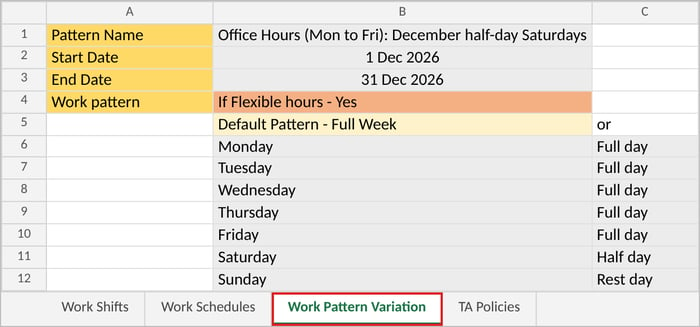
Say your office staff work a half day on Saturdays in December, and the warehouse, which normally works Monday to Saturday, has Saturdays off in December, working the AM Shift on Monday and Tuesday and the PM Shift from Wednesday to Friday. Each variation gets its own block. Example 1: a variation for a flexible hours schedule
Example 2: a variation for a shift schedule
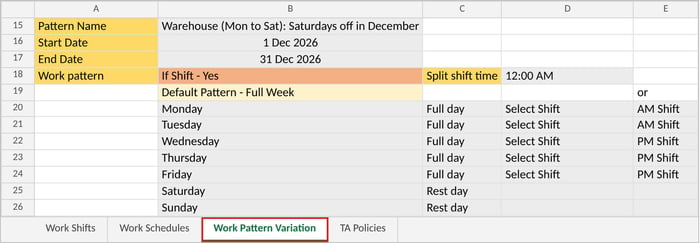
- Start Date is the first day the different pattern applies, and End Date is the last: here 1 Dec 2026 and 31 Dec 2026. From 1 Jan 2027, the schedule's usual pattern applies again.
- Type each date with the month as a word, for example 1 Dec 2026, so the day and month can't be mixed up.
- In the shift column, give the shift's name exactly as it is on your Work Shifts tab, for example AM Shift. In the template's own example, "Mon to Fri" is the example shift from the Work Shifts tab, not a range of days.
- Both examples use Full Week, so the Custom side of each block (to the right of these columns) is left empty. For a Custom cycle, fill in the Reference Date, Work for (days), each day and Rest for (days) instead, and leave Full Week empty.
🔗 Related articles
← Previous: How to Fill In the Work Shifts and Work Schedules Tabs
Next: How to Fill In the TA Policies Tab →
Back to Time Attendance Data Migration and Verification: Start Here
Ownership
By: Aqilah