![brioHR-logo-color.svg]](https://support.briohr.com/hubfs/brioHR-logo-color.svg)
Audience & Scope
Audience: HR and admin teams setting up brioHR for the first time
Module: Time Attendance
Country: Malaysia, Singapore
Pre-requisites: Implementation kick-off meeting with your Implementation Manager (IM) completed; the Time Attendance migration template from your IM; Employee List loaded and verified (Profile & Dashboards)
This article is part of the Time Attendance data migration series. It follows the Time Attendance Data Migration Guide (PDF).
Work Shifts tab
💡 How to read the field tables
In the "Required" column, Compulsory means the template marks the field as compulsory (with a * in a green heading), Fill in means the template asks for it, and If applicable means you only fill it in when it applies to your company. Yellow headings on the Work Shifts tab are optional.
🔗 Related article
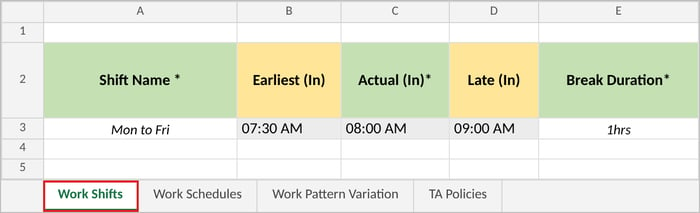
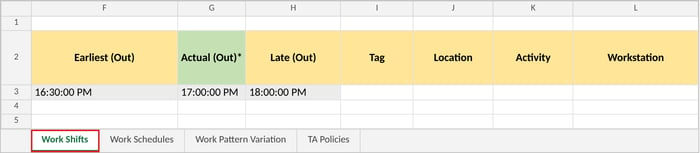
Add one row per shift, including half-day shifts. Shifts are needed for shift-based schedules; a flexible hours schedule doesn't need any. Type times in the template's format, for example 08:00 AM and 05:00 PM. The template comes with example rows (for example the "Mon to Fri" shift): replace them with your own data, or delete them, before you submit. Example of the Work Shifts tab:
How shift times decide lateness, early outs and overtime
The six times on each work shift are what brioHR compares clock-ins and clock-outs against. Here is an AM Shift:
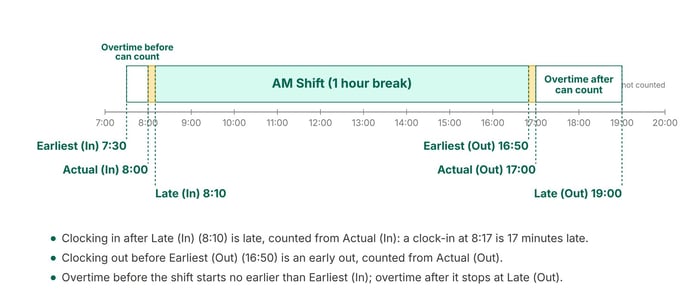
The AM Shift: 8:00 to 17:00, with a 1 hour break.
| Field | Required | Notes |
|---|---|---|
| Shift Name | Compulsory | A name employees will recognise on their roster, for example "AM Shift". Use the same name wherever you refer to the shift in the Work Schedules and Work Pattern Variation tabs. |
| Earliest (In) | If applicable | The earliest clock-in that counts towards overtime before the shift (see the diagram above). |
| Actual (In) | Compulsory | The time the shift starts. |
| Late (In) | If applicable | The latest clock-in that isn't marked late. Lateness is counted from Actual (In), so a clock-in after Late (In) is late by the full time since Actual (In). |
| Break Duration | Compulsory | Options: No break, then 15 minutes up to 3 hours. |
| Earliest (Out) | If applicable | The earliest clock-out that isn't an early out. Early outs are counted from Actual (Out). |
| Actual (Out) | Compulsory | The time the shift ends. |
| Late (Out) | If applicable | The latest clock-out that counts towards overtime after the shift. |
| Tag | If applicable | A label that links the shift to a shift premium or deduction, for example "Night". A shift can have more than one tag. |
| Location | If applicable | The location(s) where employees must clock in for this shift. Only used if the policy restricts clock-ins to shift locations. Tell your IM the address of each location. |
| Activity and Workstation | If applicable | Optional. Leave blank if you don't use them. |
💡 Tip: rules that come with each time
Earliest (In) can't be later than Actual (In), and Late (In) can't be earlier than it. In the same way, Earliest (Out) can't be later than Actual (Out), and Late (Out) can't be earlier than it.
🔗 Related articles
Work Schedules tab
Add one row per schedule. You need at least one schedule for each different working pattern in your company, for example office staff on Monday to Friday, and warehouse staff on Monday to Saturday.
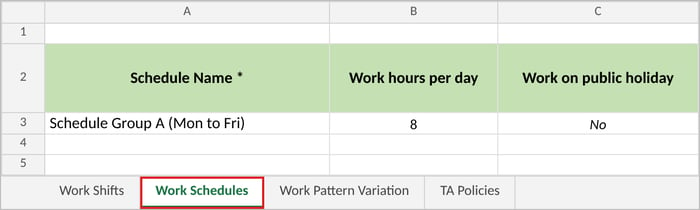
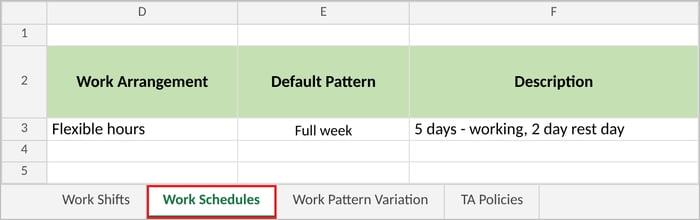
Example of the Work Schedules tab:
| Field | Required | Notes |
|---|---|---|
| Schedule Name | Compulsory | For example "Office Hours (Mon to Fri)". |
| Work hours per day | Fill in | The hours that make up a full working day, for example 8. A half day counts as half of this. |
| Work on public holiday | Fill in | Options: Yes or No. Yes means public holidays are normal work days for this schedule: shifts on them don't get public holiday overtime rates, and employees can apply for leave on them. Choose No if public holidays are days off. |
| Work Arrangement | Fill in | Options: Flexible hours or Shift. Flexible hours: employees can clock in and out at any time, as long as they work the hours for the day; no shifts are needed. Shift: employees work the shifts you choose for each day. |
| Default Pattern | Fill in | Options: Full week or Custom. Full week sets each day from Monday to Sunday. Custom repeats a cycle of work days and rest days, counted in calendar days (including weekends and public holidays) from a reference date. A wrong reference date shifts every work day and rest day in the cycle. |
| Description | Fill in | Describe the pattern, so your IM can set it up exactly:
|
💡 Good to know
The schedule also decides which days employees can apply for leave: employees can only take leave on working days (not on rest days, and no full-day leave on half days). An office's schedule also sets the working days used for salary proration. If more than one shift is chosen for a work day, the roster is left empty for that day, and the supervisor or HR chooses each employee's shift. Use this for teams that rotate between shifts.
🔗 Related articles
← Previous: What to Prepare Before Filling In Your Time Attendance Template
Next: How to Fill In the Work Pattern Variation Tab →
Back to Time Attendance Data Migration and Verification: Start Here
Ownership
By: Aqilah