![brioHR-logo-color.svg]](https://support.briohr.com/hubfs/brioHR-logo-color.svg)
IMPORTANT
To avoid submission errors, please review the important considerations below before starting the IRAS AIS submission process:
Important Considerations Before Submission
1. Review IR8A Forms and Appendices by February
-
Ensure all IR8A forms and appendices are accurate by the end of February to allow timely submission before the IRAS deadline.
- Start the review process early to allow time for corrections/adjustments to payroll or employee information.
2. Verity the Following Information Carefully
a) Company Payroll Information
Check Payroll Center Settings to ensure the following details are correct:
-
Company Sectors
- Organisation ID Type
- Organisation ID/UEN Number
- CSN Number
- Authorised Person's details (name, designation, telephone number, and email)
b) Employee Statutory Contribution Details
-
Confirm that all statutory contributions are accurately recorded for each employee
3. Complete the Previous Year's Payroll
-
Ensure the previous year's payroll (January - December) is fully completed and closed.
- Verify that all pay items for the year are correctly added before proceeding with IRAS AIS submission.
Article Overview
This guide is divided into two main parts:
Part A: How to Access the IR8A Form in BrioHR?
Part B: How to Perform IRAS Submission in BrioHR?
- Step 1: Select IRAS and Year
- Step 2: IR8A Form (Generate the IR8A)
- Step 3: Complete Appendices (Appendix 8A and Appendix 8B)
- Step 4: IRAS AIS Submission
TIP:
Refer to the instructional video (if applicable) for a visual walkthrough of the IRAS submission process.
Part A: How To Access The IR8A Form In BrioHR
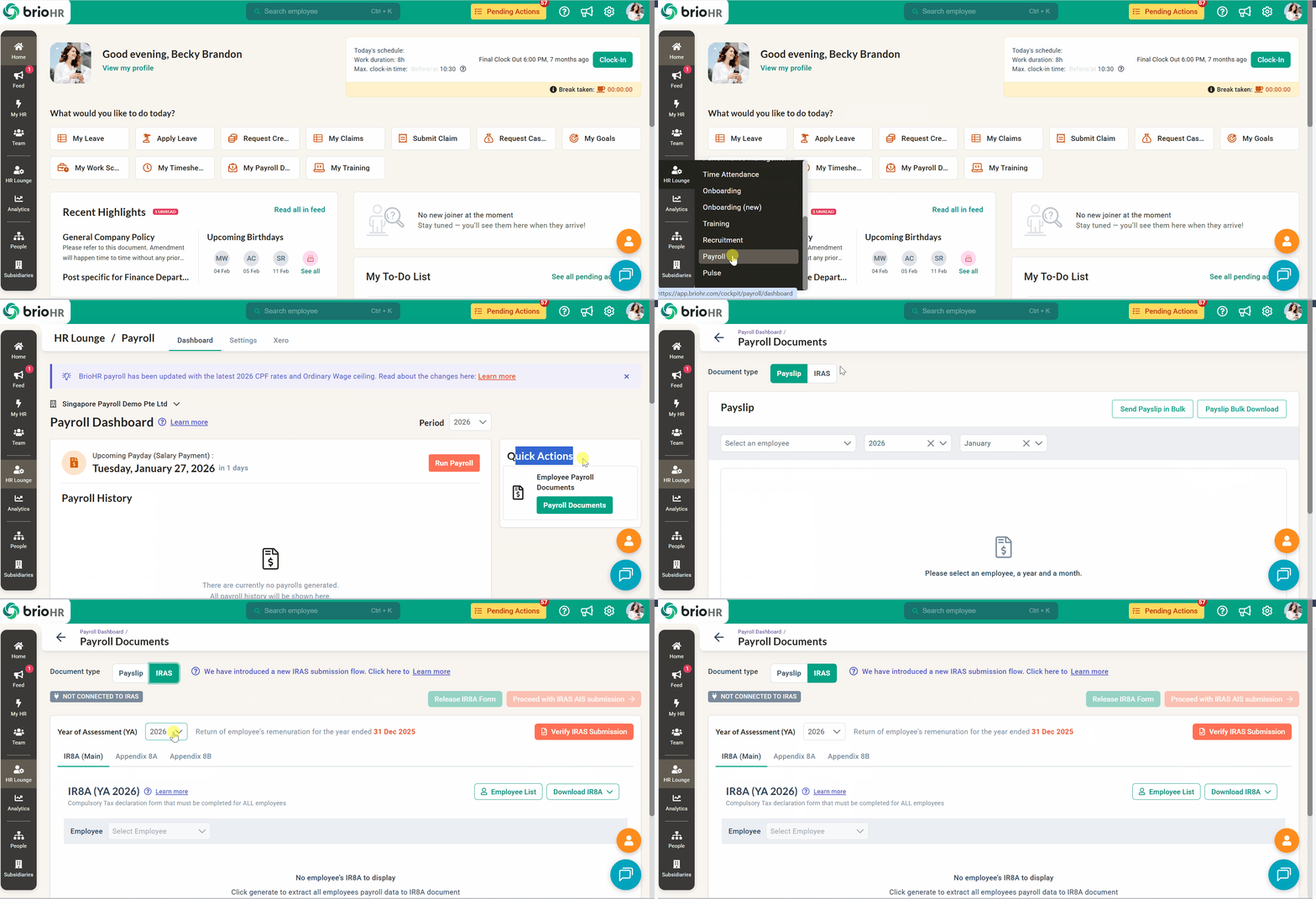
- Navigate to HR Lounge > Payroll, select the appropriate payroll center.
- On the Payroll Dashboard, go to Quick Actions > Employee Payroll Documents
- Click on the "Payroll Documents" button.
Part B: How To Perform IRAS Submission In BrioHR
STEP 1: Select IRAS and Year
- Ensure you are in the correct payroll center.
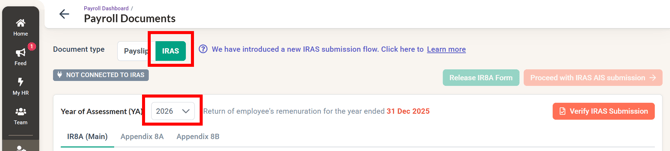
- Select Document Type, Click on "IRAS."
- Verify that the correct Year of Assessment (202X) is selected for the payroll year ending on December 31, 202X (of previous year)
IMPORTANT
Selecting Year of Assessment 2026 refers to the payroll year ending 31 December 2025
STEP 2: IR8A Form (Generate the IR8A)
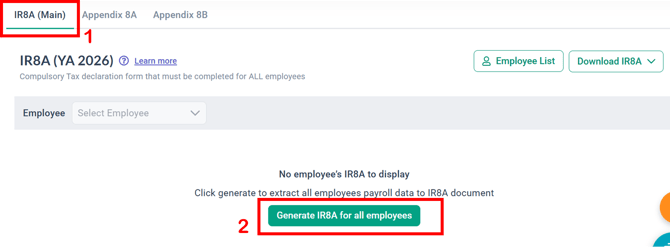
1. Select "IR8A (Main)"
2. Click on the "Generate IR8A for all employees" button.
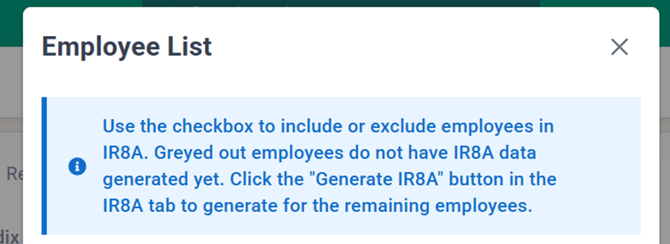
3. Click on the "Employee List" button to confirm that all employees have been correctly included or excluded in the IR8A.

Inclusion Rules:
-
Employees with payslips or payroll records from January - December of the selected year are automatically included
Manual Exclusion Required:
HR Admins must MANUALLY exclude:
-
Non-Singapore Citizens, or non-Permanent Residents who resigned during the year and completed tax clearance (IR21) before submission.
4. If employees are greyed out in the Employee List, it may be due to a new hire or payroll adjustments for December 202X.
Click the "Generate IR8A" button in the IR8A tab to include these employees.
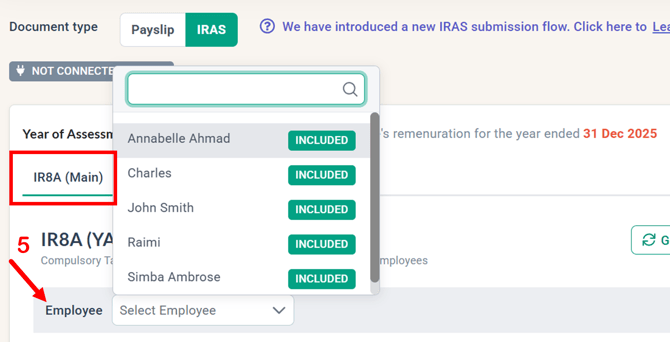
5. Check that all employee information is correctly filled in by selecting each employee from the dropdown list under the IR8A (Main) section.
NOTE:
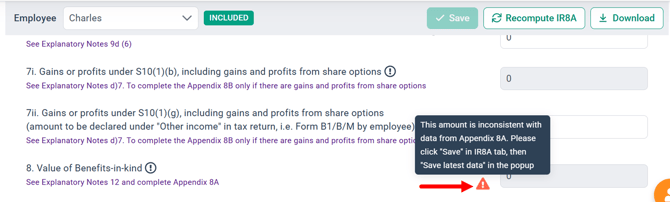
If any changes are made, click the "Save" button to capture the updates.
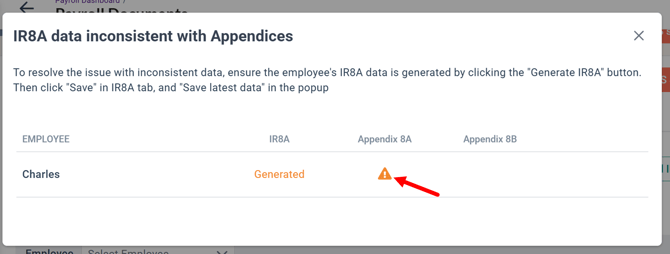
Exclamation marks in the IR8A form indicate inconsistencies between the IR8A form and appendices.
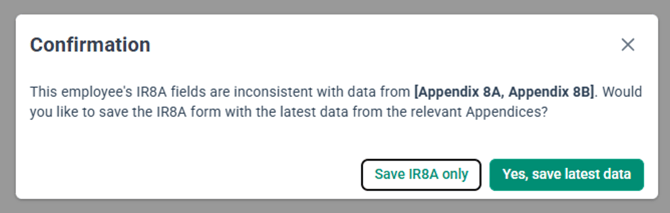
6. After saving, choose either "Save IR8A only" or "Yes, save the latest data" to include updates from the appendices (Appendix 8A, or Appendix 8B) in the IR8A form.
NOTE:
- Save IR8A only: This option saves the data in the IR8A form only.
- Yes, save latest data: This option captures the updated information from both the IR8A form and the updated appendices, including them in the IR8A form.
STEP 3: Complete Appendices (Appendix 8A and Appendix 8B)
1. Select Appendix 8A, or Appendix 8B tabs and manually fill in the relevant information for applicable employees.

NOTE:
The system does not auto-generate appendix values.
Refer to the IRAS official website for descriptions of the different appendices.
2. After ensuring all appendix information is correct, save the updates.
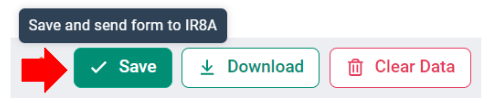
3. Return to IR8A (Main) to check for any inconsistency warnings.

STEP 4: IRAS AIS Submission
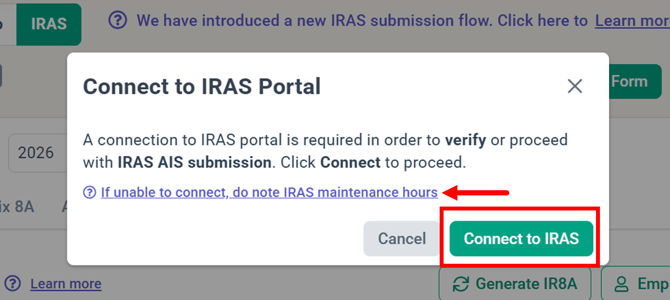
1. Click on "Proceed with IRAS AIS submission" and then "Connect to IRAS."

IMPORTANT:
Be aware of IRAS API maintenance hours, as submissions cannot be made during these times.
Weekly Maintenance Hours (Singapore Time):
-
Everyday 1:00 PM - 3:00 PM
- Monday to Saturday: 8:00 PM - 10:00 PM
- Sunday: 8:00 PM - 3:00 AM
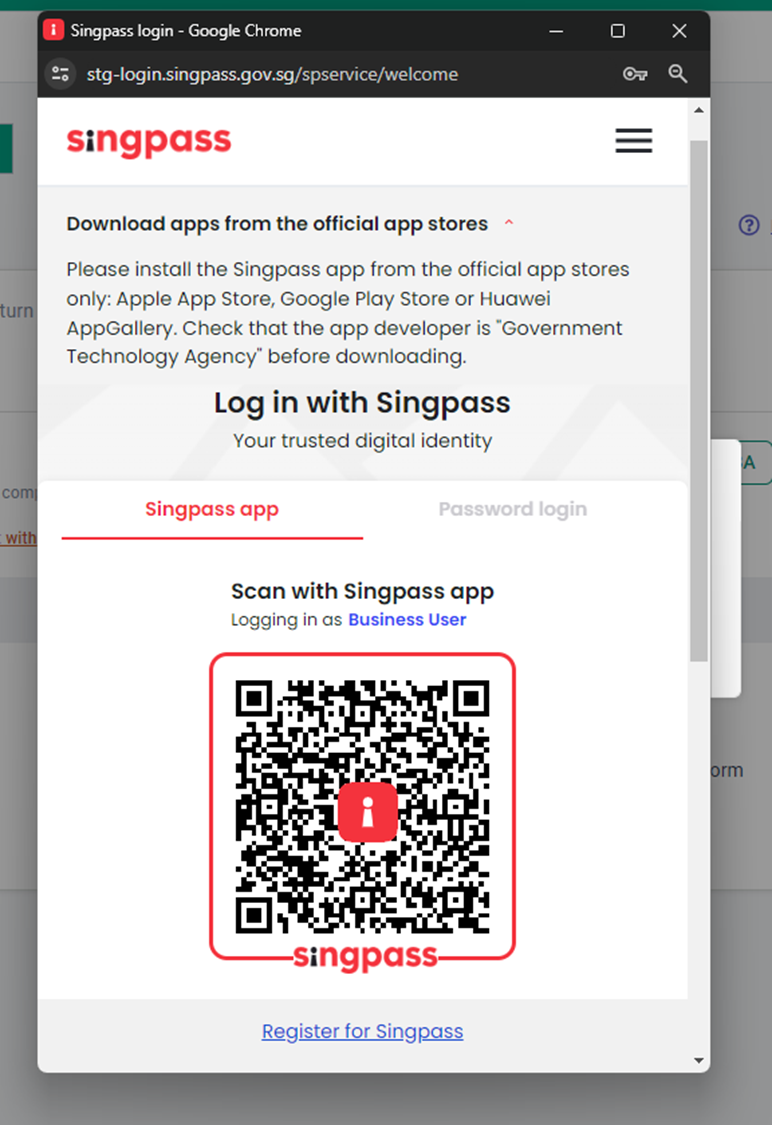
2. Login to Singpass
3. After connecting to IRAS AIS, verify each document individually:
-
IR8A (Main)
-
Appendix 8A
-
Appendix 8B
Click Verify IRAS Submission to verify for each IR8A(Main), Appendix 8A, Appendix 8B

NOTE:
Verification is required for each document, not just the IR8A form.
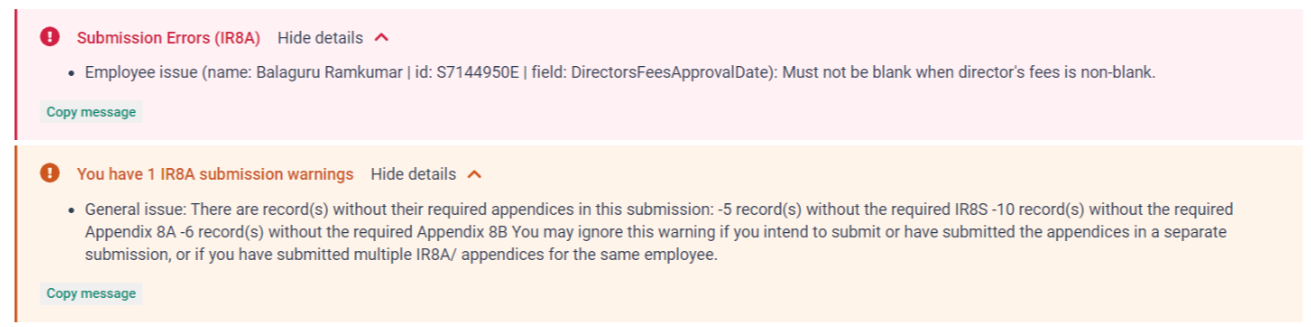
4. If you receive a submission error (in red), correct the issues before proceeding.
Warnings (in orange) may be disregarded if not applicable.
- Error Message:
There are issues with the form's data, and the IRAS portal will reject the submission.
- Warning Message:
You may disregard this message if it is not applicable and proceed with the submission.
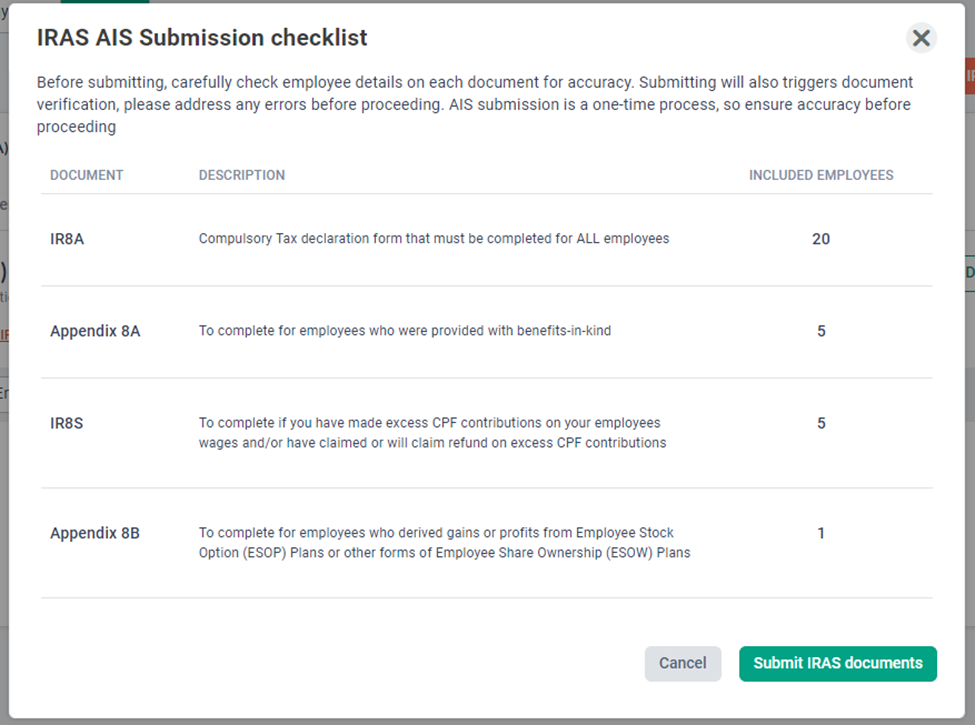
5. Click on "Submit IRAS documents."
CAUTION:
Before submitting, carefully review employee details on each document, as AIS submission is a one-time process.
6. After submission, a success message will appear. Save or screenshot this for your records.
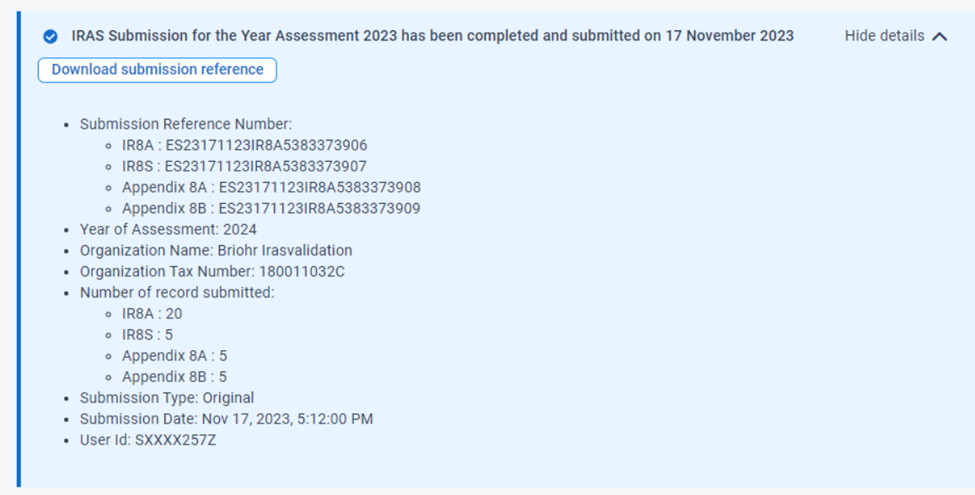
IRAS Submission is complete after following the steps above.
Downloading IR8A Form as an Excel Report
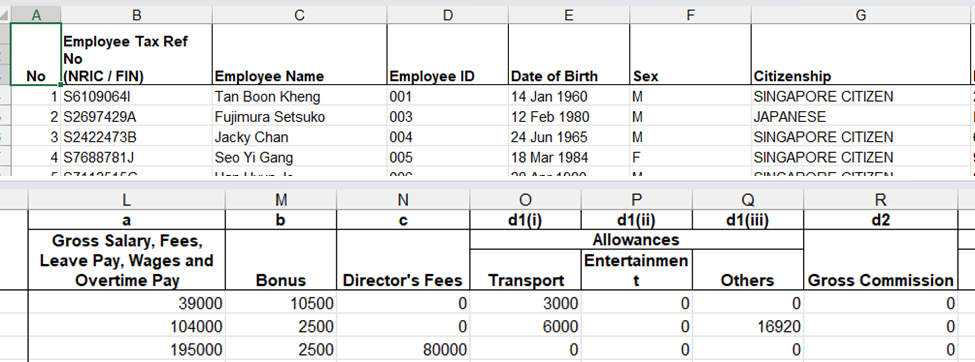
The IR8A data can be downloaded in Excel (.xlsx) report format, allowing users to review details from the file for error identification purposes.
This feature proves beneficial in cases where issues arise with the list of employees, as the error details can be easily viewed in the file for necessary corrections.
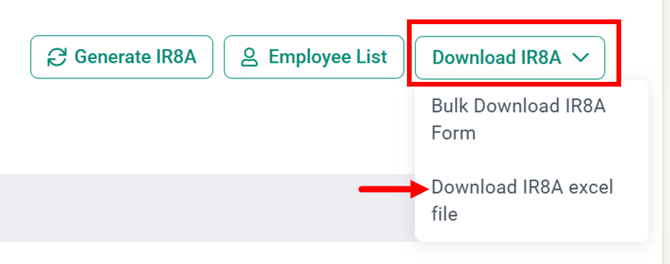
Example of IR8A Excel Report:
Related Articles
- How to Release the IR8A Form
- IRAS Submission Failed: How to Resolve Organisation Type, Organisation ID, and Basis Year Must Be Valid and Not Blank Errors
- Employees' Point of View: How to Download Your Personal IR8A Form from BrioHR
Last Updated & Ownership
Last Updated: 27 January 2026
By: Syakirah