![brioHR-logo-color.svg]](https://support.briohr.com/hubfs/brioHR-logo-color.svg)
What is a parallel run?
A parallel run is a full payroll cycle you process in brioHR for a month you have already paid in your previous payroll system. You then compare the two results, find any differences and fix them before you go live. It is usually done about one month before go-live.
A parallel run is only a simulation. No salaries are paid from brioHR, and no CPF, SDL or SHG submissions are made.
Before you start
- Your payroll center's general settings are complete: HR Lounge > Payroll > Settings > General. Check that every statutory body your company contributes to is selected under Organizations (CPF, SDL, FWL, CDAC, ECF, MBMF, SINDA). A body that is not selected is left out of the payroll run.
- Your migrated payroll history (January to your last completed month) has been loaded by your Implementation Manager (IM).
- You have your previous system's payroll report for the same month, with each employee's gross pay, CPF (employee and employer), SHG, SDL, FWL and net pay.
- Do not release or send payslips from the parallel run. Employees would receive payslips for a month they have already been paid (assuming you paid employees with your previous system).
Step 1: Process payroll in brioHR
- Go to HR Lounge > Payroll and process payroll for the parallel run month, as you would for a live month.
- Add any additional pay items for that month, such as overtime, bonuses or one-off allowances, using the same amounts you paid in your previous system.
- For each pay item, check its settings: the wage type (Ordinary wage, Additional wage or Not part of wage) and the statutory bodies it counts towards (CPF, SDL, SHG funds, FWL).
Tip: Hover over the home icon next to the pay item to check if statutory contributions (CPF, SHG, SDL etc.) are set correctly.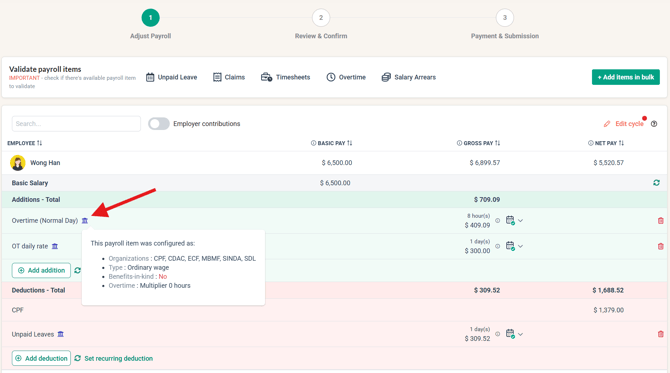
- Compare these figures for every employee against your previous system: gross pay, employee CPF, employer CPF, SHG contribution, SDL, FWL, and net pay.
- If you find a difference, keep the payroll tab open and go to Step 2.
Step 2: Review each employee's statutory settings
In a new tab, open the employee's profile (select an employee that shows discrepancies) and go to Payroll. Check the details that drive their contributions:
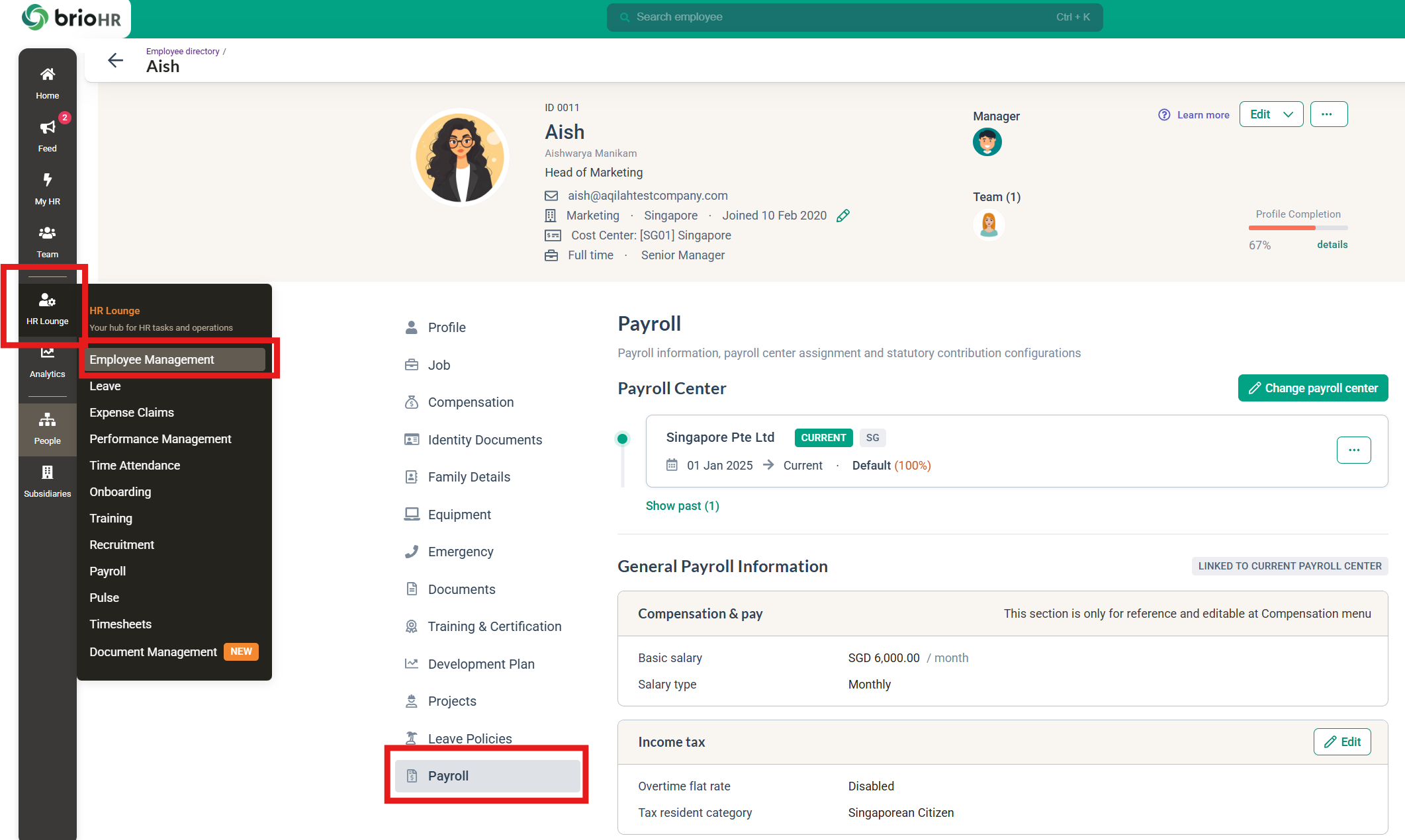
- Citizenship or residency status (Singapore Citizen, Singapore Permanent Resident or foreigner). Foreigners do not contribute to CPF.
- PR effective date, for Permanent Residents. It decides whether graduated rates (first and second year of PR) or full rates apply, and prorates CPF in the month PR starts. See How the PR Effective Date Affects CPF Calculation.
- Date of birth. CPF rates change by age band, and rates for employees above 55 to 65 changed on 1 January 2026.
- Statutory Contributions > SHG. Each fund (CDAC, ECF, MBMF, SINDA) is either Not related or Enabled, and Enabled funds use the Default amount or a Custom value. See Manage Self-Help Group (SHG) Contributions with Custom Value.
After you change anything, go back to the payroll tab and refresh the cycle so brioHR recalculates.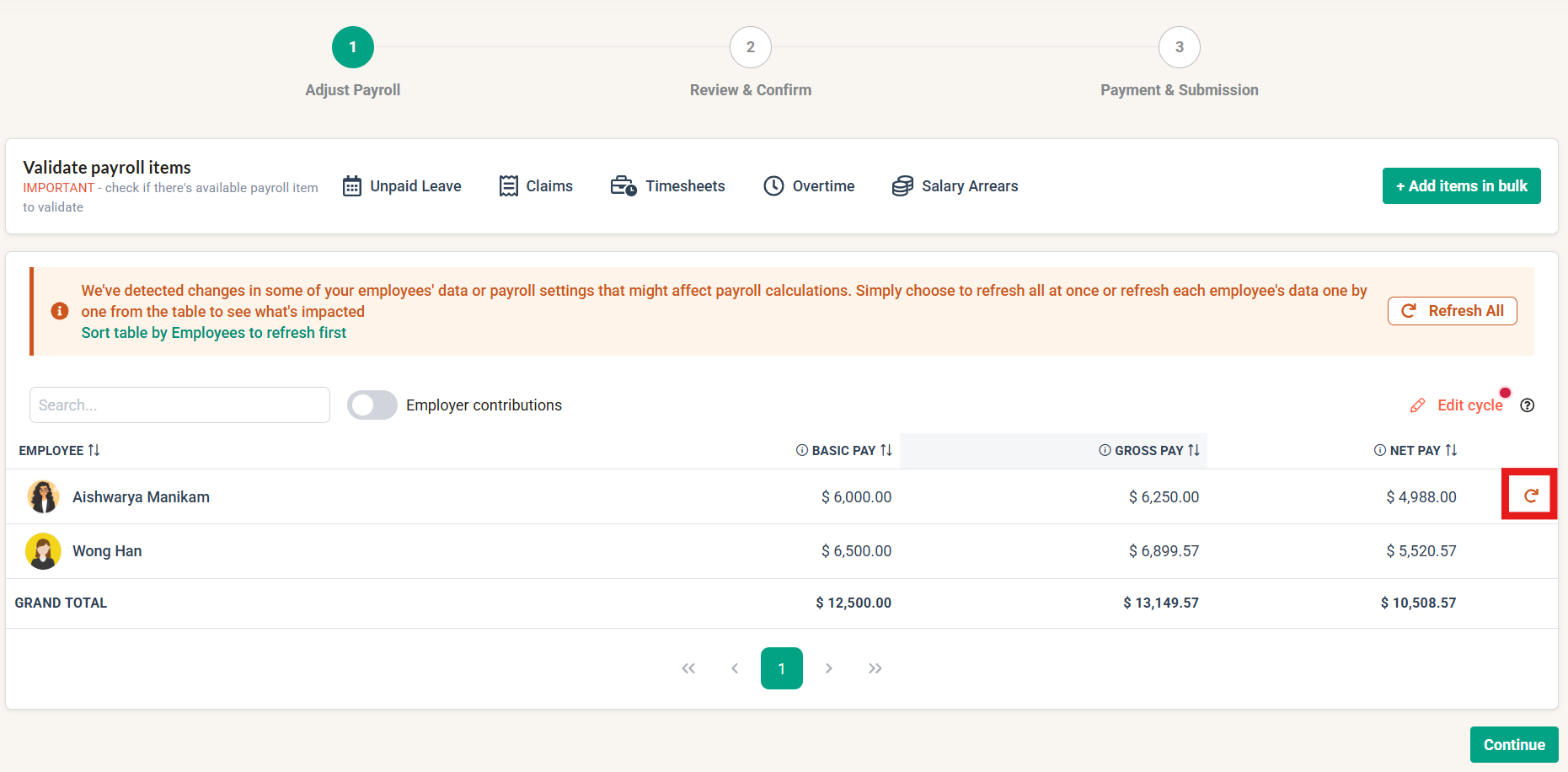
Step 3: Check the migrated payroll history
CPF for this month depends on what was paid earlier in the year, because the Additional Wage (AW) ceiling is worked out from the year's Ordinary Wages (OW). So check the migrated months too.
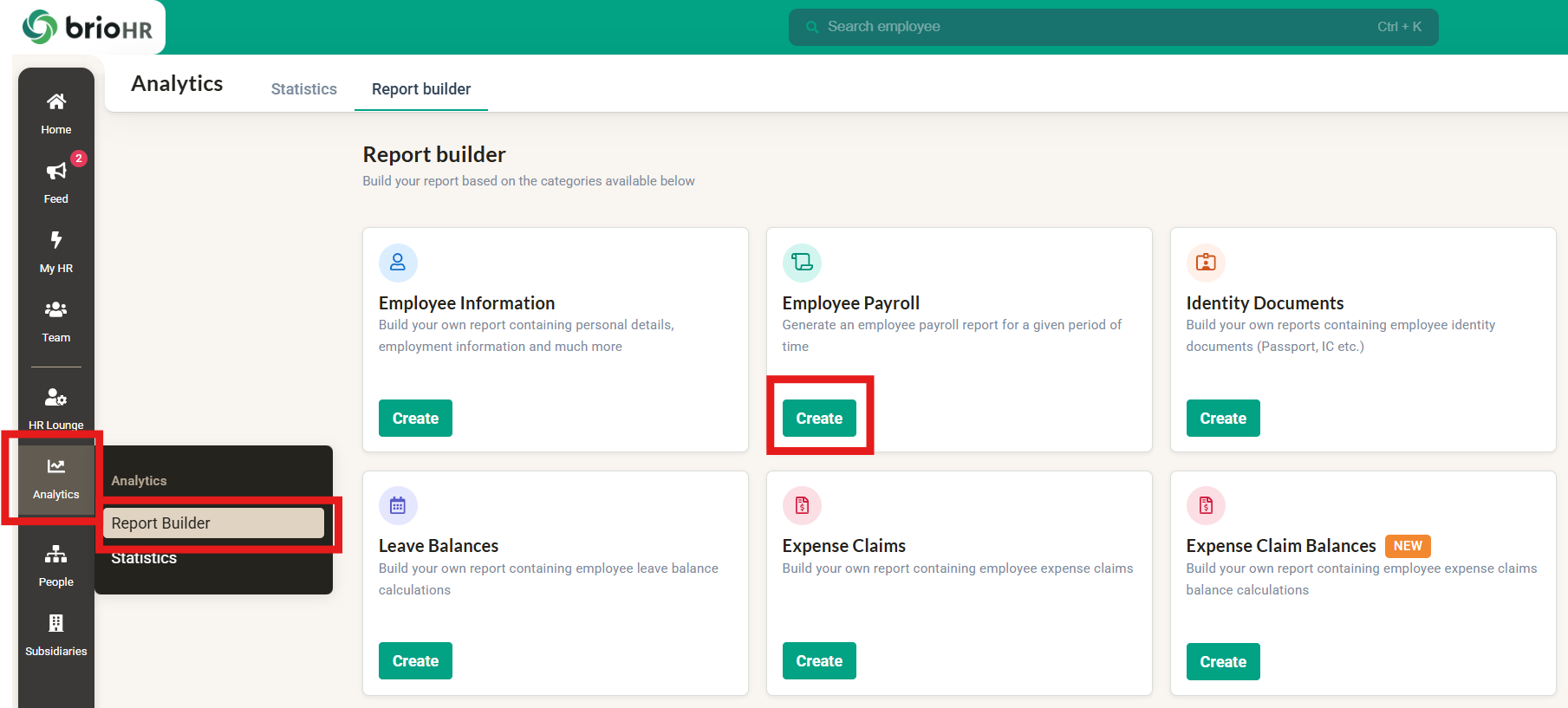
- Go to Analytics > Report Builder > Employee Payroll > Create.
- Select the Multiple tab > Singapore, your payroll center, and a month range from January to your last migrated month.
- Check that each employee's past remuneration, CPF, SHG and net pay match your previous system's reports.
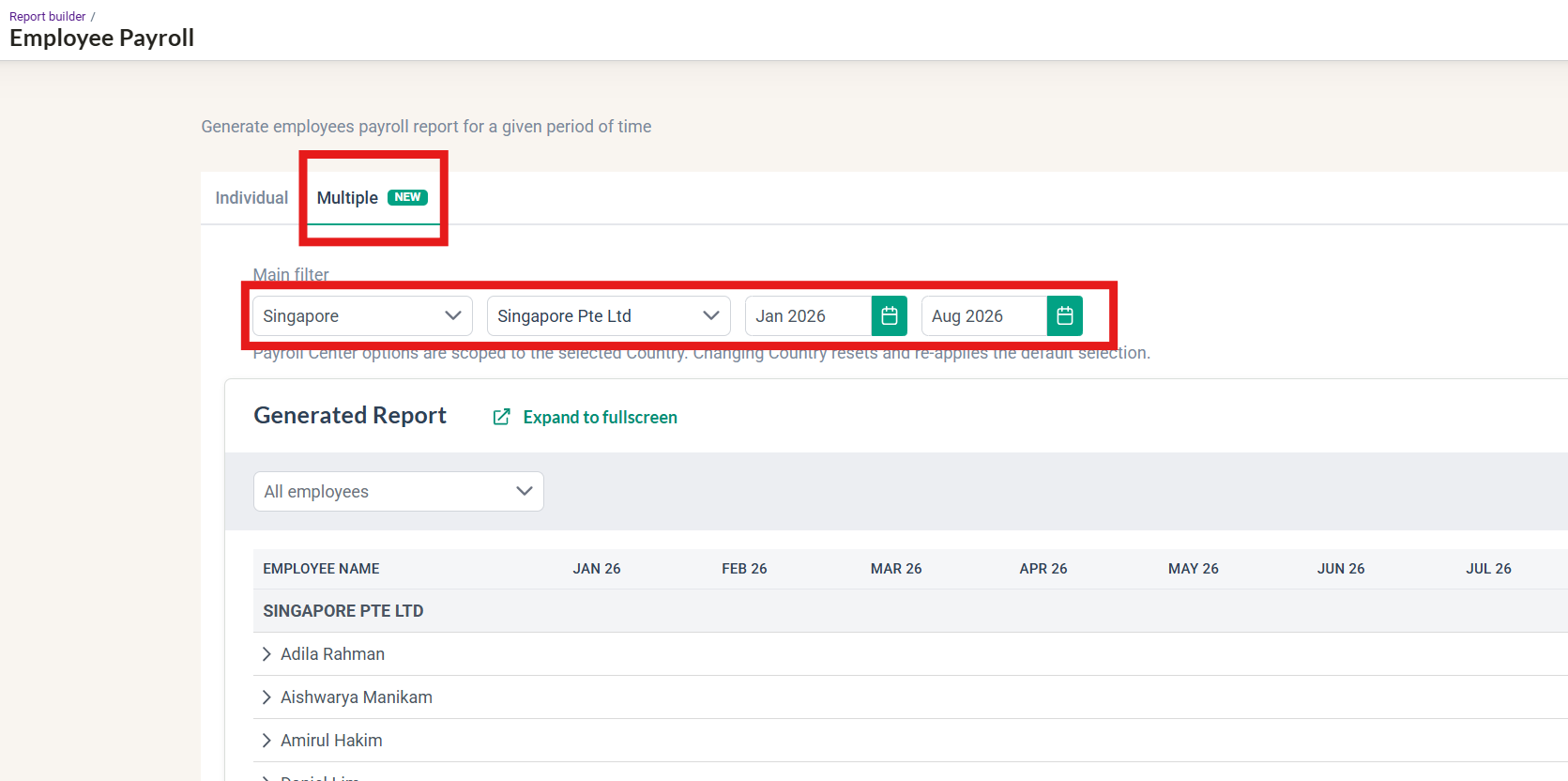
See How to Generate Employee Payroll Report (Singapore Payroll).
Step 4: Find the cause of a difference
CPF
- Check that each pay item has the right wage type. A bonus set as Ordinary wage instead of Additional wage gives the wrong CPF.
- Check the ceilings: from 1 January 2026, the OW ceiling is $8,000 a month and the annual salary ceiling is $102,000. The AW ceiling is $102,000 minus the year's total OW subject to CPF.
- Check the employee's age band and, for PRs, their PR effective date (Step 2).
- Recalculate with the CPF Contribution Calculator and compare the result with brioHR.
See CPF Contribution Changes from 1st January 2026.
SHG (CDAC, ECF, MBMF, SINDA)
- Check the fund is selected under Organizations in payroll settings, and Enabled on the employee's profile.
- If the employee asked for a different amount, check the Custom value.
- Check that the right pay items count towards the fund.
SDL
- SDL is 0.25% of each employee's total monthly wages, at least $2 and at most $11.25 per employee (CPF Board). It applies to all employees, including foreigners.
- Check that SDL is selected under Organizations and that the right pay items count towards it.
FWL
- FWL is an employer levy for Work Permit and S Pass holders; it is not deducted from pay.
- Check that FWL is selected under Organizations and that the Company Sector in payroll settings is correct, as it affects the rates.
To change a custom pay item, go to HR Lounge > Payroll > Settings > Payroll Items. Default pay items (CPF, SDL) cannot be edited.
See How to Create a Custom Pay Item in brioHR.
Step 5: Check year-end tax reporting
Singapore has no monthly tax deduction from salary, so there is no tax figure to compare each month. Instead, each pay item's EA/IR8A for field decides where it appears on the employee's IR8A at year end. Check that every addition is mapped to the right field, or set to Not applicable if it should not be reported.
After the parallel run
- Note every difference, however small, and raise it with your IM, even if you have already fixed it.
- When brioHR matches your previous system for every employee, you are ready for your first live payroll.
- Keep the parallel run cycle in brioHR. Its figures count towards each employee's year-to-date totals, such as the CPF Additional Wage ceiling, when you go live the following month.
Final Tips
-
Always ensure your pay item settings match statutory expectations (e.g., CPF, SGH enabled, etc.).
-
Remember: Parallel runs are just simulations — no salaries are paid out.
-
Once results align with your existing payroll, you are ready for your live payroll run in brioHR.
If you encounter any issues during the parallel run, please reach out to your assigned Implementation Manager for assistance.
Need Assistance?
If you have any questions or require assistance, please reach out to our support team via live chat or email us at support@briohr.com.