![brioHR-logo-color.svg]](https://support.briohr.com/hubfs/brioHR-logo-color.svg)
Audience & Scope
Audience: Managers, Employees, Head of Departments
Module: Document Management
Country: Global
Pre-requisites: Access to Document Management module
BrioHR's Document Management feature makes it easier for Managers, Heads of Department (HODs), and Employees to review and sign documents assigned to them. Once a document is generated, signing tasks are automatically assigned to all required parties, allowing each signer to complete their part directly from their own workspace.
When signing a document, you can also personalise your signature by choosing from 8 available signature styles or drawing your own. Follow the steps below to learn how to access, review, sign, and submit your documents.
Access Your Document Signing Task
Once a document is generated, all required signers will automatically receive a pending signing task in their respective workspaces.
The steps to access the document depend on your role.
For Managers and Heads of Department (HODs)
- Navigate to Team Dashboard > Document Management.
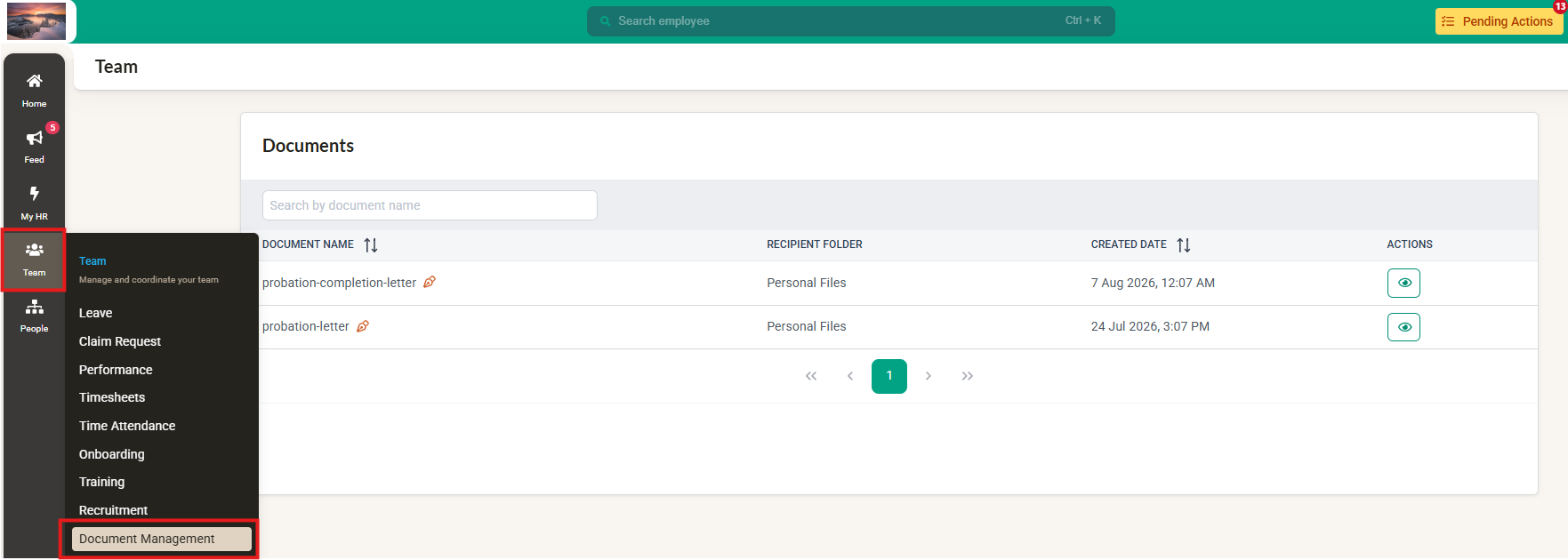
- Locate the document assigned to you for signing.
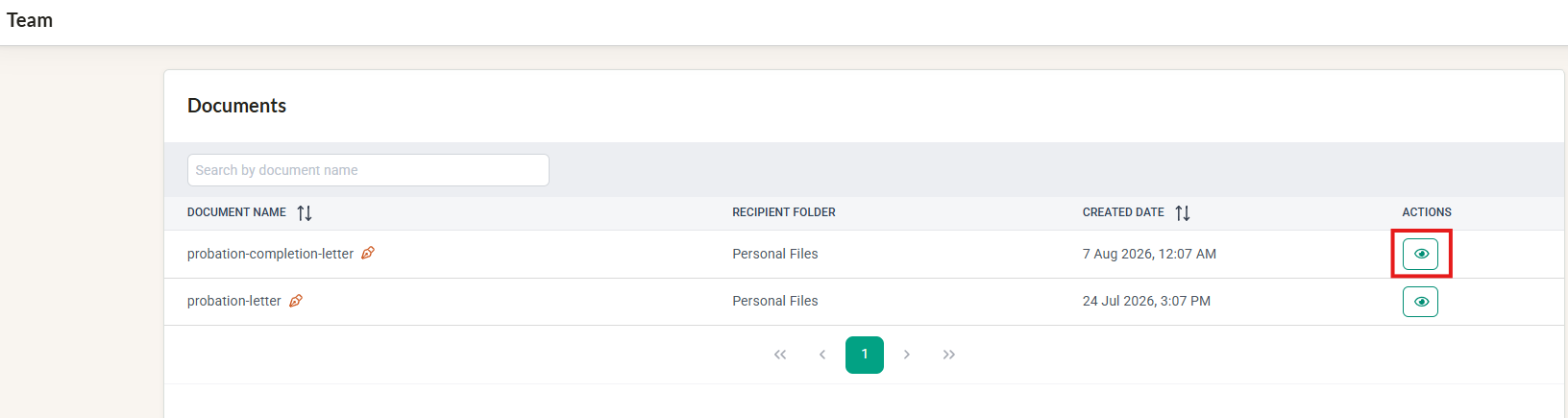
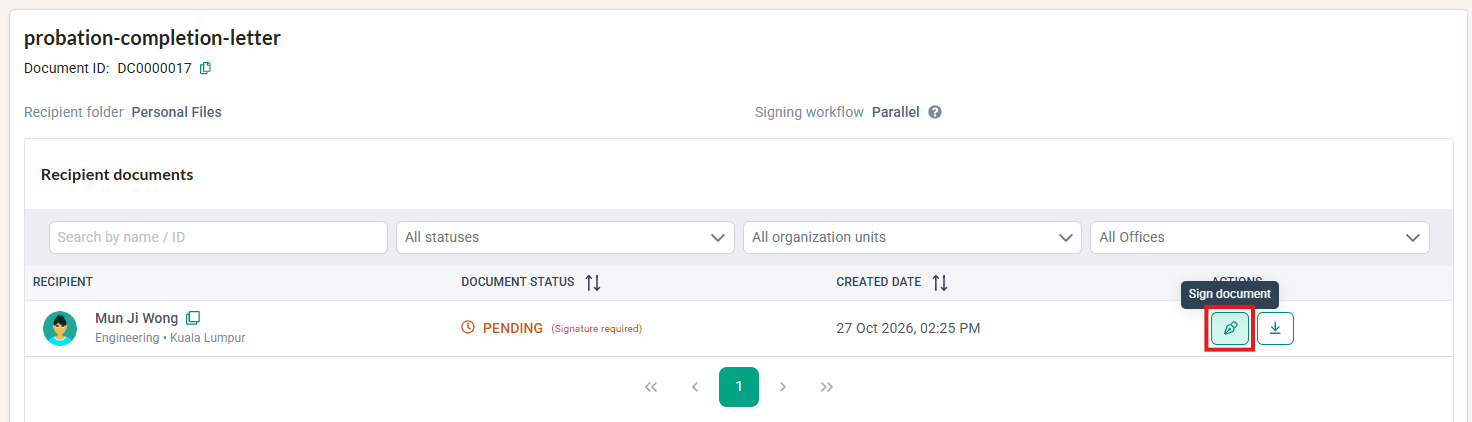
- Click on the Sign Document button
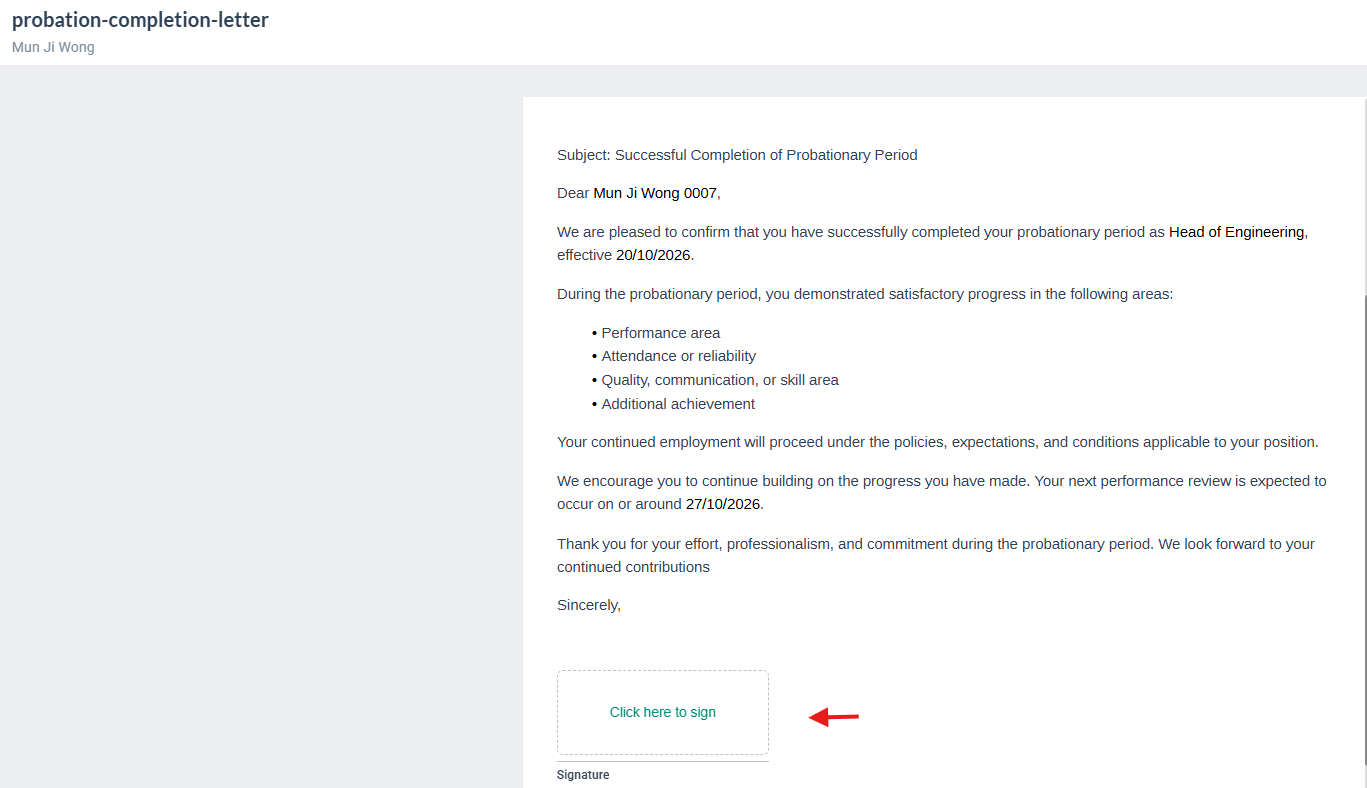
- Click into the column to provide your signature
If you are an HOD with multiple employees in your department who require signatures, you can access and complete each assigned document through the same Document Management module.
For Employees
- Navigate to MyHR > Document Management.
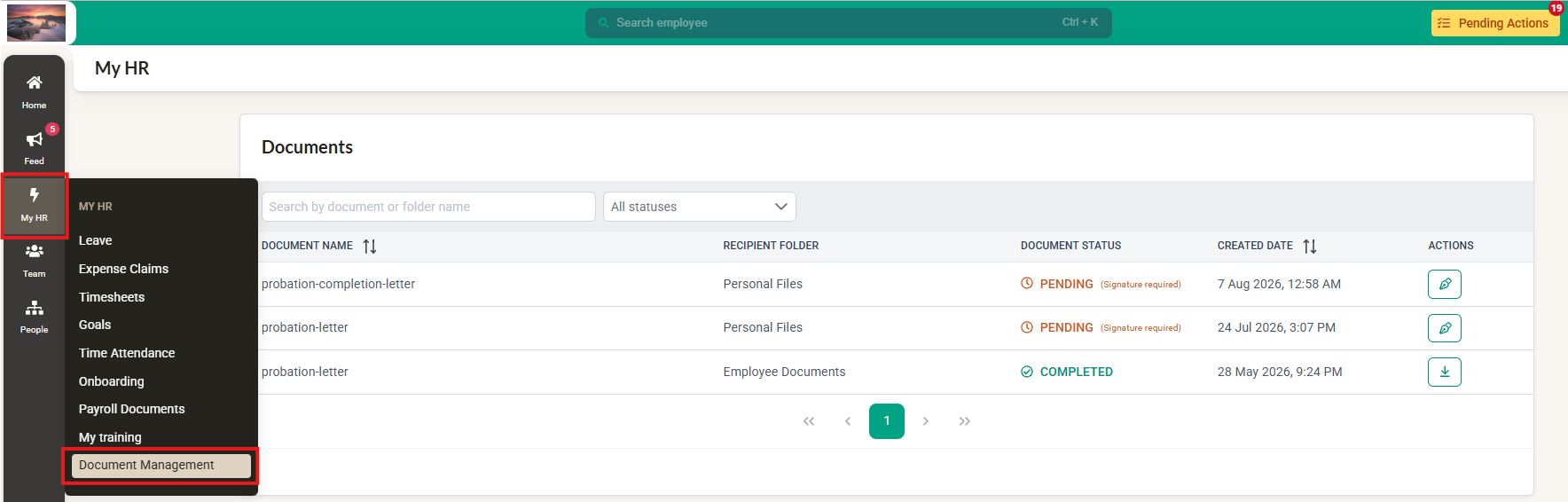
- Locate the document requiring your signature, then click Sign Document.
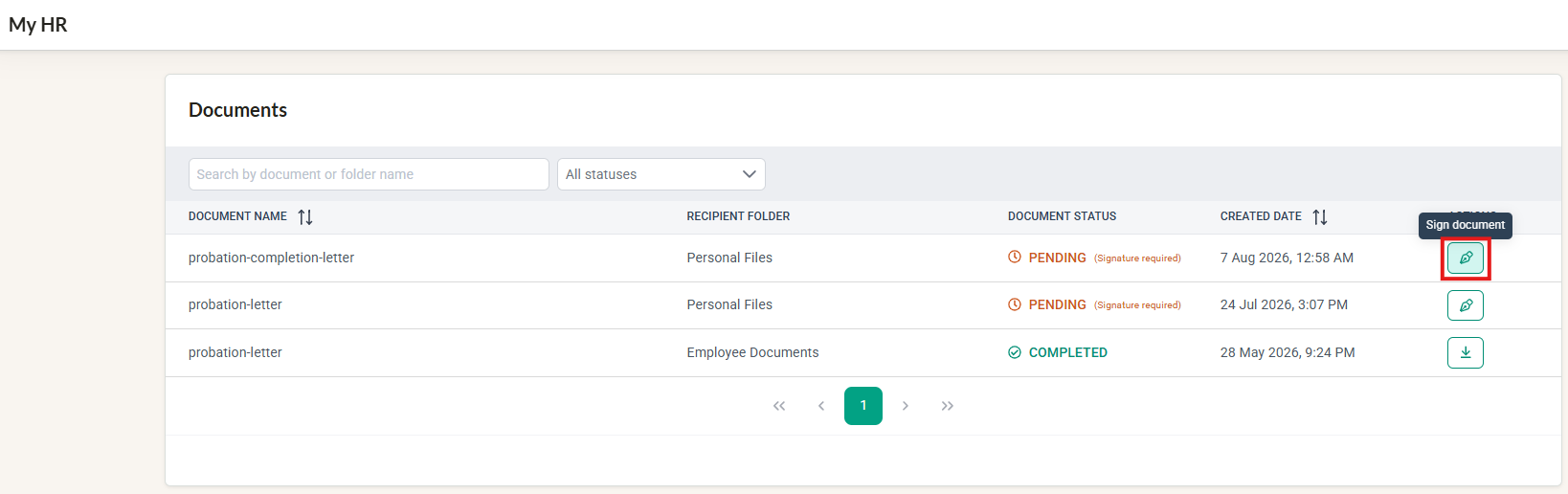
- Click into the column to provide your signature
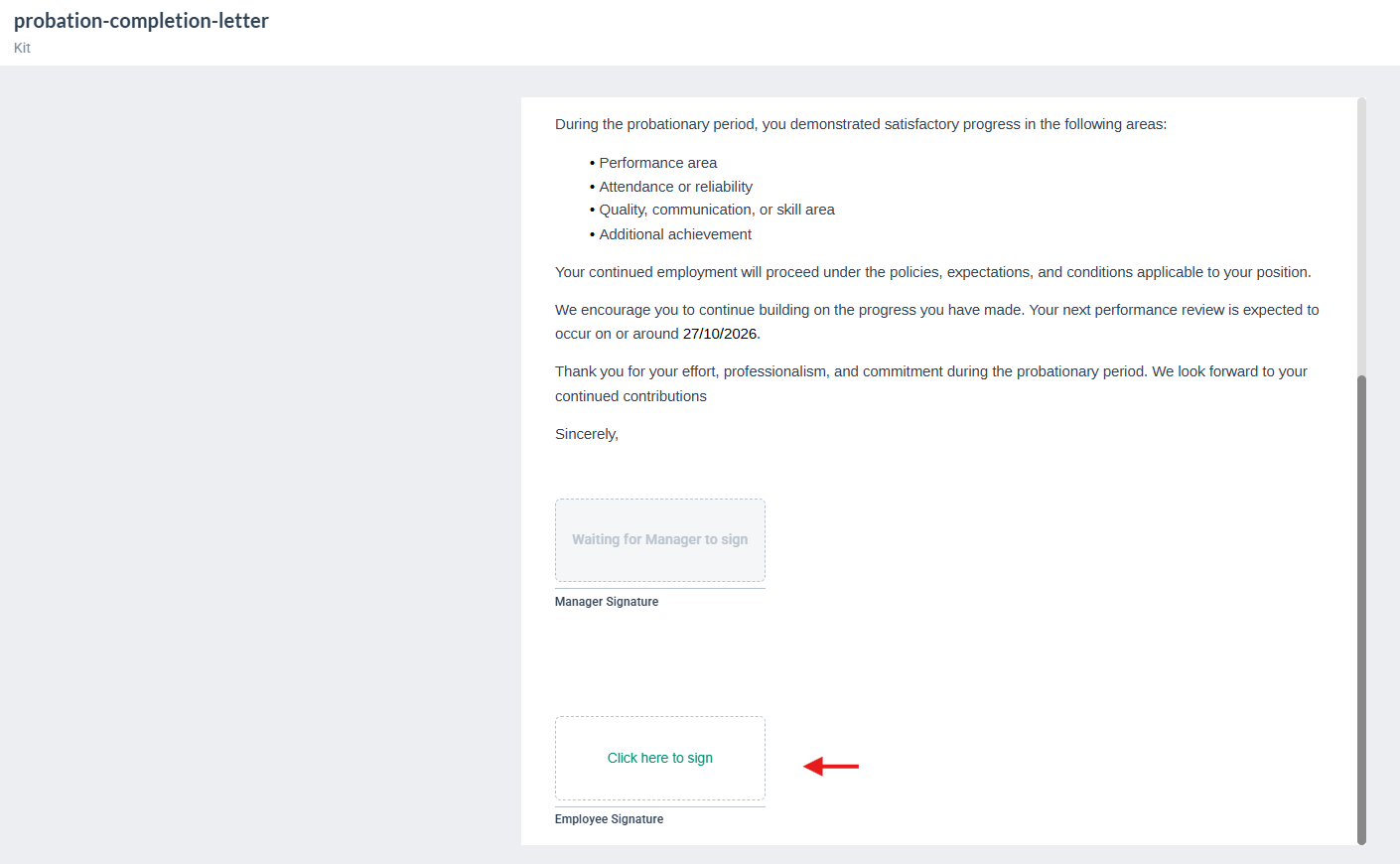
Review the Document
Before signing, review the document to ensure that you are familiar with its contents.
- Open the assigned document.
- Read through the document carefully.
- Locate the signature field assigned to you.
- Click Click here to sign to open the Add your signature window.
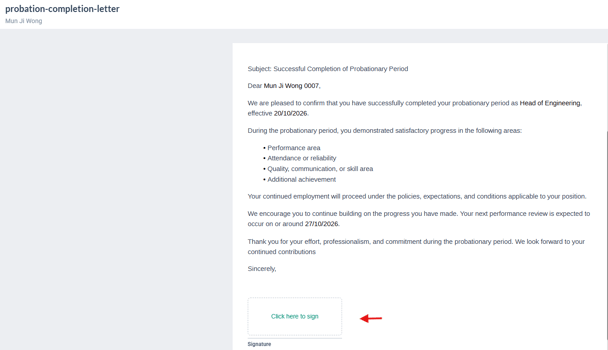
You can now choose to use a signature style or draw your signature manually.
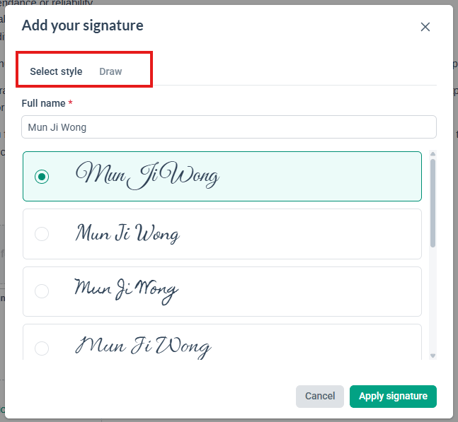
1. Choose Your Signature Style
BrioHR allows you to choose from 8 signature styles when signing a document, giving you greater flexibility in how your signature appears.
To use a signature style:
- In the Add your signature window, select the Select style tab. This tab is selected by default.
- Check the Full name field, which is pre-filled using your first name and last name from your employee profile.
- Edit your name if needed.
- Choose your preferred style from the 8 available options. Style 1 is selected by default.
- Your selected style will be highlighted so you can easily identify your choice.
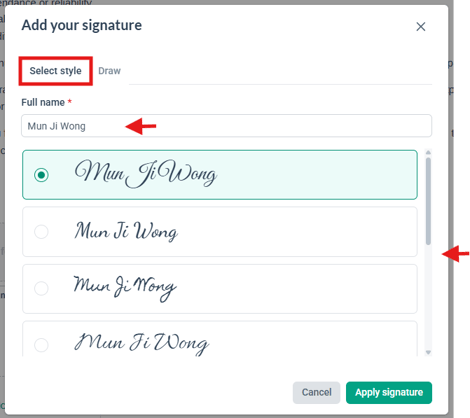
NOTE:
1. The Full name field is required when using this option.
2. Your selected signature style will use the same font displayed in the preview, both on screen and in the final signed PDF.
Apply Your Signature to One or Multiple Fields
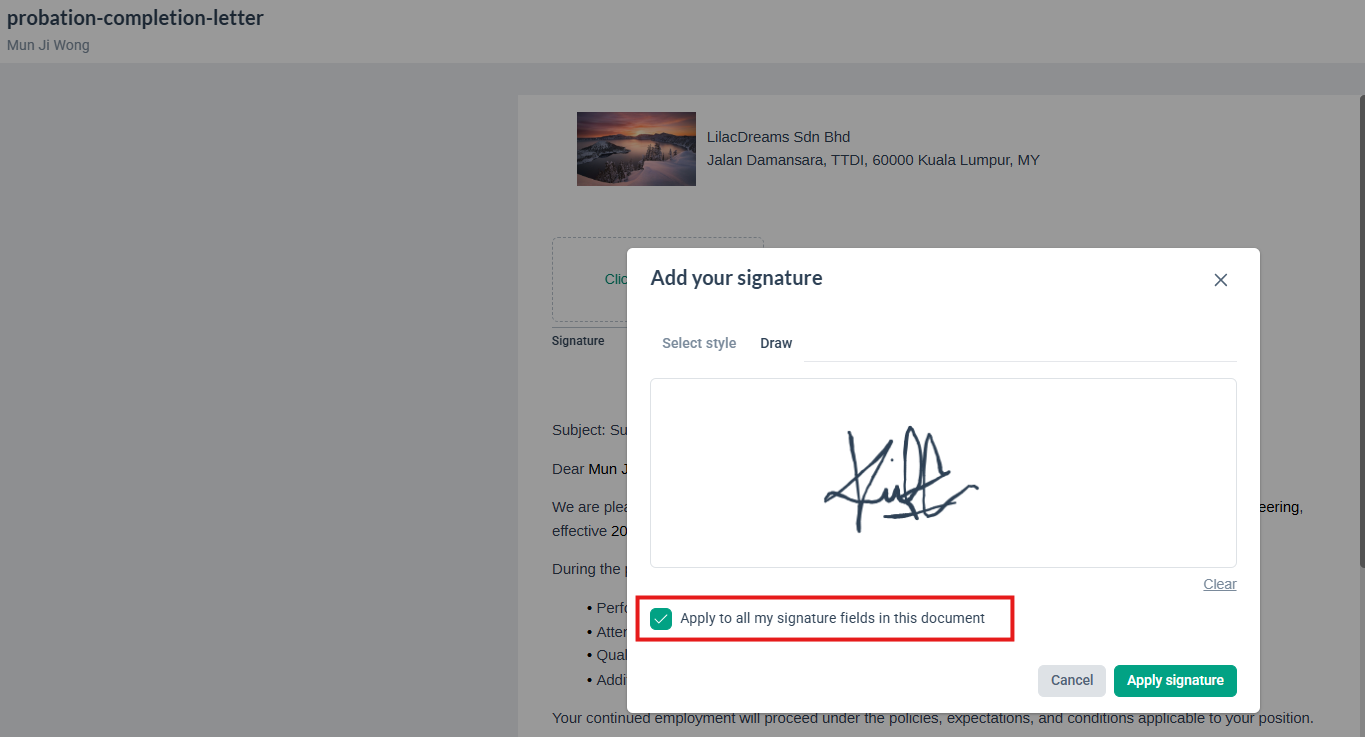
If a document contains multiple signature fields assigned to you, you can choose whether to apply your signature to all of them or only the field you selected.
Under the signature options, you will see the Apply to all my signature fields checkbox when more than one signature field is assigned to you.
- Checkbox selected: Your signature will be applied to all signature fields assigned to you in the document. This option is selected by default.
- Checkbox unselected: Your signature will only be applied to the signature field you selected.
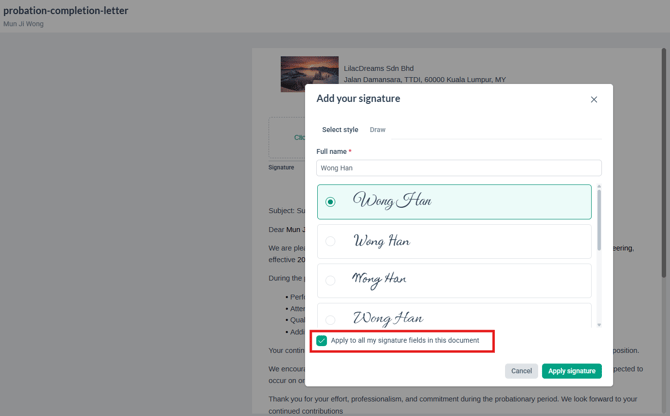
Once you are happy with your signature, click Apply signature to apply it to the relevant field or fields.
TIP:
If you have only one signature field in the document, this checkbox will not be displayed.
2. Draw Your Own Signature
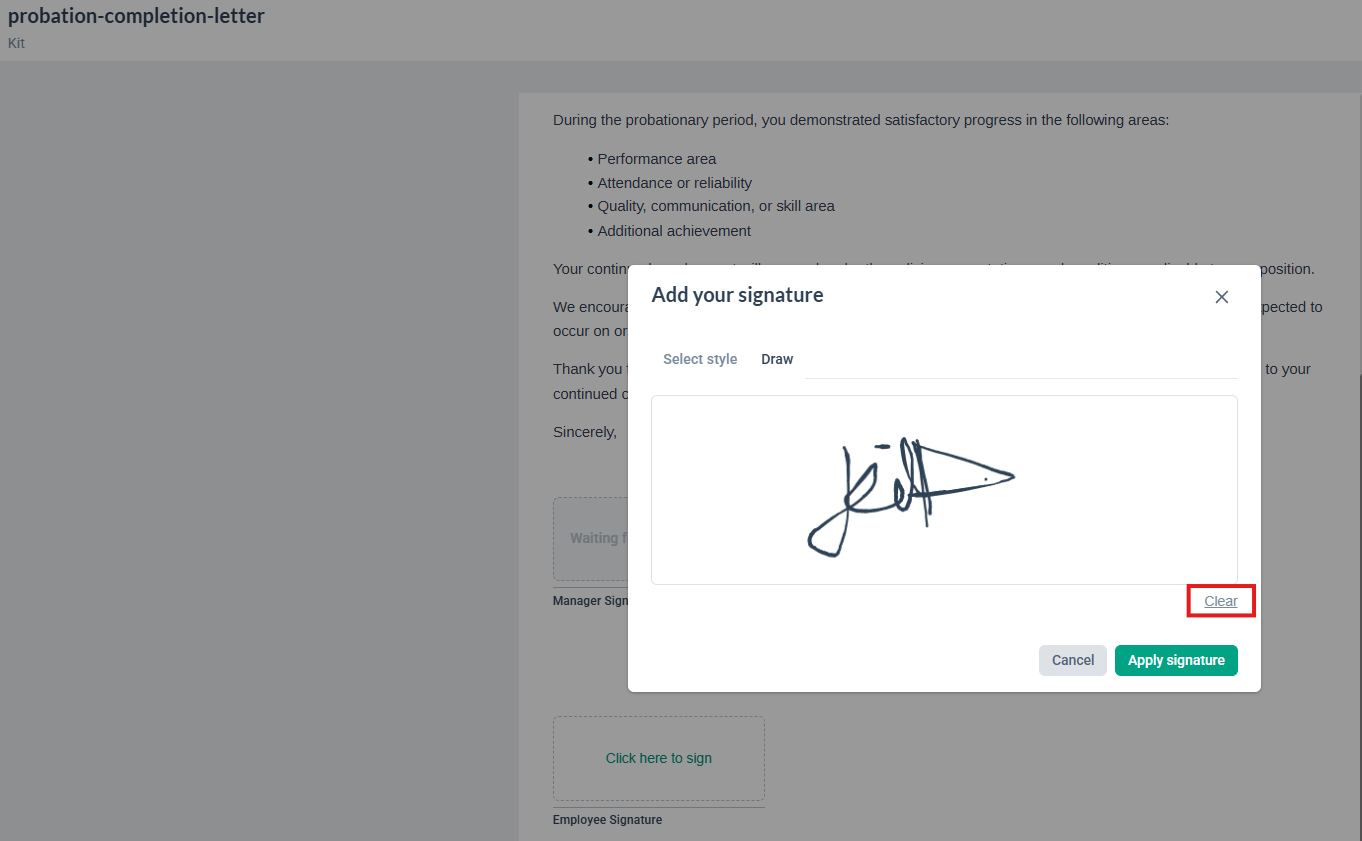
If you prefer to draw your signature manually instead of choosing a style, you can do so using the Draw option.
- In the Add your signature window, select the Draw tab.
- Draw your signature within the area labelled Sign within this area.
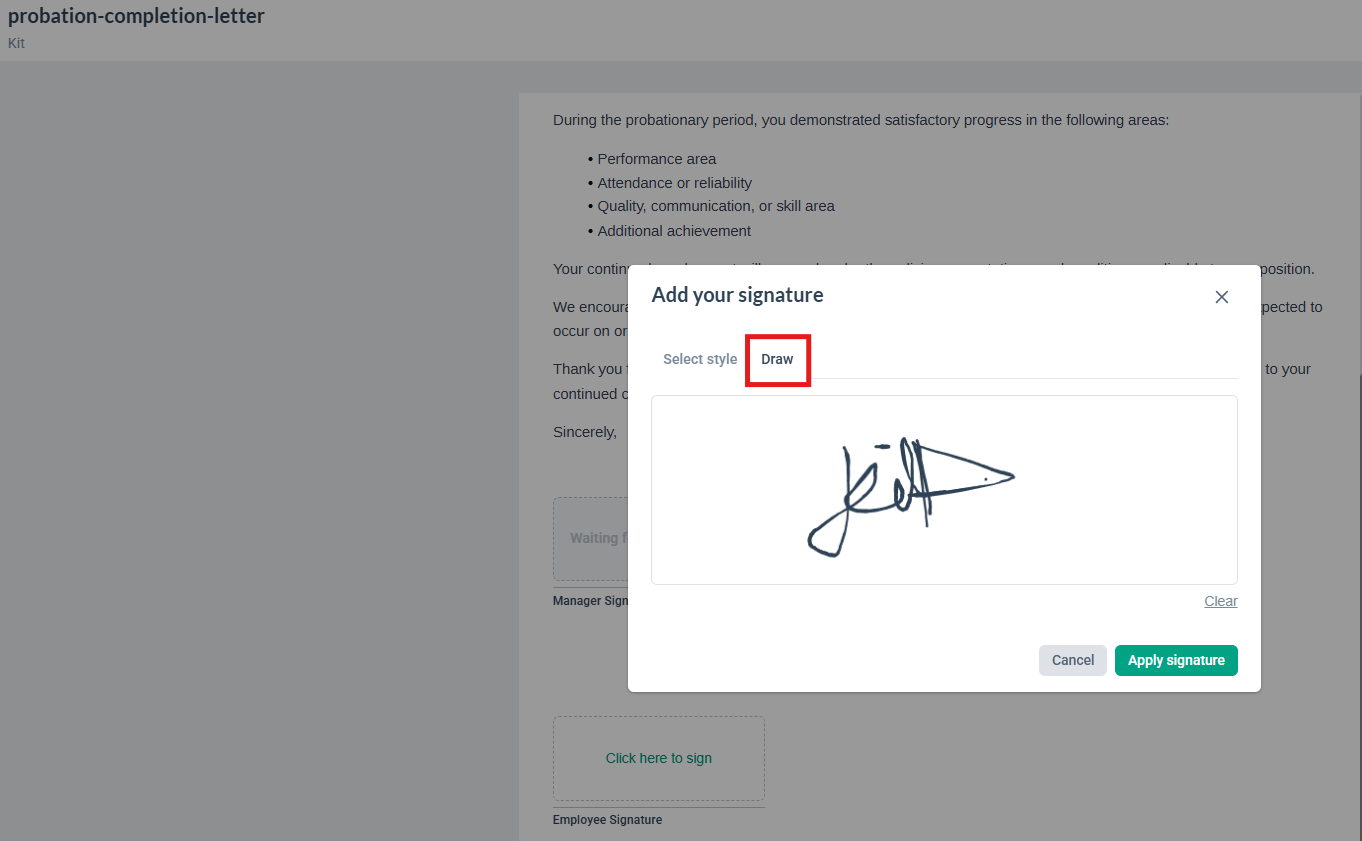
- If you want to start over, click Clear to remove your drawing and create a new signature.
- If you have multiple signature fields, select or deselect Apply to all my signature fields depending on where you want your signature to appear.
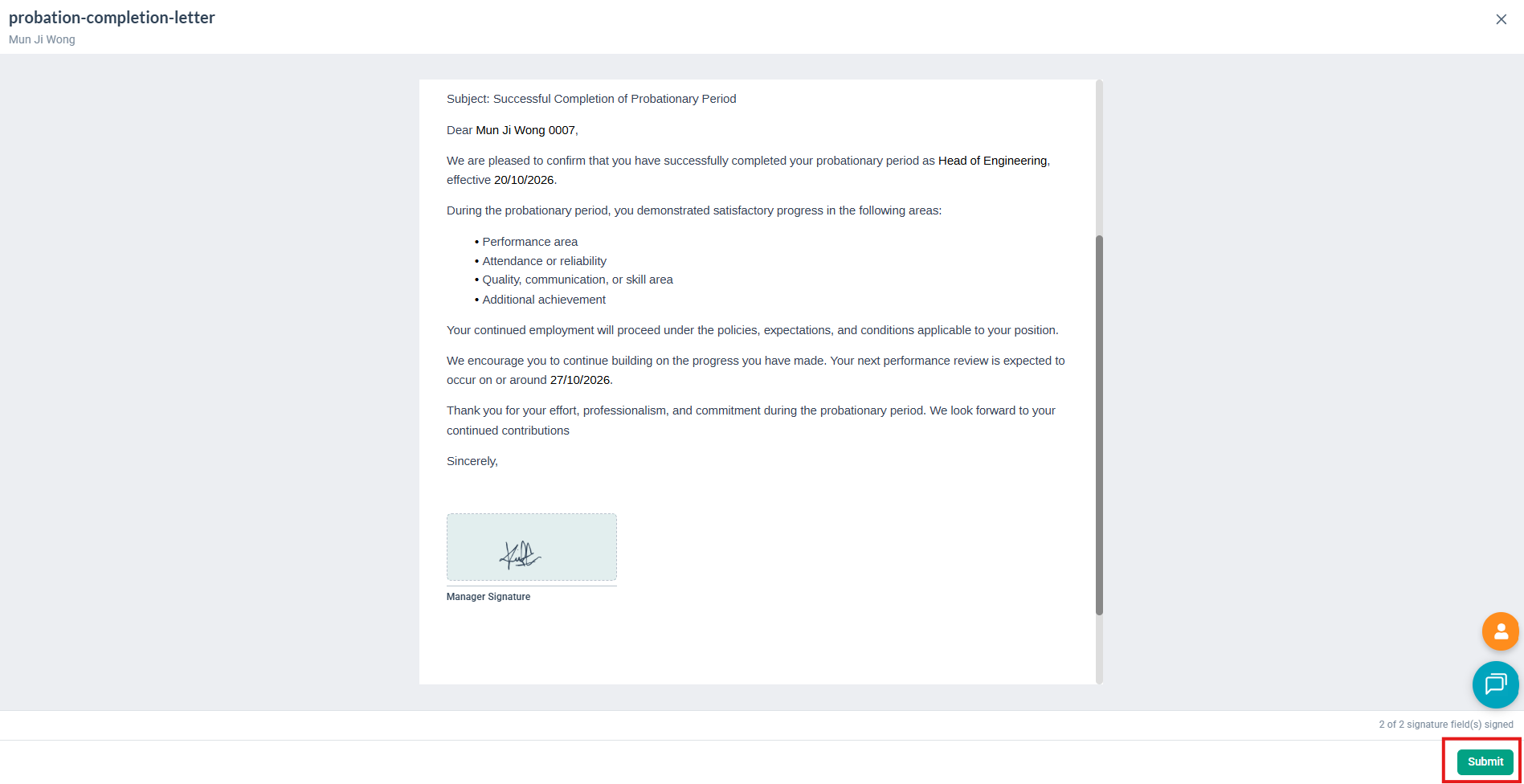
- Click Apply signature to proceed.
Submit Your Signed Document
After applying your signature:
- Check that your signature appears correctly in the assigned signature field or fields.
- Click Submit to submit your signed document.
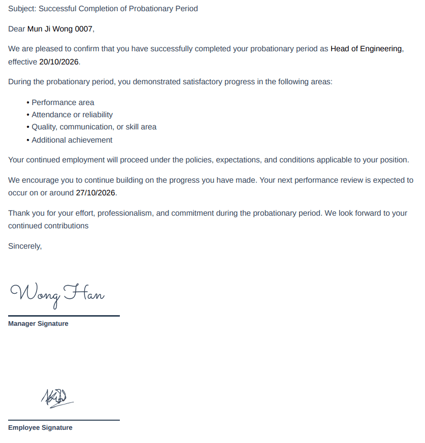
Once submitted, your part of the signing process is complete. An example of a completed document with signatures is shown below:
Understanding Parallel Signing
BrioHR's Document Workflow feature supports parallel signing, which means all assigned signers can review and sign the document simultaneously.
You do not need to wait for another person to sign before completing your own signing task. Each signer can access their assigned document independently through their respective workspace.
This helps organisations collect signatures more efficiently and reduce delays in completing documents.
Frequently Asked Questions
Q: Can I change the name displayed in my signature?
A: Yes. The Full name field is pre-filled using your first name and last name from your employee profile. You can edit the name before applying your signature.
Q: Can I apply my signature to multiple fields at once?
A: Yes. Select Apply to all my signature fields to apply your signature to all signature fields assigned to you in the document. This option is selected by default when multiple signature fields are available.
Q: Do I need to wait for another person to sign before I can sign my document?
A: No. BrioHR supports parallel signing, allowing all assigned signers to review and sign their documents independently without waiting for other signers to complete their tasks first.
Related Articles
Document Management Configuration for User Permissions
How to Use the Document Workflow feature in Document Management
Setting up the Document Management module as the HR Admin
Frequently Asked Questions for Document Management
How to Create Custom Document Folders for BrioHR Employee Profiles
Employee Personal Files in BrioHR: How to Upload, Manage and Access Documents
Ownership
By: Arveena