![brioHR-logo-color.svg]](https://support.briohr.com/hubfs/brioHR-logo-color.svg)
Audience & Scope
Audience: HR Admin & Payroll Managers
Module: Payroll
Country: Malaysia
Prerequisites: User group permission - Payroll module access, permission to delete payroll cycle
Why test your calculation settings?
Before your parallel run, you can check that brioHR calculates prorated salary, unpaid leave, and overtime the way you expect. You do this in a test payroll cycle. It is only a simulation: no salaries are paid, and you delete the cycle when you finish.
Testing first means that if the parallel run shows a difference, you already know these settings are right and can look elsewhere for the cause.
Before you start
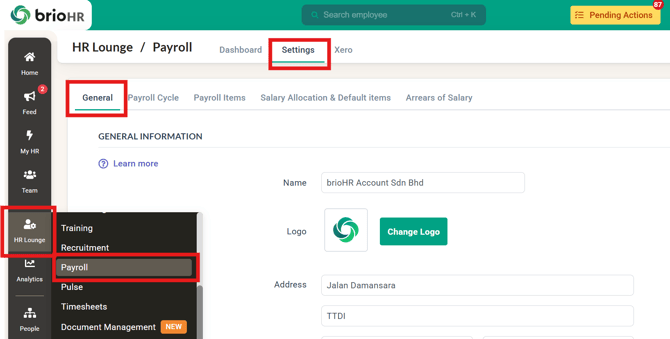
- Your payroll center's calculation settings are set up in: HR Lounge > Payroll > Settings > General. These decide how proration, unpaid leave, and overtime are calculated. See Payroll Malaysia: Complete Guide to Setting Up Company Payroll Information.
- You know what result to expect. Work out the expected amount for each test by hand, or take it from your old payroll system, before you run the test.
- You have the permission Allow access to delete payroll cycles. You need it to delete the test cycle afterwards. An Admin turns it on under Admin Settings > User groups > HR Modules Permission > Payroll Module.
- Do not release or send payslips from the test cycle.
Step 1: Start a test payroll run
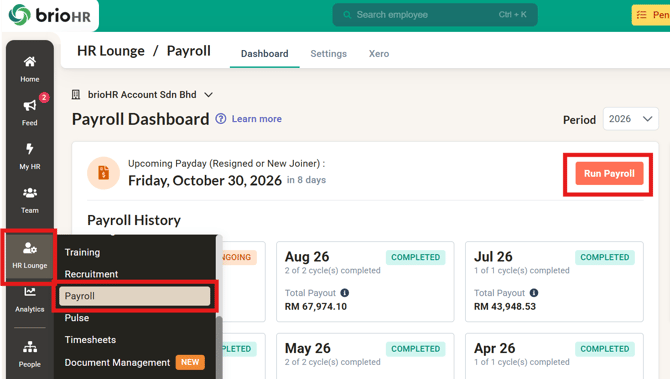
- Go to HR Lounge > Payroll > Run Payroll.
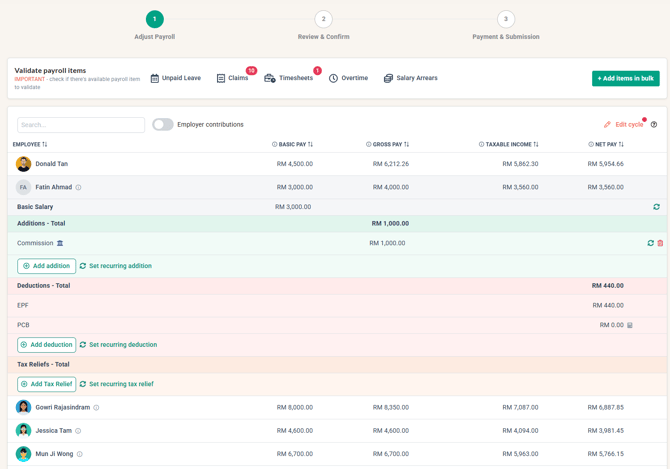
- Start the payroll run for the current month. The Adjust Payroll page opens, listing each employee with their pay items.
Step 2: Test salary proration
Proration applies when an employee joins or leaves partway through the month.
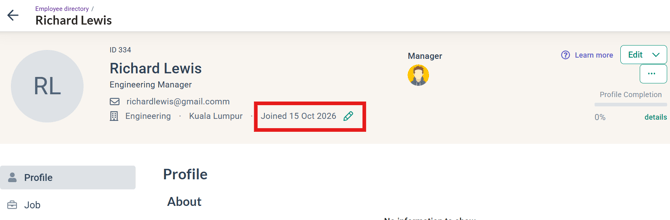
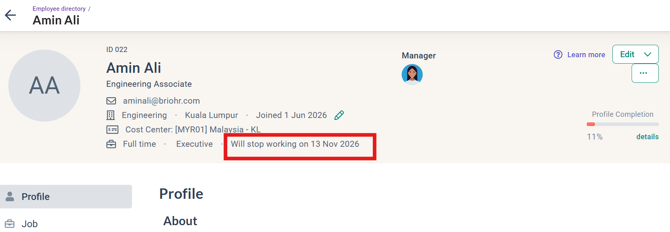
- If you have a new joiner that joined after the start of the month (join date AFTER 1st), or an employee leaving before end of the month (last day NOT end of month), use them to see if proration of salary is calculated correctly.
- To see Join date: open the employee's profile and click the pencil icon next to Joined dd mmm yyyy.
- Resign date: see How to Change or Remove an Employee's Employment End or Resign Date.
- To see Join date: open the employee's profile and click the pencil icon next to Joined dd mmm yyyy.
- If you changed the employee after starting the run, go to HR Lounge > Payroll > Ongoing monthly payroll and refresh the employee in the Adjust stage. See Refresh a Payroll Cycle After Employee Profile Changes.
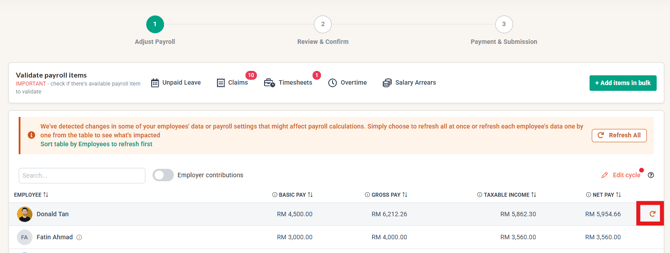
- Check the employee's prorated basic salary against the amount you expected from your proration setting.
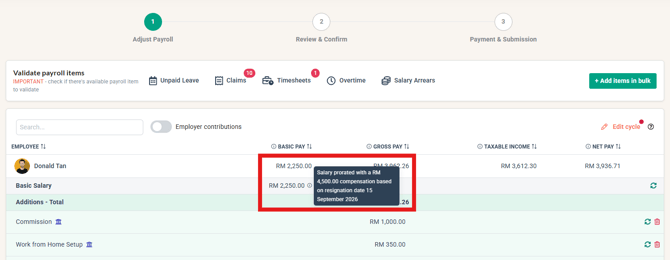
How proration works: Prorated Salary Calculation: Understanding the Basics in brioHR.
Step 3: Test unpaid leave
- On the Adjust Payroll page, find an employee and add the unpaid leave pay item, the same way you add any other pay item.
- Enter the number of unpaid leave days.
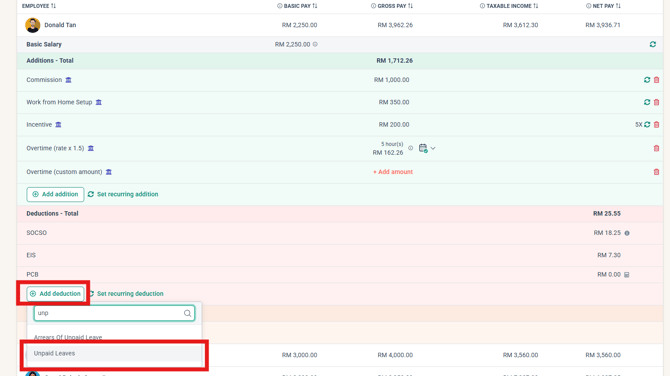


- Check that the amount deducted is what you expected from your unpaid leave setting.
How unpaid leave works: How to Calculate Unpaid Leave.
Step 4: Test overtime
- On the Adjust Payroll page, find an employee and click + Add Addition.
- Search for Overtime and choose the overtime item for each rate you want to test: a normal day, a rest day and a public holiday.
- Enter the hours in the + Add Hours column.
- Check each amount against what you expected from your overtime setting.
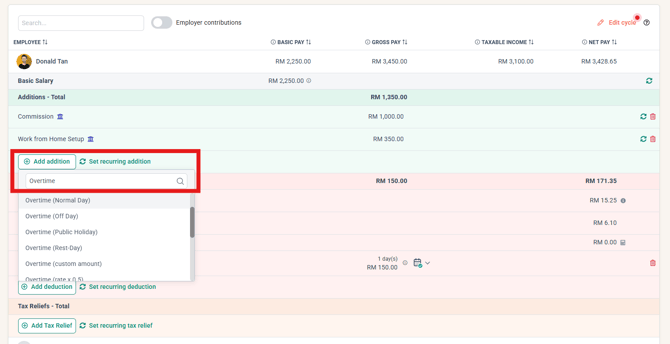
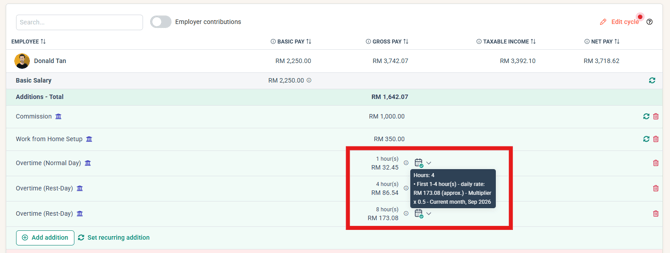
How overtime works:
Step 5: If an amount is not what you expected
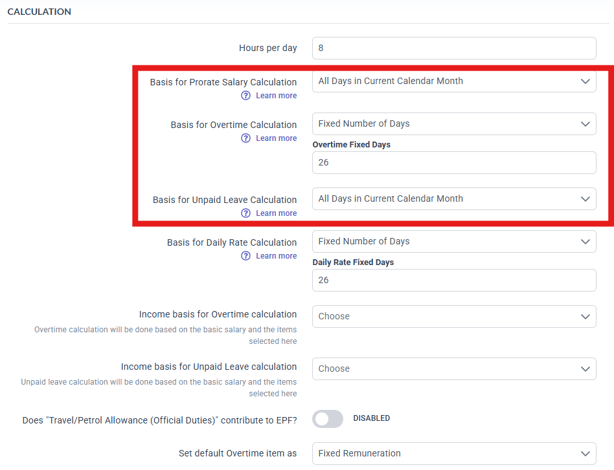
- Check the calculation setting behind it in HR Lounge > Payroll > Settings > General: the proration basis, the unpaid leave basis, or the overtime basis.
- Note the difference, however small, and raise it with your Implementation Manager (IM), even if you find and fix the cause yourself.
Step 6: Clean up after testing
- If you want a copy of the results, download the cycle's reports first. Deleting a cycle is permanent.
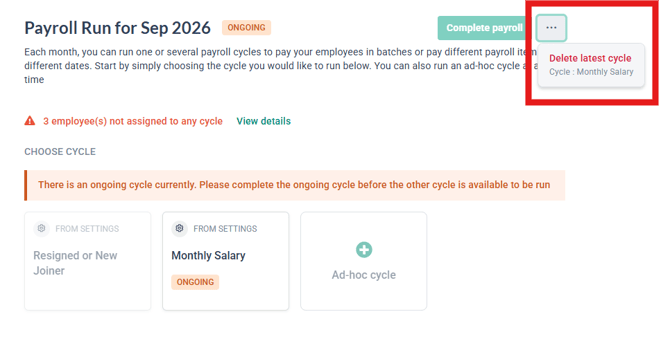
- Delete the test cycle: go to HR Lounge > Payroll, open the current payroll month, click the 3-dot menu and choose Delete latest cycle. See Delete Latest Payroll Cycle in Current Payroll Month.
- If you changed an employee's join or resign date for the proration test, set it back to the correct date.
This is only for the test cycle. If you are running a parallel run, Do not delete your parallel run cycle: its figures count towards year-to-date totals when you go live.
Common Issues/FAQ
Q: Will employees be paid or see anything from the test cycle?
A: No salaries are paid from a test cycle unless you use the bank file to pay out through your bank portal. Employees only see it if you release or send payslips, so don't release payslips from the test cycle.
Q: Do I have to run this test?
A: It is recommended, not required. It confirms your proration, unpaid leave, and overtime settings before the parallel run, so any difference you find later is easier to trace.
Q: Can I change a setting and test again?
A: Yes. Change the setting, refresh the payroll cycle, and check the amount again. See Refresh a Payroll Cycle After Employee Profile Changes.
Q: I can't see Delete latest cycle. Why?
A: You need the Allow access to delete payroll cycles permission. Ask an Admin to turn it on under Admin Settings > User groups > HR Modules Permission > Payroll Module.
Q: Should I delete my parallel run cycle too?
A: No. Only delete the test cycle. Keep the parallel run cycle: its figures count towards year-to-date totals when you go live.
Q: The difference is only a few cents. Do I need to report it?
A: Yes. Note every difference, however small, and raise it with your IM so the cause can be found before go-live.
Related Articles
- Payroll Malaysia: Complete Guide to Setting Up Company Payroll Information
- Prorated Salary Calculation: Understanding the Basics in brioHR
- How to Calculate Unpaid Leave
- How to Calculate Overtime Pay
- Adding Overtime Hours for an Individual Employee
- Find Default Overtime Payroll Items and Add to OT Multi-rates Table
- How to Change or Remove an Employee's Employment End or Resign Date
- Refresh a Payroll Cycle After Employee Profile Changes
- Delete Latest Payroll Cycle in Current Payroll Month
- How to Process a Payroll Parallel Run in brioHR (Malaysia Payroll Guide)
Ownership
By: Aqilah