![brioHR-logo-color.svg]](https://support.briohr.com/hubfs/brioHR-logo-color.svg)
Audience & Scope
Audience: Admin
Module: Document Management
Country: Global
Pre-requisites: Access to Document Management module in HR Lounge
The Document Workflow option is a new enhancement to the Document Management module that allows organizations to route documents to multiple stakeholders for electronic signatures before the document is considered complete.
Instead of generating documents for employees to only view, HR can now configure a signature workflow that includes employees, managers, heads of department, and specific individuals. Each assigned signer will receive a task to review and sign the document directly within brioHR.
This feature is ideal for documents such as:
- Bonus Letters
- Employment Contracts
- Policy Acknowledgements
- Any document requiring multiple approvals or signatures
Before using the Document Workflow feature, ensure the required users have access to the Document Management module.
Navigate to: Settings → User Groups
Enable the Document Management permission for the appropriate users:
- Employees (under MyHR permissions)
- Managers (under Team Dashboard permissions)
Only users with this permission will be able to view and sign documents assigned to them.
Refer to this article here for the steps to enable the user permissions.
How the Document Workflow Works
The document workflow is configured during template creation.
When enabled, HR can determine:
- Who needs to sign the document
- Which roles are involved
- Where each signature should appear on the document
Supported signer roles include:
- Recipient (Employee)
- Manager
- Head of Department
- Specific Employee
Multiple roles can be included within the same document.
Setting Up a Document Workflow
Watch this video for a quick overview of this feature or refer to the step by step below!
Step 1: Create or Edit a Template
1. Navigate to: HR Lounge → Document Management
2. Create a new template or edit an existing one.
3. When creating the template, enable the Document Workflow toggle.

Step 2: Configure Required Signers
4. Once the workflow is enabled, choose which roles must provide signatures.
You can require signatures from:
- Recipient(s)
- Manager
- Head of Department
- Specific Employee(s)

Step 3: Design the Document
5. Continue to the document editor as usual.
6. Set up the Layout then within Fields, insert your:
- Dynamic Fields
- Manual Fields
- Signature Fields
- Signed Date Fields
For every role included in the workflow, a corresponding Signature Field must be added to the document.
If a required role does not have a Signature Field, the editor will display a warning until it is added.

Note: Signed Date fields are optional but recommended if you need to record when the document was signed.
Step 4 : Customizing Signature Labels
7. Each signature field can be customized with its own label.
For example:
- Employee
- Manager
- Head of Department
- Team Lead
You can also choose whether the label appears:
- Above the signature
- Below the signature
This makes completed documents easier to read and identify.

Step 5 : Generating Documents
8. Once the template is complete:
- Activate the template.
- Generate the document as usual.
- Select the recipient folder.
- Select the employee(s).
- Review the assigned workflow.
During review, brioHR automatically assigns:
- Each employee's Manager
- Each employee's Head of Department
- Any Specific Employee selected in the workflow
If required information is missing (for example, an employee has no assigned manager), the system will highlight it before document generation.
After updating employee information, simply click Refresh Employee Data to retrieve the latest details.

Step 6 : Signature Process
After the document is generated, signing tasks are automatically assigned to all required parties.
Each signer receives a pending task within their own workspace.
Managers / Head of Department / Specific Employees
Managers receive pending signing tasks in:
Team Dashboard → Document Management
They can:
- Review the contents
- Apply their signature
- Submit
NOTE:
If Head of Departments have multiple employees within their department require signatures, they can complete each assigned document from the same module.
Employees
Employees access documents through:
MyHR → Document Management
They can:
- Review the document
- Apply their signature
- Submit
Parallel Signing
One of the benefits of the Document Workflow feature is that signatures are collected simultaneously. Signers do not have to wait for another person to sign first.
All assigned users can review and sign the document independently, helping organizations complete approvals much faster.
Monitoring Document Status
HR can monitor document progress from: HR Lounge → Document Management
Each generated document displays its current status.
Examples include:
- In Progress
- Pending Signature
- Completed
HR can also:
- Review generated documents
- Download completed documents
- Check which signatures have been received
- Identify outstanding signers
Completed Documents
Once every required signer has submitted their signature, the document is automatically marked as Completed.

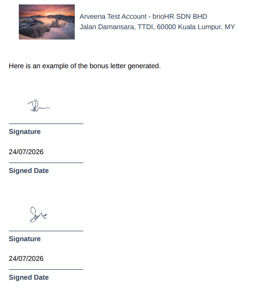
Example of the document generated with signatures included:
Related Articles
Document Management Configuration for User Permissions
Setting up the Document Management module as the HR Admin
Frequently Asked Questions for Document Management
How to Create Custom Document Folders for BrioHR Employee Profiles
Employee Personal Files in BrioHR: How to Upload, Manage and Access Documents
Ownership
By: Arveena