![brioHR-logo-color.svg]](https://support.briohr.com/hubfs/brioHR-logo-color.svg)
Audience & Scope
Audience: HR and admin teams setting up brioHR for the first time
Module: Payroll Malaysia
Country: Malaysia
Pre-requisites: Implementation kick-off meeting with your Implementation Manager (IM) completed; Payroll Malaysia data migrated by your IM
This article is part of the Payroll Malaysia data verification series. It follows the Payroll Malaysia Data Verification Guide (PDF).
Step 5: Check fixed allowances, deductions and pay items for each employee
Click into HR Lounge > Employee Management > Choose employee > Compensation
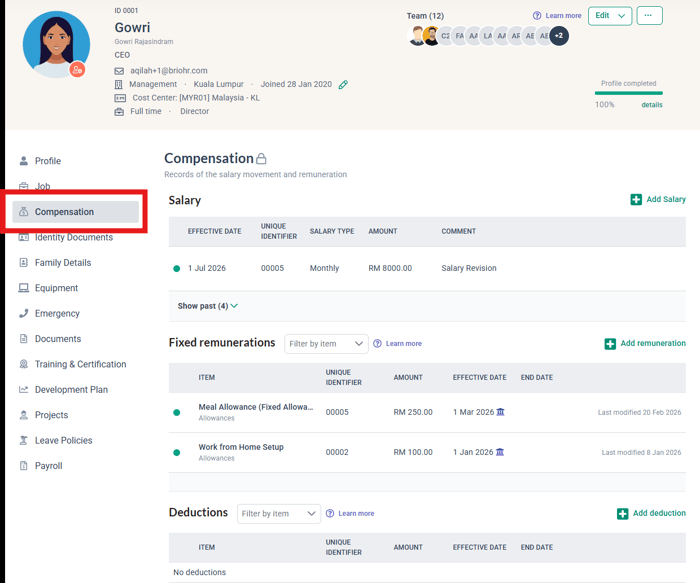
- Go to HR Lounge > Employee Management > Choose employee > Compensation tab > Fixed Remuneration & Deduction, for an employee who has a fixed allowance or deduction.
- Confirm the item, amount, start and end dates, and the prorate setting match your Fixed Allowance/Deduction tab.
- Once you have started a payroll run (see Step 7), go to HR Lounge > Payroll > Run Payroll and confirm each spot-checked employee's pay items show with the right amounts on the Adjust Payroll page.
- To check the payslip, go to HR Lounge > Payroll > Quick Actions > Payroll Documents, set Document type to Payslip, and use Payslip Bulk Download. Download it only to check; do not release or send it.
🔗 Related articles
💡 Tip
Family Details does not affect tax. Child relief for PCB comes from the Child information columns in the Employee Payroll Data template, and sits under Employee Profile > Payroll > Tax Relief Declaration once migrated.
Step 6: Check your payroll history
- Check the big numbers first. Go to Analytics > Report Builder, find Company Payroll Report and click Create.
- Choose your payroll center(s) and a date range from January to the month you migrated. Click Fields & Filters and choose the totals you want to check: total earnings, total statutory deductions (employee and employer EPF, SOCSO and EIS), PCB and net pay. Set Granularity to Show Employees only, then click Export Report. The total appears at the bottom of the file.
- Compare these totals with the same totals from your old system, or the reports you gave your IM, for every completed month this year.
- If the totals tally, your payroll history has been migrated correctly and you can move on to Step 7.
- If a total does not tally, find the cause. Go to Analytics > Report Builder, find Employee Payroll and click Create. On the Multiple tab, choose Malaysia, your payroll center(s) and the same months, then compare each employee with your old system to see who, and which month, causes the difference. Use the Individual tab to see one employee month by month. With many employees, see "Checking a large headcount" below.
- Raise any missing or mismatched month or employee with your IM.
🔗 Related articles
Checking a large headcount
With many employees, checking one profile at a time is slow. Instead, export your data from brioHR and your old system, compare the two files side by side, and look only at the employees that do not match. Use this for Step 6 and for the parallel run. For a step-by-step walkthrough, with practice files you can download and check against an answer key, see How to Check Payroll Data for a Large Headcount (Malaysia Payroll Guide).
- Compare totals first. Check the headcount and the column totals (basic salary, EPF, SOCSO, EIS, PCB and net pay). If they match, you can usually stop. If not, continue.
- Match employees by Employee ID. Put both exports in one spreadsheet. Start from your old system list and bring the brioHR value next to the old system value for each employee (see the tip below), so an employee missing from brioHR shows up. If your company has no employee IDs, brioHR generated one: copy it from the brioHR export into your old system file by matching on full name first. If an employee can't be found on one side, check these first.
- Find the differences. Add a column that subtracts the old value from the brioHR value, and filter to the rows that are not 0. Group them by field, payroll center, EPF category or SOCSO category: if many employees share a difference, one setting is usually the cause. Fix it once and check again.
- Sample what you can't compare in bulk. Some items can't be checked from an export, such as PCB against the LHDN calculator, or bank details. Pick employees with different setups, such as salary proration, different SOCSO categories, or a custom EPF rate.
- Keep a discrepancy list for your IM. Note the Employee ID, the field, the brioHR value, the old system value, the difference, and what you think caused it, then send the list to your IM.
💡 Before you start
Both exports need the same columns and a way to match each employee: the Employee ID, or the ID brioHR generated. Rename your old system's columns to match brioHR before comparing. Employee setup details, such as EPF category, are not in the payroll results export, so ask your IM how to export them.
💡 Tip
Use a lookup formula to match the two exports. In Excel or Google Sheets, VLOOKUP, or INDEX and MATCH, finds each Employee ID from your old system list in the brioHR export and brings back the brioHR value. An #N/A result means the employee is missing from brioHR.
← Previous: How to Verify Your Payroll Centers, Pay Items and Statutory Settings (Malaysia Payroll Guide)
Next: How to Test Your Payroll Calculation Settings Before Go-Live (Malaysia Payroll Guide) →
Back to Payroll Data Migration and Verification: Start Here (Malaysia Payroll Guide)
Ownership
By: Aqilah