![brioHR-logo-color.svg]](https://support.briohr.com/hubfs/brioHR-logo-color.svg)
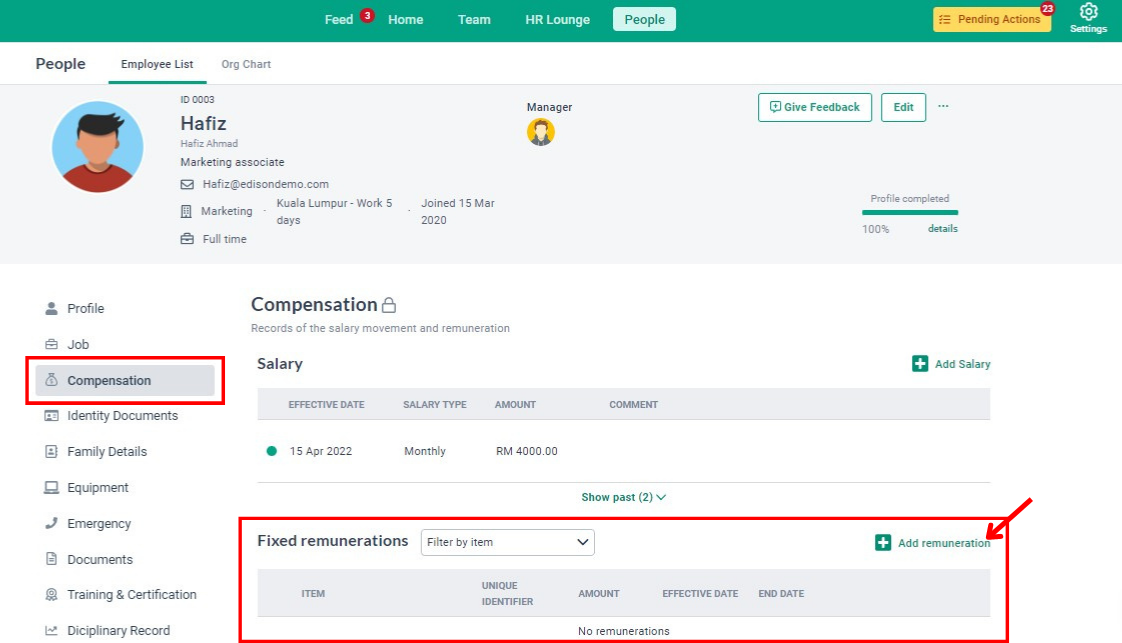
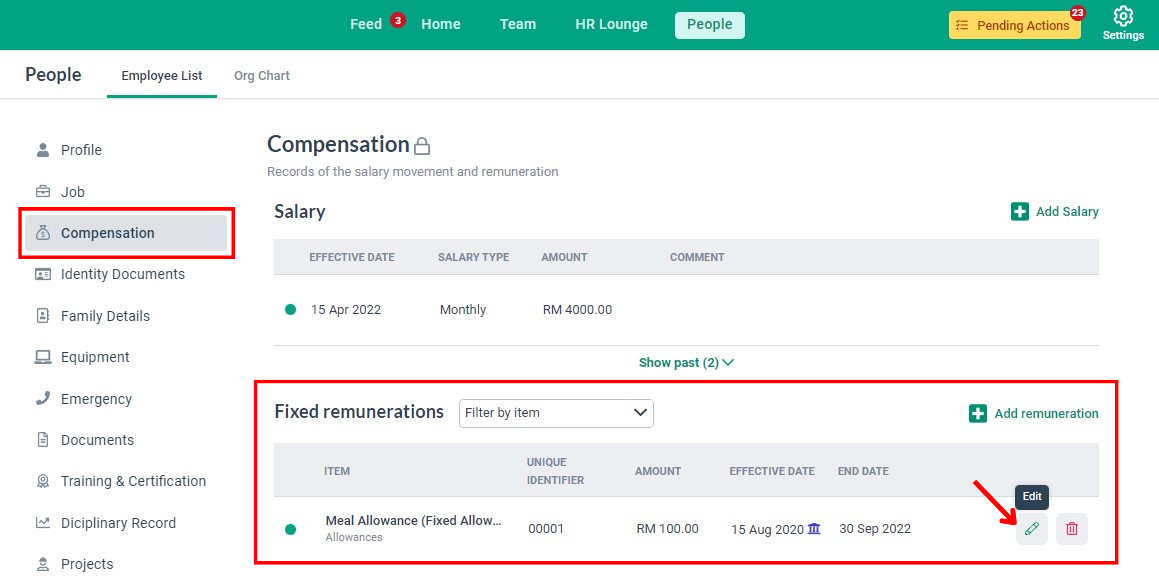
Once the HR/Admin user group permissions are enabled, you can access and manage the Fixed Remunerations table under an employee's Profile > Compensation tab. This table displays a list of all fixed remunerations currently applied to the employee.
NOTE:
The Fixed Remunerations table will only display items that have a start date (effective date) in the past and an end date in the future.
HR/Admin users can perform the following actions:
- Add Fixed Remunerations
- Edit Fixed Remunerations
- Delete Fixed Remunerations
NOTE
Click here to learn how to enable the HR/Admin user group permission settings.
A. How To Add A New Fixed Remuneration
- In the employee's Profile, click on the Compensation tab.
- Scroll down to the Fixed Remunerations table and click on "+ Add Remuneration."
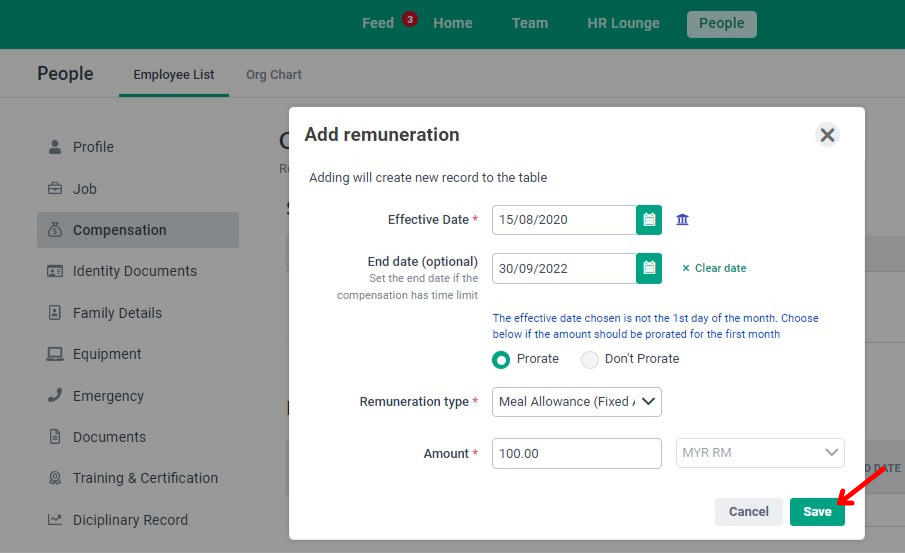
- In the Add Remuneration pop-up window:
a. Effective Date: Select the start date of the fixed remuneration from the calendar. This field is mandatory.
b. End Date: Select the end date from the calendar if the remuneration has a time limit. If no end date is set, the remuneration will apply indefinitely.
c. Prorate: Choose whether to prorate the amount if the effective date is not the 1st of the month. This field is mandatory.
d. Remuneration Type: Select the type of remuneration from the dropdown menu. This field is mandatory.
e. Amount: Enter the remuneration amount. The currency will align with the payroll center assigned to the employee. If no payroll center is assigned, the currency will follow the country selected.

f. Double-Cycle Feature: If enabled, decide when the remuneration should be included.

g. Click "Save" to complete the action.
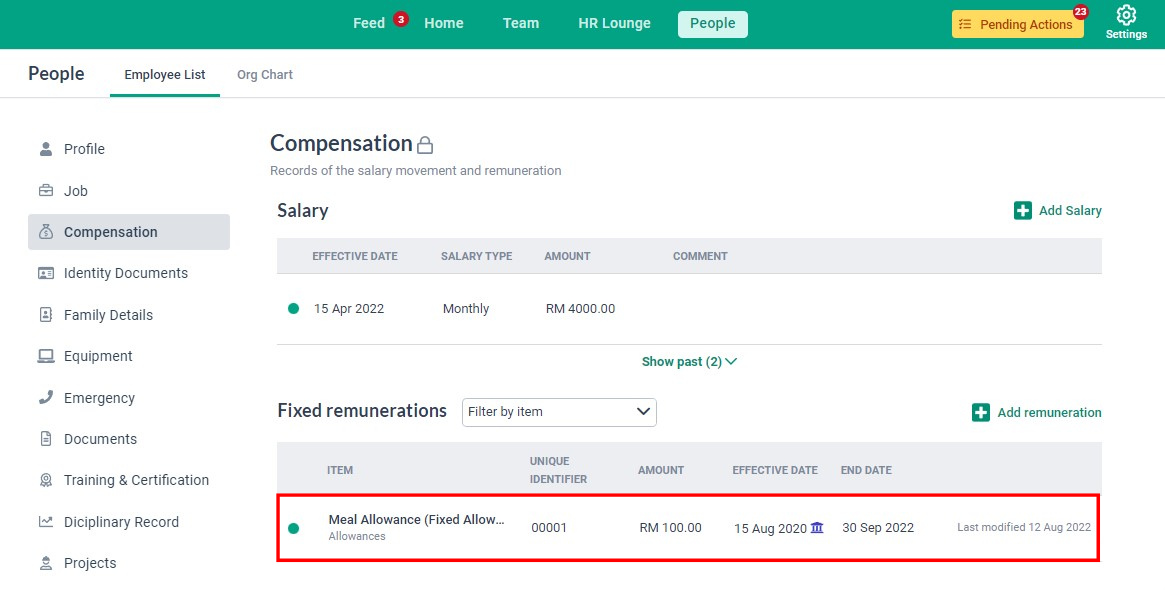
The newly created remuneration will be displayed in the Fixed Remunerations table.
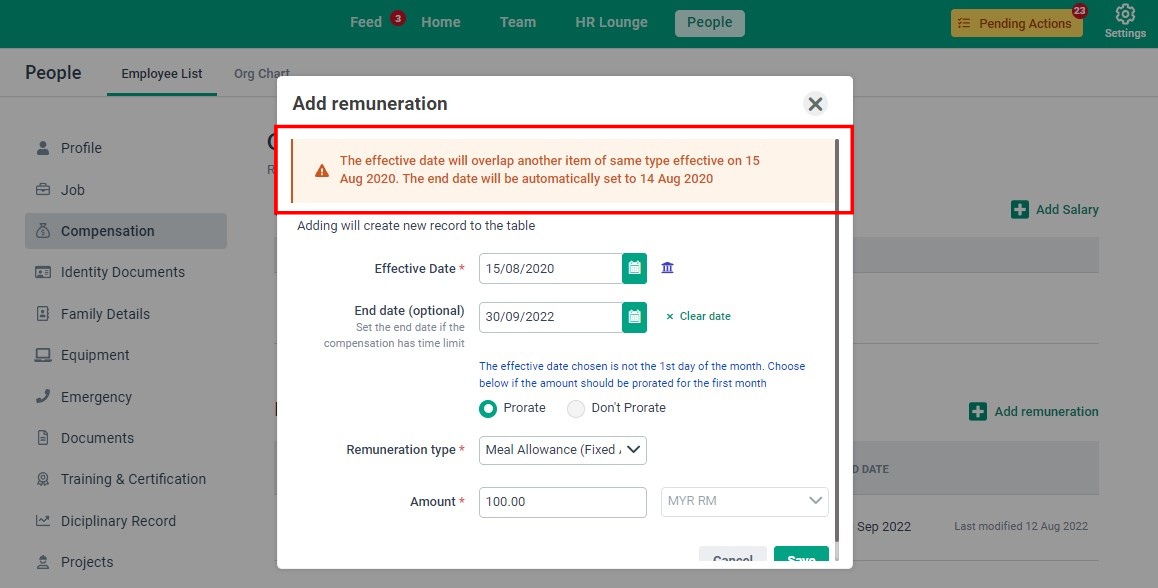
NOTE:
Two fixed remunerations of the same type with overlapping effective dates cannot exist. The new effective date will automatically adjust the end date of the previous remuneration.
B. How To Edit An Existing Fixed Remuneration
- Hover over the item and click "Edit."
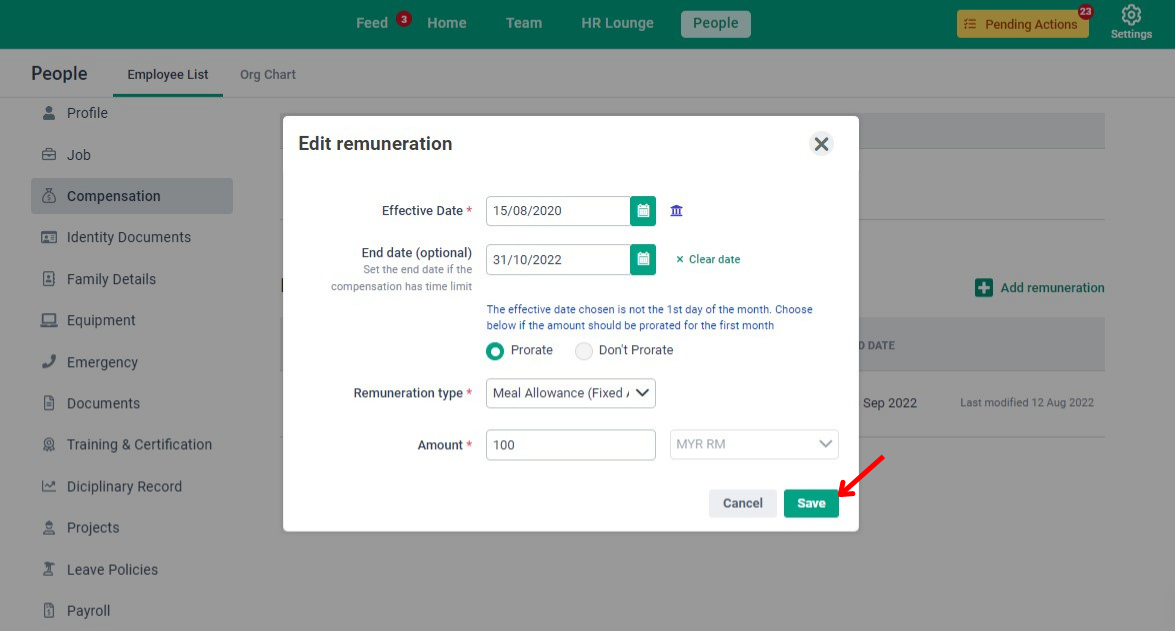
- In the Edit Remuneration pop-up window, update the necessary information. Click "Save" to complete the changes.
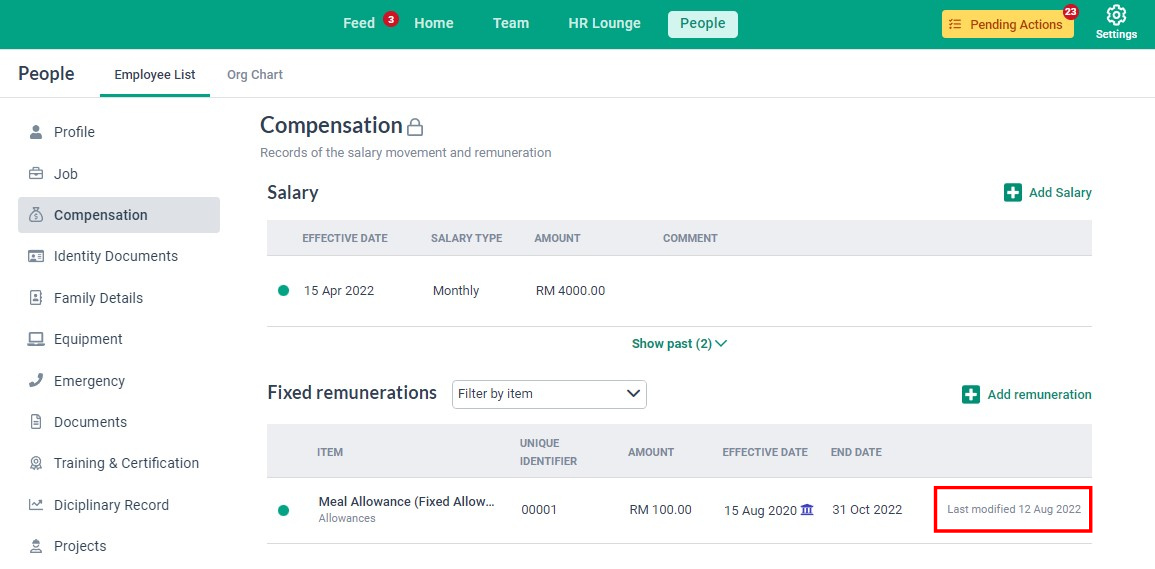
- You can view the last modified information in the corresponding column.
NOTE:
You can still edit a fixed remuneration that has been used in a past payroll. However, if the employee has been moved to a different payroll center or the effective date is changed, the previous information will be overwritten. To retain both records, create a new fixed remuneration instead.

C. How To Delete A Fixed Remuneration
NOTE:
You can delete a remuneration with a future effective date if it has not been used in a previous payroll.
- Hover over the item and click the Bin icon.
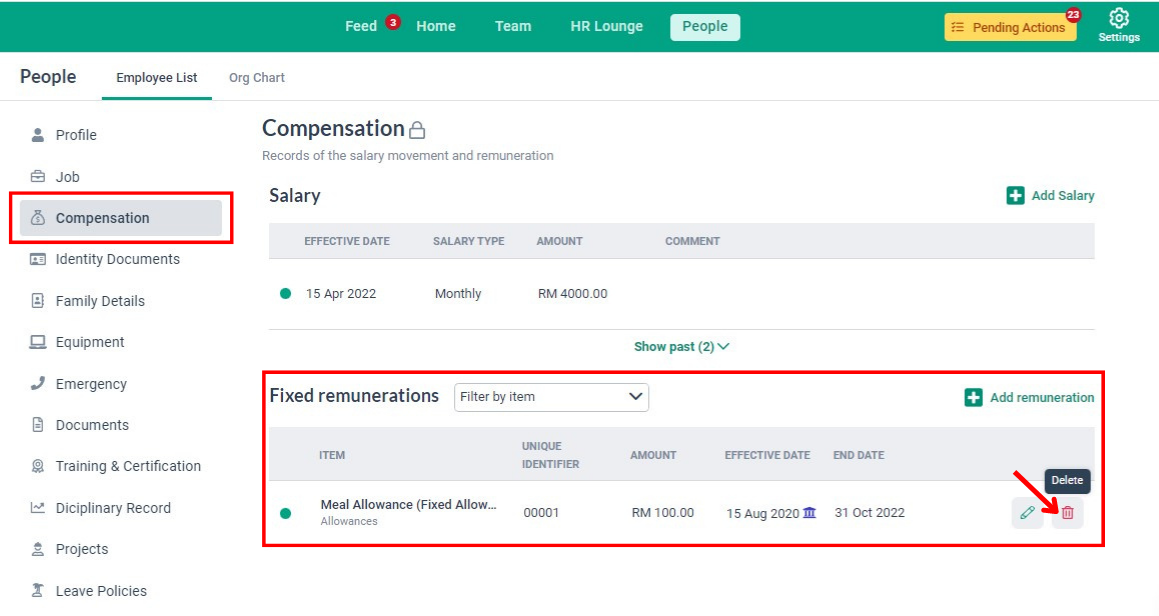
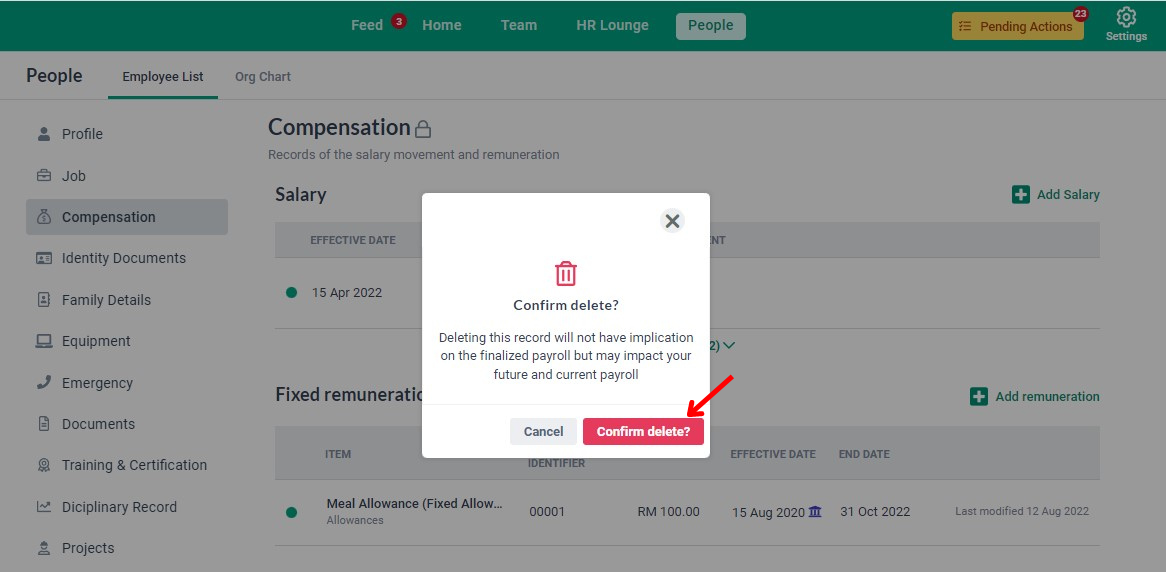
- Confirm the deletion by clicking "Confirm Delete?"
NOTE:
Deleting a record will not affect finalized payrolls but may impact future and current payrolls.
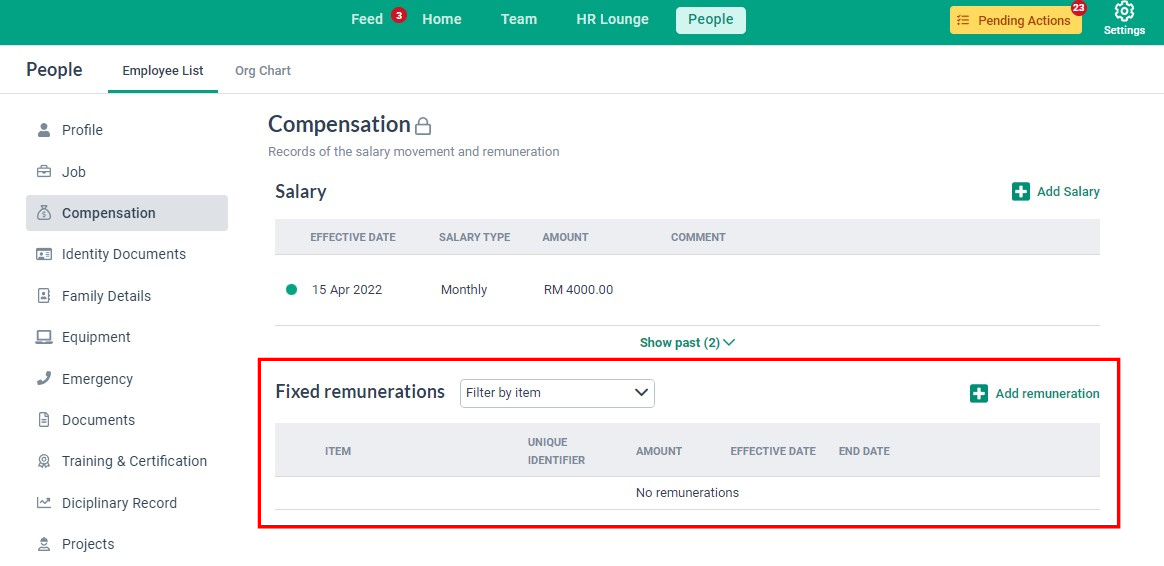
- A deleted remuneration will be removed from the Fixed Remunerations table.
NOTE:
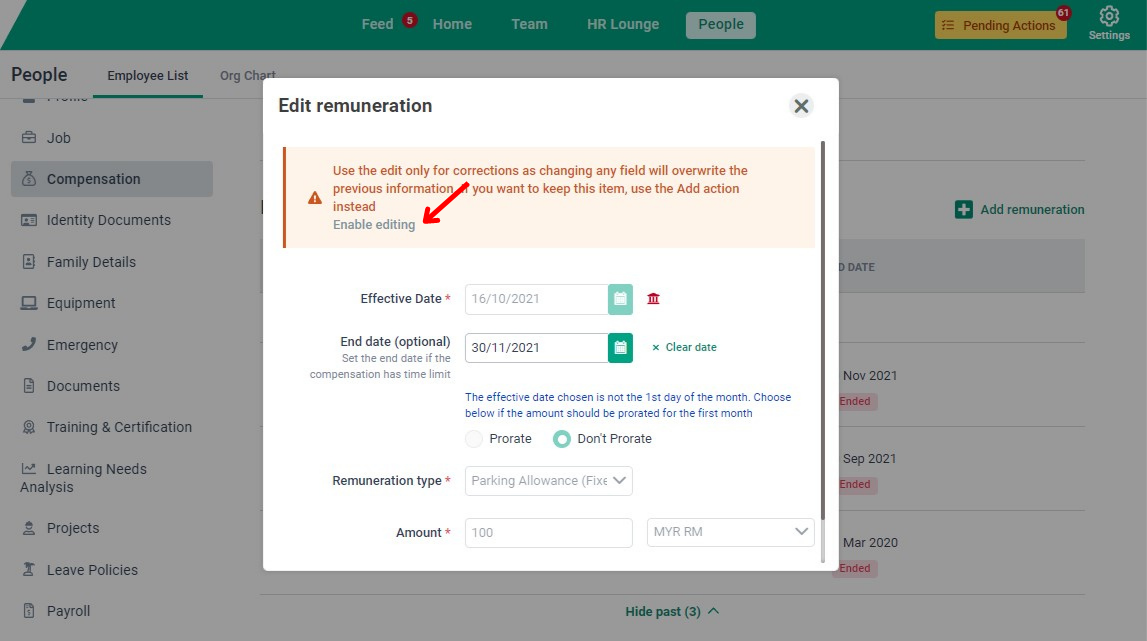
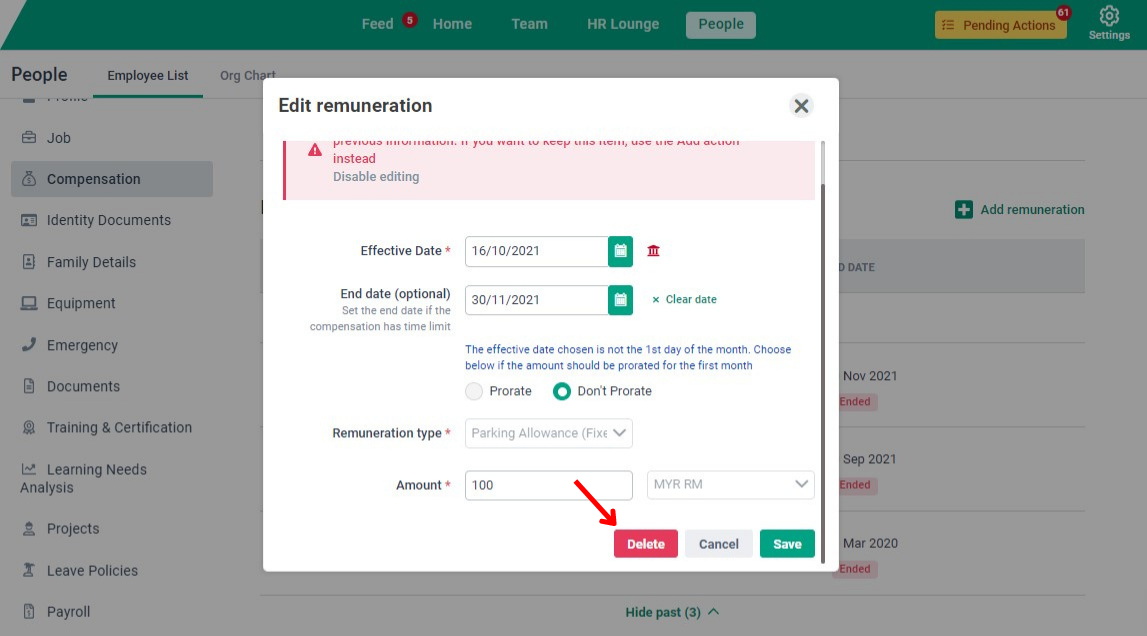
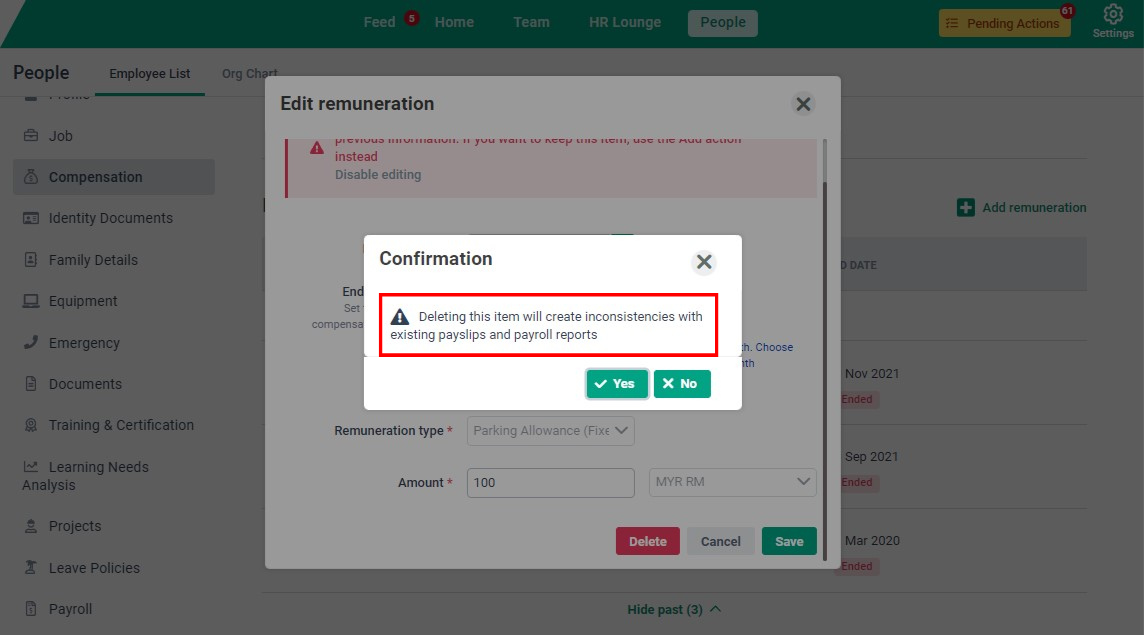
Force-deleting a remuneration that has been used in a past payroll (by enabling editing and then deleting) can cause inconsistencies in payslips and payroll reports.
Need Assistance?
If you have any questions or require assistance, please reach out to our support team via live chat or email us at support@briohr.com.