![brioHR-logo-color.svg]](https://support.briohr.com/hubfs/brioHR-logo-color.svg)
Before employees can clock in on the TC10, each one needs their face or fingerprint registered on the device once. It's part 4 of 5 in the TC10 setup series.
Watch: Register employees' fingerprint and face
The device calls this enrollment: it saves a face or fingerprint template against the Employee ID that BrioHR synced. Each employee needs to be enrolled once before they can clock in. The System Admin does this on the device with the employee present.
Before you start
- The employee is active in BrioHR and appears on the device (see Install and Set Up Your TimeTec TC10 Device, Step 5).
- If they'll use several devices, check they're synced to all of them and every device is online. Enroll on one device; the face or fingerprint copies to the others automatically.
- Have a list of names and Employee IDs ready. Enrolling a whole team in one session is quickest, at about a minute per person.
Open the employee's profile on the device
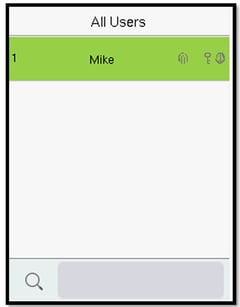
- Scan your own face or fingerprint as System Admin to open the menu, then go to Menu > User Mgt. > All Users.
- Find the employee by typing their Employee ID or name in the search box, or by scrolling with the arrow buttons.
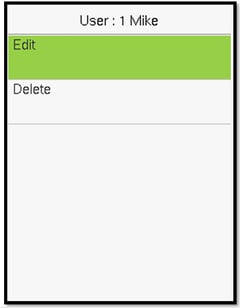
- Tap the employee, then tap Edit. Don't tap Delete: it removes the employee from the device.
- Choose Face or Fingerprint. You can enroll both for the same employee.
Register a face (Enroll Face)
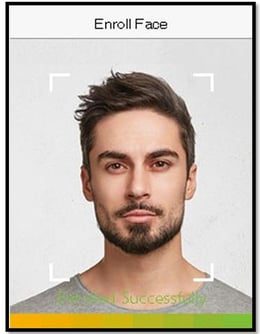
- Ask the employee to stand about an arm's length in front of the device, facing the camera.
- Their face should sit inside the frame on the Enroll Face screen.
- They stay still while the device captures the face three times. The progress bar fills as it goes.
- When the screen shows Enrolled Successfully, the face is saved.
For a reliable face template:
- Remove masks, caps and sunglasses. Regular glasses are fine if they wear them every day.
- Keep a neutral expression and avoid bright light or a window directly behind them.
Register a fingerprint (Enroll Fingerprint)
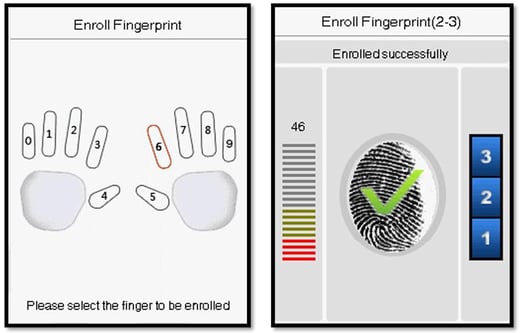
- On the Enroll Fingerprint screen, tap the finger to register (numbered 0–9 on the hand diagram).
- Ask the employee to place that finger flat on the scanner, lift it, and place it again. Repeat until the screen shows three successful scans.
- When the screen shows Enrolled successfully, the fingerprint is saved.
- To add another finger, go back to Edit > Fingerprint and pick a different finger. Up to 10 fingers can be registered; register at least two, ideally one on each hand, in case of a cut or bandage.
For a reliable fingerprint:
- Use a clean, dry finger. Very dry fingers can be breathed on lightly first.
- Press flat with the centre of the fingertip, not the tip or side.
Test the enrollment
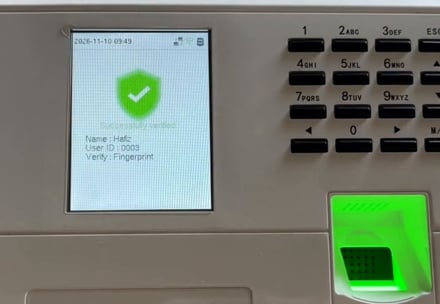
Go back to the main screen and ask the employee to scan.
| Screen shows | Meaning |
|---|---|
| Successfully verified, with their name and User ID | Enrollment worked. The employee can start clocking in. |
| Failed to verify | The scan didn't match. Try again; if it keeps failing, enroll again or register another finger. |
Re-register an employee
Register an employee again if their scans keep failing, if they were removed from the device and added back, or if their Employee ID changed in BrioHR. Open their profile with Edit and enroll the face or fingerprint again.
Note: Use face or fingerprint for clocking. Employee IDs that contain letters can't be typed on the numeric keypad, so PIN clocking isn't suitable for those employees.
FAQ
Do I need to enroll employees on every device?
No. Enroll once while all devices are online, and it copies to the others the employee is synced to.
An employee changed ID or was removed and re-added. Why can't they scan?
Their old biometrics are tied to the old profile. Enroll them again.
Can I add employees directly on the device?
No. Everyone on the device, including the System Admin, comes from BrioHR. The System Admin is an existing employee whose User Role is set to Super Admin.