![brioHR-logo-color.svg]](https://support.briohr.com/hubfs/brioHR-logo-color.svg)
Audience & Scope
Audience: Employee
Module: Time Attendance
Country: Global
Pre-requisites: Access to Time Attendance module in MyHR
Step-by-Step Instructions for Employees to request Pre-Approved Overtime
-
Hover over MyHR and click into the Time Attendance module
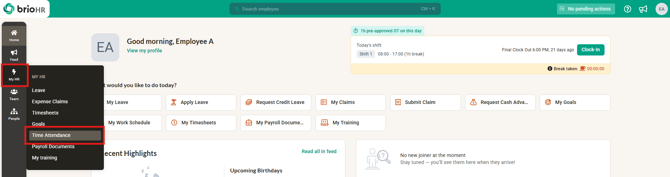
-
Proceed to click into the Work Schedule tab and into the date which you would like to assign the Overtime in advance
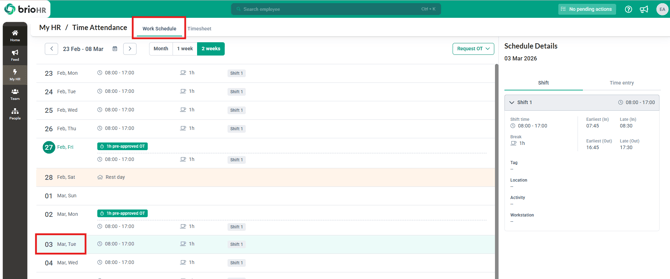
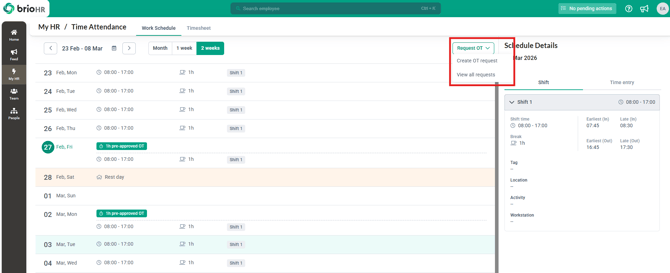
- Click on the Request OT dropdown, then click on Create OT request
- Fill in the required information such as the Date and Duration of the Overtime, if you have any Reasons/Remark and Attachments, be sure to have this information filled in as well
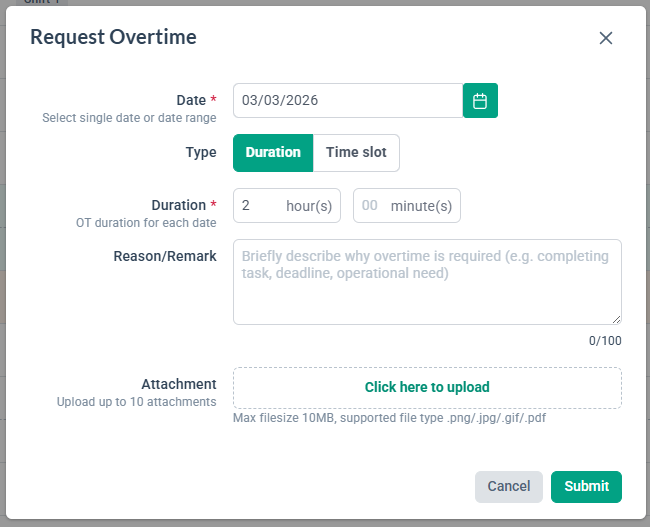
- Now that all information has been filled in, click on Submit and the Overtime is now pending for approval
- You will be able to refer to the Request List of all Overtime submissions , click on the Request OT dropdown and choose View All Requests
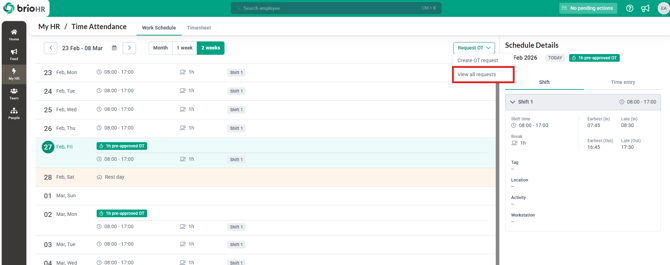
- You will be able to view all Overtime requests submitted as well as the status the request is in.
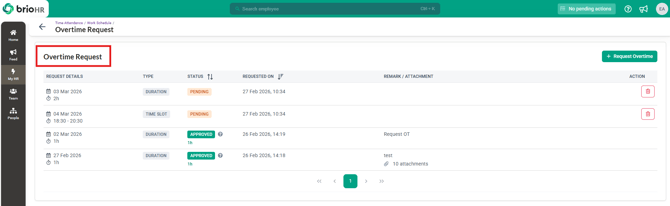
- Once the Overtime submission has been approved, there will be an email notification received in your inbox
Related Articles
1. Enable Employee Pre-Approve Overtime Setting as HR Admin
2. Managing Pre-Approval Overtime Submission Requests as a Manager
Ownership
By: Arveena