![brioHR-logo-color.svg]](https://support.briohr.com/hubfs/brioHR-logo-color.svg)
Audience & Scope
Audience: HR Admin
Module: Payroll
Country: Malaysia
Pre-requisites: Access as Account Admin and Payroll module in HR Lounge
You can now use a Select-type custom field as an accounting grouping option for your GL Report and Xero configuration.
This allows you to group your payroll accounting entries based on information that is specific to your organisation, such as Employee Type, Academic/Non-Academic, Business Unit, or other custom categories.
Once configured, the selected custom field will appear as an additional option in the Grouping dropdown, alongside the existing options of Company, Offices, and Departments.
NOTE:
This feature is available for GL Report and Xero. It is not available for Sage X3.
How Accounting Grouping Works
When a custom field is selected as the accounting grouping:
- The custom field appears as an option in the Grouping dropdown.
- Each option within the custom field is shown as a separate mapping panel.
- An Unassigned panel is also available for employees who do not have a value assigned to the custom field.
- You can map the relevant debit and credit accounts for each option.
- After payroll is completed, the GL Preview groups the accounting entries based on the selected custom field values.
- The downloaded GL Report or Xero transfer will follow the same grouping.
The existing mapping, preview, download and transfer processes remain the same. The main difference is that your accounting entries are grouped according to the selected custom field.
Set up Custom Fields as an Accounting Grouping
Before you can use a custom field for accounting grouping, an HR Admin needs to make it available for accounting grouping.
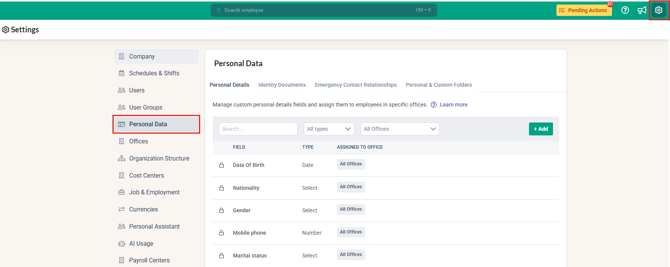
1. Click into Settings > Personal Data
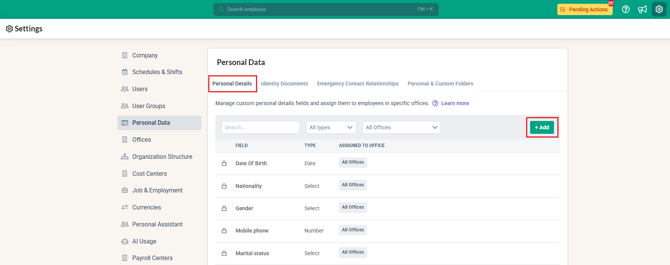
2. At Personal Details, click +Add to create a new field
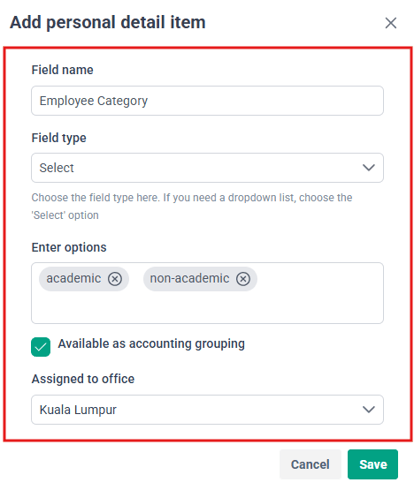
3. Fill in the details accordingly
TIP:
-
Make sure the Field Type chosen is the 'Select' option.
-
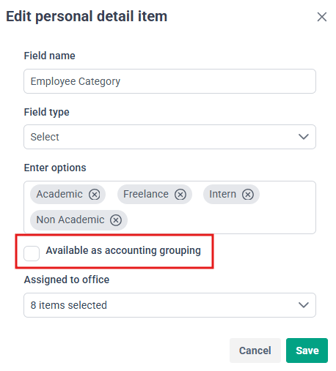
Enable 'Available as accounting grouping'.
4. Click Save
Once enabled, this custom field becomes your company's accounting grouping field.
IMPORTANT:
-
Only one custom field can be used for accounting grouping at a time.
-
The Available as accounting grouping option is only available for Select-type custom fields.
- Existing custom fields cannot be edited to remove or enhance data, only additional selections can be included, otherwise, it is best to add a new custom field.
- It is recommended that the custom fields created are made applicable to all offices.
Switching to Another Custom Field
If you want to use a different custom field for accounting grouping:
- Go to Settings > Personal Data.
- At Personal Details , click on the Edit button for the required custom field
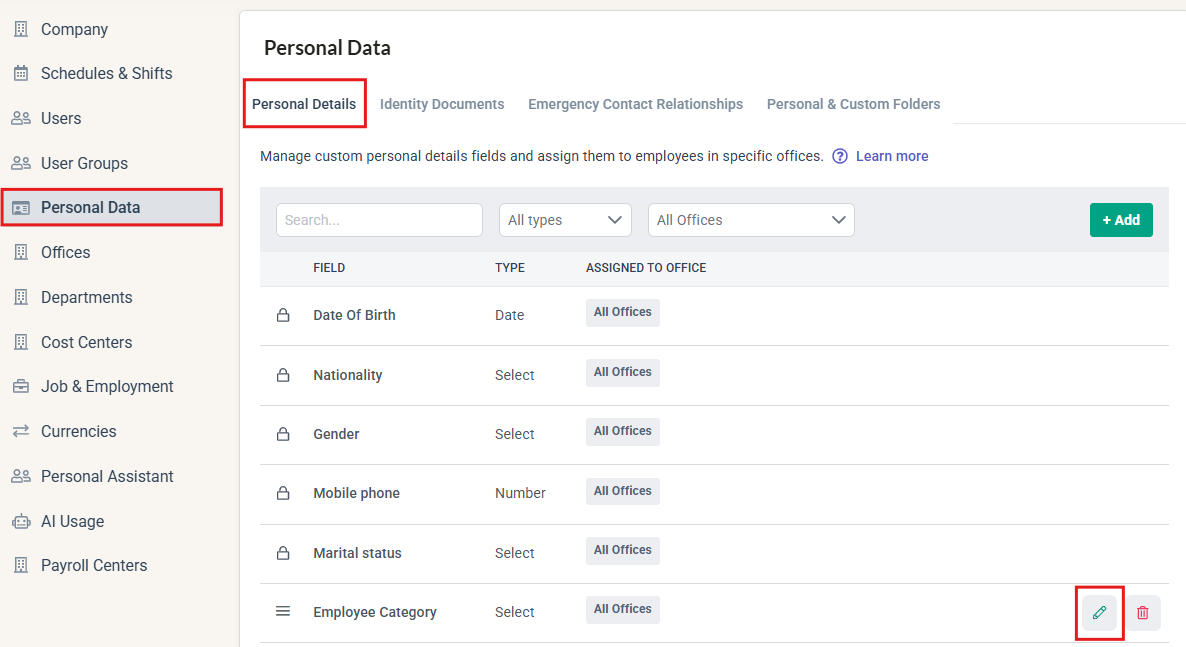
- Turn off Available as accounting grouping for the current field.
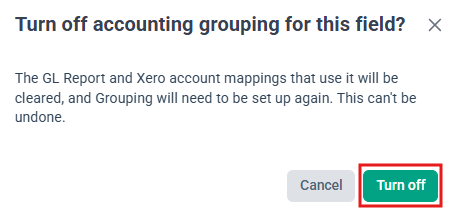
- A confirmation message will appear, then select Turn off to confirm.
IMPORTANT:
Turning off accounting grouping will clear the existing GL Report and Xero account mappings for that field. You will need to configure the grouping again if you select another field.
Configure the Accounting Grouping
Once the custom field has been enabled for accounting grouping, you can configure the account mappings.
1. Click into HR Lounge > Payroll
2. Click into :
- GL Report configuration, or
- Xero configuration
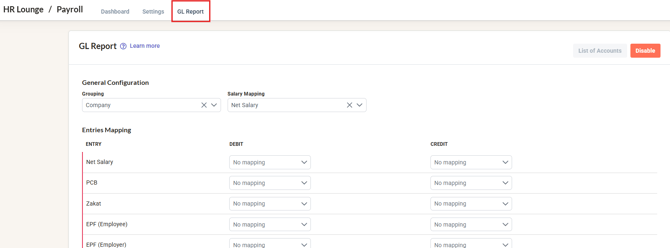
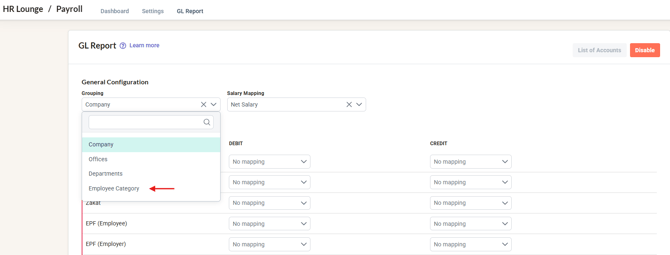
3. Under General Configuration > Grouping, the custom field will appear as an additional option.
The available options will be:
- Company
- Offices
- Departments
- Your selected custom field
Select the custom field to use it for your accounting grouping.
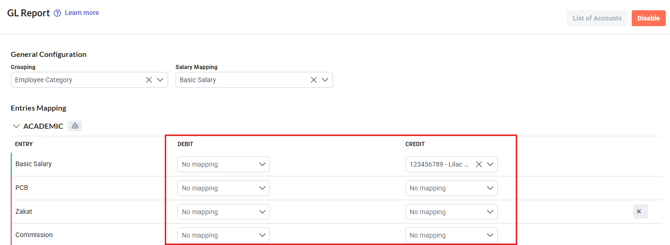
4. After selecting the custom field, the Entries Mapping section will display a separate panel for each option in the custom field.
For example, if your custom field is Employee Category, the mapping may look like:
- Academic
- Non-Academic
- Intern
- Unassigned
5. Each panel allows you to configure the relevant debit and credit accounts, just as you would when configuring accounting grouping by Departments or Offices.
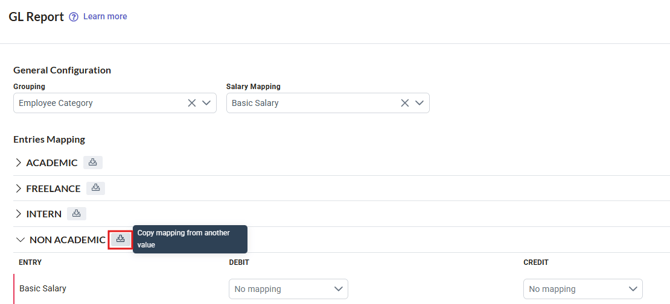
6. You can also use the copy mapping from another panel option to make the setup easier when multiple groups use the same account mapping.
7. Once you have completed the mapping, scroll to the bottom of the page and click Save.
8. Your selected custom field and account mappings will remain configured when you return to the page.
View the GL Report
1. Click into the Completed payroll cycles.
2. Open the Transfer Integrations / GL Preview modal.
3. Review the accounting entries.
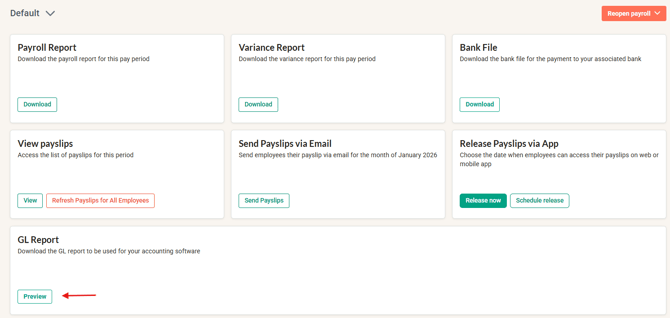
The preview will display a separate debit and credit section for each custom field option.
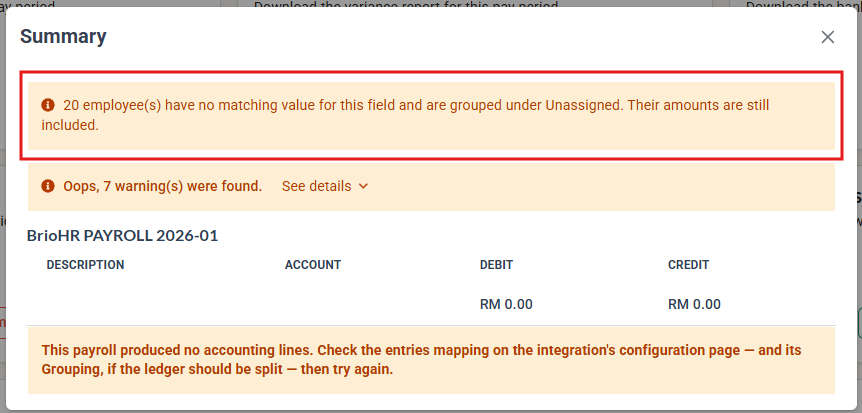
Unassigned Employees
If an employee does not have a value assigned to the selected custom field, their accounting entries will appear under Unassigned.
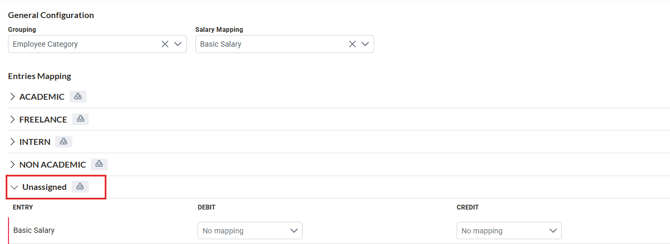
A warning banner will also indicate the number of employees affected.
This warning does not prevent you from downloading the GL Report or transferring the payroll to Xero.
Download or Transfer Your Accounting Entries
After reviewing the GL Preview, you can continue with your usual accounting process.
You can either:
- Download the GL Report, or
- Send the payroll data to Xero through the integration.
The downloaded report or Xero transfer will use the same grouping shown in the GL Preview and no additional steps are required.
Frequently Asked Questions
Q1. What type of custom field can be used for accounting grouping?
A: Only Select-type custom fields can be enabled as an accounting grouping option. The selected field will then appear in the Grouping dropdown for GL Report and Xero configuration.
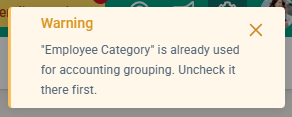
Q2. Can I use more than one custom field for accounting grouping?
A: No. Only one custom field can be selected as the accounting grouping field at a time. If another custom field is selected, this is the error message received.
Q3. Where will the custom field grouping be reflected?
A: The selected grouping will be reflected across the GL Preview, downloaded GL Report, and Xero transfer, following the same grouping configured in the accounting settings.
Q4. What happens if an employee does not have a value assigned to the custom field?
A: The employee's accounting entries will be grouped under Unassigned. A warning will also appear in the GL Preview showing the number of affected employees, but this will not prevent the GL Report download or Xero transfer.
Q5. Can I rename or delete the custom field or its existing options after enabling accounting grouping?
A: No. While a custom field is being used for accounting grouping, the field and its existing options cannot be renamed or deleted. New options can still be added.
Related Articles
How to Configure and Download the GL Report
Ownership
By: Arveena