![brioHR-logo-color.svg]](https://support.briohr.com/hubfs/brioHR-logo-color.svg)
Audience & Scope
Audience: HR Admin
Module: Time Attendance
Country: Global
Pre-requisites: HR Module Permission for Time Attendance
Overview: How Monthly OT works
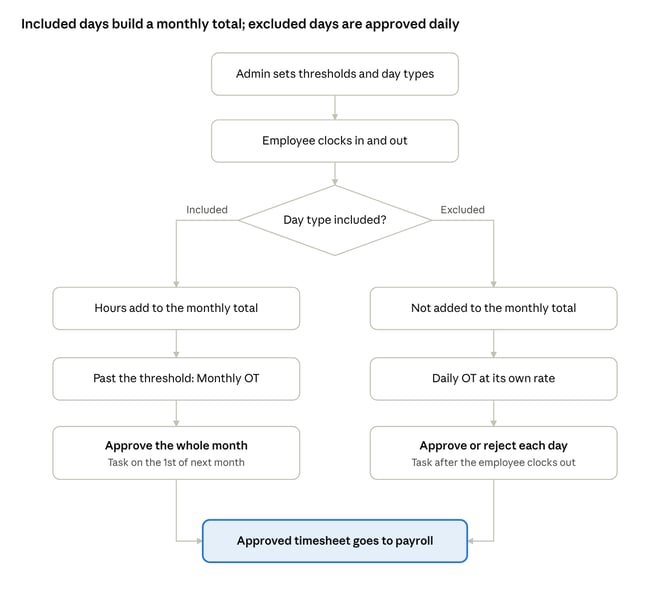
Each day is checked against the policy's day types. Included days build towards the monthly threshold and are approved once the month ends; excluded days are paid as daily OT and approved day by day. This lets rest day and public holiday OT be paid at their own rates, using the OT Payroll Mapping, while regular hours count towards the monthly threshold.
|
Included day types |
Excluded day types |
|
|---|---|---|
|
Counts towards the monthly threshold |
Yes |
No |
|
When hours become OT |
Only after the monthly total passes the threshold |
Like daily OT, on the day itself |
|
Pay rate |
Monthly OT pay item (1.5x by default) |
The daily OT pay item for that day type, e.g. rest day or public holiday OT |
|
Approval |
Once for the whole month, after the month ends |
Day by day |
|
When the approval task arrives |
1st of the following month |
After the employee clocks out |
Step 1: Enable Monthly OT in the policy
- Go to HR Lounge > Time Attendance > Policy and open the policy you want to edit.
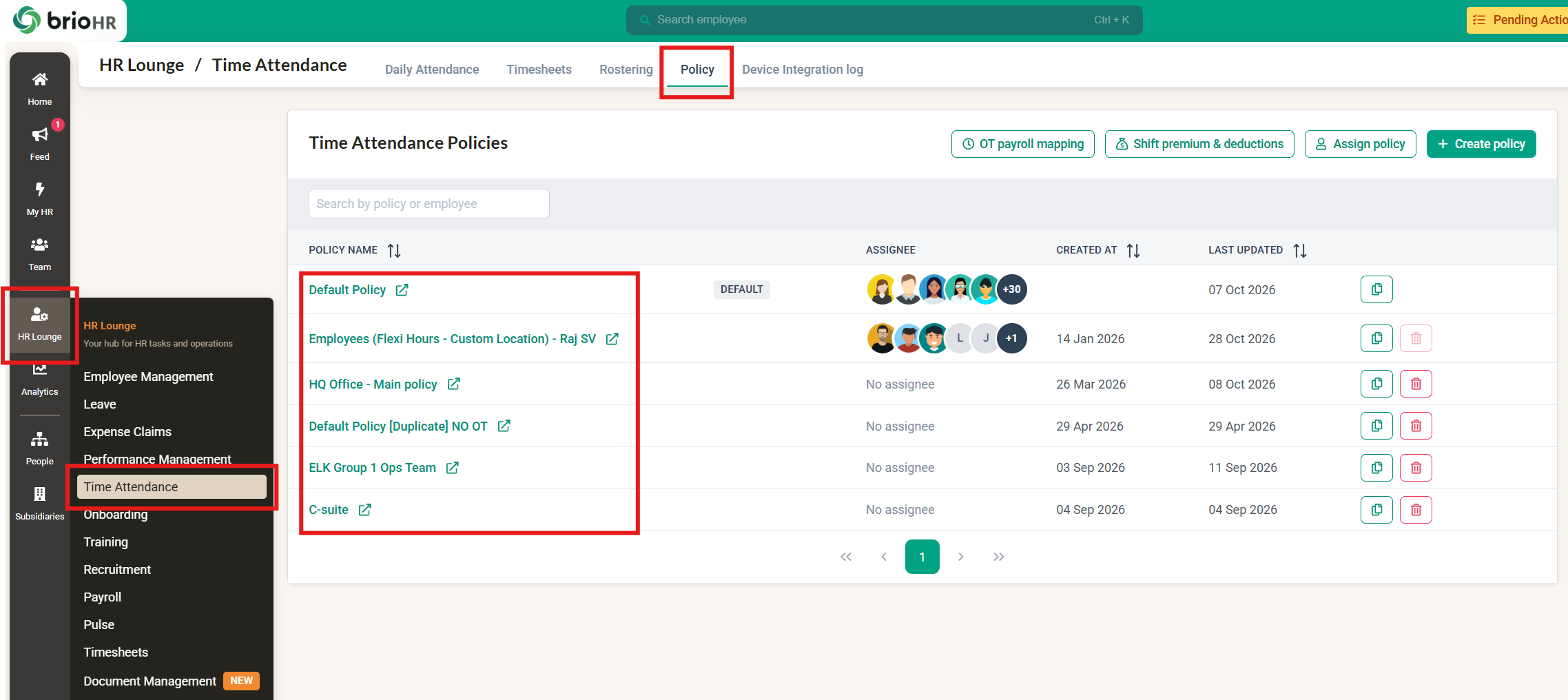
- Under Other Configuration > Overtime, make sure Calculate Overtime is Enabled. For OT threshold, select Monthly.
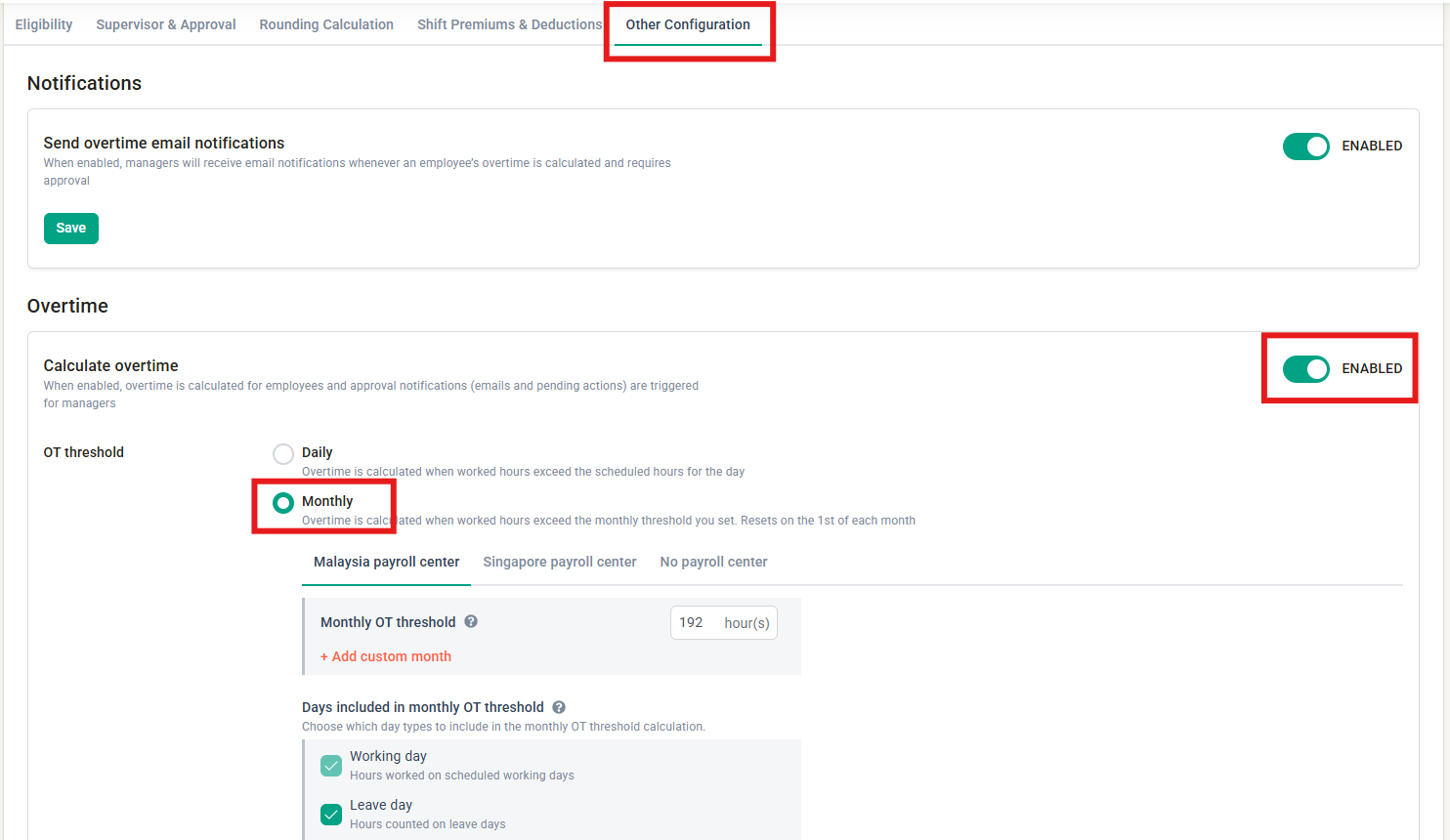
Step 2: Set the monthly threshold for each payroll country
Enter how many hours an employee must work in a calendar month before OT starts. There are three thresholds, each pre-filled with 192 hours:
|
Threshold |
Applies to |
|---|---|
|
Malaysia (MY) |
Employees assigned to a Malaysia payroll center |
|
Singapore (SG) |
Employees assigned to a Singapore payroll center |
|
No payroll center |
Employees with no payroll center, and companies not subscribed to Payroll |
NOTE:
- All three thresholds are shown even if your company only has Malaysia or only Singapore payroll centers.
- Each threshold is required. You can't save the policy if a threshold is blank or 0.
- The threshold applied follows the employee's latest payroll center.
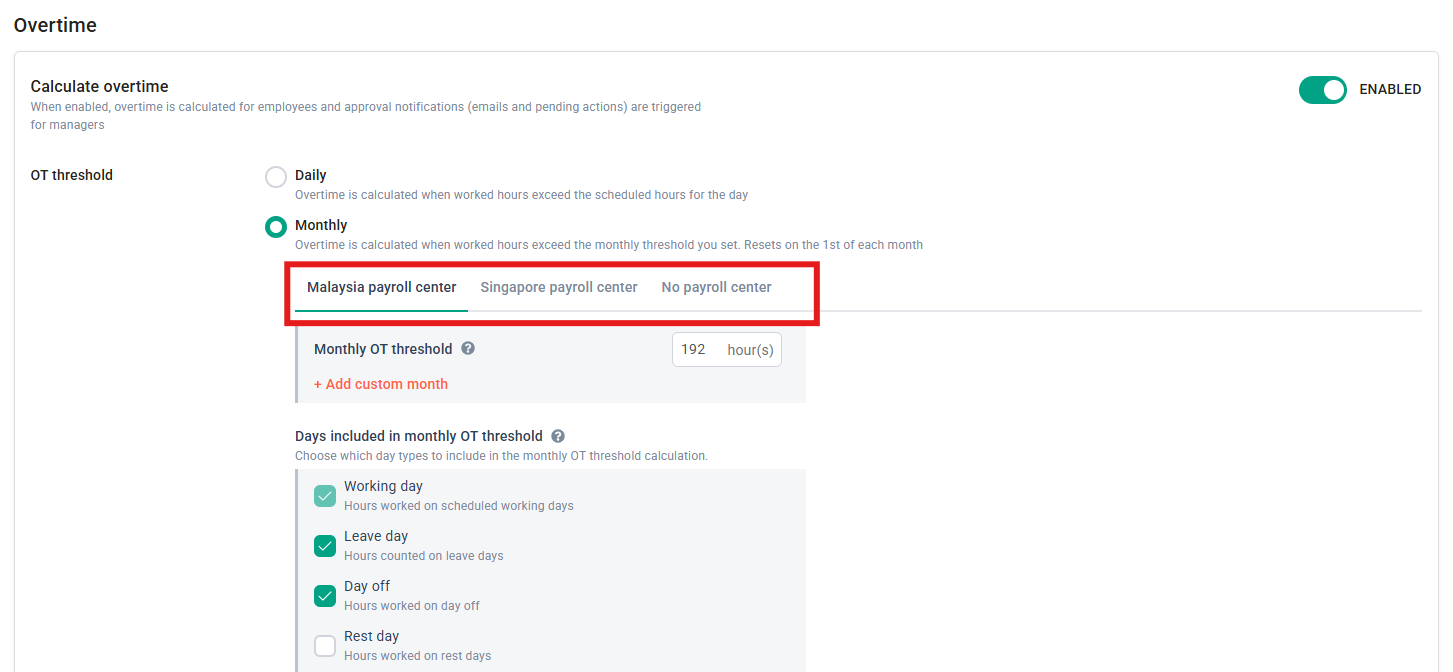
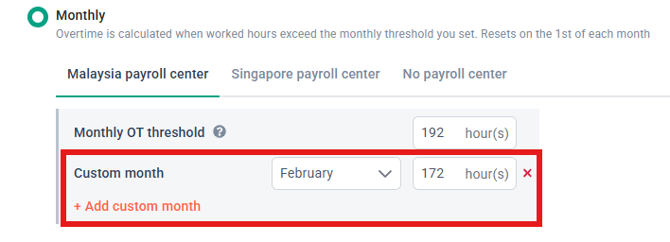
Different threshold for a specific month: if one month needs a different threshold, add a custom month. For example, you can set February to 172 hours while the rest of the year stays at 192 hours.
Step 3: Choose which day types count towards the threshold
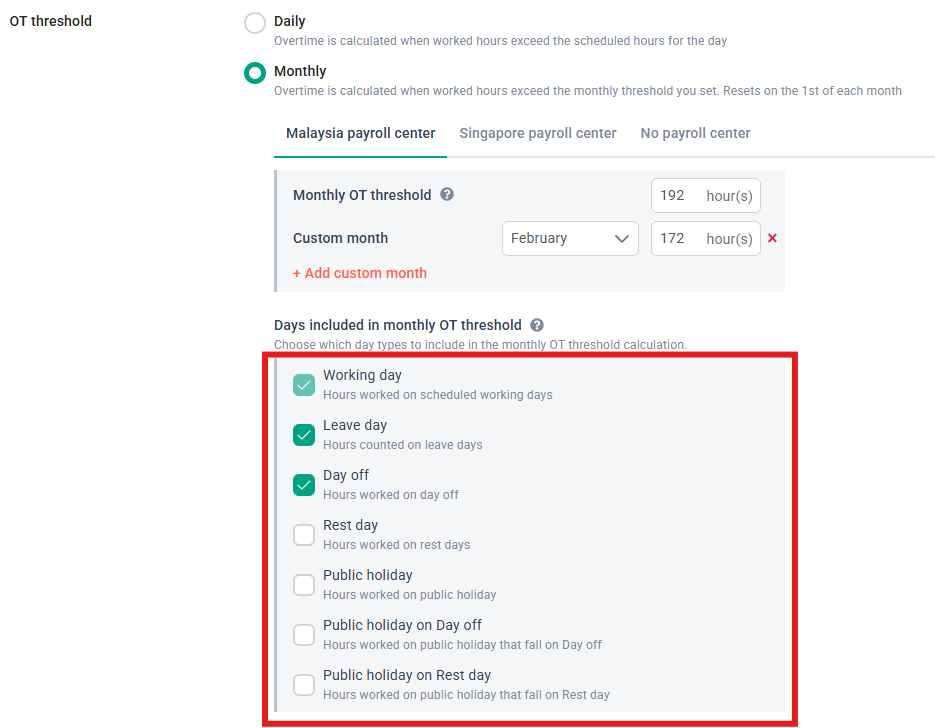
For each day type, choose Include or Exclude. You choose by day type only. You can't include or exclude specific dates.
- Included day types add their hours to the monthly total. Hours above the threshold are paid as Monthly OT.
- Excluded day types are not added to the monthly total. Hours on these days are calculated as daily OT and paid at the existing rate for that day type.
Working Day is always included and can't be changed. When you first enable Monthly OT, these defaults are applied:
|
Day type |
Malaysia |
Singapore |
No payroll center |
|---|---|---|---|
|
Working Day |
Included (fixed) |
Included (fixed) |
Included (fixed) |
|
Leave Day |
Included |
Included |
Included |
|
Off Day |
Included |
Included |
Included |
|
Rest Day |
Excluded |
Included |
Included |
|
Public Holiday |
Excluded |
Included |
Included |
|
Rest Day + Public Holiday |
Excluded |
Included |
Included |
|
Off Day + Public Holiday |
Excluded |
Included |
Included |
Why Malaysia excludes rest days and public holidays by default:
Under the Employment Act 1955, OT on a rest day is paid at 2x and OT on a public holiday at 3x. Counting those hours in a monthly bucket paid at 1.5x (system default - can be changed under OT payroll mapping) would underpay employees, so we recommend keeping the Malaysia defaults.
Neither Malaysian nor Singaporean law sets a monthly work hour threshold before OT can be counted; it is your company's own policy. Check with JTK (Malaysia) or MoM (Singapore) for the latest rules.
Note on Leave Day: when Leave Day is included, leave hours count towards the monthly total, including leave that is still pending approval. An employee on long leave can reach the threshold without working extra hours.
Step 4: Save the policy
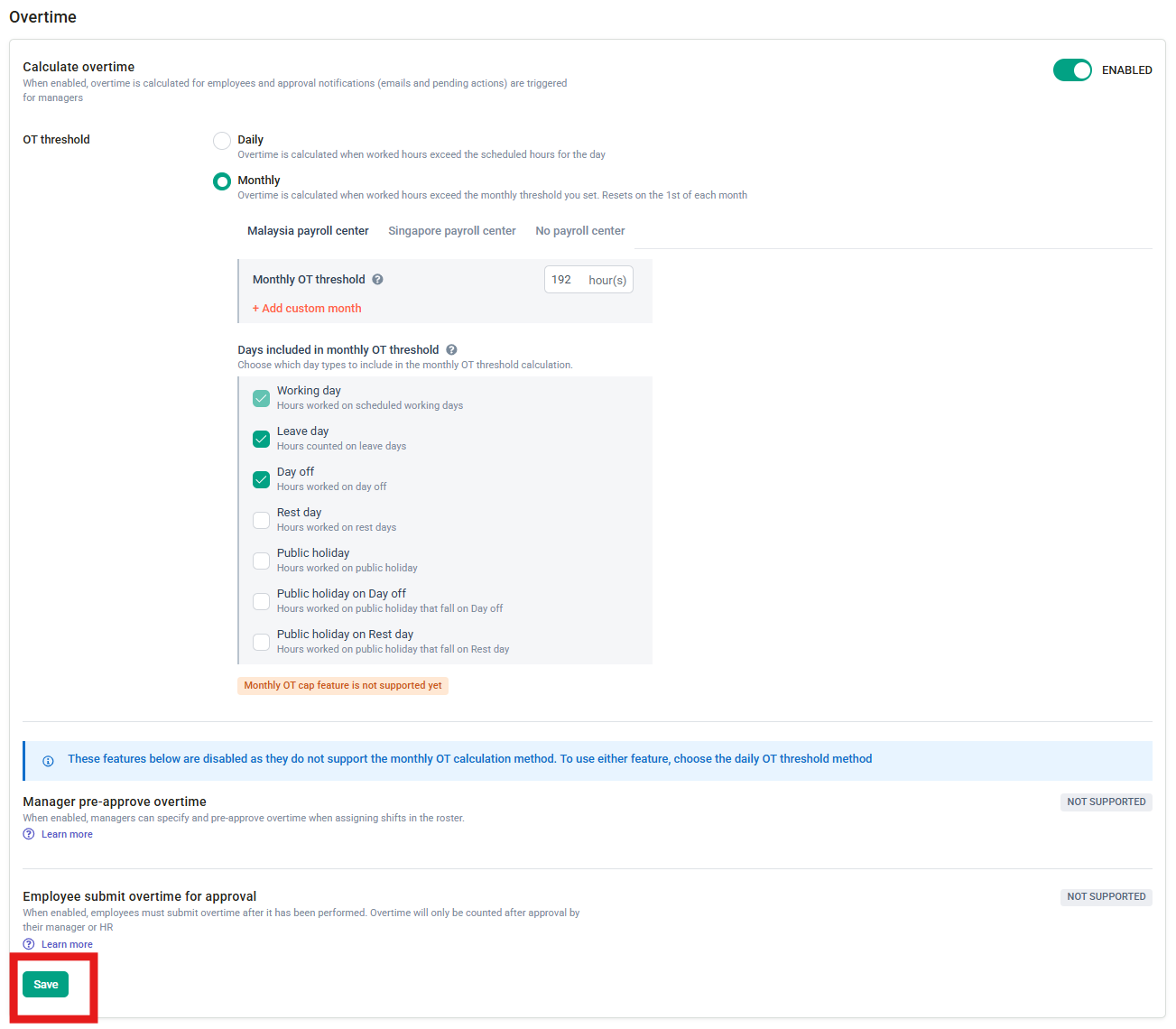
Click Save. The settings apply to every employee assigned to this policy.
- Open timesheets are updated straight away with the new settings.
- Locked timesheets (approved, sent to payroll or paid) keep their current calculation. To apply the new settings, reopen the timesheet and click Recalculate.
Reading the employee's timesheet
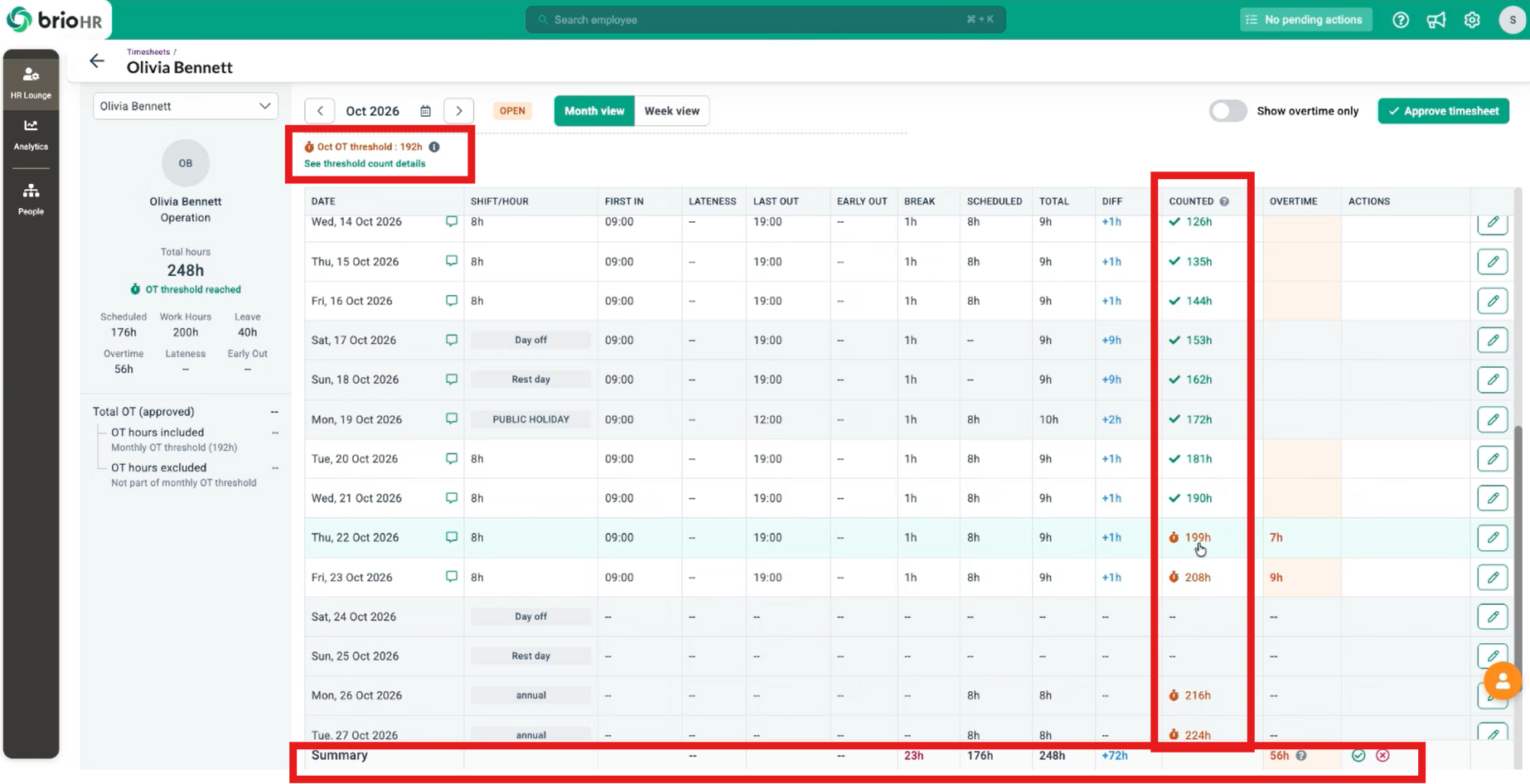
On web, the employee's timesheet shows how close they are to the threshold:
- Threshold: the threshold for that month, for example; depends on threshold set in employees policythe threshold for that month, based on the employee’s Time Attendance policy (for example, 192 hours, or 172 hours for a custom February).
- Day types: which day types count towards the threshold for this employee.
- Counted column: a running total of hours that count towards the threshold. It updates straight away if a manager edits a time entry.
- Icons: a tick means the hours count towards the threshold. A timer means the threshold has been passed and the hours are eligible for OT. Days with excluded day types are marked as excluded and skipped by the counter.
- Summary: shows OT hours included (Monthly OT) and OT hours excluded (daily OT on excluded day types). These fill in after the OT is approved.
Example: an employee works 9 hours on Monday (first work day of the month) and 9 hours on Tuesday (second work day of the month). The Counted column shows 9 hours, then 18 hours, towards the 192-hour threshold.
Approving Monthly OT
Monthly OT approval is currently on the web only.
OT on included day types (approved monthly)
- One approval task per employee is sent on the 1st of the following month. A manager/supervisor with 50 employees on Monthly OT receives 50 tasks.
- Monthly OT can't be approved, rejected, or reopened before the month ends.
- Approve it from Pending Actions or from the employee's timesheet.
OT on excluded day types (approved daily)
- An approval task is sent after the employee clocks out, even if they haven't reached the monthly threshold.
- Each day can be approved or rejected on its own.
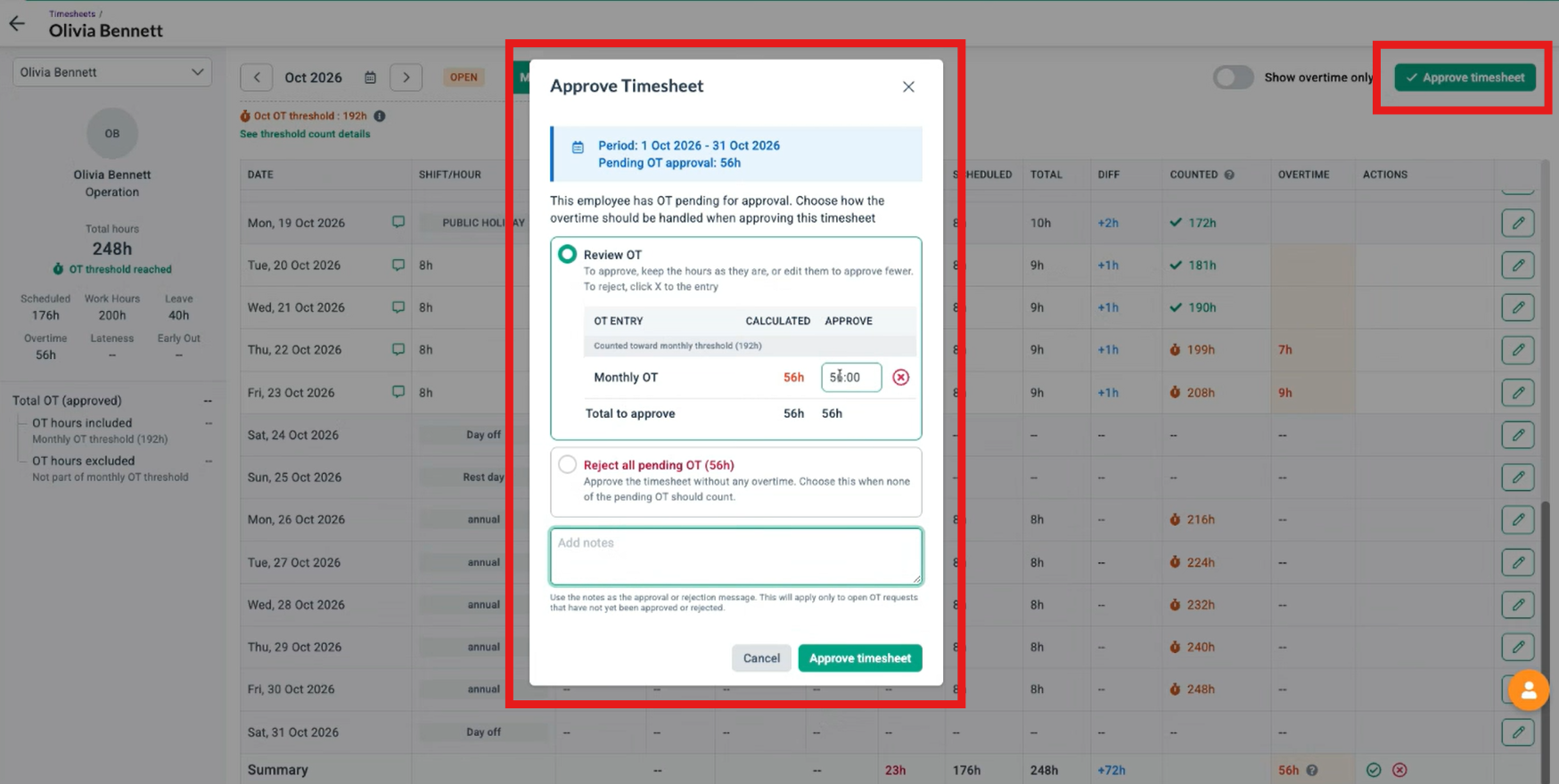
Approving from the timesheet
- Open the employee's timesheet in month view.
- Click Approve timesheet.
- If OT is still pending, a dialog lists the Monthly OT and each excluded day with OT.
- Approve or reject all of it, or change the hours to approve part of the OT and add a note. For example, approve 30 of 39 Monthly OT hours, with the note "Approved 30 of 39 hours".
- Click Approve timesheet. The approved hours appear in the timesheet summary.
IMPORTANT:
Bulk approval: when you approve several timesheets at once, the OT is approved in full. To approve only part of the OT, open each timesheet and approve it there.
OT pre-approval and manual post-approval: these policy options don't apply to employees on Monthly OT. Their OT follows the automated approval flow above.
How Monthly OT is paid
- Rate: Monthly OT is paid at 1.5x by default. You can change the pay item in OT Payroll Mapping, per payroll country, with an override per payroll center.
- Excluded day types: paid using the daily OT pay item for that day type.
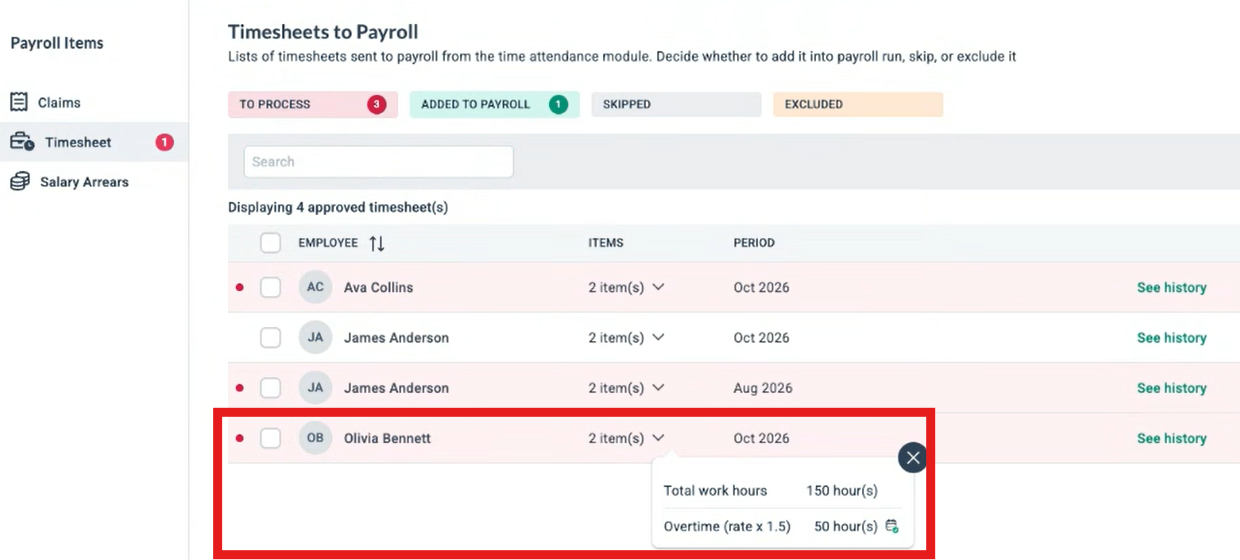
- Payroll: approved timesheets are sent to payroll with the OT broken down by type.
Example: two employees each work 8 hours on a rest day, with a 192-hour threshold.
- A Malaysia employee with Rest Day excluded is paid those 8 hours as rest day OT at the rest day rate. They don't count towards the 192 hours.
- A Singapore employee with Rest Day included adds those 8 hours to the monthly total. They only become OT if the month goes past 192 hours.
When an employee changes payroll center
- Open timesheet: OT is recalculated using the new payroll country's threshold and day-type settings.
- Approved, sent to payroll or paid timesheet: OT is not recalculated. A recalculate banner is shown.
- Reopened timesheet: the system tells you the timesheet was calculated under a different payroll center and asks you to choose:
- Recalculate: the timesheet is recalculated as Monthly OT under the new payroll center.
- Don't recalculate: any later edit to that timesheet uses daily OT calculation.
The same banner appears on past timesheets when the threshold or day-type settings change, or when the Payroll module is turned on or off.
Limitations
- Statutory OT caps: the monthly caps (72 hours in Singapore, 104 hours in Malaysia) are not enforced yet.
- Mid-month joiners and leavers: the full monthly threshold applies, with no proration.
- Thresholds per payroll center: not supported. Thresholds are set per payroll country.
- Mobile app: Monthly OT approval tasks are not yet available on Mobile. Managers/Supervisors will need to use web for approval.
FAQs
Q: Can managers approve Monthly OT mid-month?
A: No. Monthly OT on included day types can only be approved after the month ends. OT on excluded day types can be approved day by day.
Q: Can managers approve Monthly OT on the mobile app?
A: Not yet. Approval is on web only.
Q: Why did a manager receive so many approval tasks on the 1st?
A: One Monthly OT task is created per employee on the 1st of the following month.
Q: Does Monthly OT work with a 26th to 25th cut-off?
A: No. Monthly OT runs on the calendar month, and custom cut-off periods are blocked for these employees.
Q: Can I exclude a specific date, such as a company event day?
A: No. You can only include or exclude day types.
Q: Does a mid-month joiner get a smaller threshold?
A: Not yet. The full threshold applies.
Q: Does brioHR stop OT at 104 hours (Malaysia) or 72 hours (Singapore)?
A: No. Currently, this feature is not yet available.
Q: Why is an employee getting Monthly OT while on leave?
A: Leave Day is included in the policy, so leave hours count towards the threshold, including pending leave. Change Leave Day to Exclude if you don't want this.
Q: Can I use different thresholds for two Malaysia payroll centers?
A: No. All Malaysia payroll centers share the Malaysia threshold.
Related articles
- How to Create and Setup a New Time Attendance Policy
- Customize Overtime Pay Items in Time Attendance
- Understanding Different Options for Overtime Approval Settings in Time Attendance Policy
- How to Approve Employee Overtime in BrioHR Time Attendance Module
- How HR Admin Approves Employees' Attendance Timesheets in BrioHR
- How HR Admin Can Send Approved Employees' Attendance Timesheets to Payroll in brioHR
- How to change payroll center for employee (by HR/Admin)
Ownership
By: Aqilah