![brioHR-logo-color.svg]](https://support.briohr.com/hubfs/brioHR-logo-color.svg)
Audience & Scope
Audience: HR Admin / Manager / Employee
Country: Global
brioHR provides multiple login methods to help employees access their accounts easily and securely. Depending on how the employee account was created and configured, employees may log in using one of the following methods:
- New Joiner Account Login
- Activation Email Login
- Single Sign-On (SSO) Login
This article explains how each login method works and the steps employees need to follow to access their brioHR account.
| Login Method | When It Is Used | Login Credentials Required |
|---|---|---|
| New Joiner Account Login | Employee account is created during onboarding | Credentials provided in the account creation email |
| Activation Email | Employee receives an activation invitation from the admin | Registered email + system-generated password (first login) |
| Single Sign-On (SSO) | Employee uses Google, Microsoft, or Okta authentication | Registered email + SSO provider credentials |
1. Login via New Joiner Account Creation
For employees who have been onboarded through brioHR, their account may already be created by the company as part of the onboarding process.
Step 1: Receive the Account Notification Email
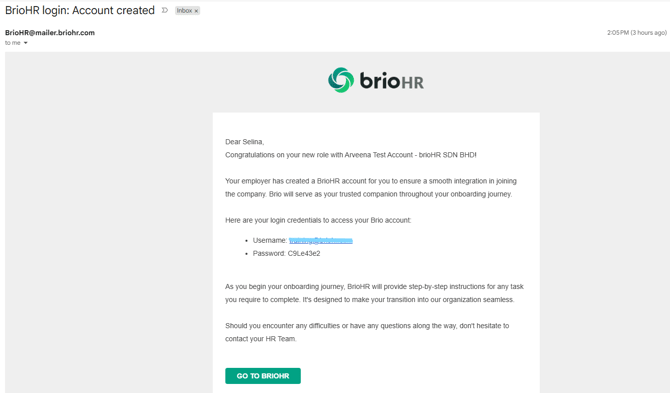
When the employer creates an account for a new joiner, the employee will receive an email notification informing them that their brioHR account has been created.
The email will include their login credentials required to access the system, example shown below.
Step 2: Access BrioHR
Employees can click on the Go To BrioHR button within the email.
They will then be redirected to the brioHR login page, where they can enter the provided credentials to access their account.
After logging in successfully, employees may update their password through their user settings if required.
2. Login via Activation Email
The activation email method is commonly used when an admin creates an employee account and sends an invitation for the employee to activate their brioHR access.
Step 1: Receive the Activation Email
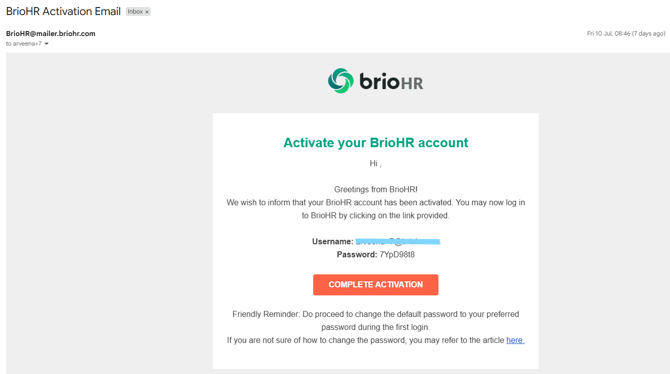
Once the admin sends the activation email, the employee will receive an email containing a link to activate their brioHR account.
Within the email, the employee will also receive a system-generated password, which is required for their first login. Example shown below:
Step 2: Activate the Account and Log In
After clicking on the Complete Activation button, employees can proceed to the brioHR login page.
To log in for the first time, employees will need to enter:
- Username : Email address registered with brioHR
- System-generated password provided in the activation email
Once the credentials are entered successfully, the employee will be granted access to their brioHR account.
Step 3: Change the Password
After successfully logging in, employees can update their password to a preferred password for future access.
To change the password:
- Click on the Profile icon.
- Select User Settings.
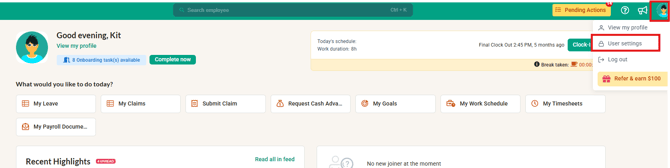
- Click Change Password.
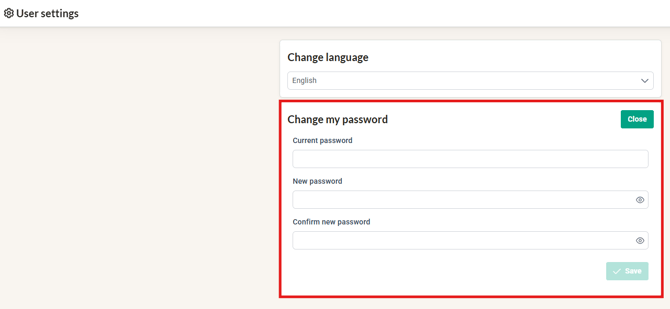
- Enter the new password and save the changes.
Once the password has been updated, employees can log out and log in again using their new password.
3. Login via Single Sign-On (SSO)
Employees can also access brioHR using Single Sign-On (SSO) if their registered email address is supported by one of the available identity providers:
- Microsoft
- Okta
How SSO Login Works
When using SSO, employees do not need to enter a separate brioHR password.
Instead, they can:
- Select the preferred SSO login option (Google, Microsoft, or Okta)
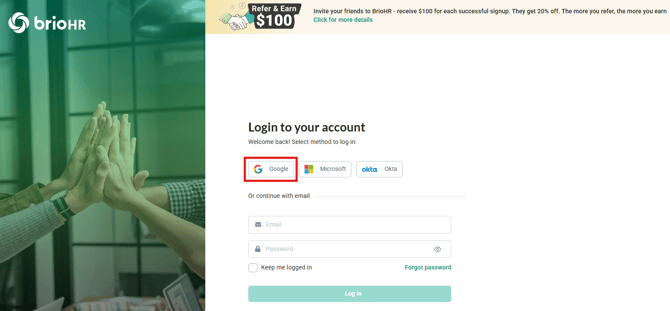
- Enter their email address and password for the selected provider
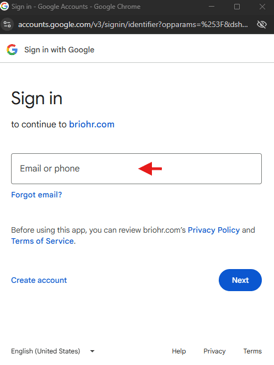
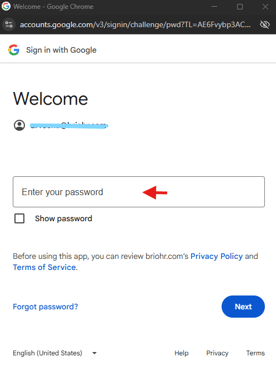
- Complete the authentication process
Once verified, employees will be automatically signed in to their brioHR account.
NOTE:
The email address used for SSO login must match the email address registered in brioHR. If a different email address is used, the employee will not be able to access their brioHR account through SSO.
Related Articles
BrioHR First-Time Login Guide: Activation Email & Password Setup
brioHR Web Browser vs Mobile App: Feature Comparison Guide
Complete Guide to BrioHR Web & Mobile App for Employees and Managers [Video Recording]
Ownership
By: Arveena