![brioHR-logo-color.svg]](https://support.briohr.com/hubfs/brioHR-logo-color.svg)
Audience & Scope
Audience: Managers, HR Admins and onboarding stakeholders
Module: Mobile App, Onboarding
Country: Global
Pre-requisites: brioHR mobile app version 2.16.0 or later. To see the Onboarding dashboard, your company needs the Onboarding module and your user group needs the Onboarding team page permission.
Open My Team from Home
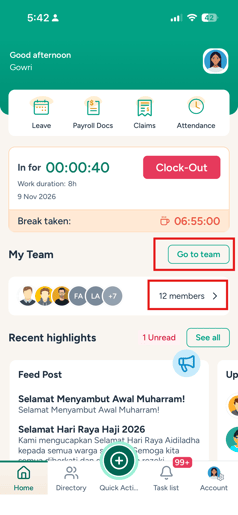
The My team section sits on the Home screen, directly under the quick feature modules.
- Open the brioHR mobile app and go to Home.
- Find the My team section. The card shows up to five of your team members’ photos, a +N indicator for the rest, and your member count (for example, "8 members").
- Tap Go to team or tap the card to open the My Team page.
NOTE:
- The My team section appears when you have at least one direct report.
- It also appears if you hold the Onboarding team page permission, so HR without direct reports can still reach the Onboarding dashboard. In this case, the card reads No team members.
- You don’t need any module subscription to open My Team.
View and search your team members
The My Team page lists your direct reports under Team members (N), with each person’s photo, name and job title.
- Search: type a name in the search field to filter the list as you type. If nobody matches, you’ll see No results found.
- View a profile: tap a team member to open their profile. If you don’t have permission to view it, a message lets you know.
- Refresh: pull down on the list to reload it.
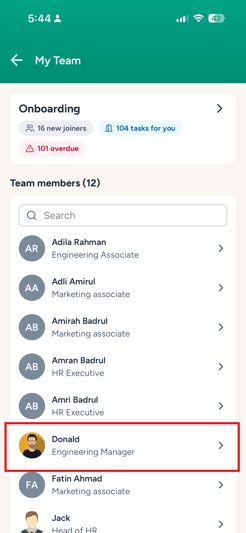
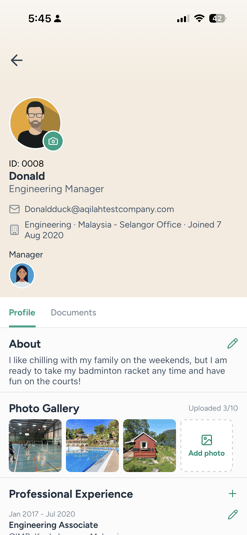
My Team shows your direct reports only (one level down, active employees), the same list shown in the team section of your profile on the web browser.
Track your new joiners’ onboarding
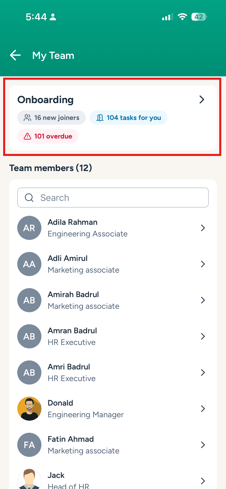
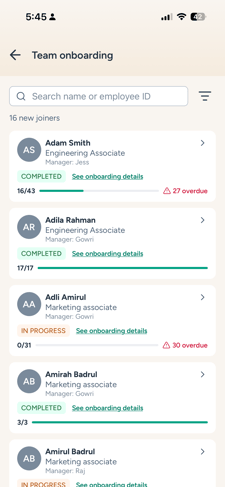
If your company uses the Onboarding module and you hold the Onboarding team page permission, an Onboarding card appears at the top of the My Team page. It shows your new joiners, the tasks waiting for you and any overdue tasks.
- On the My Team page, tap the Onboarding card.
- Browse the list of new joiners you’re a stakeholder for. Each row shows:
- The new joiner’s photo, name and job title
- Their manager, or No manager assigned
- Their onboarding status and process name
- Their progress (completed tasks out of total), with the number of overdue tasks in red
- Use the search field to find a new joiner by name or employee ID, or open the filters to narrow the list by status, office or organization unit. Tap Clear filters to see everyone again.
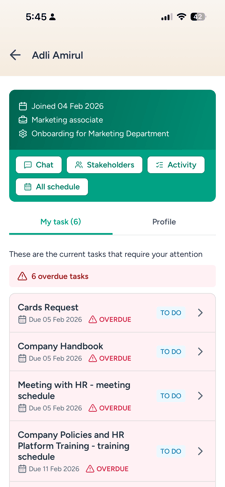
- Tap a new joiner to work with their onboarding.
What you can do for each new joiner
|
Option |
What it shows |
|---|---|
|
My task |
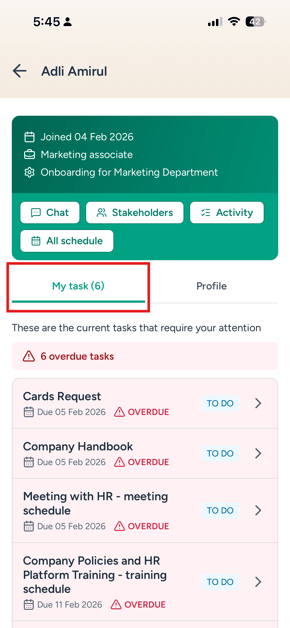
The onboarding tasks assigned to you for this new joiner. Tap a task to open and complete it. |
|
Profile |
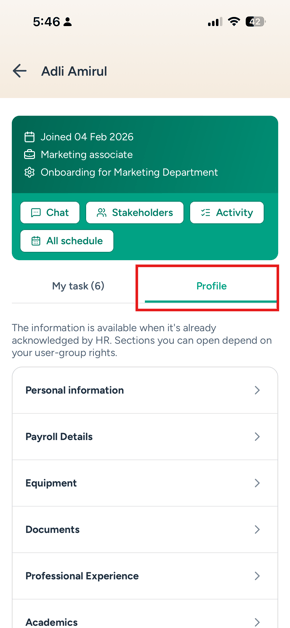
The new joiner’s profile sections that you have permission to view. |
|
Chat |
The onboarding chat with the new joiner, where you can read and send messages. |
|
Stakeholders |
Everyone assigned to the onboarding, grouped by role. |
|
Activity |
A timeline of the onboarding activity, such as completed tasks. |
|
Schedule & Feedback |
The orientation meetings and trainings scheduled for the new joiner, and any feedback submitted. |
The new joiner’s details page shows their name, job title, onboarding status and process, with a JOINING SOON label when their start date is coming up.
NOTE:
- Chat, Stakeholders, Activity and Schedule & Feedback are disabled while the onboarding is still pending or being set up.
- The new joiner’s details are available once the onboarding is active or completed.
- The My task tab only lists your own tasks. The full onboarding task list is only available to HR on the web browser.
Which new joiners you’ll see
|
Your role in the onboarding |
When the new joiner appears in your list |
|---|---|
|
HR |
Always (all onboarding journeys) |
|
Manager, and the new joiner’s reporting line |
Throughout the onboarding |
|
Director, Head of Department, Buddy, Mentor or a custom role |
Only while you have an active task for that new joiner |
LIMITATIONS:
- HR actions such as initiating onboarding, changing stakeholders, or ending or resetting onboarding are only available on the web browser.
- You can’t create or edit orientation schedules from Schedule & Feedback. Schedules are set through your onboarding tasks.
- You can’t edit the new joiner’s data from their profile.
- There are no push notifications for new chat messages.
Common Issues/FAQs
Q: Why don’t I see the My team section on Home?
A: The section only appears if you have at least one direct report or hold the Onboarding team page permission. Make sure you’re on app version 2.16.0 or later.
Q: Why is there no Onboarding card on my My Team page?
A: The card only shows when your company uses the Onboarding module and your user group has the Onboarding team page permission. You can still complete your onboarding tasks from the Task list.
Q: A new joiner disappeared from my Onboarding list. Why?
A: If you’re a Director, Head of Department, Buddy, Mentor or custom role, a new joiner only appears while you have an active task for them. They’ll reappear when your next task becomes available.
Q: Why is the new joiner’s Profile tab empty?
A: Each profile section needs its own view permission. If your user group doesn’t include those permissions, the Profile tab stays empty. This is the same as on the web browser.
Q: Can I complete onboarding tasks from here?
A: Yes. Open the new joiner and go to My task, or find the task in your Task list. See Complete Onboarding Tasks on the brioHR Mobile App (Stakeholders).
Related articles
- Complete Onboarding Tasks on the brioHR Mobile App (Stakeholders)
- Complete HR Onboarding Tasks on the brioHR Mobile App
- How Managers Can Complete Onboarding Tasks in BrioHR
- How to View Stakeholders, Activity, Schedule, and Chat in BrioHR
- brioHR Web Browser vs Mobile App: Feature Comparison Guide
Ownership
By: Aqilah