![brioHR-logo-color.svg]](https://support.briohr.com/hubfs/brioHR-logo-color.svg)
Audience & Scope
Audience: HR and admin teams setting up brioHR for the first time
Module: Leave
Country: Malaysia, Singapore
Pre-requisites: Implementation kick-off meeting with your Implementation Manager (IM) completed; Leave Application Record Template from your IM
This article is part of the Leave data migration series. It follows the Leave Data Migration Guide (PDF).
The hands-on part starts here. Fill in the five tabs of the Leave Application Record Template in order, and send it to your IM.
💡 How to read the field tables
Each row in the field tables is a column or question on the template. The Answer column shows the type of answer, or the allowed choices where the template gives a choice list. If a field doesn't apply, leave it blank.
🔗 Related article
How to Use the Data Templates for Your BrioHR Implementation
Where your data goes
Your data goes into brioHR in three groups: approvers, leave types and entitlement rules, and opening balances. Use these maps as a reference while you fill in the template.
Map 1: Approval workflow and unpaid leave formula
| Approval workflow and unpaid leave | |
|---|---|
| What to provide |
|
| Template and tab | Leave Application Record Template (MY or SG), tab General & Approval Workflow. |
| Where it goes | Leave module settings > Approval Workflow. The unpaid leave formula also appears in Payroll settings. |
| What it powers | Who approval requests route to, and how much is deducted for unpaid leave. |
| Example | First approver: Manager (default). Second approver: None. |
🔗 Good to know
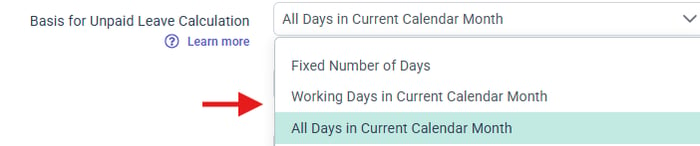
The system default for unpaid leave is Basic Salary ÷ all days in the current calendar month × unpaid days. You can specify a different formula on the template. Confirm with your IM which formula is active, because it can be defined in both Leave and Payroll. The other options are:
Map 2: Leave types and entitlement rules
| Leave types and entitlement rules | |
|---|---|
| What to provide | One row per leave type with entitlement days, credit or earned basis, seniority scale, eligibility, proration and rounding, carry forward, and booking rules. |
| Template and tab | Leave Application Record Template (MY or SG), tab Leave Policy. |
| Where it goes | Leave > Leave Policies, one policy configuration per leave type. |
| What it powers | What employees see in their leave list, how much they can apply for, and how balances are calculated from day one. |
| Example | Annual Leave: fixed yearly entitlement, available to all employees, carry forward allowed up to a maximum number of days, with an expiry date for carried days. |
💡 Tip: don't forget your Credit leave (Malaysia) or Off in Lieu (Singapore)
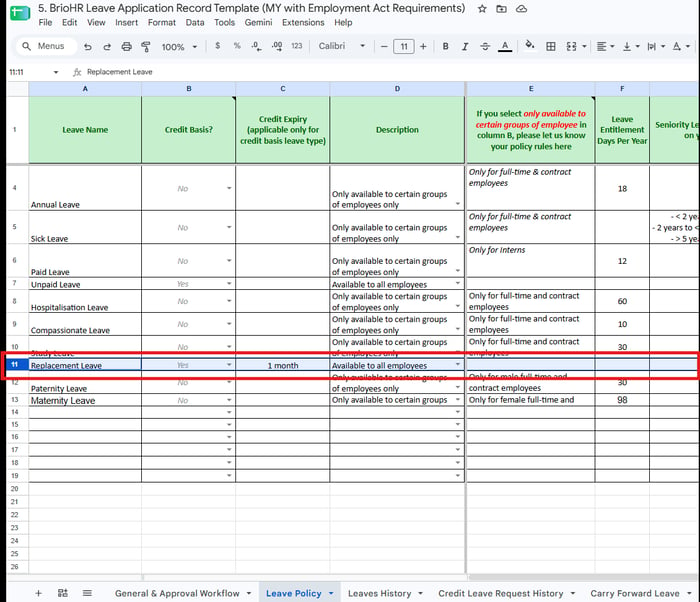
Credit-based leave types are not set up automatically. If they are missing from your template, employees will have nowhere to submit them after go-live, and adding them later means recreating the leave type and re-migrating its history.
To include one, add a row on the Leave Policy tab (use the sample rows as a guide), set Credit Basis? to Yes, and fill in Credit Expiry if credits expire. Fill in the rest of the relevant columns.
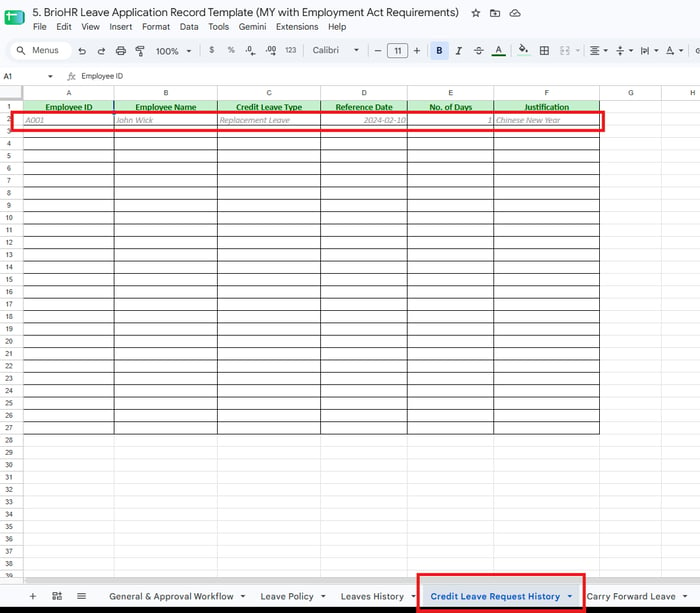
If employees already have credits, list them on the Credit Leave Request History tab: one row per credit, with the employee's email, the Credit Leave Type (typed exactly as on the Leave Policy tab), the Reference Date it was earned, the No. of Days, and a short Justification.
Credit-based leave cannot be changed to a fixed yearly entitlement after it is created, so confirm the type with your IM before you submit.
Map 3: Opening balances
| Opening balances | |
|---|---|
| What to provide |
|
| Template and tab | Leave Application Record Template (MY or SG), tabs Leaves History, Credit Leave Request History and Carry Forward Leave. |
| Where it goes | Employee leave balances, loaded once the policies exist. |
| What it powers | The balance an employee sees the moment they log in. |
⚠ Important
Opening balances are the most common source of "my balance is wrong" questions at go-live. The Carry Forward Leave tab asks for the days carried into the new year as at 1 January, not the balance on the day you collect the data.
← Previous: What to Prepare Before Filling In Your Leave Template
Next: How to Fill In the General & Approval Workflow and Leave Policy Tabs →
Back to Leave Data Migration and Verification: Start Here
Ownership
By: Aqilah