![brioHR-logo-color.svg]](https://support.briohr.com/hubfs/brioHR-logo-color.svg)
Audience & Scope
Audience: HR and admin teams setting up brioHR for the first time
Module: Profile & Dashboards
Country: Malaysia, Singapore
Pre-requisites: Implementation kick-off meeting with your Implementation Manager (IM) completed; the Company Data Template and Employee List Template from your IM
This article is part of the Profile & Dashboards data migration series. It follows the Profile & Dashboards Data Migration Guide (PDF).
Map 4: User groups and module access
| User groups and module access | |
|---|---|
| What to provide |
|
| Where it goes | Settings > User Groups, then assigned to each employee. |
| What it powers | What each person can see and do across modules, reports and documents. |
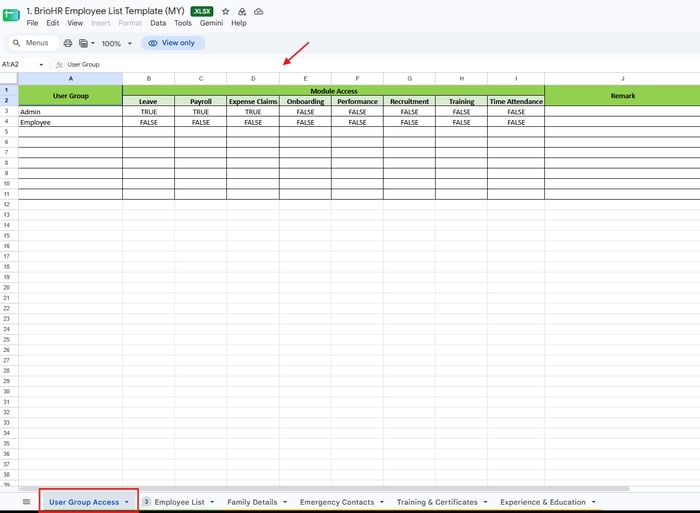
| Example | In the sample template, only the Admin group has access to Leave, Payroll and Expense Claims. |
The User Group Access tab covers eight modules: Leave, Payroll, Expense Claims, Onboarding, Performance, Recruitment, Training and Time Attendance. Timesheets, Document Management and profile permissions are not on the template, so your IM will confirm those with you. Sample of the User Group Access tab in the Employee List Template (MY & SG)
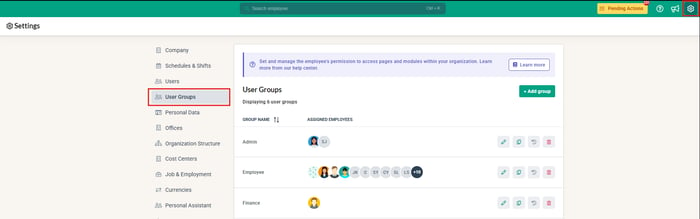
Where it appears in brioHR: Settings > User Groups
Map 5: Optional profile detail tabs
| Optional profile details | |
|---|---|
| What to provide |
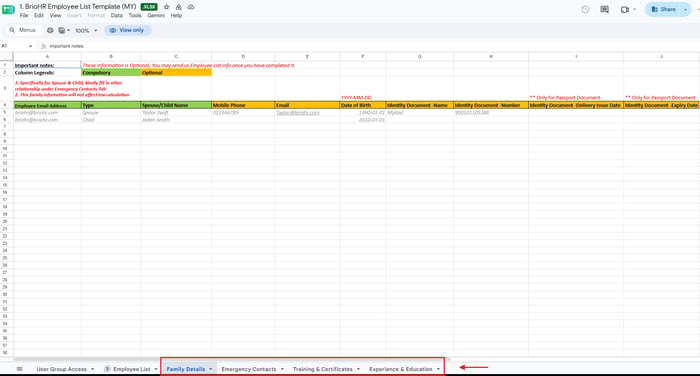
These are optional, but best sent together with the Employee List. |
| Where it goes | The matching sections on each employee profile, matched to the employee by email address. |
| What it powers | Profile completeness and HR records. |
Sample of the optional tabs in the Employee List Template (MY & SG)
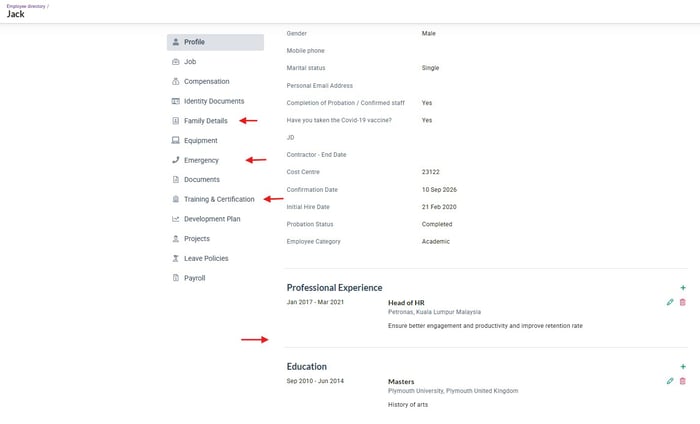
Where it appears in brioHR: Employee Profile > Profile tab, in the Family Details, Emergency and Training & Certification sections
Map 6: Payroll centres (a pointer)
| Payroll centres | |
|---|---|
| What to provide | How many payroll centres you have, which employees belong to each, and who is responsible. |
| Where it goes | Settings > Payroll Centers, after which the Payroll Manager is assigned. |
| How the templates handle it |
|
Full details for payroll centres are in the Payroll Malaysia and Payroll Singapore guides.
← Previous: Where Your Profile & Dashboards Data Goes in brioHR: Offices, Employees and Reporting Lines
Next: How to Fill In the Office Setting and Employee List Templates →
Back to Profile & Dashboards Data Migration and Verification: Start Here
Ownership
By: Aqilah